The Settings tab holds every podcast setting, in one long page of cards. The AI tab holds your AI keys, and Diagnostics tells you how everything is running. This article walks through all three, top to bottom.
Where to find it:
Podcasts, Settings (or the Settings tab on the plugin's screen). The Plugins screen also has a Settings link under ResultsAiX Podcasts.
The Settings tab, top to bottom:
- Your licence card: the key, its status, who it is licensed to, the sites it is used on, Refresh License Info and Deactivate This Site.
- Help & your account: Your account portal, Need a hand?, Troubleshooting (Open Diagnostics) and Training & docs (Open Training).
- Appearance: the Color scheme of the plugin's own screens. Follow the ResultsAiX Hub, or WordPress Native, Clean White, Ivory Cream, Snow Light, Developer Dark, Midnight Blue, Ocean Blue, Sunset Warm or Rose Pink. It previews as you choose; press Save appearance to keep it.
- Podcasts: the four steps, with Add a show, Add an episode, the shortcodes and Make the My Podcasts page (or Open My Podcasts).
- Your shows: each show, who can listen, its episodes and Copy feed address.
- The player: every podcast setting, saved with Save podcast settings.
- Transcripts, show notes and blog posts with AI: how the three AI buttons work, with your keys listed.
- Members-only shows and private feeds: how private shows stay private on your site.
- Listening, last 30 days: plays, half way, finished and app downloads per episode.
The player card, setting by setting:
- Look: Card, Slim bar, Listen button or Playlist. Card is the default.
- Colour: Use my own colour, with the colour box. Off uses your site colour.
- Player colours: Follow my theme, Light or Dark.
- Embed player for other websites: on by default.
- Player at the top of every episode page: on by default.
- Transcript under the player: on by default.
- Download button on public episodes: on by default.
- Count plays: on by default.
- Join link: where Join goes on a members-only episode.
Listeners with no login and podcast apps:
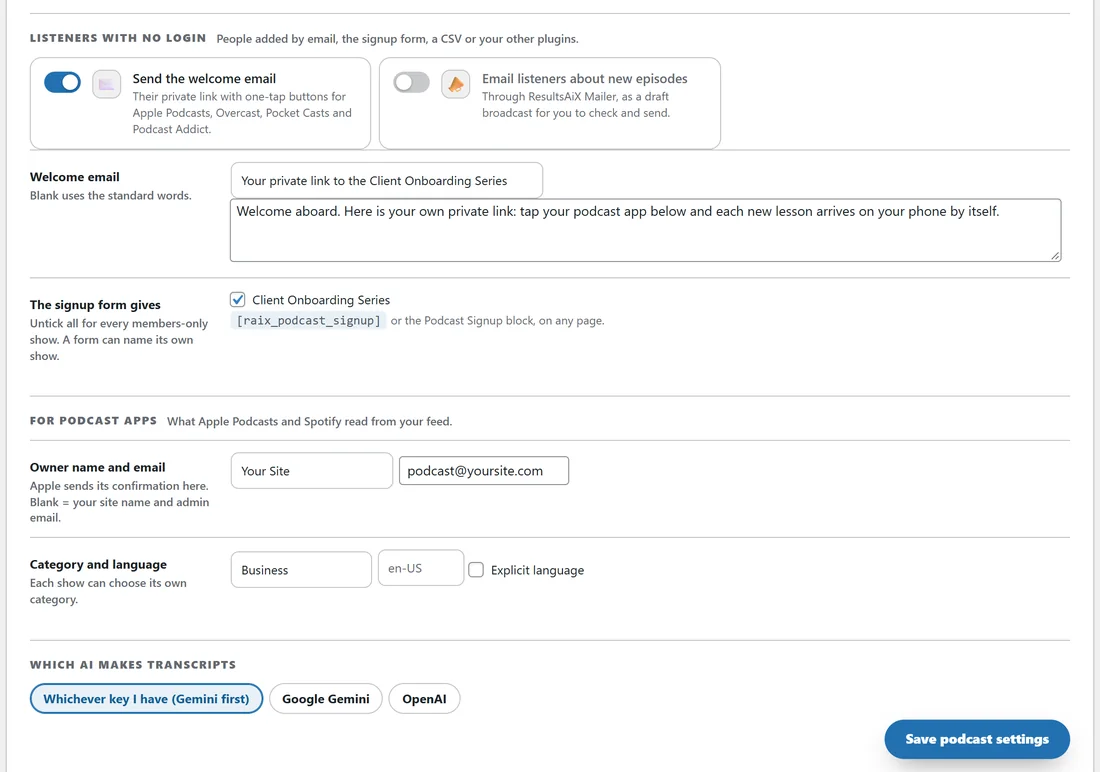
- Send the welcome email: on by default.
- Email listeners about new episodes: off by default; needs ResultsAiX Mailer.
- Welcome email: your own subject and opening lines. Blank uses the standard words.
- The signup form gives: the members-only shows a signup form adds people to when the form names none. Untick all for every members-only show.
- Owner name and email: what Apple Podcasts and Spotify read from your feed. Blank uses your site name and admin email.
- Category and language: the default category (Business to start with), the language code (blank uses your site language) and Explicit language.
- Which AI makes transcripts: Whichever key I have (Gemini first), Google Gemini or OpenAI.
The AI tab:
Your AI keys for transcripts and writing, with Test connection for each, the primary and fallback provider, the monthly soft budget and your AI usage. Under the ResultsAiX Theme, its AI Connect keys are used first. See AI Transcripts, Show Notes, Chapters And Blog Posts.
The Training and Resources tabs:
Training walks through every part of Podcasts a step at a time, with a link to these docs. Resources shows the other ResultsAiX plugins and themes.
Diagnostics:
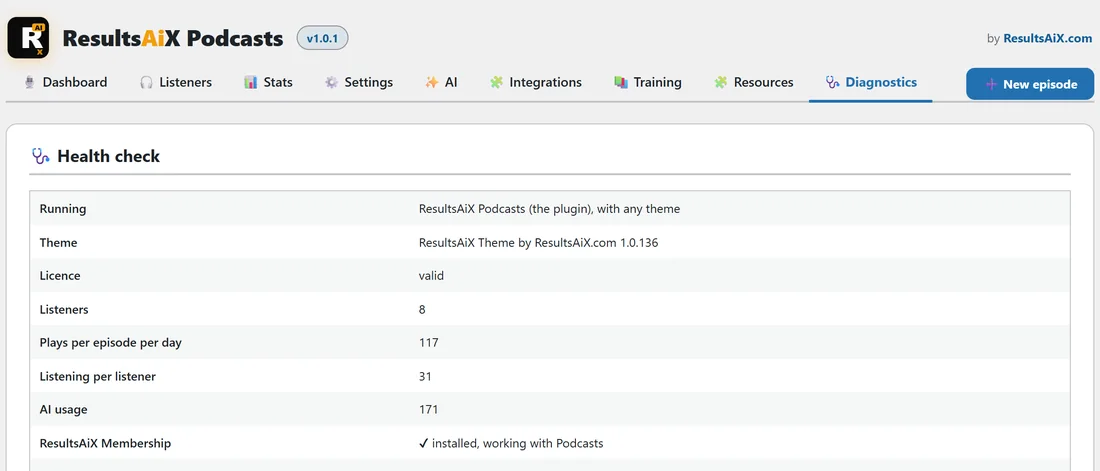
The Health check shows these rows.
- Running: ResultsAiX Podcasts (the plugin), with any theme.
- Theme: your theme and its version.
- Licence: its status.
- Each of its tables, Listeners, Plays per episode per day, Listening per listener and AI usage, with how many rows. A table marked Missing is made the next time you open any Podcasts screen.
- Each ResultsAiX plugin it works with, as installed, working with Podcasts, or not installed.
Copy report for support copies the lot in one go, with the versions, the upload limit, the AI in use and each show's feed, ready to paste into a support ticket.
The error log:
Below the health check, the Error log shows the last 24 hours of errors, warnings, slow requests and jobs that never finished, kept for 7 days. Keys and private links are blanked out. Filter it with Problems, Never finished or Everything, download it with Download .txt, or empty it with Clear. When nothing is wrong it says Nothing here. All quiet.
A real example:
Before launching on yoursite.com you set the owner email to podcast@yoursite.com, the Join link to https://yoursite.com/join/, your own welcome email words, and The signup form gives to the Client Onboarding Series. You press Save podcast settings once and everything is in place.
Tips:
- Save podcast settings saves the whole player card, including the listener and feed settings below it.
- Asking for help? Press Copy report for support on Diagnostics first and paste it into your ticket.