Everyone who tracks time, or looks at it, needs their own account. Owners and admins add people on the Team page.
Where to find it:
Team in the menu, then + Add staff at the top right. Managers see the Team list too, but only owners and admins can add or change people.
Add a person:
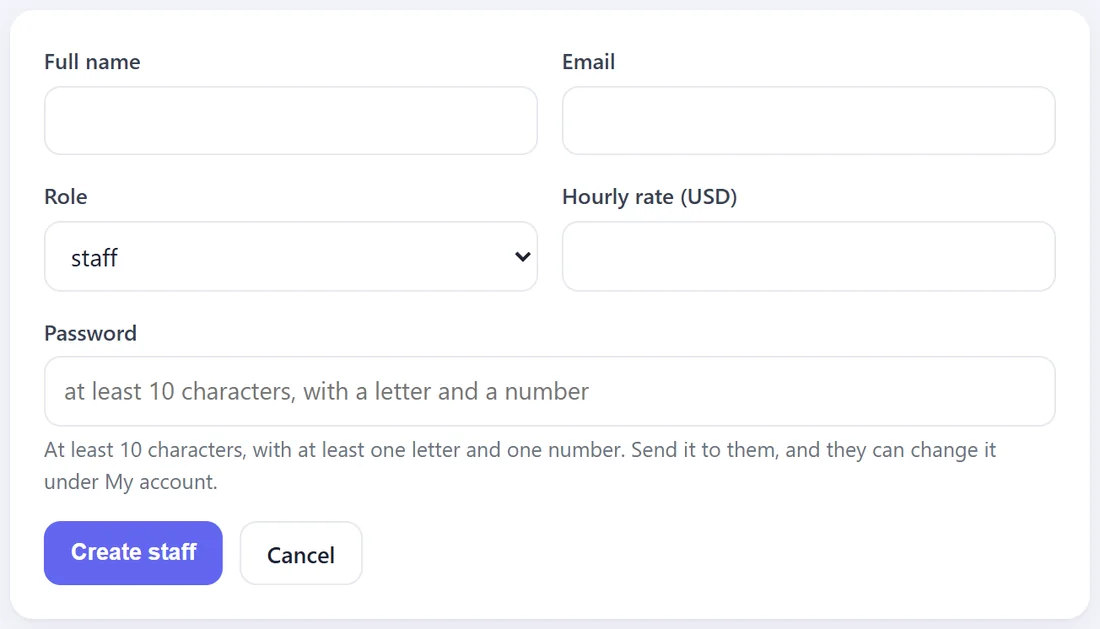
- Full name.
- Email. They sign in with this.
- Role. Choose staff for people who track time. See The Four Roles below.
- Hourly rate. Their pay per hour, in your company currency. Wages are worked out from this.
- Password. A starting password: at least 10 characters, with at least one letter and one number. They can change it under My account.
- Press Create staff.
If a detail needs changing:
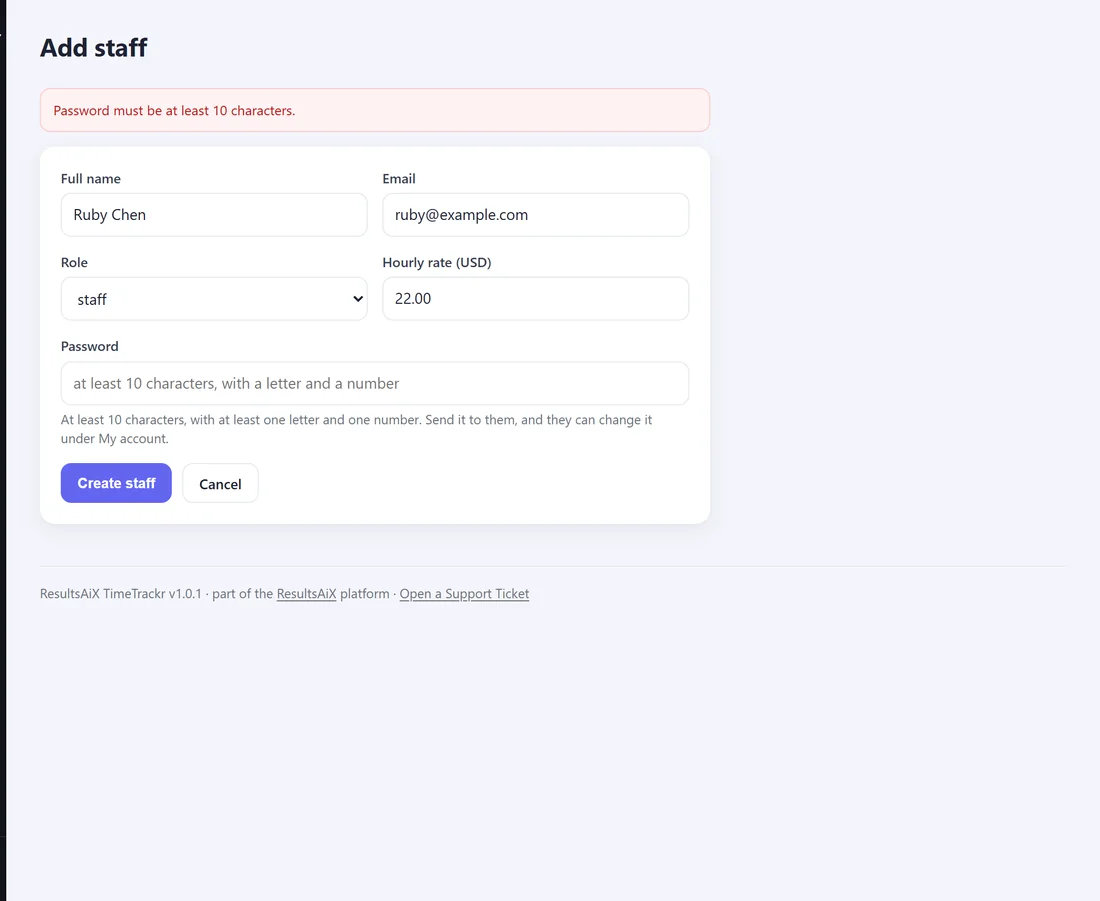
TimeTrackr says what, keeps everything you typed and asks you to try again. For example, an email that already has an account, or a password that is too short.
The four roles:
- staff. Their own timer, timesheet, screenshots and account.
- manager. Everyone's hours, screenshots and wages, plus Projects and Timesheets. Managers see the Team list but do not add or edit people, and do not see Settings.
- admin. Everything a manager does, plus Team, Settings, the Audit log and Diagnostics.
- owner. The same as admin. The owner who ran the setup wizard is the first owner. TimeTrackr always keeps at least one owner.
The Team list:
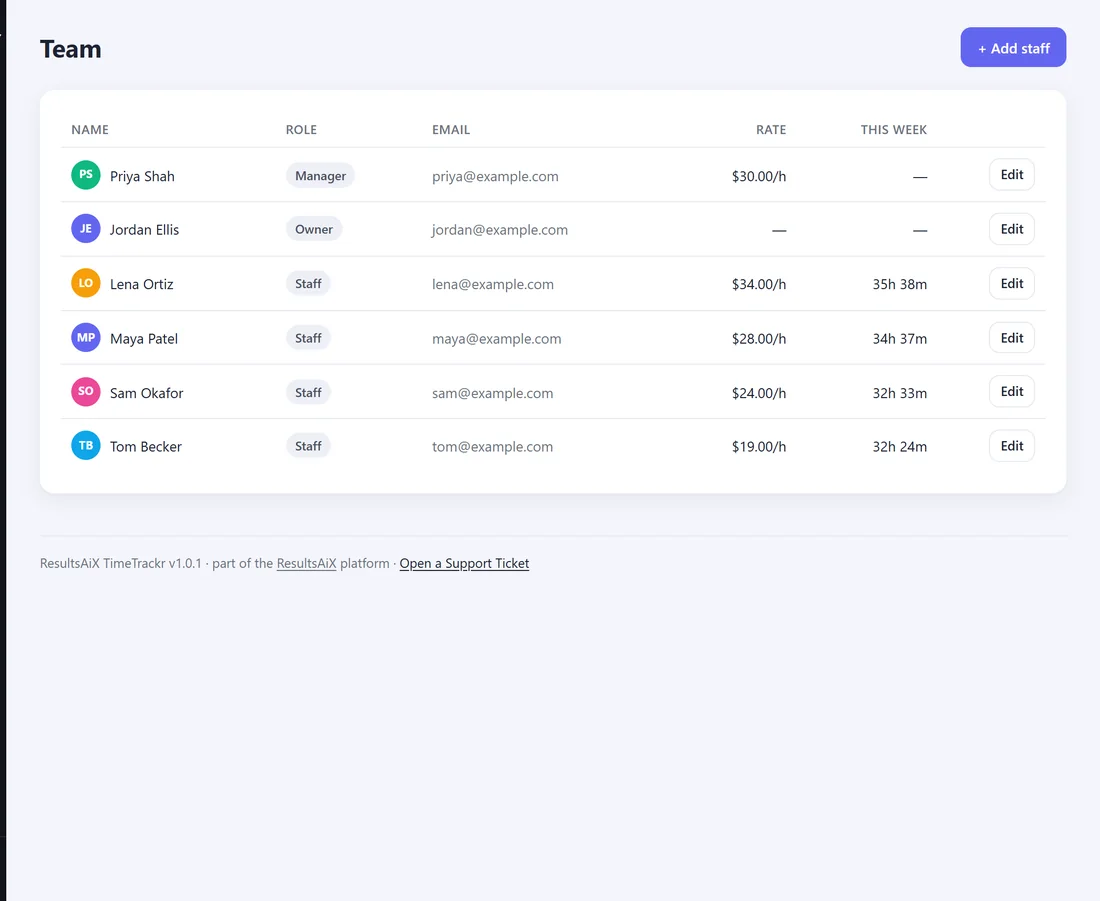
Everyone, with their role, email, hourly rate and the time they tracked in the last seven days. Disabled accounts are shown faded.
Next step:
Send each new person their sign-in details. See A Ready-Made Welcome Message For Your Team.