Diagnostics shows at a glance whether everything is working. Owners and admins can open it.
Where to find it:
Diagnostics in the menu.
The Health panel:
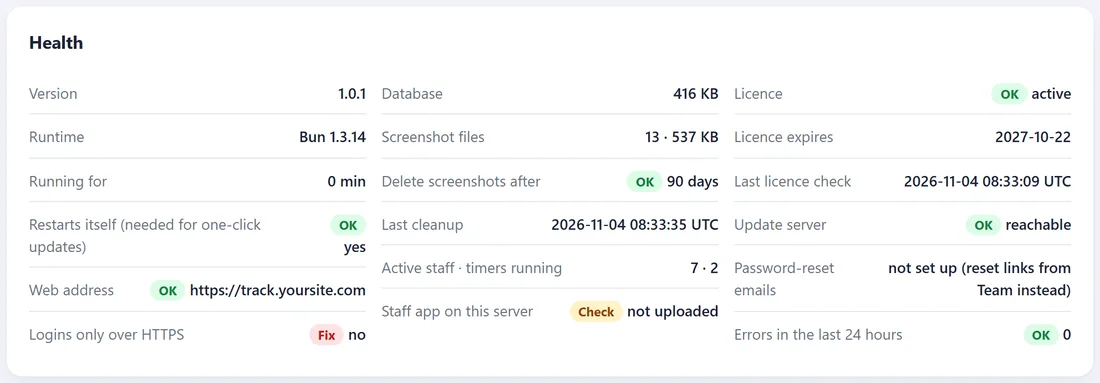
Each row shows OK, Check or Fix with the details.
- Version and Runtime. Which TimeTrackr version is running.
- Running for. How long since TimeTrackr last started.
- Restarts itself. Yes when the installer set it up, which one-click updates need.
- Web address. The address TimeTrackr uses in links, such as reset links.
- Logins only over HTTPS. Yes when the installer set up HTTPS.
- Database and Screenshot files. How much space they use.
- Delete screenshots after, Last cleanup. Your retention setting and when it last ran.
- Active staff and timers running.
- Staff app on this server. Whether the Windows staff app has been uploaded in Settings.
- Licence, Licence expires, Last licence check.
- Update server. Whether TimeTrackr can reach the update feed.
- Password-reset emails. Not set up means reset links come from the Team page.
- Errors in the last 24 hours.
The error log:
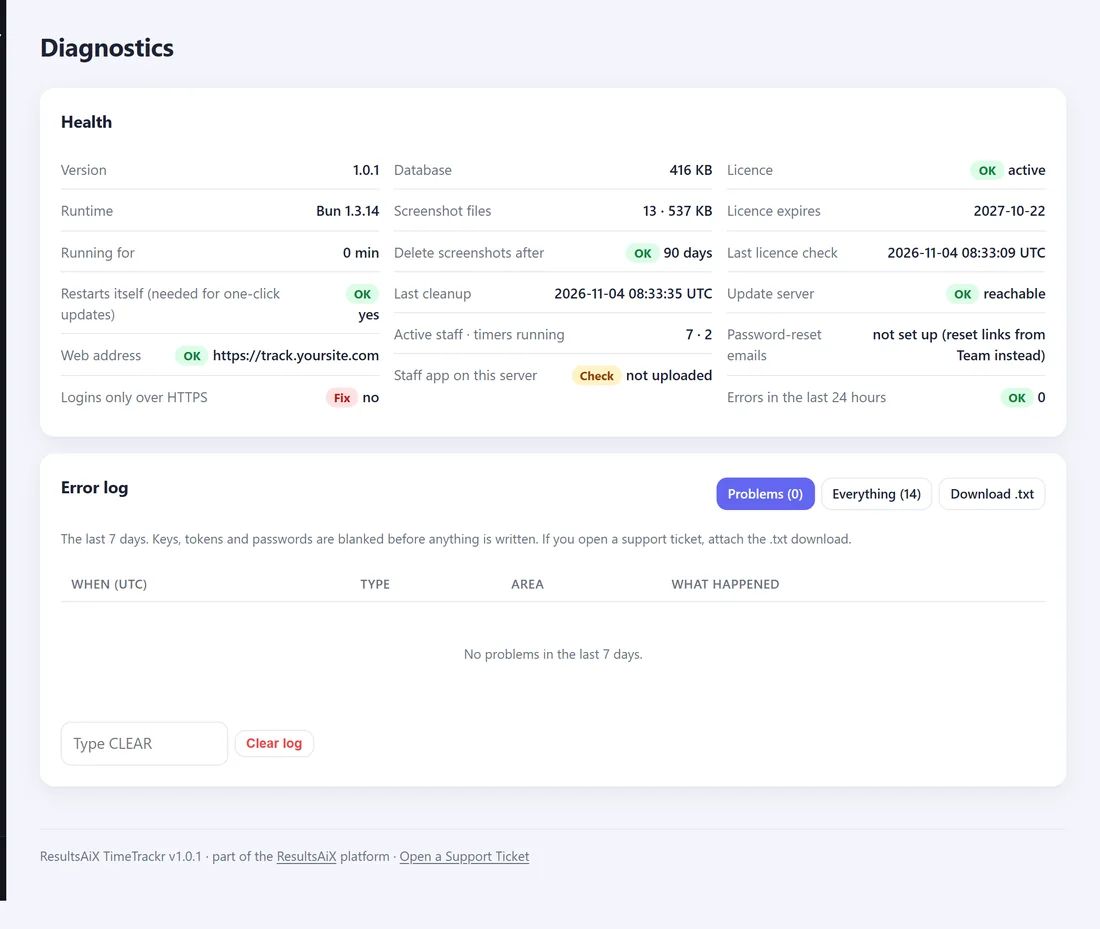
TimeTrackr writes down anything that went wrong, and slow requests, for the last 7 days. Keys, tokens and passwords are blanked out before anything is written.
- Problems shows only what needs a look.
- Everything shows every line, including normal events like starting up.
- Download .txt saves the log as a file.
- Clear log empties it. Type CLEAR first.
If you open a support ticket:
Press Download .txt and attach the file. It tells us exactly what happened.