Your staff can ask what you hold about them, and ask for it to be removed when they leave. TimeTrackr makes both one click. Both are on the person's Edit page, for owners and admins.
Where to find it:
Team, Edit on the person's row, the Personal data section.
Download everything held on them:
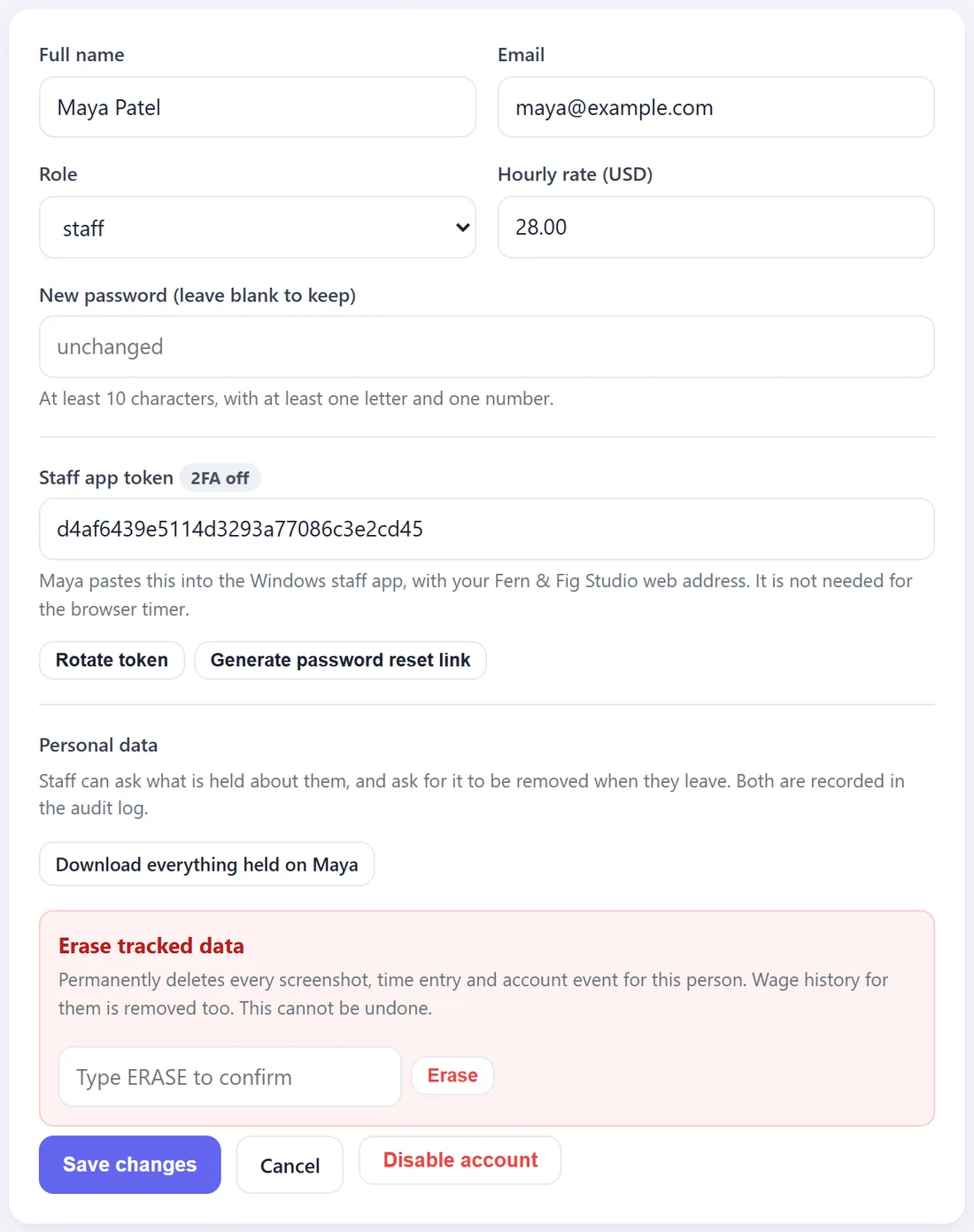
Press Download everything held on, followed by their first name. You get a spreadsheet with:
- Their account details.
- Every time entry: start, end, hours, activity, project, task and note.
- Every screenshot record: when it was taken, its activity and its file name.
- Their sign-in history.
Hand it straight to them. Staff can also see their own hours and screenshots any time by signing in.
Erase tracked data:
- Download their data first if you still need their hours for payroll.
- In the red Erase tracked data box, type ERASE.
- Press Erase and confirm.
Every screenshot, time entry and account event for that person is deleted, including their wage history. This is permanent.
Both actions are recorded in the Audit log with who did them and when.