New versions of TimeTrackr install from Settings. Owners and admins can do it, and your data and screenshots are never touched.
Where to find it:
Settings, the Software update panel. It shows the version you have.
Check for updates:
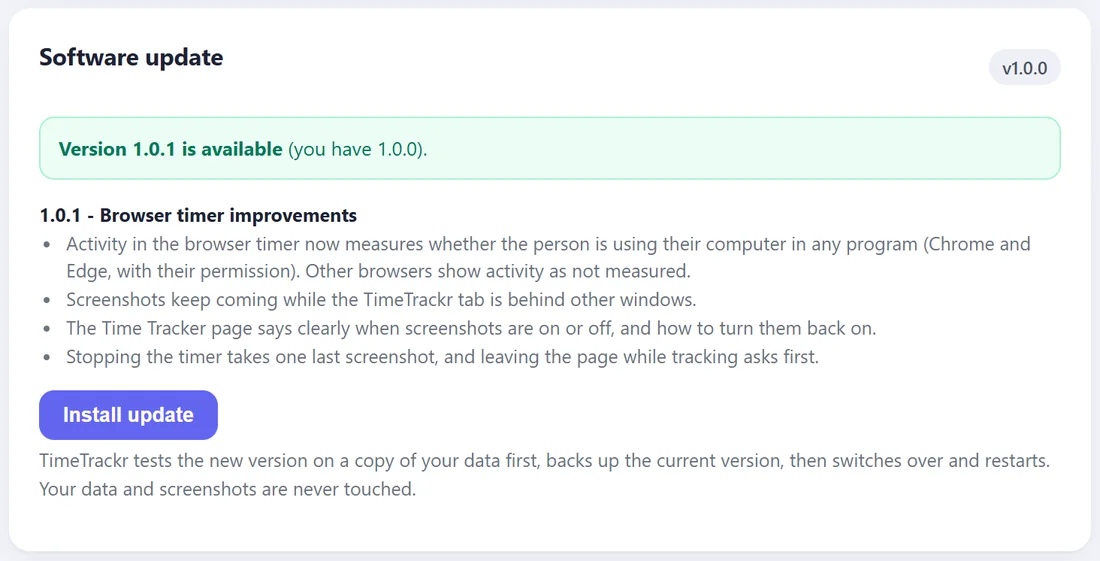
Press Check for updates.
- If you are up to date, it says so.
- If there is a new version, it says Version X is available and lists what is new.
Install update:
Press Install update. It takes about a minute:
- TimeTrackr downloads the new version using your licence.
- It tests the new version on a copy of your data. If the test does not pass, nothing changes.
- It backs up the version you have now.
- It switches over and restarts itself.
The page waits and comes back on its own when the new version is running. Your team's timers carry on.
Undo the last update:
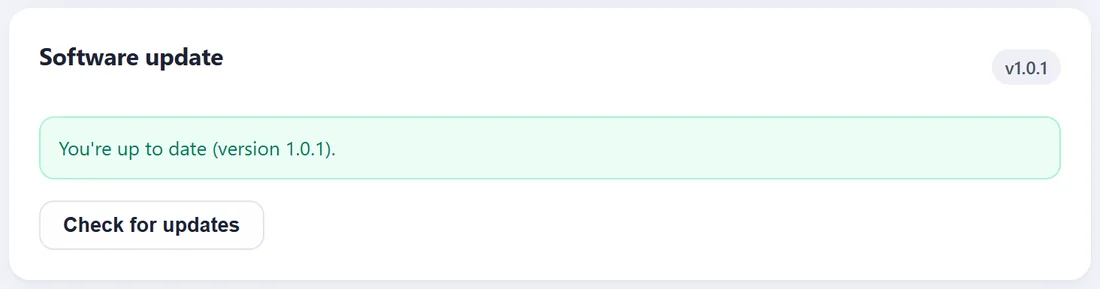
After an update, the panel shows Undo the last update (back to the previous version). Press it and confirm, and the previous version comes back. Your data stays exactly as it is.
What it needs:
- An active licence. See Adding And Managing Your Licence Key.
- TimeTrackr started by the server installer or by the START-WINDOWS.bat or START-MAC-LINUX.command file, which restart it into the new version. If it was started another way, the panel says so: restart TimeTrackr yourself after the update.