The Diagnostics tab tells you at a glance whether everything is running, and gives you a report to send to support. This guide covers each part, then walks through the questions people ask most, with the step to take for each.
Where to find it:
AiX Consent, Diagnostics tab.
Health report:
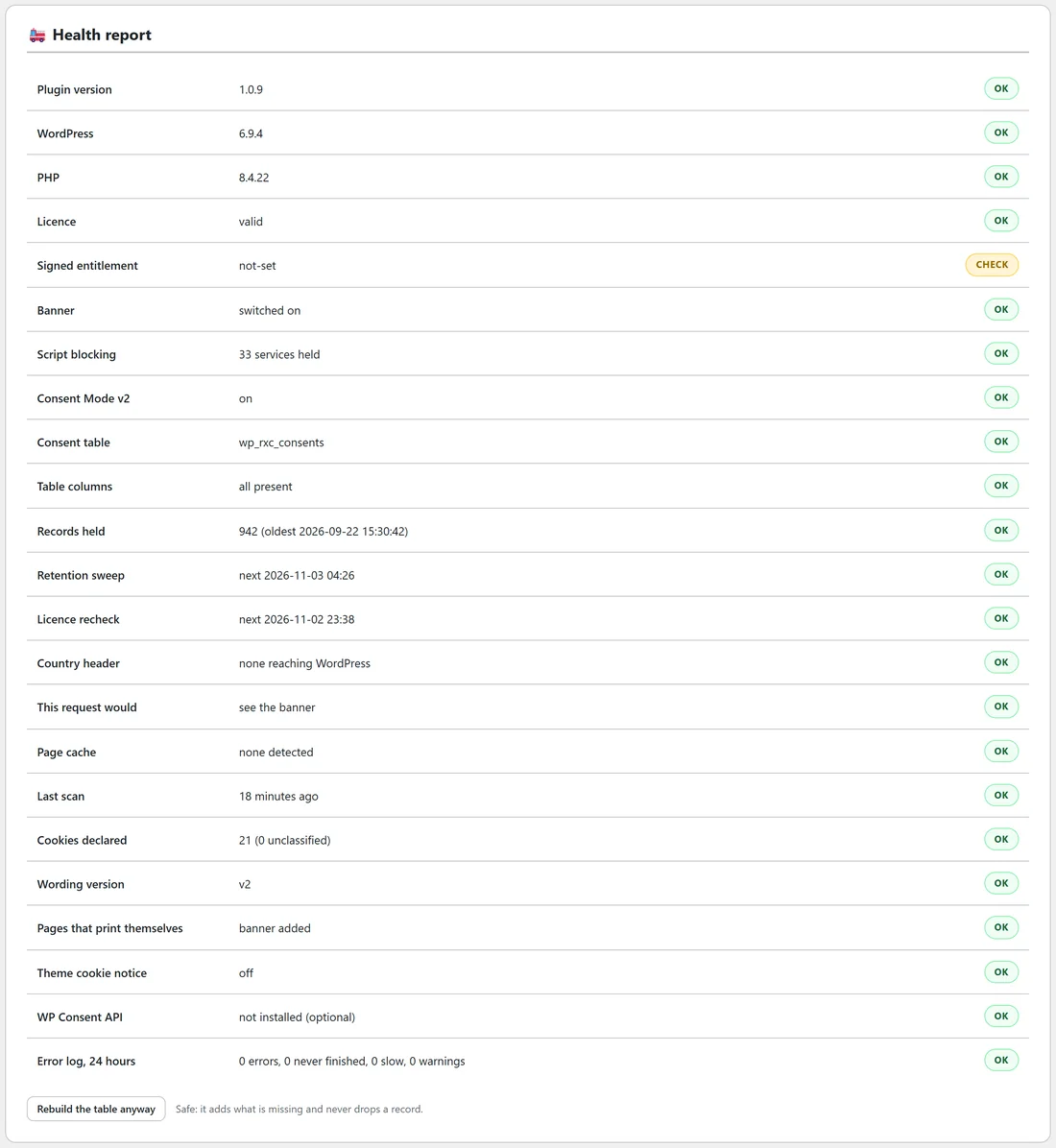
Each row has a badge, OK or CHECK. The rows are.
- Plugin version, WordPress and PHP.
- Licence and Signed entitlement.
- Banner: switched on or off.
- Script blocking, with the number of services held.
- Consent Mode v2.
- Consent table and Table columns, which check the storage behind the consent log.
- Records held, with the date of the oldest record.
- Retention sweep and Licence recheck, with when each runs next.
- Country header, and This request would, which says whether your current request would see the banner.
- Page cache. It recognises WP Rocket, W3 Total Cache, LiteSpeed Cache, WP Super Cache, Autoptimize, SiteGround Optimizer and WP Fastest Cache.
- Last scan, Cookies declared (with how many are unclassified) and Wording version.
- Pages that print themselves, Theme cookie notice and WP Consent API.
- Error log, 24 hours, with the counts of errors, unfinished jobs, slow requests and warnings.
Repair:
Under the report is a Rebuild the table anyway button. It is safe: it adds what is missing and never drops a record. If the storage for the consent log is ever missing something, a notice appears in its place with a Rebuild the table button. An empty log and one that needs repair look the same from the log screen, which is why this check exists.
What blocking can and cannot catch:
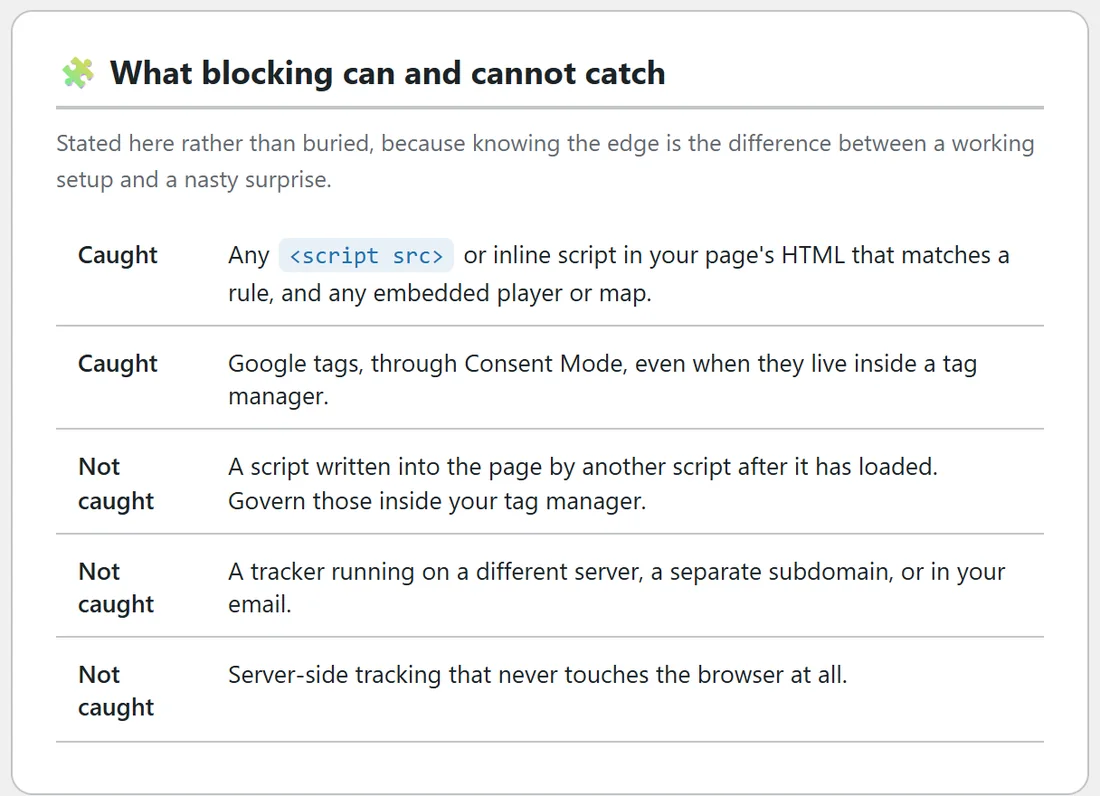
This box lists, in two columns, what is caught and what is best handled elsewhere:
- Caught: any script in your page's HTML that matches a rule, and any embedded player or map.
- Caught: Google tags, through Consent Mode, even when they live inside a tag manager.
- Handled in your tag manager: a script written into the page by another script after it has loaded.
- Outside the browser page: a tracker on a different server, a separate subdomain or in your email, and server-side tracking.
Support report:
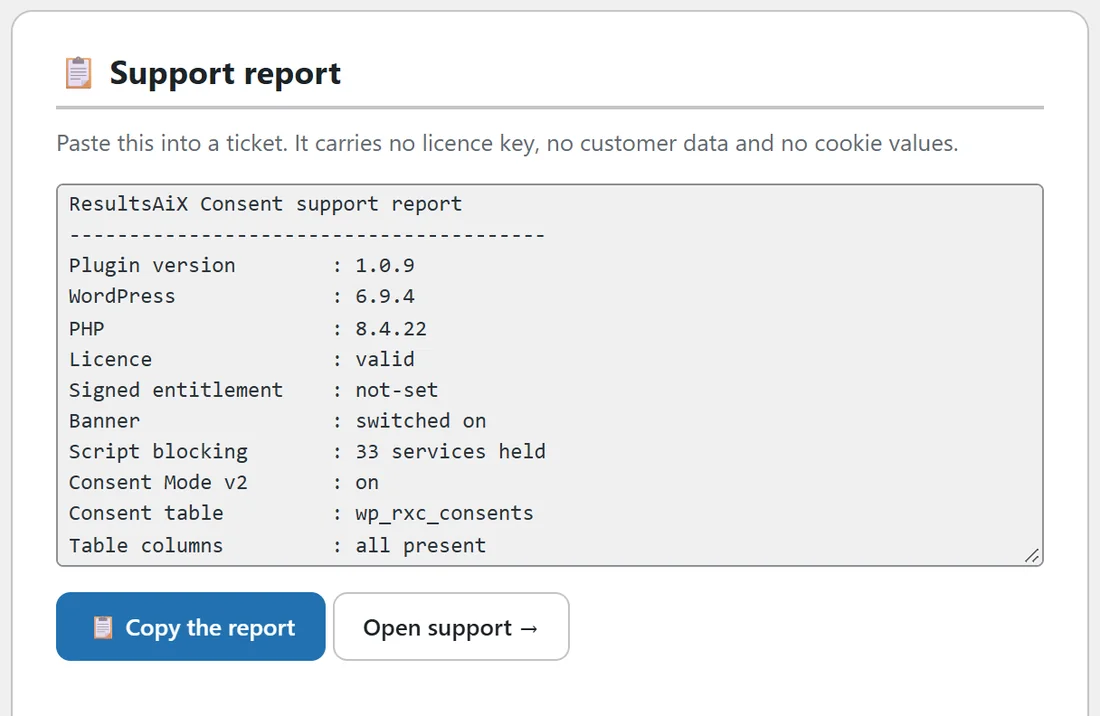
Press Copy the report and paste it into a support ticket. It carries no licence key, no customer data and no cookie values. Open support takes you to the help desk.
Support: https://resultswithkevin.com/portal/index.php
Test it yourself:
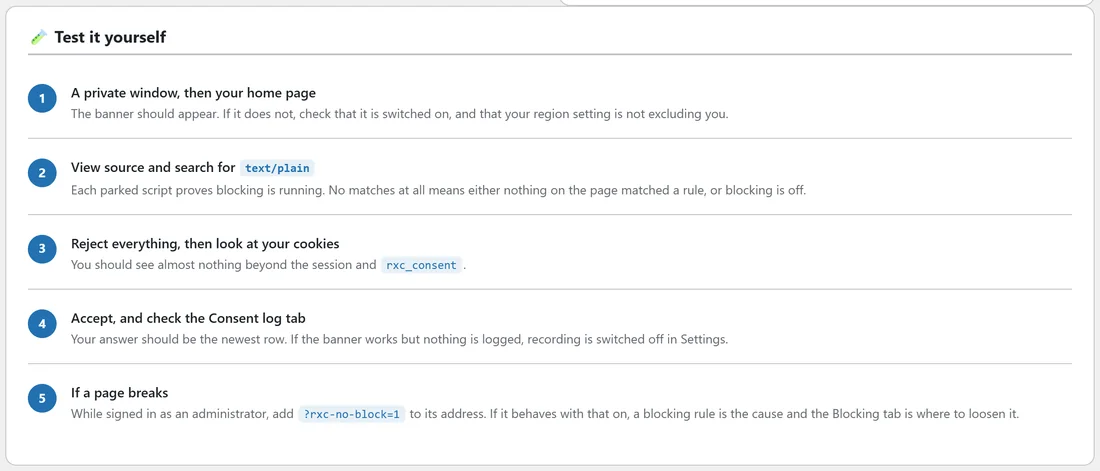
Five quick checks.
- A private window, then your home page. The banner should appear.
- View source and search for text/plain. Each parked script proves blocking is running.
- Reject everything, then look at your cookies. You should see almost nothing beyond the session and rxc_consent.
- Accept, and check the Consent log tab. Your answer should be the newest row.
- If a page breaks, add ?rxc-no-block=1 to its address while signed in as an administrator.
The error log:
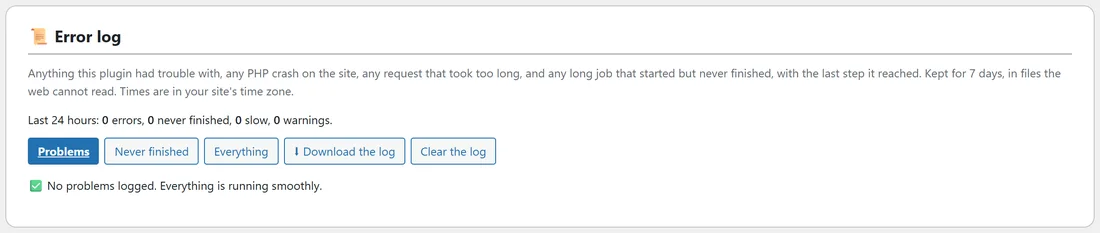
The Error log box keeps the plugin's own log for 7 days. It records anything the plugin had trouble with, such as a scan that could not read your pages, an email that could not be sent or a choice that could not be saved; any long job such as Set Me Up, a site scan, Tracker Watch or a log export that started and never finished, with the last step it reached; any PHP crash on the site, with the file and line; and any request that took longer than five seconds.
- Problems shows only what needs a look. Never finished shows the jobs that were cut off. Everything shows the lot.
- Download the log gives you a text file to attach to a support ticket.
- Clear the log asks you to confirm on the page, then starts it fresh.
- When all is well it says No problems logged. Everything is running smoothly.
The log is kept in files in your uploads folder that the web cannot read, and nothing about your visitors is written to it.
If the banner does not appear:
- Check the Dashboard's first line, or the Banner row here, to see that it is switched on.
- Test in a private window, or press See it live on the Dashboard, because a window with a stored answer does not show the banner again.
- Check the This request would row, in case the region setting leaves you out.
- Clear your page cache if a caching plugin is serving an older page.
If something on the site stops working:
While signed in as an administrator, add ?rxc-no-block=1 to the page address. If it behaves with that on, a blocking rule is the cause. Find the service on the Blocking tab and set it to Never block, or move it to a group your visitors accept.
If a tracker runs before consent:
- If it lives inside your tag manager, it is governed there, through Consent Mode.
- If another script writes it into the page after load, move it into your tag manager.
- If the page was cached before blocking was on, clear the cache.
- If it is not on the built-in list, add a pattern under Anything else on the Blocking tab.
If the log is empty:
There are three possible reasons, and Diagnostics tells them apart: nobody has answered yet, Keep a record of every answer is off on the Settings tab, or the log storage needs the Rebuild the table button.
If you are signed in and nothing is blocked:
Check whether Do not block anything for logged-in editors and administrators is ticked on the Settings tab, under Who gets asked.
If the scan lists pages it could not read:
The usual reason is a firewall or a password-protected staging site refusing the request. Run the scan on the live site, or ask your host to allow the site to load its own pages.
Next steps:
See Built-In Services List, Your Own Blocking Rules And The Testing Switch, and Who Sees The Banner: Regions, Global Privacy Control And Do Not Track.