You can go from a fresh install to a live banner in about five minutes, and one press does most of the work. This guide walks through it with Juniper Lane Pottery at yoursite.com.
Where to find it:
AiX Consent, Dashboard tab. While the banner is off, the Set Me Up box sits at the top.
What Set Me Up does:
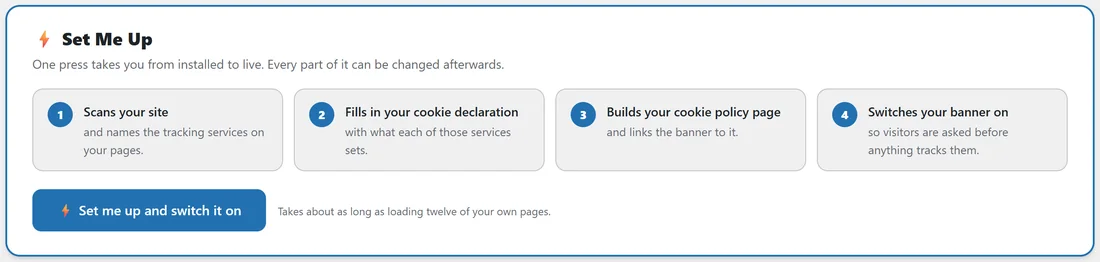
The box lists the four things that happen when you press the button.
- Scans your site, and names the tracking services on your pages.
- Fills in your cookie declaration, with what each of those services sets.
- Builds your cookie policy page, and links the banner to it.
- Switches your banner on, so visitors are asked before anything tracks them.
It takes about as long as loading twelve of your own pages. If WordPress already has a privacy policy page set, the banner's privacy link is filled in for you too.
Step 1, press the button:
Press Set me up and switch it on. Stay on the page while it works.
Step 2, read the summary:

When it finishes, the Dashboard says Done. Your banner is live. Underneath you see:
- How many pages were scanned.
- How many tracking services were found.
- How many cookies were added to your declaration.
- Whether the cookie policy page is ready and linked.
For Juniper Lane Pottery the result was 6 pages scanned, 8 tracking services found and 15 cookies added, with the cookie policy page ready and linked. If some pages could not be read, the summary says how many, and the Cookies tab lists each one with the reason.
Two buttons follow: See it on my site opens your home page with the banner showing, and Change the wording or the look opens the Banner tab.
Step 3, make the wording yours:
Press Change the wording or the look. On the Banner tab, rewrite the Heading and The explanation in your own words, then press Save the banner. Juniper Lane Pottery changed the heading to Cookies at Juniper Lane and said plainly that the optional cookies are for page counts and Facebook and Google ads. See Banner Wording, Policy Links And Ten Languages for the details.
Step 4, glance at the Blocking tab:
The Blocking tab lists every service and the group it waits for. Payments, security and reCAPTCHA are set to Never block from the start, so your checkout and your forms keep working.
Step 5, test like a stranger:
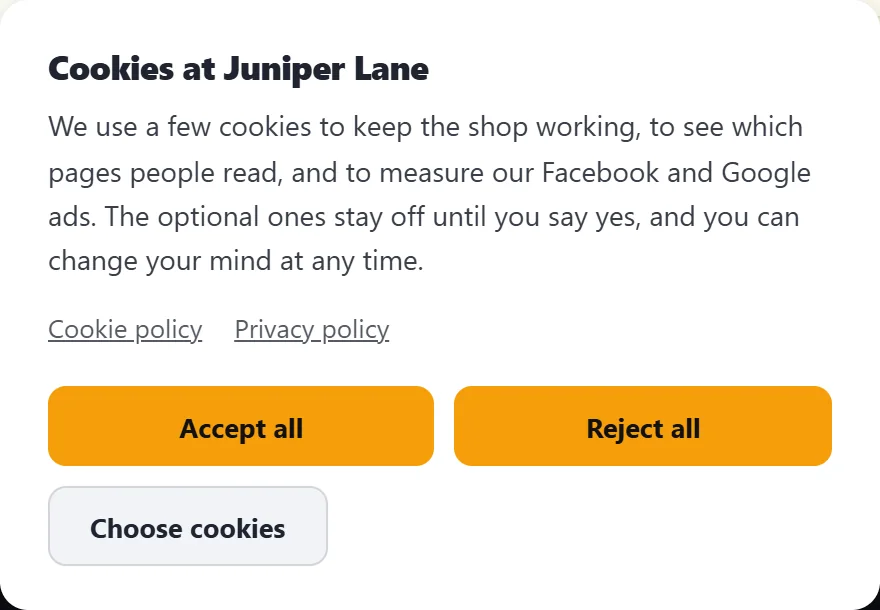
Open your site in a private window. It arrives with no stored answer, exactly like a first-time visitor, so the banner appears. Press Accept all, then open the Consent log tab: your answer is the newest row.
Step 6, check the list:
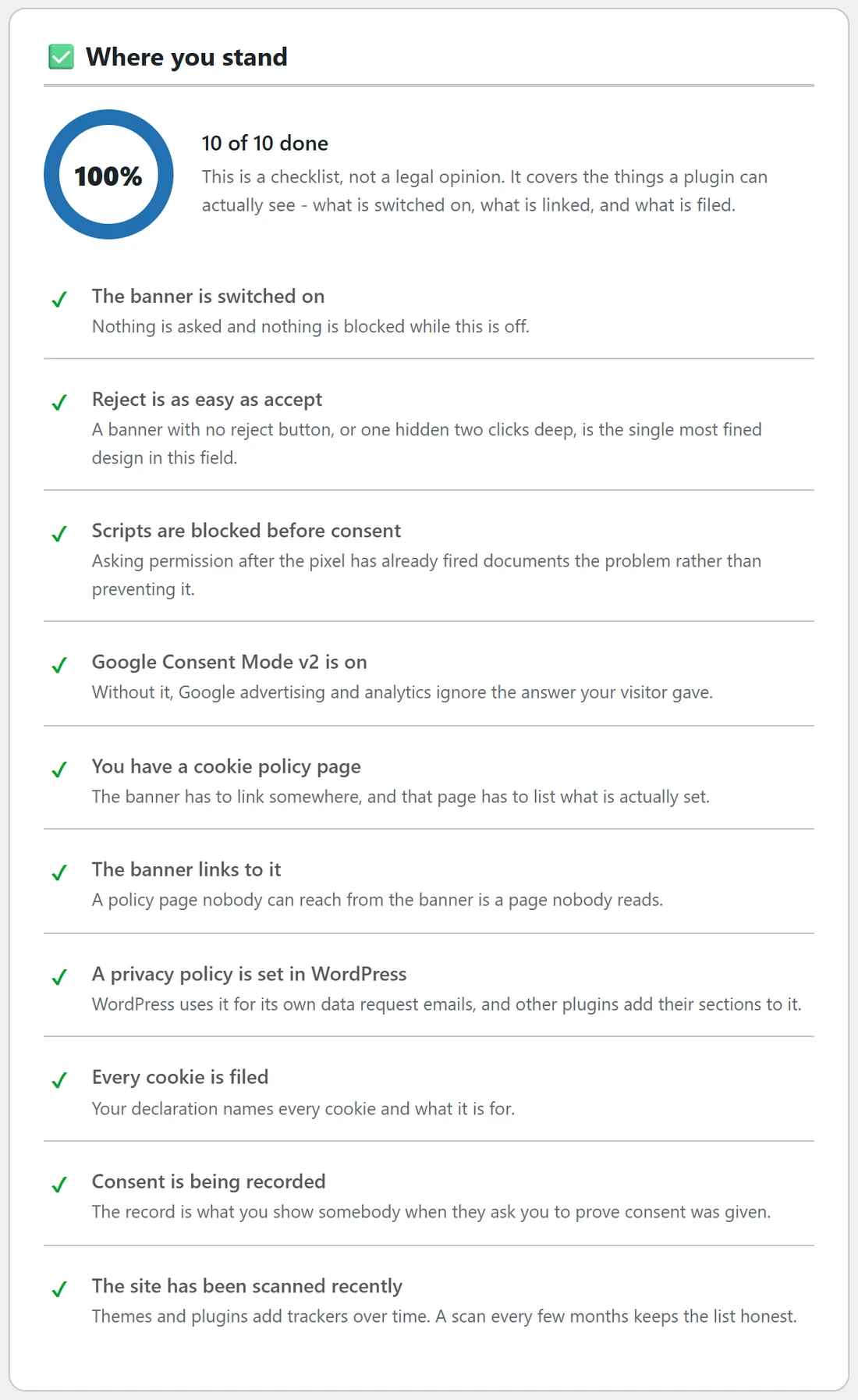
Back on the Dashboard, Where you stand shows a checklist of ten items, each with a tick or a Fix button:
- The banner is switched on.
- Reject is as easy as accept.
- Scripts are blocked before consent.
- Google Consent Mode v2 is on.
- You have a cookie policy page.
- The banner links to it.
- A privacy policy is set in WordPress.
- Every cookie is filed.
- Consent is being recorded.
- The site has been scanned recently.
Press Fix next to any item that is not ticked and it takes you to the right place. The checklist covers what the plugin can see on your site: what is switched on, what is linked and what is filed.
Handy extras:
- See it live on the Dashboard opens your site with the banner forced up, even if you have already answered. It changes nothing that is stored.
- If you use a caching plugin, clear its cache once after Set Me Up, so every visitor gets the new page.
- To switch the banner off or on later, use The switch at the top of the Banner tab.
- If the ResultsAiX Theme's own cookie notice already carries your wording, Set Me Up copies it across as long as you have not written your own on the Banner tab yet.
After Set Me Up:
Once the banner is live, the Set Me Up box makes way for the live Dashboard: the line saying how many services are held, the five tiles, the checklist and the chart. Set Me Up builds the Cookie Policy page only. If you also want the Do Not Sell or Share page and the data request page, press Create the page on each card on the Policies tab.
Running it on a staging site:
The scan reads your pages the way a stranger would. A staging site behind a password, or a firewall that stops the site loading its own pages, means some pages cannot be read, and the summary says how many. Run Scan my site now again on the live site, then add the services it finds with Add the ticked cookies to my declaration.
Next steps:
Shape the look in Designing The Cookie Banner: Layouts, Colours, Presets And Live Preview, then check the services in Built-In Services List, Your Own Blocking Rules And The Testing Switch.