The Consent log tab is headed Proof of consent. It holds every answer your visitors give, with the wording version that was on screen at the time, so you can show what each person agreed to.
Where to find it:
- The log: AiX Consent, Consent log tab.
- How long records are kept and what is stored about the address: AiX Consent, Settings tab, The record.
- A quick view: the Dashboard's The last 30 days and How people answered.
What is stored for each answer:
- The date and time, in UTC.
- The choice: Accepted all, Rejected all, Chose their own, Changed their mind, Withdrew, or Browser signal.
- Which groups were accepted.
- The wording version, shown as v1, v2 and so on.
- The region, such as EU, a US state like US-CA, or a country code like CA, when your server knows it.
- The page the visitor was on, and their browser string.
- Whether a Global Privacy Control or Do Not Track signal was present.
- The WordPress user ID, when the visitor was signed in.
- A consent ID, which the visitor can also see in their own choices panel.
- A one-way fingerprint of the IP address.
The six kinds of answer:
- Accepted all: the visitor pressed Accept all.
- Rejected all: the visitor pressed Reject all, or the close X.
- Chose their own: the visitor saved their own mix in the choices panel.
- Changed their mind: a returning visitor switched a group on or off. A save with nothing changed is filed as Chose their own.
- Withdrew: consent was withdrawn through RXC.withdraw().
- Browser signal: the browser sent Global Privacy Control or Do Not Track.
The table:
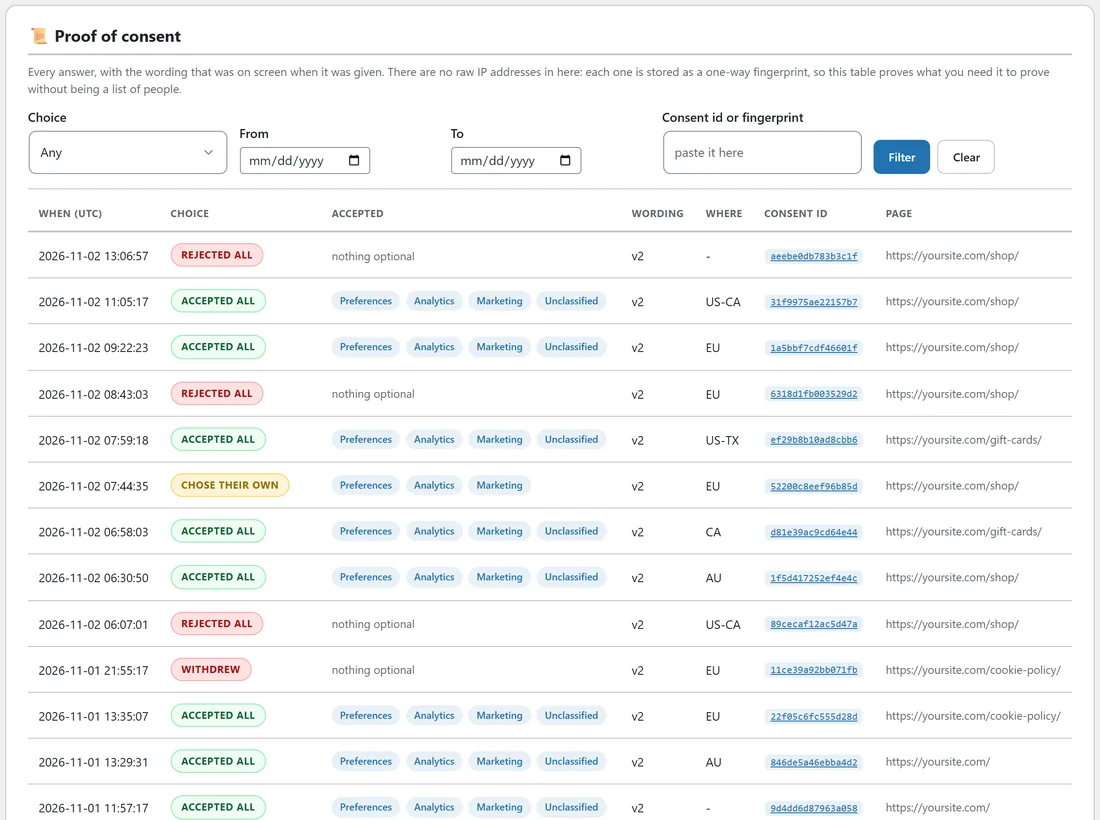
The columns are When (UTC), Choice, Accepted, Wording, Where, Consent ID and Page. Records are shown 25 to a page, newest first, with Older and Newer buttons and a count such as 942 records, page 1 of 38.
Finding records:
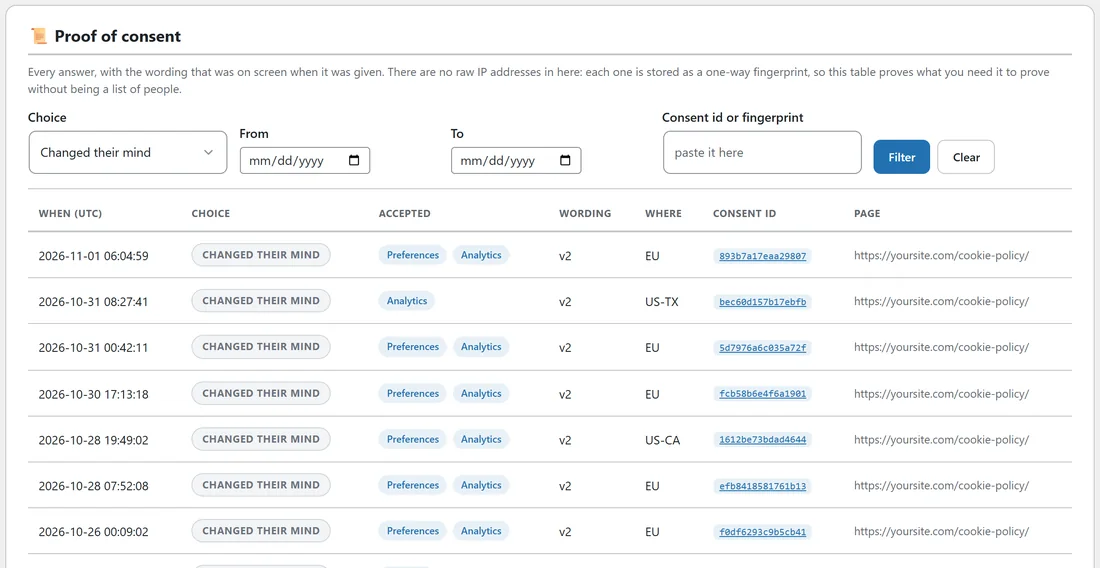
Filter by Choice, From and To dates, or paste a Consent id or fingerprint, then press Filter. Clear empties the filters. Click any consent ID in the table to see every answer that visitor gave.
A real example:
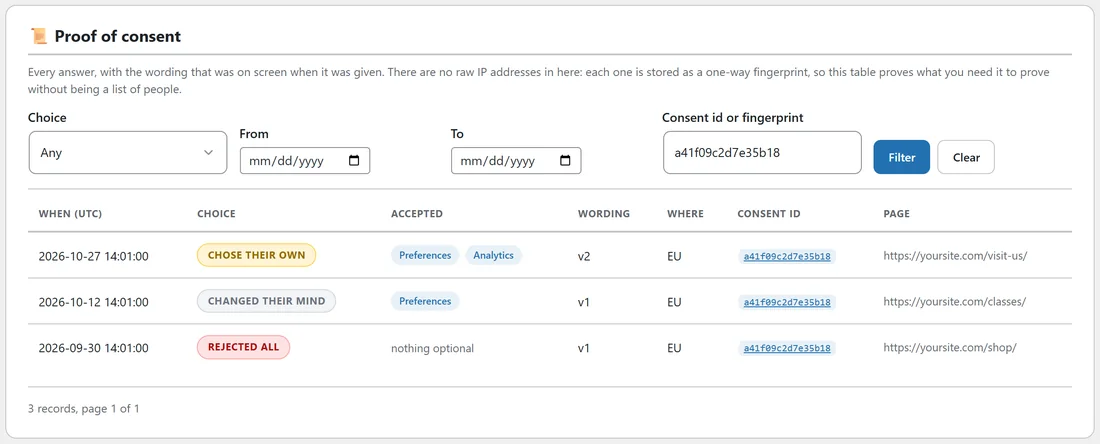
A signed-in Juniper Lane Pottery customer asked what had been recorded about their cookie choices. They quoted the consent ID from their choices panel. The owner pasted it into Consent id or fingerprint and pressed Filter. Three rows came back: Rejected all on the Shop page with wording v1, Changed their mind on the Classes page when they turned Preferences on, and Chose their own on the Visit Us page under wording v2 with Preferences and Analytics.
The hashed address:
The raw IP address is never stored, and there is no setting to store it. Each address is turned into a one-way fingerprint that is unique to your site. You can still show that two records came from the same visitor, and still check a record if somebody gives you their own address, but the log is not a list of people.
CSV export:
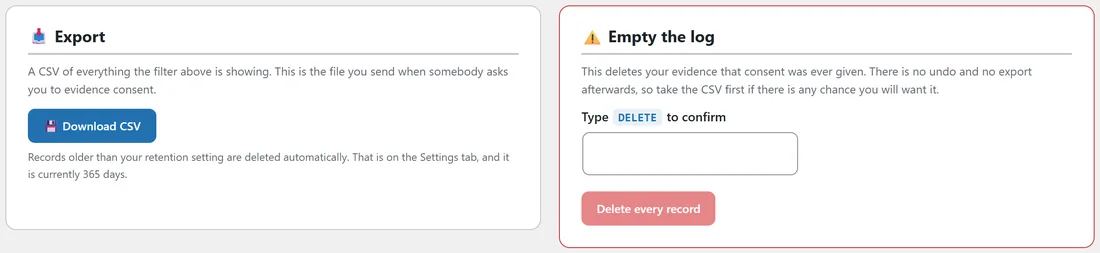
Press Download CSV to get a file of whatever the filter is showing. Its columns are id, consent_id, recorded_utc, choice, categories_accepted, wording_version, region, page, ip_hash, browser, gpc_signal and wp_user_id. This is the file you send when somebody asks you to show that consent was given.
The Dashboard view:
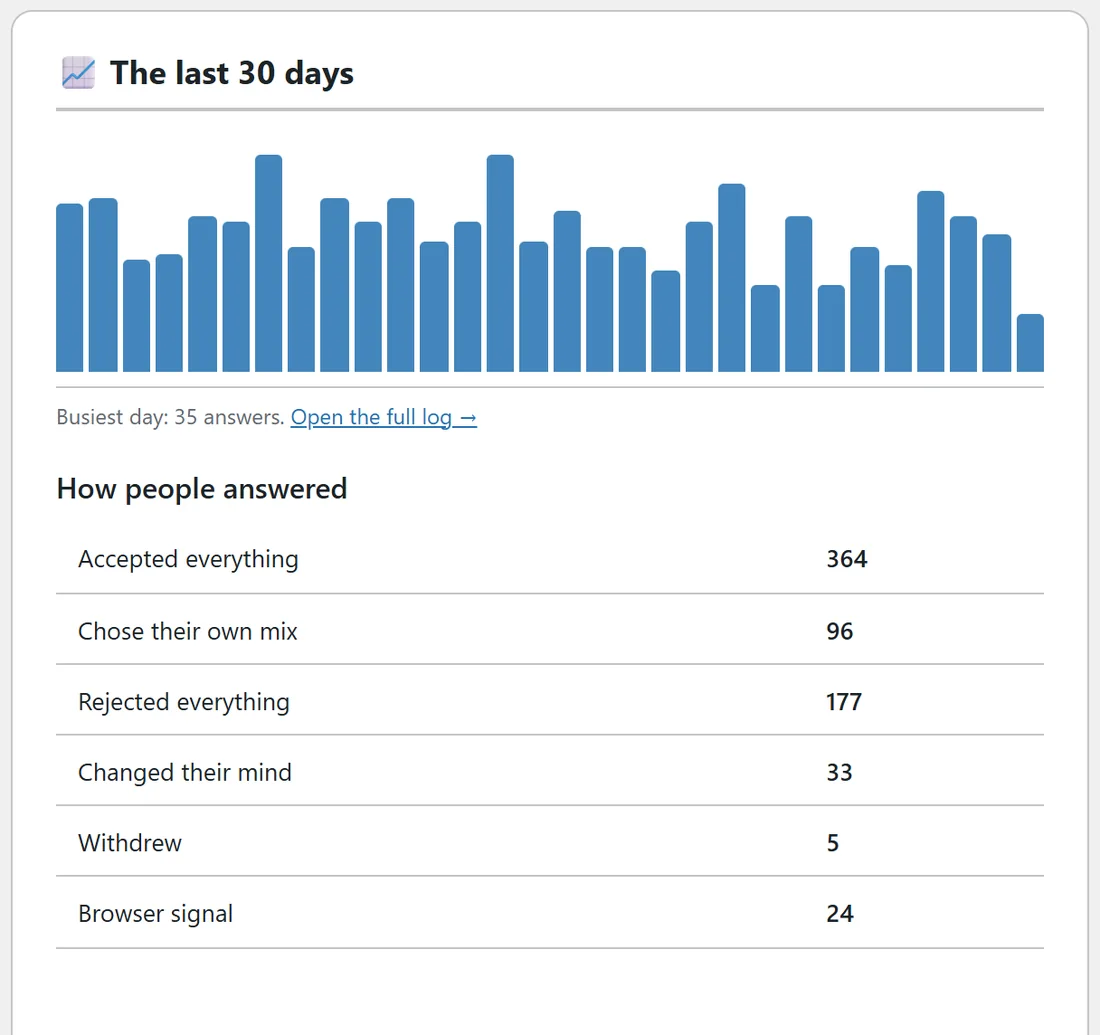
The last 30 days shows a bar for every day, quiet days included, the busiest day, and a link to Open the full log. How people answered counts each of the six kinds of answer over the same 30 days. The Accepted something tile counts every answer that switched on at least one optional group.
The record settings:
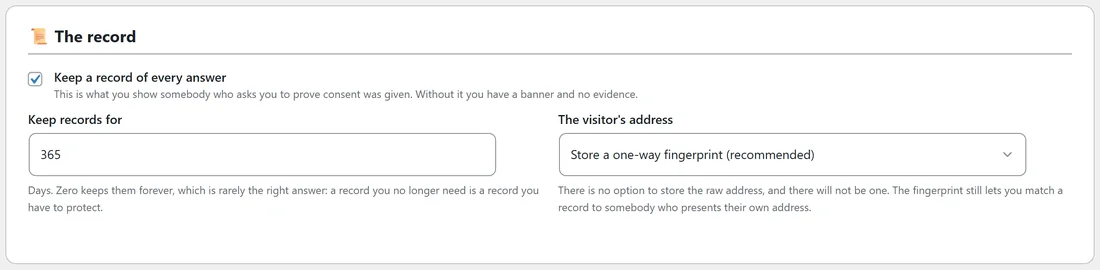
On the Settings tab, The record has three settings.
- Keep a record of every answer. On from the start. Turn it off and the banner still works, but nothing is logged.
- Keep records for. 365 days from the start. Older records are removed automatically each day. Zero keeps them forever, and the most you can set is 3650 days.
- The visitor's address. Store a one-way fingerprint (recommended), or Store nothing at all.
The Export box under the log reminds you of the current retention setting.
Emptying the log:
The Empty the log box removes every record. There is no undo, so download the CSV first. Type DELETE in capitals into the box, and the Delete every record button becomes active.
Reading the Where column:
EU covers every country in the EU, the EEA, the UK and Switzerland. US states show as US-CA, US-TX and so on. Other countries show as their two letter code, such as CA for Canada or AU for Australia. A dash means no country header was reaching WordPress for that visitor.
Proving a single answer, step by step:
- Ask the person for the consent ID from their choices panel, or the date and page they remember.
- Paste the ID into Consent id or fingerprint and press Filter.
- Read the rows: the choice, the groups, and the wording version for each.
- Press Download CSV. The file holds only what the filter shows.
- Send that file, together with the wording that was on screen for that version.
Tips:
- Download a CSV now and then and keep it with your business records.
- Use the Choice filter set to Changed their mind to see how often people come back to change their answer.
- If the log stays empty while the banner works, open Diagnostics. See Diagnostics, Repair And Troubleshooting.
Next steps:
See Letting Visitors Change Their Mind: Reopen Button, Shortcode And Consent ID for how visitors find their consent ID.