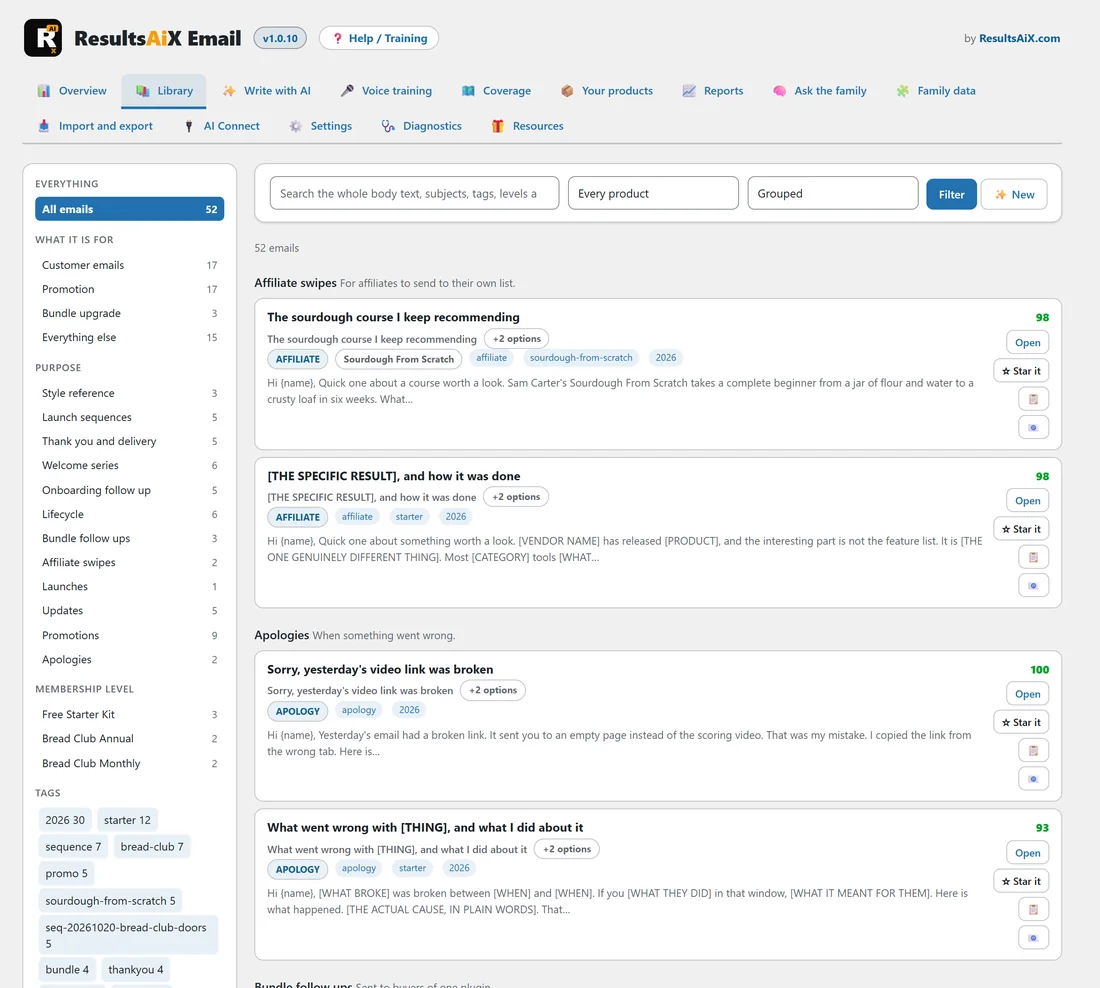
The Library tab lists every email you hold. The sidebar on the left filters, the bar across the top searches and sorts, and each row opens the editor. It is the screen you will use most.
Where to find it:
Open AiX Email and click the Library tab, or Library in the WordPress sidebar under AiX Email.
How many emails are in it:
A new install holds nine starter templates, one for each of these purposes: Thank you and delivery, Welcome series, Onboarding follow up, Lifecycle, Bundle follow ups, Promotions, Updates, Apologies and Affiliate swipes. Everything after that is yours: emails you import, paste in or have written. The All emails link at the top of the sidebar always shows the live count.
The twelve purposes:
Every email has one purpose. There are twelve: Style reference, Launch sequences, Thank you and delivery, Welcome series, Onboarding follow up, Lifecycle, Bundle follow ups, Affiliate swipes, Launches, Updates, Promotions and Apologies. Hover over a purpose in the sidebar to see a one line description, for example Goes out the moment somebody buys for Thank you and delivery. The sidebar lists a purpose once it holds at least one email.
The sidebar:

- Everything: All emails, with the total.
- What it is for: four groups that gather the purposes, Customer emails, Promotion, Bundle upgrade and Everything else.
- Purpose: each of the twelve purposes that has emails, with its count.
- Membership level: every level used on an email, with its count. This section appears once any email has a level.
- Tags: your 40 most used tags, each with its count. Click one to filter.
Click any link to filter the list. The link you are on is highlighted.
Searching and sorting:

The bar across the top has three controls and two buttons.
- The search box reads titles, subject lines, the whole body text, the file name an email came from, preheaders, tags, keys and levels.
- Every product narrows the list to one product from Your products.
- The sort list offers Grouped, Newest first, Recently edited, Worst score first and By title.
- Filter applies the search, product and sort together. It keeps any sidebar filter you have chosen.
- New opens Write with AI.
Grouped shows a small heading above each purpose with its description. One view shows up to 400 emails. Above the list, a line says how many matched, and asks you to narrow the filter when there are more than 400.
Reading a row:

Each row shows:
- the title, with a star if the email is starred and a style reference pill if it is one
- the first subject line, with a count of the other options, such as +2 options
- pills for the purpose, the product, the membership level, the position in a sequence such as 1 of 4, draft for an email still in draft, and AI for emails the AI wrote
- its tags, each clickable to filter the list
- a sent N times pill once the email has been loaded into ResultsAiX Mailer
- the first 34 words of the body
On the right is the house rule score out of 100: green at 90 and over, amber from 70 to 89, red under 70. Hover over it to see House rule score.
The row buttons:
- Open goes to the editor.
- Star it marks the email as one the writer reads first, in full, whenever it writes. It turns into Starred. Press it again to take the star off. It saves at once.
- The clipboard button copies the body without opening the email.
- With ResultsAiX Mailer on the site, the envelope button creates a draft broadcast from that email. See Getting An Email Into ResultsAiX Mailer Or Any Other Autoresponder.
A worked example:
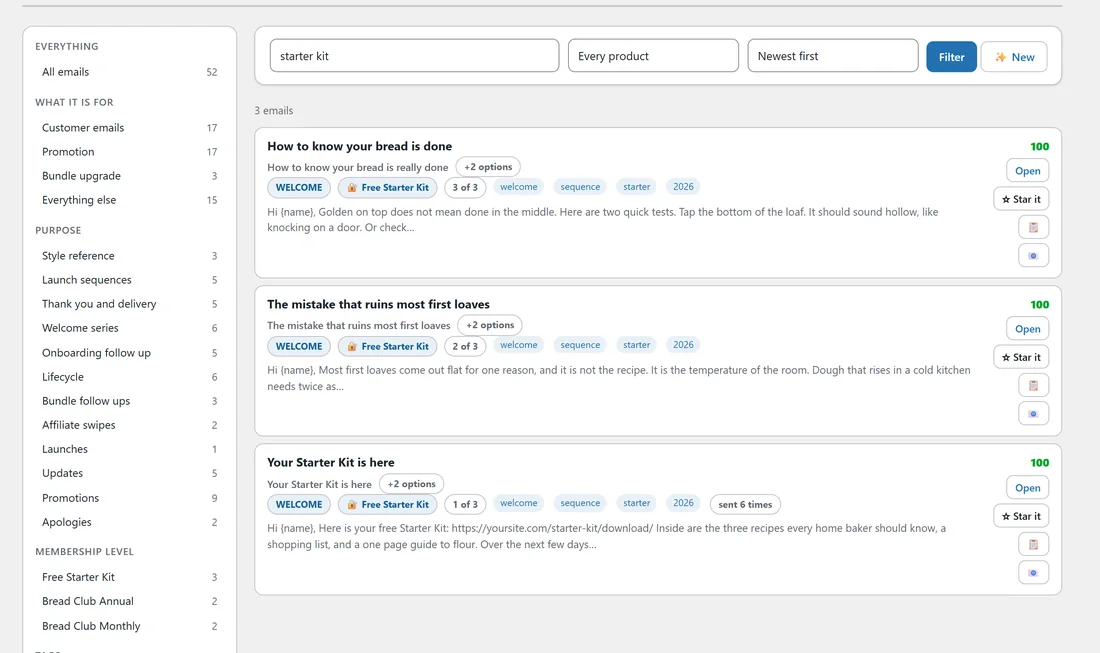
Sam wants every email about the free Starter Kit. Sam types starter kit into the search box, picks Newest first and presses Filter. The three welcome emails for the Free Starter Kit level appear first, then the starter templates whose bodies mention a kit.
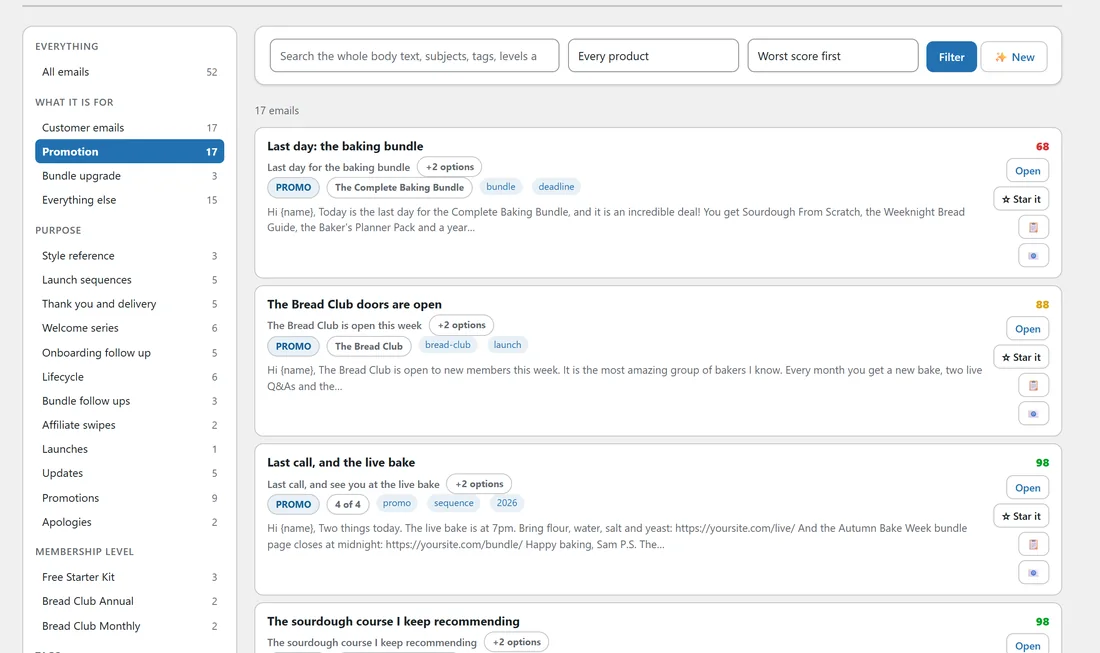
Later Sam wants to tidy up promotions before a launch. Sam clicks Promotion under What it is for, picks Worst score first and presses Filter. The one promotion that breaks a rule is at the top.
Tips:
- Use tags for anything the purposes do not cover, such as a season or a campaign. Click the tag in the sidebar to see the whole set.
- Worst score first is the fastest way to clean up a library before a launch.
- Star your three best emails. The writer reads starred emails first, in full.