Your products is where you tell ResultsAiX Email what you sell. The list starts empty on a new install, and everything that is about a product works from it: the coverage grid draws one row per product, every product picker lists them, the importer files emails under them, and the AI writer is given each product's name, one line and link.
Where to find it:
Open AiX Email and click the Your products tab. It is also in the WordPress sidebar under AiX Email.
The columns:
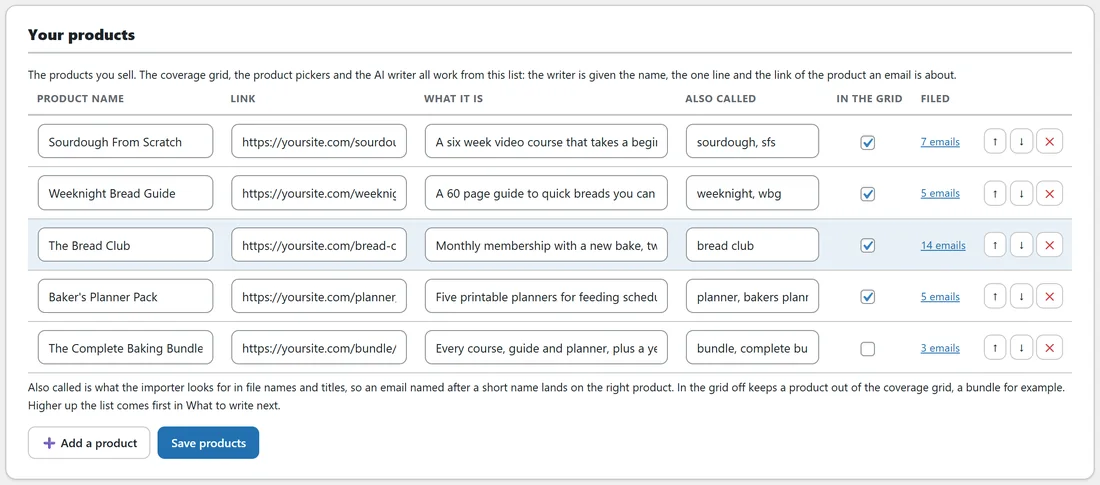
- Product name: the name you and your customers use, for example Sourdough From Scratch. A name is enough to start.
- Link: the sales page, starting https://. The writer is told this is where the product lives.
- What it is: one line on what the product is. The writer reads this, so make it plain and specific, for example A six week video course that takes a beginner from a jar of flour to a crusty loaf.
- Also called: optional, comma separated. Short names and nicknames the importer looks for in file names and titles, so an email named after a short name lands on the right product. Up to 20 are kept, in lower case.
- In the grid: ticked means the product gets a row on the Coverage grid and appears in What to write next. Untick it for a bundle or anything with its own run of emails.
- Filed: how many emails are filed under the product, linked to the Library filtered to them, or none yet.
- The arrows move a row up or down, and the cross removes it.
Adding products:
- Open the Your products tab.
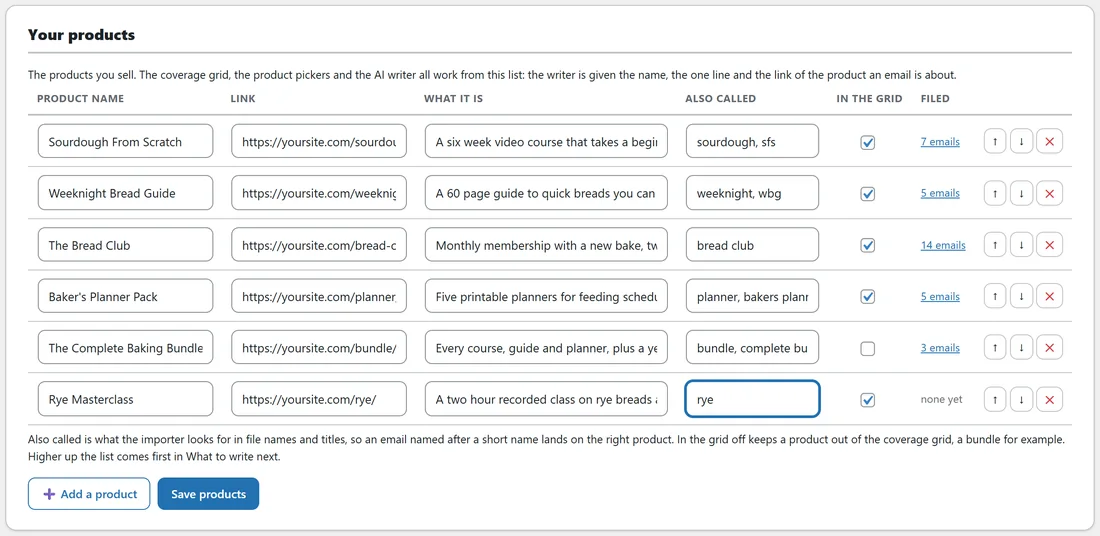
- Type the first product into the empty row. On a list that already has products, press Add a product for a new row.
- Fill in Link, What it is and Also called if you have them.
- Press Add a product for each further product.
- Use the arrows to put the product you sell most at the top.
- Press Save products. A notice confirms, for example Saved. You have 5 products.
If a row has a link or a line but no name, the save is stopped, the name box is outlined and a message asks you to give that product a name or clear the row.
Why the order matters:
What to write next on Coverage and on Overview lists missing emails by how much each one matters. When two products are missing the same kind of email, the product higher up your list comes first. Put the product you sell most at the top.
Renaming and removing:
- Renaming a product keeps every email filed under it, because the product keeps its internal name.
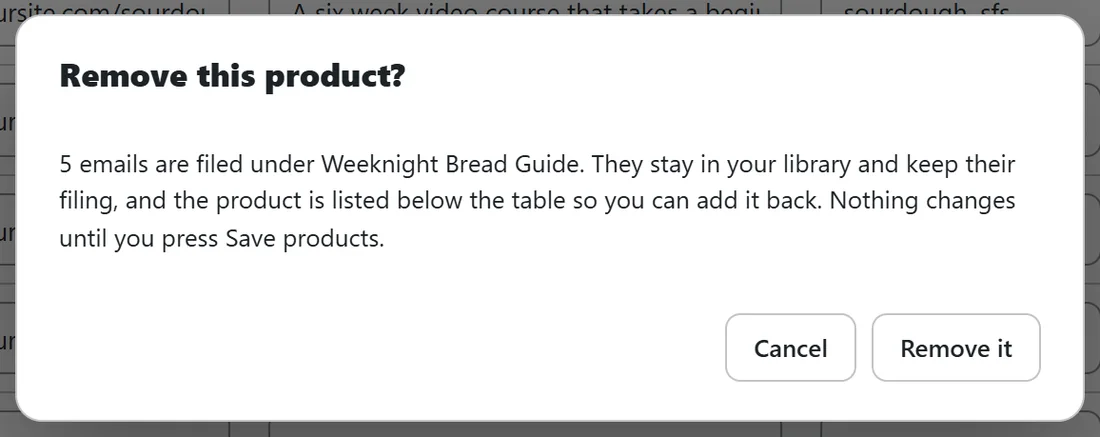
- Removing a product with emails filed under it opens a window, Remove this product?, which says how many emails are filed under it. They stay in your library and keep their filing. Nothing changes until you press Save products.
- After you save, a card appears below the table, Filed under a product that is not on your list, listing that product with its email count and an Add it to my products button.
That card also appears when emails arrive from a backup or from another site under a product you have not added here.
What each product is used for:
- Coverage: one row per product with In the grid ticked, against eight purposes.
- Pickers: the Product dropdown in the editor, on Write with AI and on Paste one in lists your products, plus No product.
- Importer: an imported email is filed under a product when its file name or title mentions the product's name, its internal name or one of its other names. The longest match wins.
- Paste one in: if you leave Product on No product, the pasted title and body are checked the same way.
- Writer: when an email is filed under a product, the AI is given that product's name, What it is and Link, and nothing else about it. An email about no product in particular gets no product facts at all.
A worked example:
Sam adds four products and a bundle. The Complete Baking Bundle has In the grid unticked, because the bundle is sold through its own launch emails, not a thank you and onboarding run. Sam adds rye as an Also called for a new Rye Masterclass, so a file named PROMO-rye-month-2026-11-01.txt is filed under it automatically.
Tips:
- Fill What it is for every product. It is the one line the writer quotes from, so it is worth ten seconds.
- After adding products, read your email folder again on Import and export so existing emails are filed under them. Emails you have saved from the editor keep their own filing.
- Next, read Coverage: Finding The Emails You Do Not Have Yet.