New emails only ever come from you. The starter set is loaded once, on first activation. After that the library grows when you import, paste, or have the AI write. Everything except the writing lives on the Import and export tab.
Where to find it:
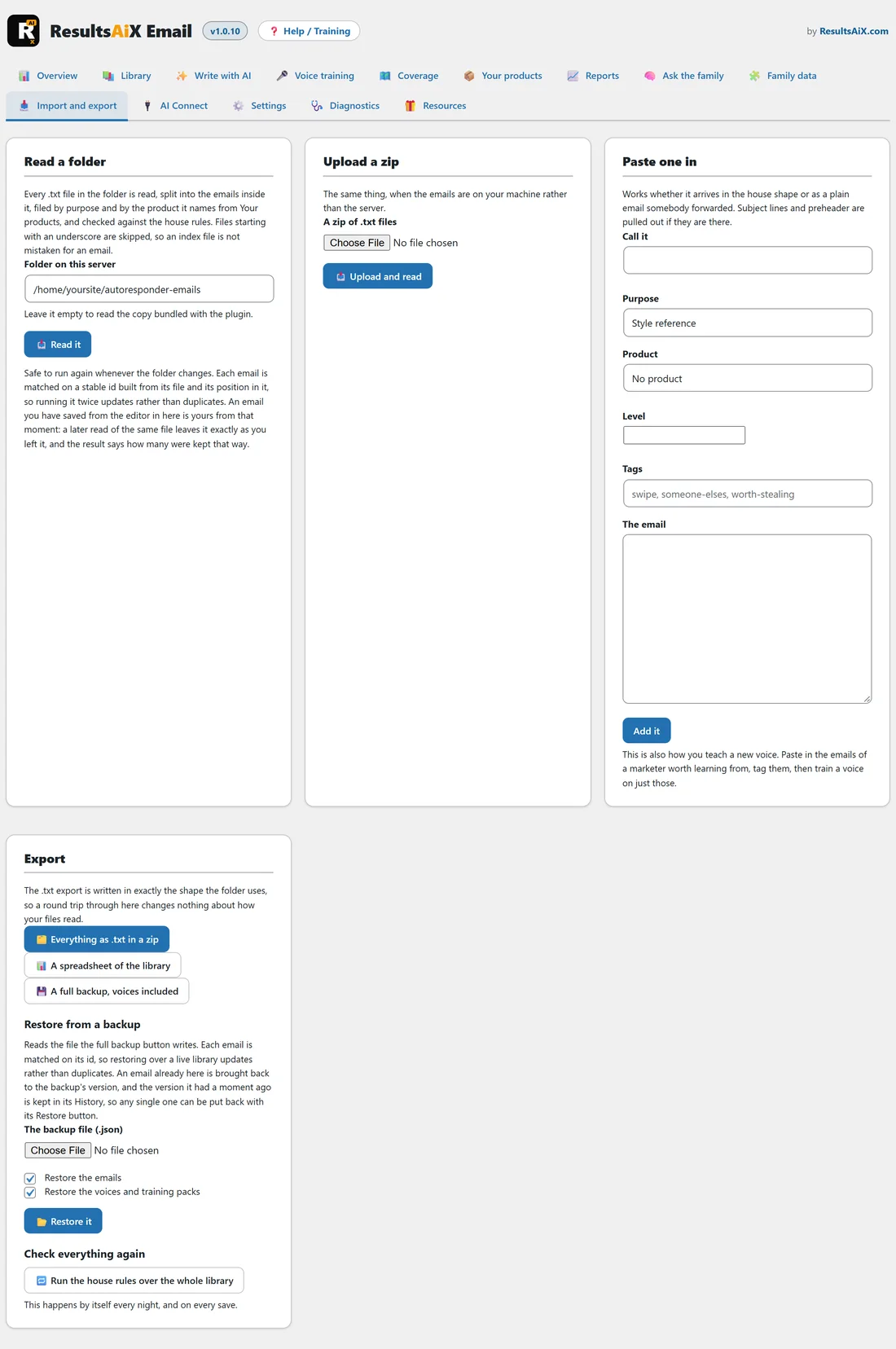
Open AiX Email and click the Import and export tab. It holds four cards: Read a folder, Upload a zip, Paste one in and Export.
Read a folder:
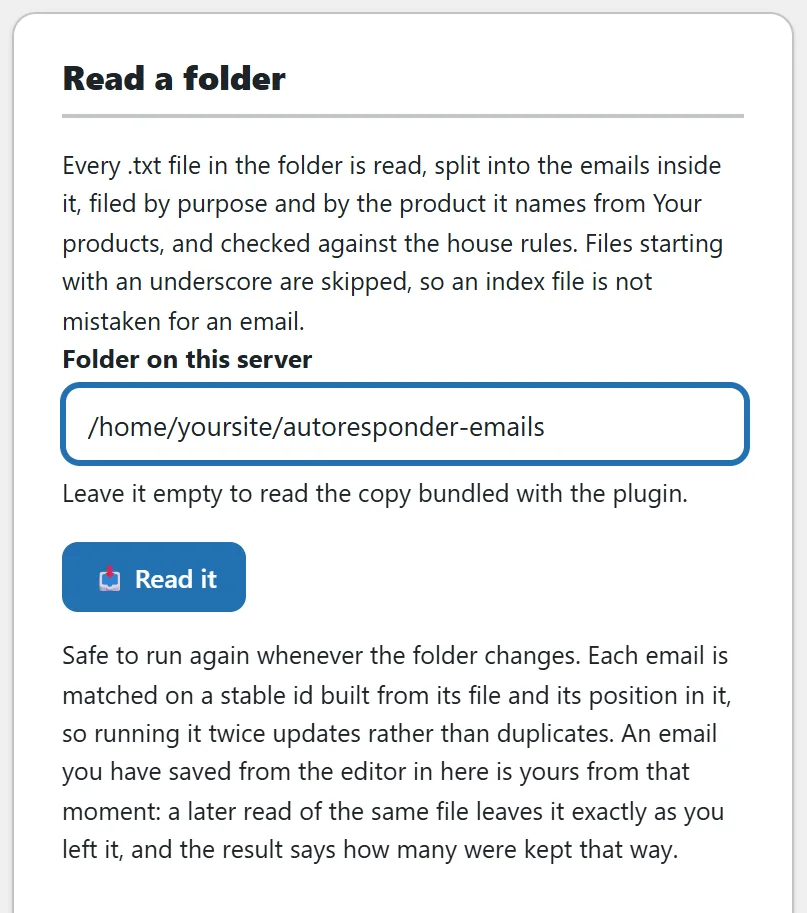
- Type the full path of a folder on your server into Folder on this server, for example /home/yoursite/autoresponder-emails.
- Press Read it.
- A notice reports what happened, for example Read 16 files, found 21 emails: 21 new, 0 updated.
Every .txt file is read, split into the emails inside it, filed by purpose and by the product it names from Your products, and checked against the house rules. Files starting with an underscore are skipped, so an index file is not mistaken for an email. The path you read is remembered for next time, and it also fills The email folder on the Settings tab. If you empty the field and press Read it, the remembered folder is read, or the copy of the starters bundled with the plugin when no folder is remembered.
Upload a zip:
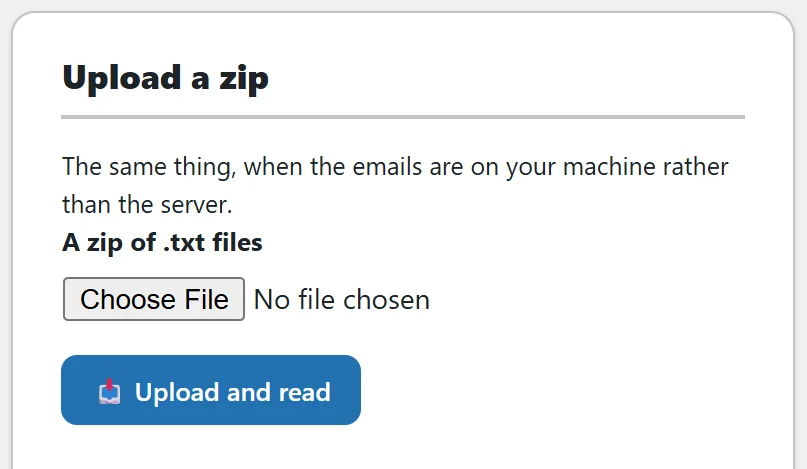
The same thing for files on your own computer. Choose A zip of .txt files and press Upload and read. Your server needs zip support for this. If it has none, the message says to use the folder path instead.
How a file is filed:
- The start of the file name sets the purpose: THANKYOU, WELCOME, ONBOARDING, LIFECYCLE, BUNDLE, AFFILIATE, LAUNCH, UPDATE, PROMO, APOLOGY, SWIPES or STYLE-REFERENCE, followed by a hyphen. FOLLOWUP, RENEWAL and WINBACK file under Lifecycle. Anything else files under Updates.
- A date in the name, such as 2026-08-12, becomes the email's date.
- The product is matched from the file name and title against the names, internal names and Also called names on Your products.
- Subject lines are read from a SUBJECT LINE heading with a list under it, or from Subject: lines, and the preheader from a PREHEADER: line. The body starts at the greeting.
- A file holding a sequence is split where it has two or more headings such as EMAIL 1 |, Email 1:, Email 1, or Day 1. Each part is labelled, for example 2 of 4.
- Tags are added for you: the purpose, the product, the year, sequence and affiliate where they apply, and starter for the bundled templates.
- An email in a STYLE-REFERENCE file is marked as a style reference.
A worked example of a file name:
THANKYOU-sourdough-from-scratch-2026-07-08.txt is filed as Thank you and delivery, under the product Sourdough From Scratch, dated 8 July 2026, with the tags thankyou, sourdough-from-scratch and 2026.
Reading the same folder again:

Each email is matched on a stable id built from its file and its position in it, so reading the same folder twice updates rather than duplicates, and adds any new emails.
Emails you pasted in or had written by the AI are left alone, and so is any imported email you have saved from the editor: it is yours from that moment, and the file's version is never written over it. The notice says how many were kept that way, for example 2 were left exactly as you edited them here. A style reference you marked by hand keeps its mark through a re-read too.
For an imported email you have not saved from the editor, a re-read brings it back in line with the file, including its subject lines, body, tags and a Status of Ready to send. To keep your own Status or tags on an imported email, save it once from the editor.
Paste one in:
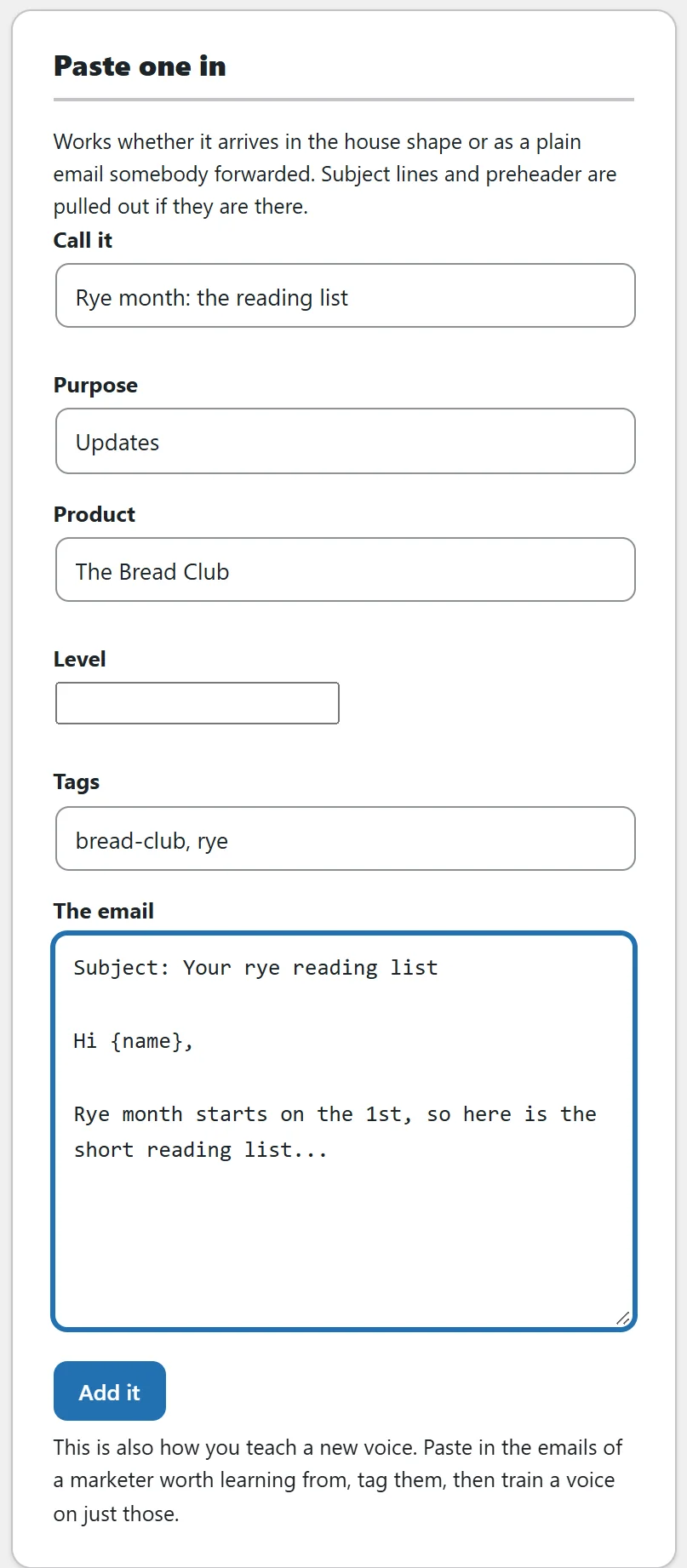
- Fill in Call it, the title for your eyes only.
- Choose a Purpose and a Product, type a Level if it is for one membership level, and add Tags.
- Paste the email into The email.
- Press Add it.
The email opens in the editor with the message Added to the library. Subject lines and the preheader are pulled out if they are there, in the house shape or as Subject: lines. With Product left on No product, the title and body are checked against Your products and filed under a match. Leave Call it empty and the first subject line becomes the title.
Paste one in is also how you teach a new voice. Paste in the emails of a marketer worth learning from, tag them, then train a voice on just those.
Export:
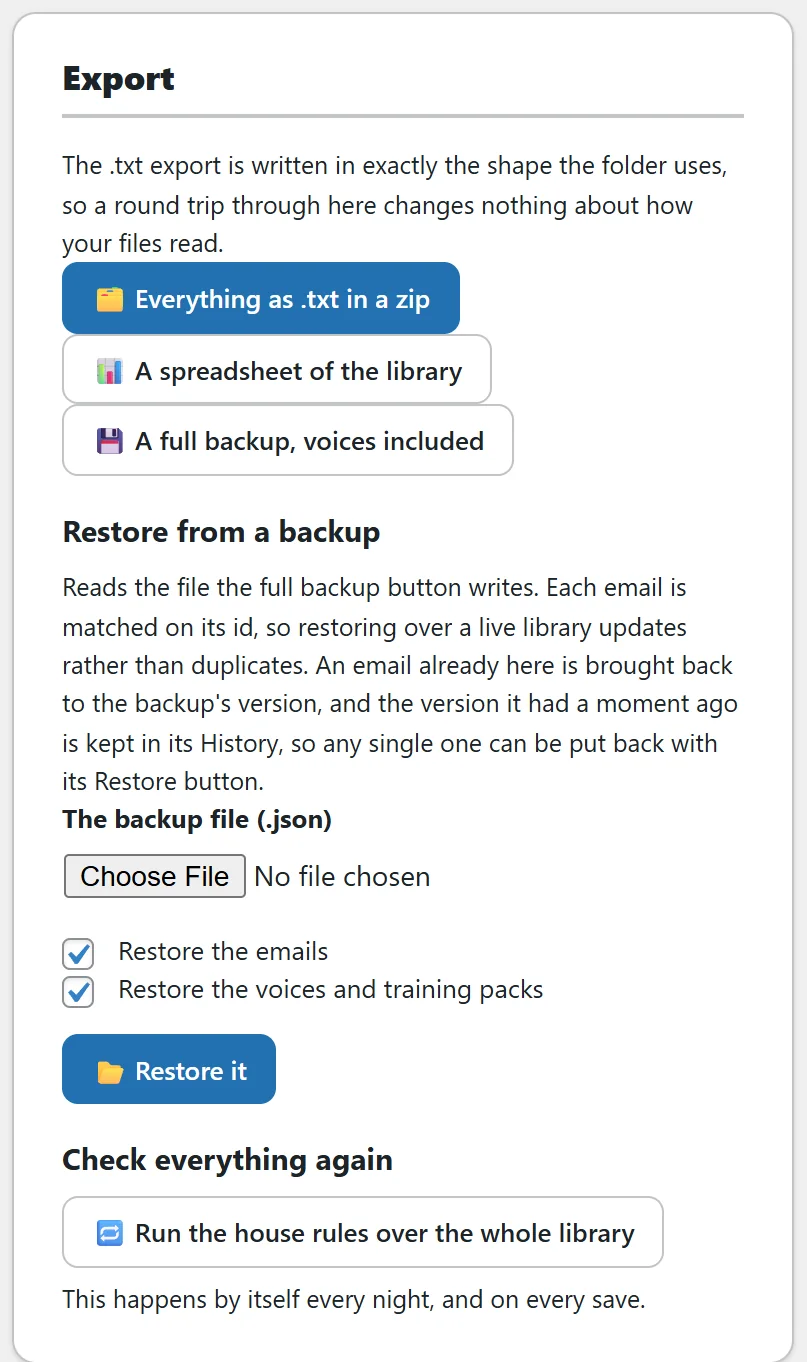
- Everything as .txt in a zip: one file per email, in a folder per purpose, plus an _INDEX.txt list. The files are written in exactly the shape the folder import reads. A notice says how many emails were exported, with a Download the zip link.
- A spreadsheet of the library: a .csv file with key, purpose, product, level, title, subject 1, preheader, tags, status, score, words and date.
- A full backup, voices included: one .json file holding every email, your voices, your training packs and Your products, for safe keeping.
Restore from a backup:
- Under Restore from a backup, choose the .json file in The backup file (.json).
- Tick Restore the emails, Restore the voices and training packs, or both. Both are ticked to start.
- Press Restore it and confirm in the window Restore this backup?.
Each email is matched on its id, so restoring over a live library updates rather than duplicates. An email already here is brought back to the backup's version, and the version it had a moment ago is kept in its History, so any single one can be put back with its Restore button in the editor. Voices with the same name are replaced. Products the emails are filed under are added to Your products if they are not there yet, and a product already on your list is left as it is.
Check everything again:
Run the house rules over the whole library re-scores every email on demand, with a notice such as Checked 52 emails against the house rules. This also happens by itself every night and on every save.
Tips:
- Name your files with the purpose first and the date last, and the library files itself.
- Take a full backup before a big re-read or a restore, so every version is safe.
- Next, train your voice on the emails you just imported. See Voice Training: Teaching The AI To Write In Your Own Voice.