The nine starter templates are written as fill in the blanks scaffolds. Making one yours takes three kinds of edit, and Your details on the Settings tab does part of the work for you.
- Replace every [BRACKET]:
Anything in capital letters inside square brackets is a placeholder for your own words, for example [PRODUCT], [OFFER], [WHEN] and [THE ONE THING]. They appear in the subject lines as well as the body, so check both. Open the email, type over each one and press Save.
- Keep one merge tag:
The library uses {name} for the reader's first name, and the starters open with Hi {name},. The house rules flag other shapes such as [First Name], [FIRSTNAME], {FIRST_NAME}, {first_name}, %%name%%, *|FNAME|*, [NAME], {{name}} and a bare NAME, so the whole library stays consistent. They also flag an unbalanced brace, because that would go out as raw text.
When you paste an email into your sending tool, check which merge tag that tool expects and swap it there if it differs. ResultsAiX Mailer leaves merge tags exactly as they are when an email is loaded.
- Put your links in:
[LINK] marks where a link goes. Replace it with the full web address, starting https://. The house rules look for at least one link in the body and count a [LINK] placeholder as one, and the starters close with a P.S. that carries one. When an email is loaded into ResultsAiX Mailer, the body arrives as simple paragraphs with web addresses turned into clickable links.
The four detail placeholders:
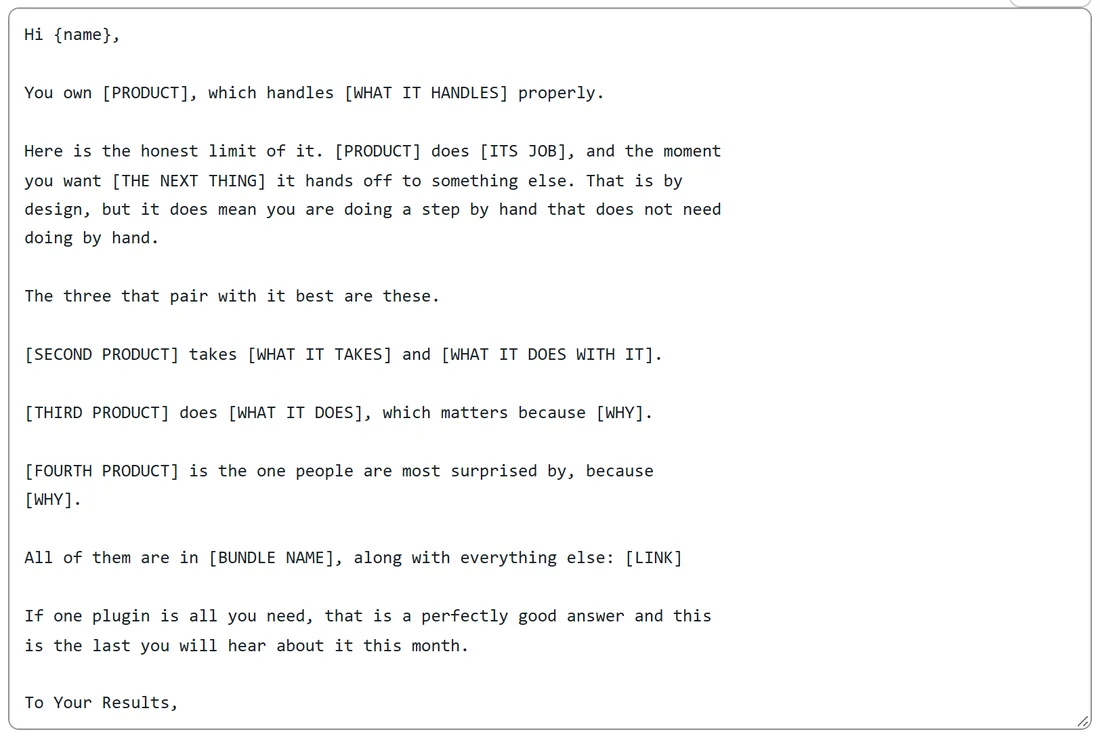
Four placeholders are filled for you from Your details on the Settings tab:
- [YOUR NAME] from Who signs the emails
- [SIGN OFF] from Sign off line
- [SUPPORT LINK] from Support desk link used in emails
- [MEMBER LOGIN LINK] and [LOGIN LINK] from Member login link used in emails
They are filled in two ways:
- On the way out. The moment an email is loaded into ResultsAiX Mailer through the picker or sent across as a draft, the four are filled in the subject, preheader and body. The copy in the library keeps its placeholders, so a template stays a template.
- In the editor. While an email holds any of them, a Put my details in button appears. Press it to fill them on screen, then press Save to keep them in the email.
A detail you have left empty leaves its placeholder in place rather than blanking it. Left empty, the name falls back to this site's first administrator, and the login link falls back to this site's own login page.
Your details:
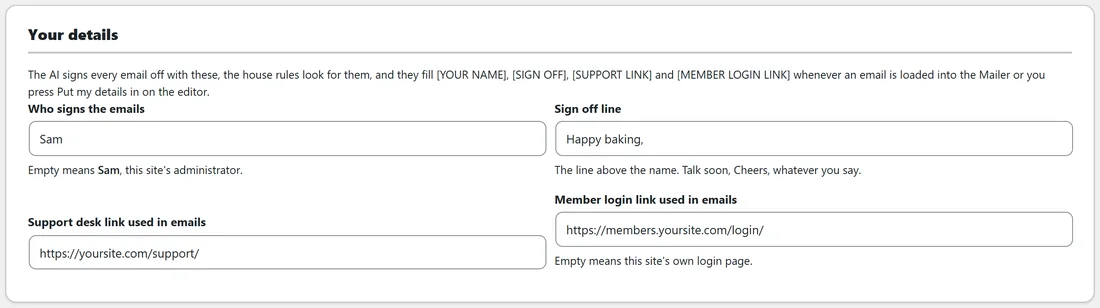
On the Settings tab the Your details card holds four fields: Who signs the emails, Sign off line, Support desk link used in emails and Member login link used in emails. Fill them in and press Save settings. Besides the placeholders, they are used in two more places:
- The AI signs every email off with your sign off line and your name, whichever voice is in use.
- The house rules accept that sign off and name as the close.
Your domains:
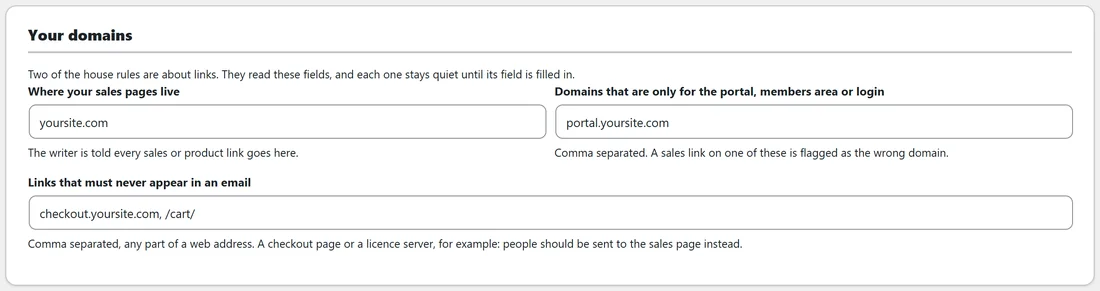
The card below Your details holds Where your sales pages live, Domains that are only for the portal, members area or login, and Links that must never appear in an email. The writer is told every sales link goes to your sales domain, and the two link rules in the house rules read the other two fields. Each rule stays quiet until its field is filled in. See House Rules And The Score Out Of 100.
Affiliate links:
In the Affiliate swipe starter, [LINK] is where your affiliate's own link goes and {name} is the sender's own merge tag, so leave both in place for them to replace before sending. The same applies when Repurpose turns an email into an affiliate swipe: it is written about you in the third person and uses [LINK] where the affiliate link goes.
A worked example:
Sam opens the Bundle follow ups starter, What [PRODUCT] cannot do on its own. Sam types Weeknight Bread Guide over [PRODUCT], replaces the three product lines with Sourdough From Scratch, the Baker's Planner Pack and The Bread Club, and swaps [LINK] for https://yoursite.com/bundle/. Then Sam presses Put my details in: [YOUR NAME] becomes Sam. Sam presses Save, and the score rises as the placeholders disappear.
One tip about the starter tag:
The starters carry the tag starter, which keeps them out of the examples the AI reads as your voice. Any email with two or more [CAPITAL] placeholders is treated the same way. Once you have rewritten a starter into a real email of your own, remove the starter tag on the Filed as card so it can count as your writing.
Tips:
- Rename a rewritten starter in Title, for your eyes only, so the library reads cleanly.
- Use the same sign off everywhere. The voice measurements and the house rules both look for it.