ResultsAiX Email never sends anything itself. It hands the finished email to the tool that sends for you. With ResultsAiX Mailer on the same site there are two one click routes. With any other autoresponder you copy the email across.
When the Mailer routes appear:
Both routes appear when ResultsAiX Mailer is on the same site. The Overview shows a Mailer picker is live pill, and the Diagnostics tab shows a tick beside ResultsAiX Mailer with its version.
Route 1: the picker inside ResultsAiX Mailer:

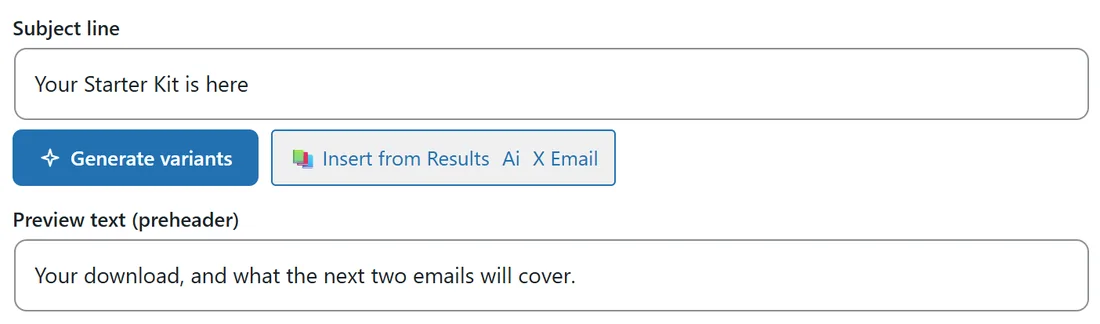
Open a broadcast in the Mailer's composer. An Insert from ResultsAiX Email button sits under the subject line, beside the Mailer's own buttons.
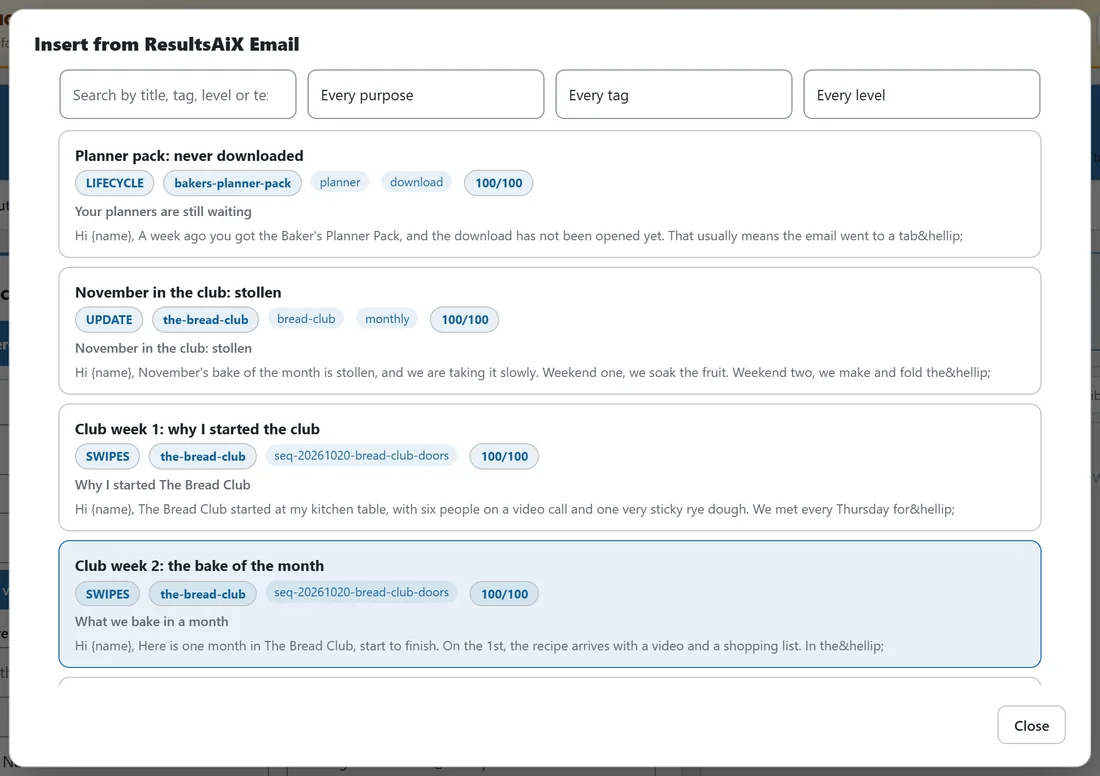
- Press it. A window lists your library, most recently edited first, up to 200 at a time.
- Search by title, tag, level or text, or narrow it with Every purpose, Every tag and Every level. Each filter shows its counts.
- Each email shows its title, purpose, level, product, tags, score, how many times it has been used, its first subject line and the start of the body.
- Click an email. The window closes, and the broadcast's internal name, subject line, preheader and body are filled in. A message confirms it was loaded and that nothing was sent.
The first subject line is the one used. The body arrives as simple paragraphs with web addresses turned into links, and [YOUR NAME], [SIGN OFF], [SUPPORT LINK] and [MEMBER LOGIN LINK] are filled from Your details on the way in. The copy in the library keeps its placeholders.
The button only appears where it can work: on a Mailer screen with the composer open, and once the library holds at least one email. The Mailer itself is never modified. Deactivate ResultsAiX Email and its composer is exactly as it was. If the composer's fields cannot be found, nothing is altered and the email is shown in a box ready to copy by hand.
Route 2: send it across as a draft:
- In the Library press the envelope button on a row, or in the editor press Send to the Mailer as a draft.
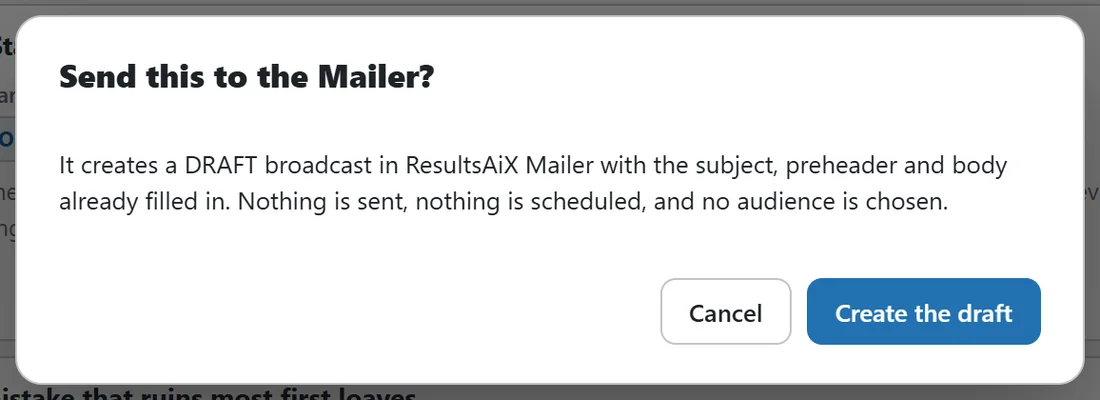
- The window Send this to the Mailer? explains what happens. Press Create the draft.
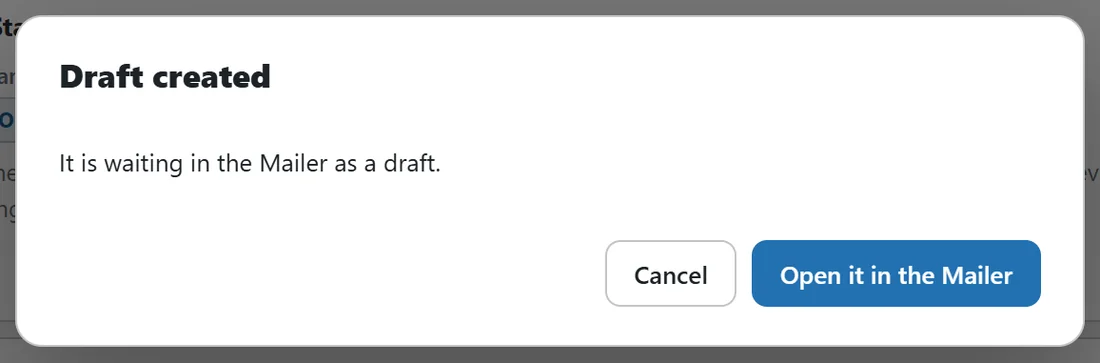
- The window Draft created says it is waiting in the Mailer as a draft. Press Open it in the Mailer to go straight to it.
It is always a draft. Nothing is sent, nothing is scheduled, and no audience is chosen. Your details fill the same placeholders on this route too.
How uses are counted:
Both routes count as a use. The editor shows loaded into the Mailer N times, the Library row shows a sent N times pill, and Reports lists Loaded into the Mailer most and Written and never used.
Any other autoresponder:
There is no direct connection to other sending tools, so you copy the email across.
- In the editor press Copy the body, then copy the subject line and the preheader from their own fields.
- In the Library, the clipboard button on each row copies the body without opening it.
- Press Put my details in first if the email still holds [YOUR NAME] or the other detail placeholders, then Save.
- For the whole library at once, Import and export offers Everything as .txt in a zip.
- Swap {name} for the merge tag your sending tool expects.
Emails copied by hand are not counted as used, so they show under Written and never used on the Reports tab. Set Status to Live in the autoresponder on the Filed as card to keep track yourself.
A worked example:
Sam opens a new broadcast in ResultsAiX Mailer, presses Insert from ResultsAiX Email, picks Free Starter Kit under Every level and clicks Your Starter Kit is here. The subject line and preheader are filled in at once, and the body is ready in the editor below. Sam chooses the audience in the Mailer as usual and schedules it.
Tips:
- File emails carefully on the Filed as card. Purpose, level and tags are exactly what the picker filters on.
- Keep three subject lines on every email and put your favourite first. The first one is the one loaded.
- See Opening And Editing An Email: Subject Lines, Preheader, Body And Filing.