The AI features use your own key. You pay the AI provider directly, with nothing in the middle, and one key is enough. This article walks through the AI Connect tab from top to bottom.
What works with no key:
The library, the house rule checks, the coverage grid, Your products, the reports, the Mailer picker, import and export, and the measured half of voice training. A key adds Write with AI, the four AI buttons in the editor, the style card and training packs, gap filling on Coverage and Ask the family.
Where to find it:
Open AiX Email and click the AI Connect tab, or AI Connect in the WordPress sidebar.
Bring your own key:
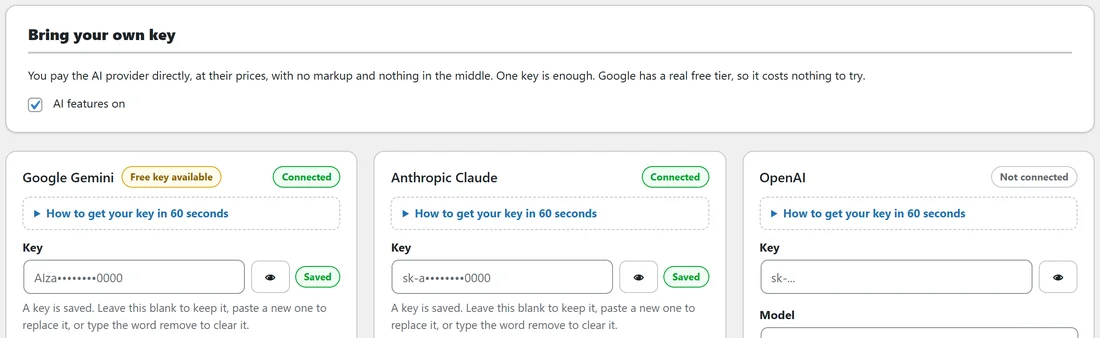
The first card holds the master switch, AI features on. Leave it ticked. Unticked, every AI screen shows a one line note saying your key is saved but AI features are switched off.
The provider cards:
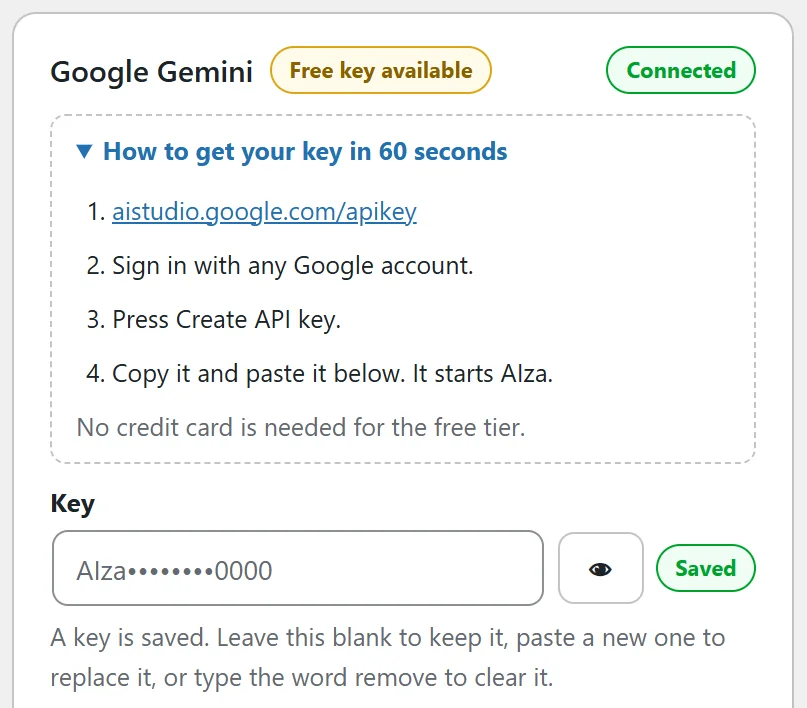
There is a card each for Google Gemini, Anthropic Claude and OpenAI, marked Connected or Not connected. Google Gemini carries a Free key available pill. Each card has:
- How to get your key in 60 seconds: open it for four short steps with clickable links. Gemini keys come from aistudio.google.com/apikey and start AIza. Claude keys come from console.anthropic.com and start sk-ant. OpenAI keys come from platform.openai.com/api-keys and start sk-.
- Key: the key field. A saved key is shown masked, with an eye button to show and hide what you type, a Saved pill, and the note A key is saved. Leave this blank to keep it, paste a new one to replace it, or type the word remove to clear it.
- Model: the model that provider uses. The list marks which model is recommended. Out of the box Gemini uses Gemini Flash, always current, Claude uses Claude Sonnet 5, and OpenAI uses GPT-4.1 mini.
- Test connection: makes a real request with the key and model on screen.
Connecting a key:

- Open How to get your key in 60 seconds on the card you want and follow the steps.
- Paste the key into the Key field and pick a Model.
- Press Test connection. A tick shows the model and how long the reply took, for example gpt-4.1-mini, 1180ms.
- If you typed a new key, a not saved yet pill sits beside the tick. The key is only tested so far.
- Press Save AI settings at the bottom of the Routing card. The message AI settings saved confirms it.
If you try to leave the page with a typed key or a changed model that is not saved, your browser asks before it lets you go. Saving a key for a provider also points Use first at that provider if the one chosen there has no key.
Advanced:

Open Advanced for a Custom API address field per provider. Leave them empty to connect directly. Fill one in only if you send AI requests through your own gateway or proxy. An address that is not valid is refused when you save, the message says why, and the address you had before stays in use. A card that uses a custom address says so under its name.
Routing:
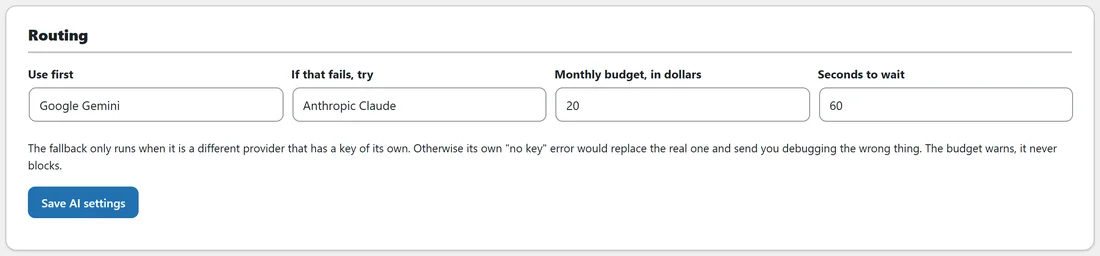
- Use first: the provider that answers. If it has no key, whichever provider does have one answers instead, and a line under the card says Right now that provider is answering.
- If that fails, try: a fallback, or Nothing, just report the error. The fallback only runs when it is a different provider that has a key of its own.
- Monthly budget, in dollars: starts at 50. The budget warns, it never blocks.
- Seconds to wait: how long to wait for an answer, from 10 to 300. It starts at 60.
Usage:
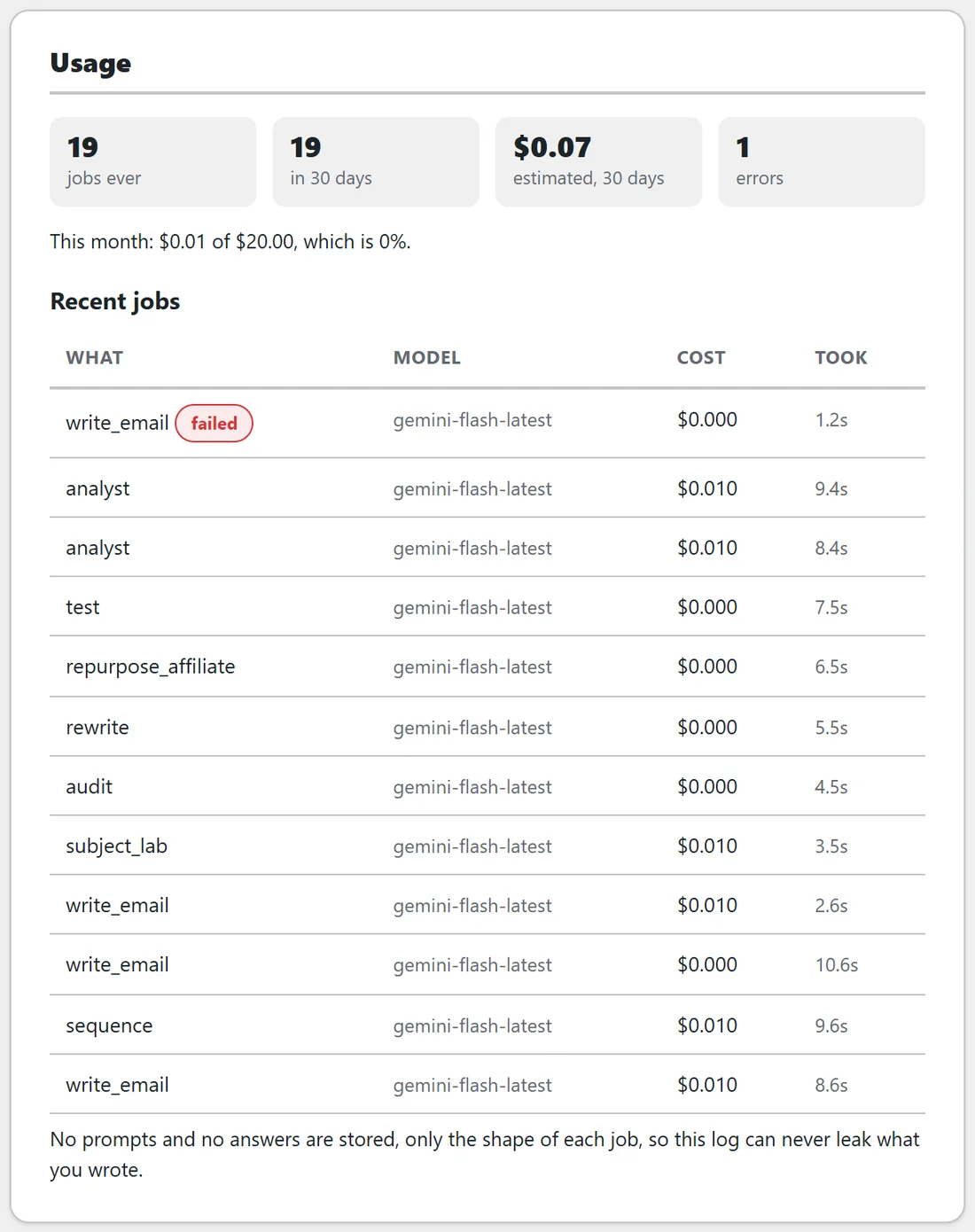
- jobs ever, in 30 days, estimated, 30 days, and errors
- This month: how much of your monthly budget is used, as a share
- Recent jobs: the last twelve, each with What it was, the Model, the estimated Cost and how long it Took, with a failed pill on any that failed
No prompts and no answers are stored, only the shape of each job, so the log can never leak what you wrote. The estimates use published per million prices for each model, so they are a good guide, not your provider's invoice.
Last AI error:
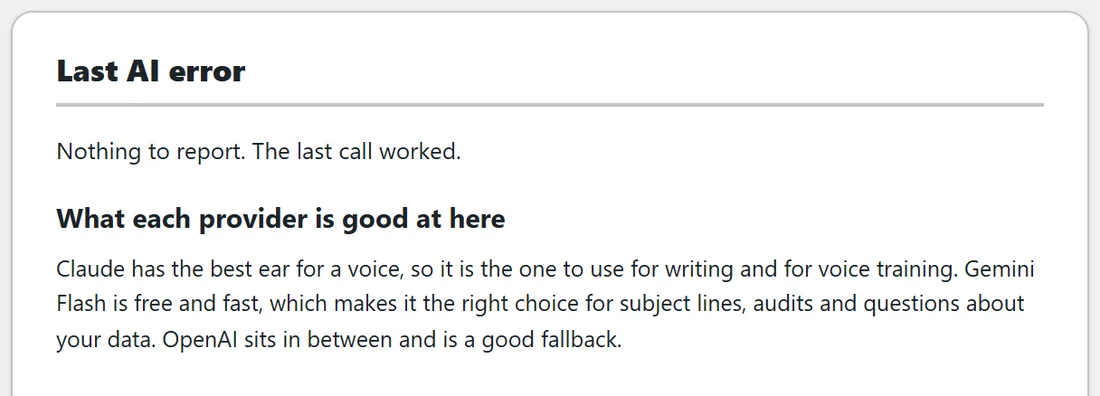
Shows the last error in the provider's own words, and clears itself on the next call that works. With nothing to report it says Nothing to report. The last call worked. Below it, What each provider is good at here suggests Claude for writing and voice training, Gemini Flash for subject lines, audits and questions about your data, and OpenAI as a good fallback.
Three things must be true:
A key is saved, AI features on is ticked, and the licence is active on this site. When one is missing, every AI screen shows a one line note naming which, with a link to the right tab. The AI row on the Diagnostics tab says the same, and also lists which providers have a key saved.
A worked example:
Sam pastes a free Gemini key, presses Test connection, sees the tick and presses Save AI settings. Then Sam adds a Claude key as the fallback and picks Anthropic Claude under If that fails, try. When Gemini hits its free tier limit one afternoon, Claude answers instead and the write still works. Sam sets Monthly budget to 20 and keeps an eye on the This month line.
Privacy:
When the AI reads data from your other plugins, email addresses are replaced with their domain before anything is sent to a provider. The switch is Send real email addresses to the AI provider on the Settings tab, off by default.
Tips:
- Start with the free Gemini key to try everything at no cost.
- Add a second provider as the fallback, so one provider's bad afternoon does not stop your work.
- Next, train your voice. See Voice Training: Teaching The AI To Write In Your Own Voice.