The theme makes your blog look finished from the first post: a choice of four layouts, a full single post page, share buttons that load nothing from any network, share cards for every link, and a search that answers as visitors type.
Four blog layouts:
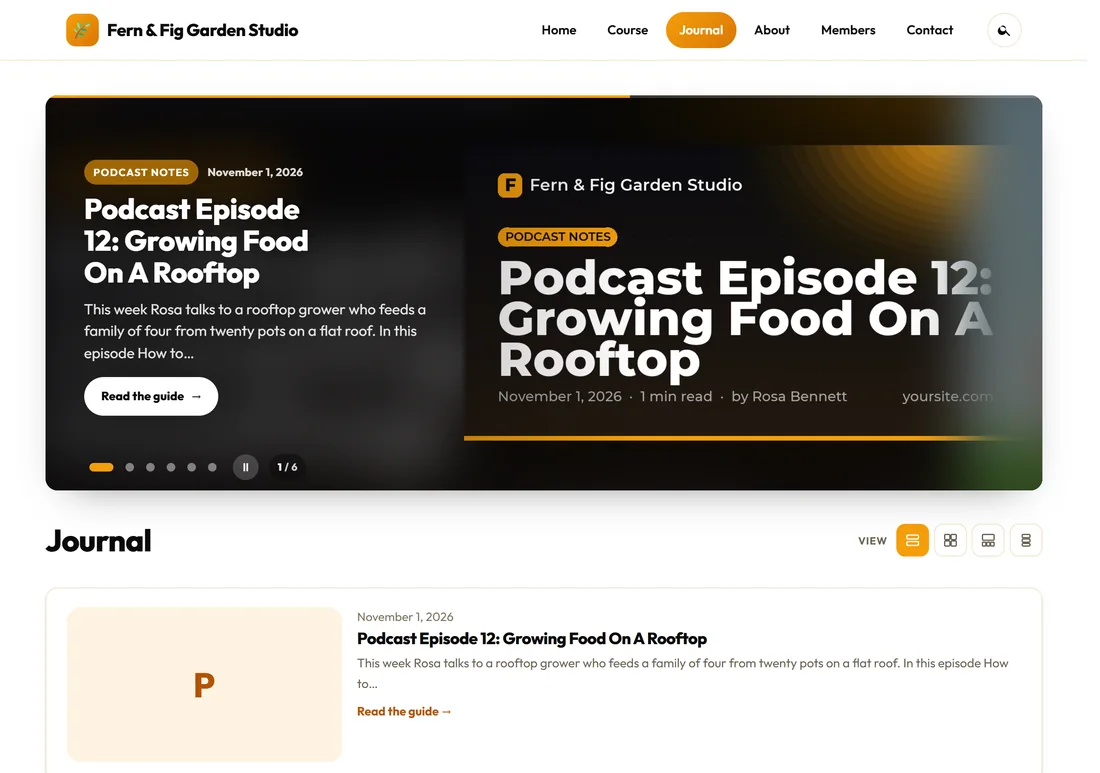
Appearance, Customize, ResultsAiX Theme, Blog layout:
- List (like the ResultsAiX blog): picture, date, bold title, a short excerpt and a read link. This is the default.
- Card grid: picture-led cards, best when your posts have featured pictures.
- Magazine (featured post + grid): one big post above a grid of the rest.
- Classic (narrow centered list): a single narrow column.
Let visitors choose:
With Let visitors choose the blog layout switched on (it is on by default), four small icons sit beside the page title under the word View: List, Cards, Magazine and Classic. Each visitor's choice is kept in their own browser, and nothing is stored on your site.
The blog page card:
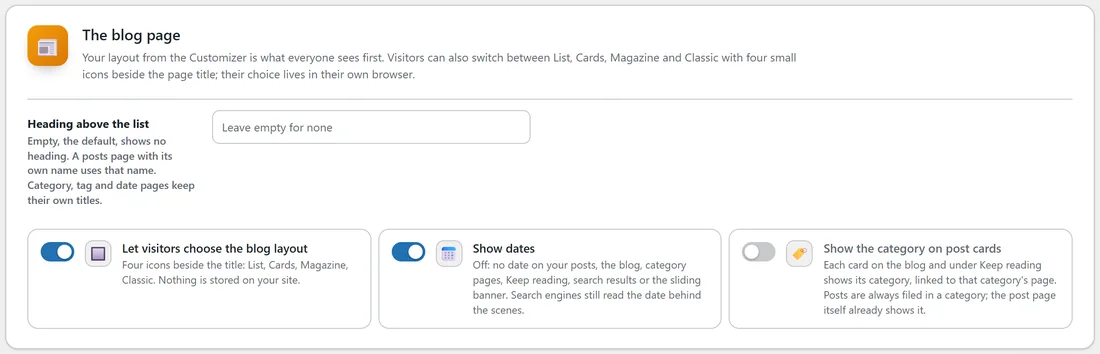
Blog tab, The blog page:
- Heading above the list: empty by default, which shows no extra heading. A posts page with its own name, such as Journal, uses that name. Category, tag and date pages keep their own titles.
- Let visitors choose the blog layout.
- Show dates: on by default. Switch it off and no date shows on your posts, the blog, category pages, Keep reading, search results or the sliding banner. Search engines still read the date behind the scenes.
- Show the category on post cards: off by default. Switch it on and each card on the blog and under Keep reading shows its category, linked to that category's page. The post page itself always shows it.
Press Save Blog.
Every post:
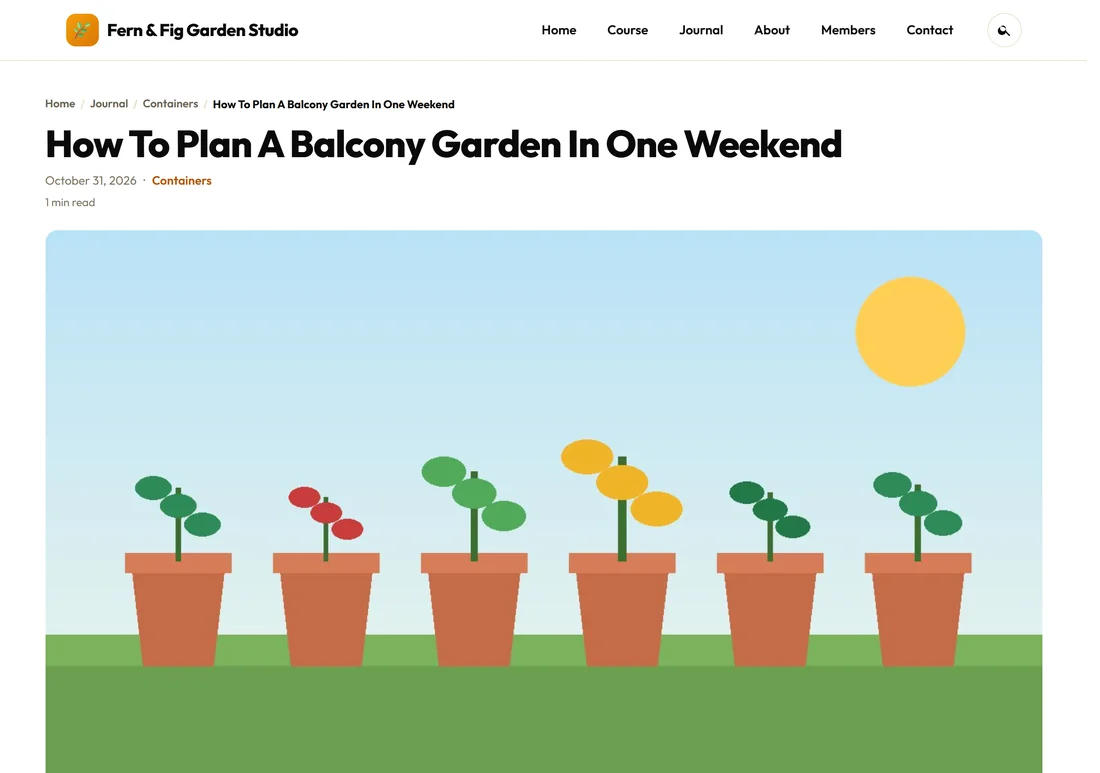
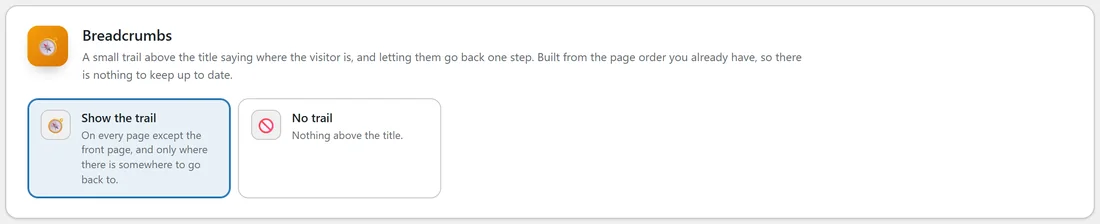
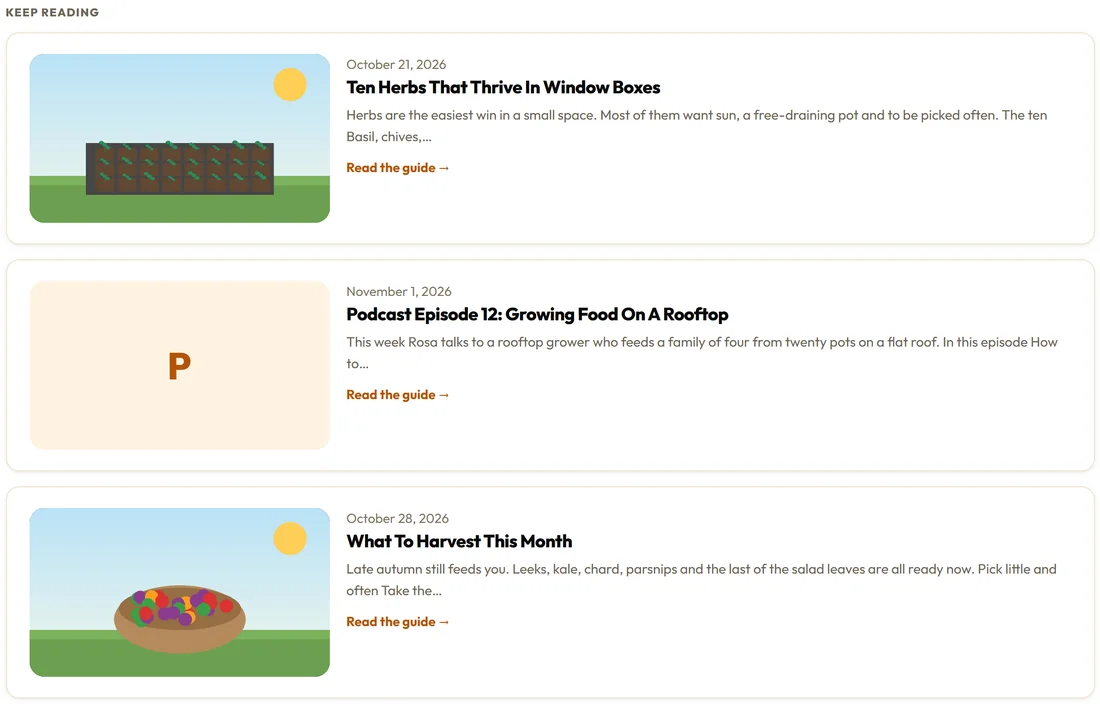
A single post shows breadcrumbs, the date, the category, the reading time, the featured picture, your share buttons, an author box, and a Keep reading section of three related posts at the end, with links to the previous and next post. Settings, Breadcrumbs can switch the trail off: Show the trail (on every page except the front page, and only where there is somewhere to go back to) or No trail. The trail is built from the page order you already have, so there is nothing to keep up to date.
On a phone:
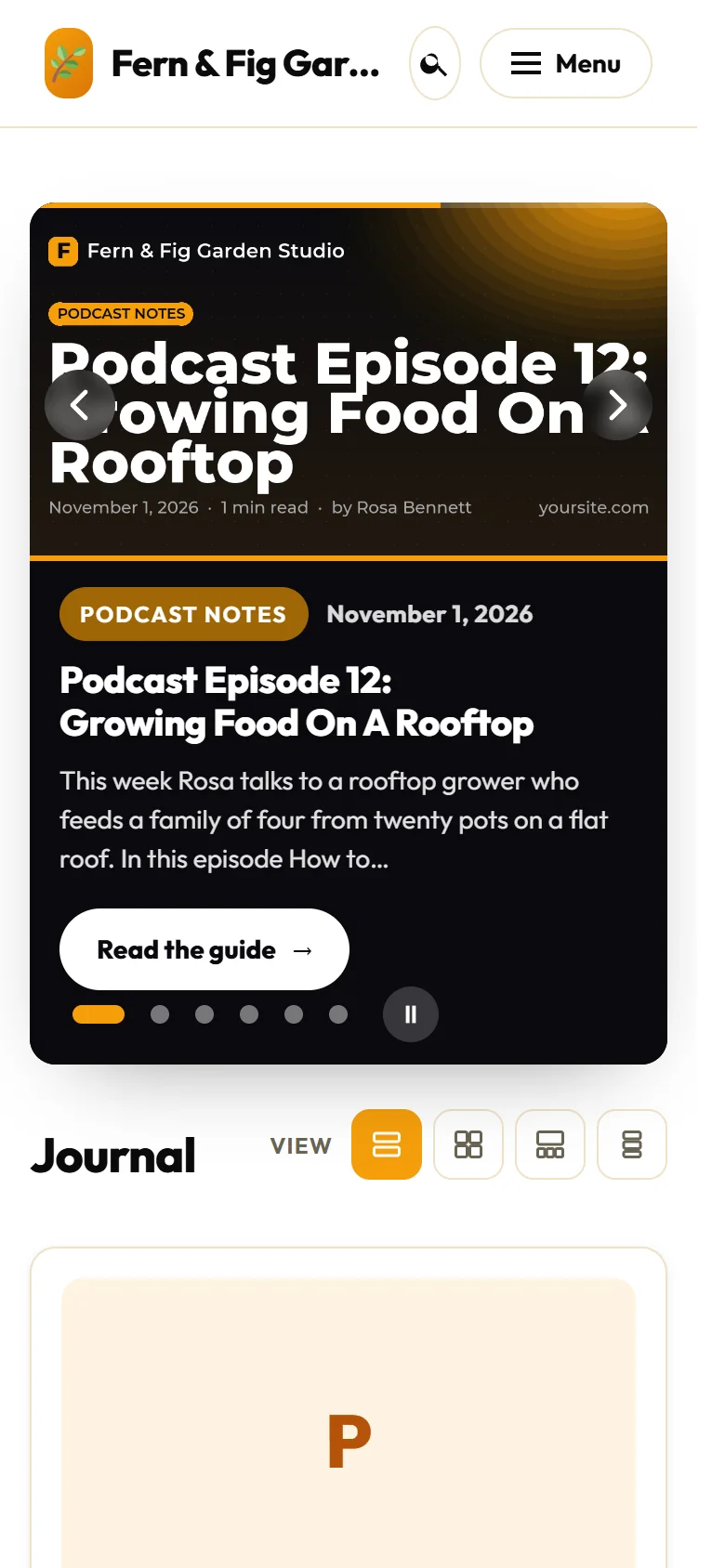
On a phone the blog becomes one column, the View icons sit beside the title, and the sliding banner stacks its words under the picture.
A post's Picture and sharing tab:
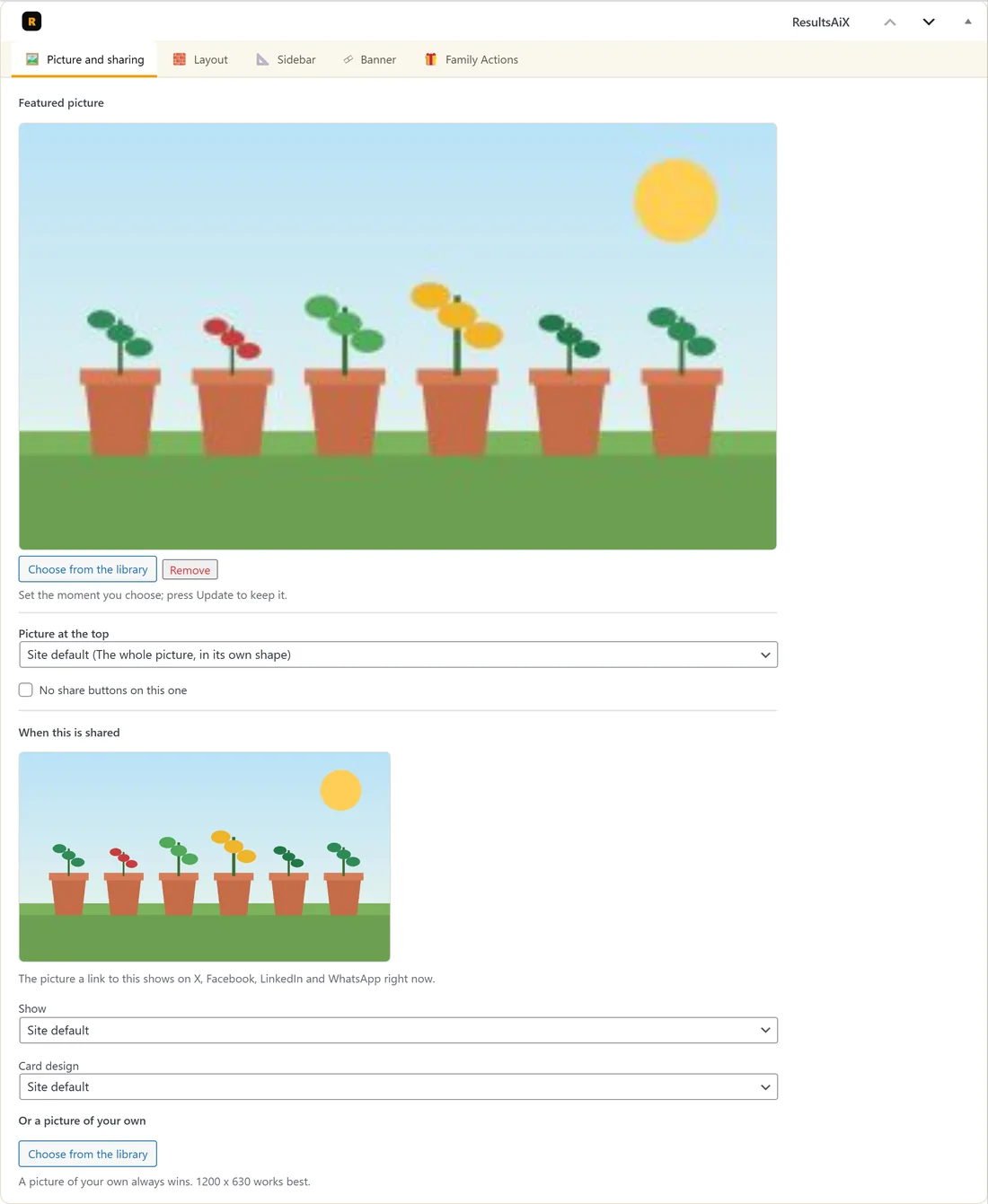
Every post, page and training has a Picture and sharing tab in the ResultsAiX panel under the editor:
- Featured picture: Choose from the library or Remove. It leads the post, the blog cards and the sliding banner. It is set the moment you choose; press Update to keep it.
- Picture at the top: Site default, or this post's own choice of the three looks described below.
- No share buttons on this one: hides the share row on this post only.
- When this is shared: a preview of the picture a link to this post shows on X, Facebook, LinkedIn and WhatsApp right now.
- Show: Site default, The featured picture (a drawn card if there is none), or A drawn share card with the title.
- Card design: Site default, or Bold or Minimal for this post.
- Or a picture of your own: Choose from the library. A picture of your own always wins. 1200 x 630 works best.
The author box:

The author box under every post shows the whole Biographical Info from the author's WordPress profile, with any links in it working.
Under Users, Profile, in the section Your links in the author box, each author can add Amazon author page, Facebook, X (Twitter), LinkedIn, Instagram, YouTube and TikTok. Those show in the box as small buttons, after the Website from the profile.
The picture at the top of a post:
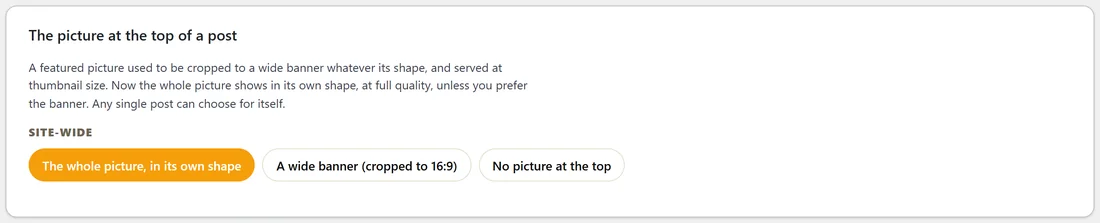
By default the whole featured picture shows in its own shape, at full quality. Three places can change it:
- The Sharing tab, The picture at the top of a post, for the whole site.
- The Customizer, ResultsAiX Theme, The picture at the top of a post.
- A single post's Picture and sharing tab, Picture at the top.
The choices are The whole picture, in its own shape, A wide banner (cropped to 16:9) and No picture at the top.
Keep older posts linking to newer ones:
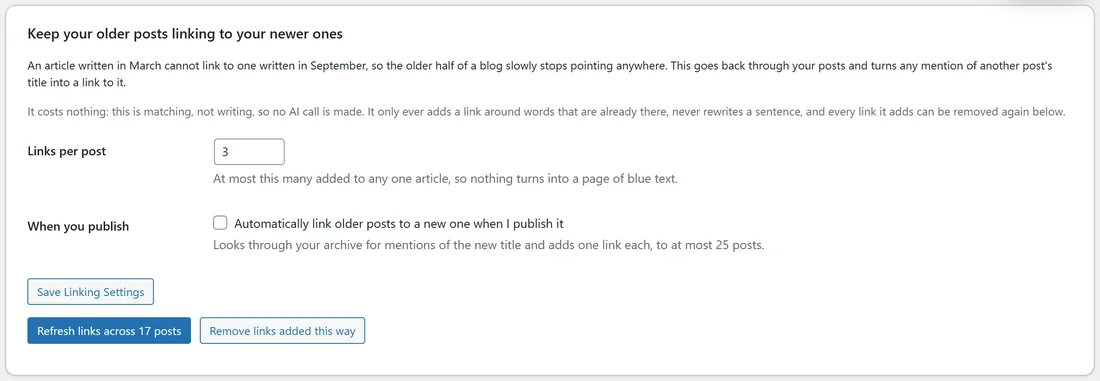
An article written in March cannot link to one written in September, so older posts slowly stop pointing anywhere. On the Blog tab, Keep your older posts linking to your newer ones goes back through your posts and turns any mention of another post's title into a link to it.
It costs nothing and needs no AI. It only adds a link around words that are already there, never rewrites a sentence, and every link it adds can be removed again.
- Set Links per post: at most this many added to any one article, from 1 to 10. The default is 3.
- Tick Automatically link older posts to a new one when I publish it if you want it done for you. It adds one link each to at most 25 older posts.
- Press Save Linking Settings.
- Press Refresh links across your posts to run it now. The button shows how many posts it will look through.
- Press Remove links added this way to take every added link out again.
Share buttons:
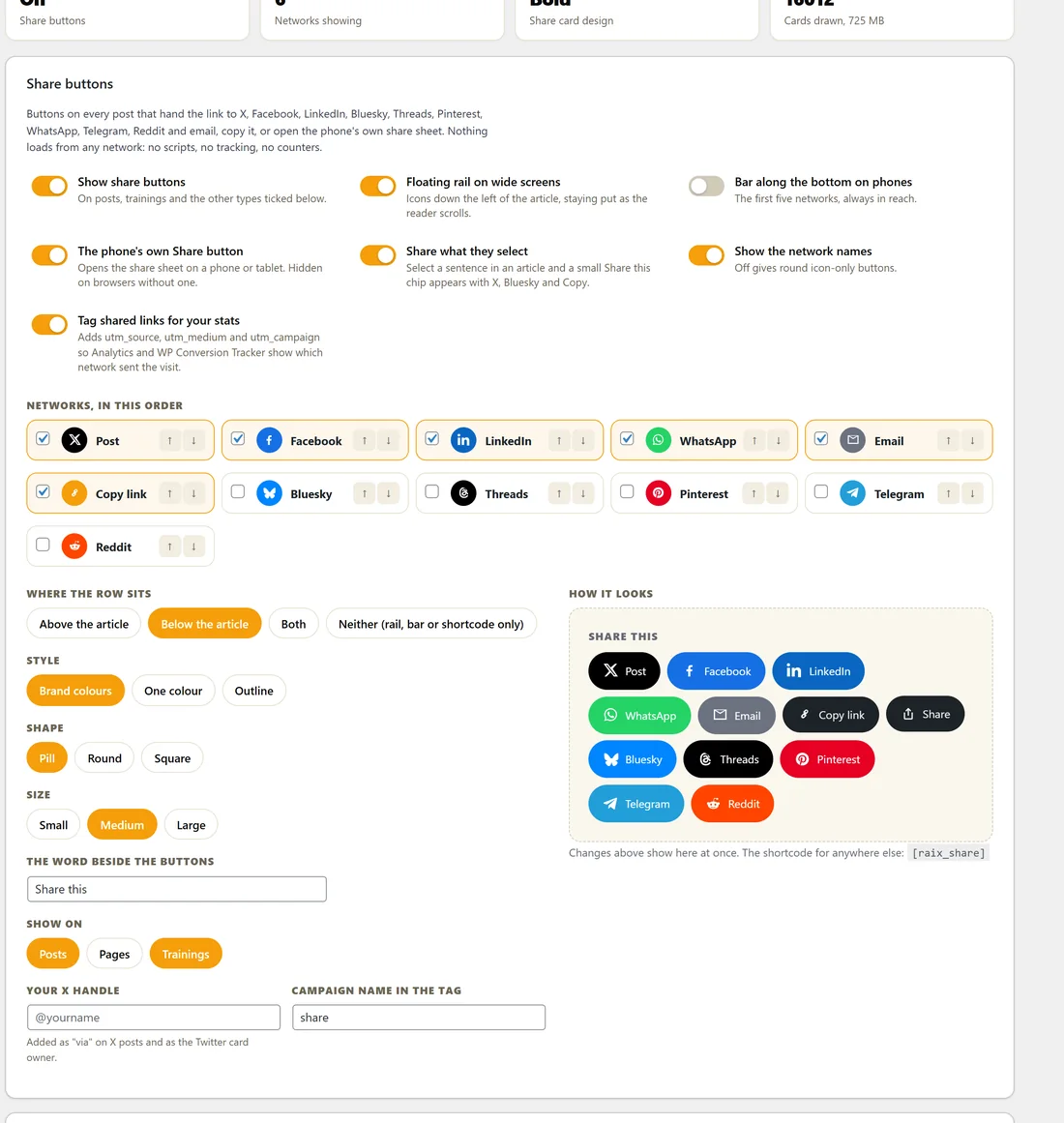

The Sharing tab, Share buttons. The buttons hand the link to a network, copy it, or open the phone's own share sheet. Nothing loads from any network: every button is a plain link, with no network scripts and no counters.
- Show share buttons: on posts, trainings and the other types ticked under Show on.
- Floating rail on wide screens: icons down the left of the article as the reader scrolls.
- Bar along the bottom on phones: the first five networks, always in reach. Off by default.
- The phone's own Share button: opens the share sheet on a phone or tablet.
- Share what they select: select a sentence and a small Share this chip appears with X, Bluesky and Copy.
- Show the network names: off gives round icon-only buttons.
- Tag shared links for your stats: adds utm_source, utm_medium and utm_campaign so your analytics show which network sent each visit.
- Networks, in this order: X (the button says Post), Facebook, LinkedIn, WhatsApp, Email, Copy link, Bluesky, Threads, Pinterest, Telegram and Reddit. Tick the ones you want and use the arrows to order them.
- Where the row sits: Above the article, Below the article (the default), Both, or Neither (rail, bar or shortcode only).
- Style (Brand colours, One colour or Outline), Shape (Pill, Round or Square) and Size (Small, Medium or Large).
- The word beside the buttons: Share this by default.
- Show on: Posts, Pages and Trainings. Posts and Trainings are ticked by default.
- Your X handle: added as via on X posts. Campaign name in the tag: share by default.
How it looks shows your row as you change it. Press Save Sharing Settings. Any single post can choose No share buttons on this one on its Picture and sharing tab. Use [raix_share] to put the row anywhere, and [raix_share_quote]your sentence[/raix_share_quote] for a pull quote with its own share buttons.
Share cards:
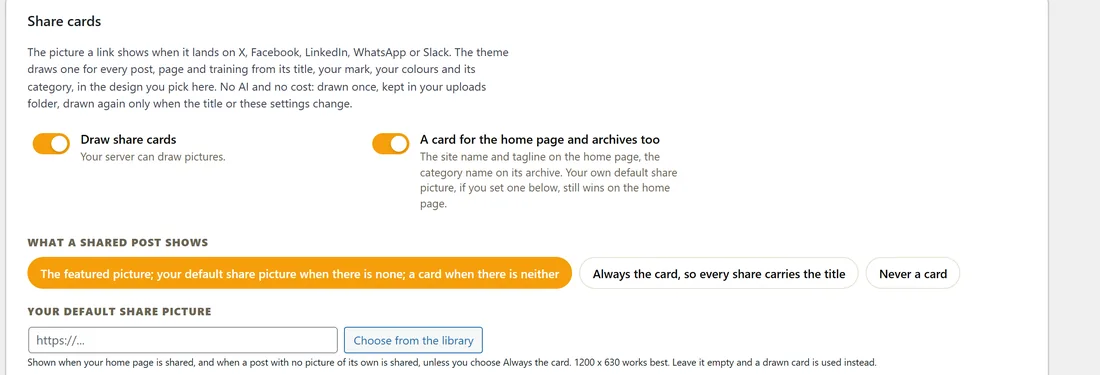
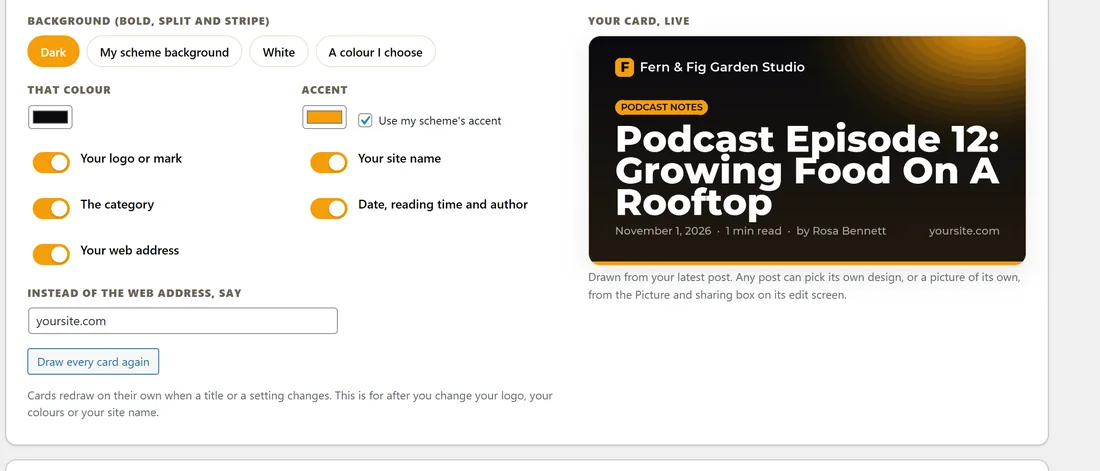
When someone shares a link, the network shows a picture. The theme draws a 1200 by 630 card for every post, page and training from its title, your mark or logo, your colours and its category. Cards are drawn once, kept in your uploads folder and drawn again only when the title or the settings change.
- Draw share cards: on, when your server can draw pictures. The card says so.
- A card for the home page and archives too: your site name and tagline on the home page, the category name on its archive.
- What a shared post shows: the featured picture, your default share picture when there is none, and a card when there is neither (the default); Always the card, so every share carries the title; or Never a card.
- Your default share picture: Choose from the library. 1200 by 630 works best.
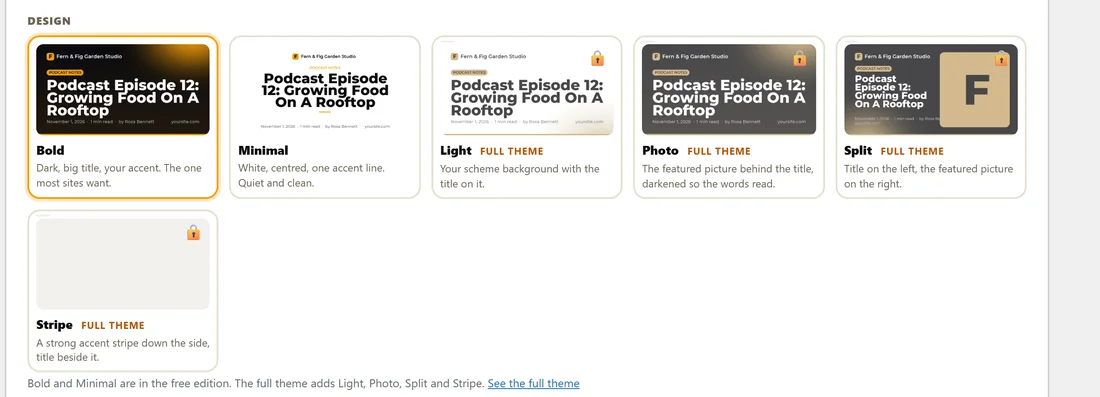
- Design: the free theme includes Bold (dark, big title, your accent) and Minimal (white, centred, one accent line). Light, Photo, Split and Stripe carry a Full theme label.
- Background (Bold, Split and Stripe): Dark, My scheme background, White or A colour I choose, and Accent, with Use my scheme's accent.
- What the card shows: Your logo or mark, Your site name, The category, Date, reading time and author, and Your web address. Instead of the web address, say lets you print something shorter, such as yoursite.com.
Your card, live draws a card from your latest post as you change things. After changing your logo, colours or site name, press Draw every card again. Any post can pick its own design, or a picture of its own, on its Picture and sharing tab.
When no SEO plugin is active, the free theme also prints the basic sharing tags each page needs: a description, the title, the address and the share picture.
Site search:
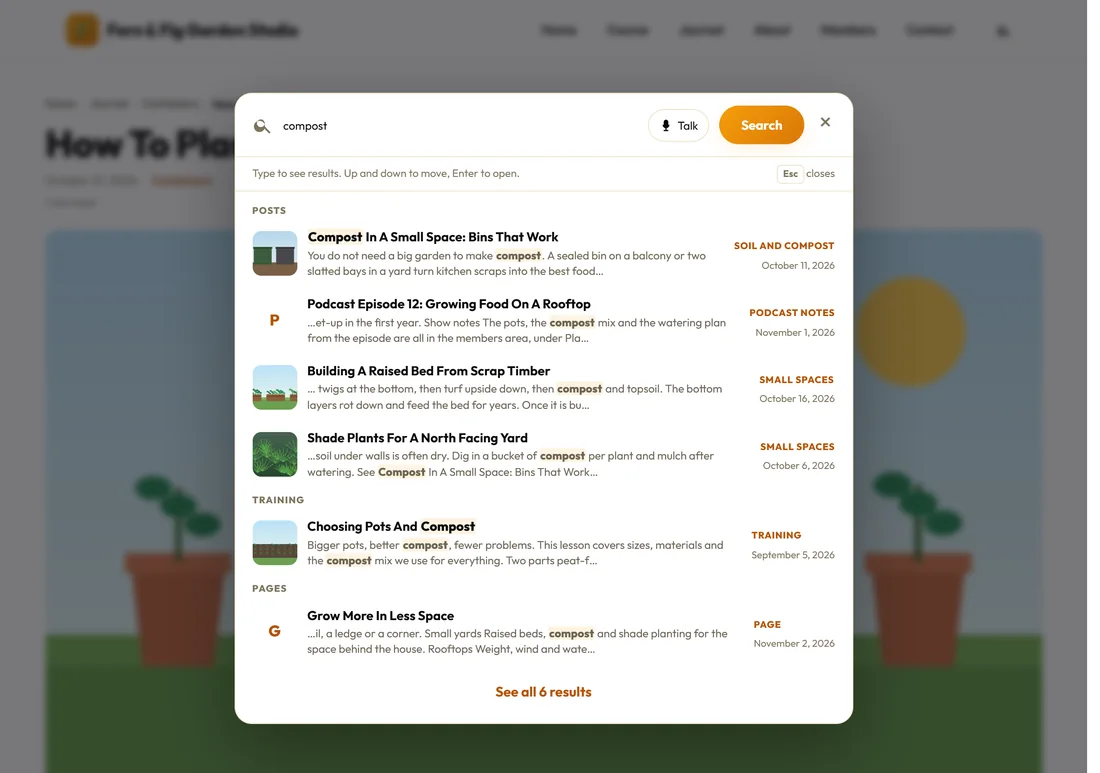
A Search button in the header opens a search panel. Results appear as the visitor types, grouped into posts, training and pages, with the matching words highlighted and See all results at the end. Up and down move through them, Enter opens one and Esc closes the panel.
Press / or Ctrl + K from anywhere on the site to open it. Both switches live in Appearance, Customize, ResultsAiX Theme: A Search button in the header, and Results as you type. Results come from your own published content, and nothing is sent anywhere.
Talk instead of type:

Your Site, Talk instead of type, Show the Talk button (on by default) adds a Talk button beside the search box. Visitors press it and speak, and the search runs as if they had typed. It uses the voice engine in the visitor's own browser, so there is no key, no cost and nothing is uploaded. The button only appears in browsers that have a voice engine, such as Chrome, Edge and Safari.
A real example:
Rosa's blog page is called Journal and uses the List layout. A reader who prefers pictures presses the Cards icon and the Journal stays that way for them. Her shares use the Bold card with yoursite.com in place of the web address. A visitor who types compost in the search sees four posts, one training and one page before they finish typing.
Tips:
- Give each post a featured picture. It leads the post, the blog cards, the sliding banner and the share.
- Run Refresh links across your posts once after you import an older blog.
- The sliding banner above the blog has its own article: The Sliding Banner.