
Once a reader has scrolled a little way into a post, a slim bar slides in with a line showing how far through they are, the post title, share buttons and a button of yours.
Use it to keep your offer, your course or your newsletter one click away while people read, without a popup. It is on by default for posts.
Where to find it:
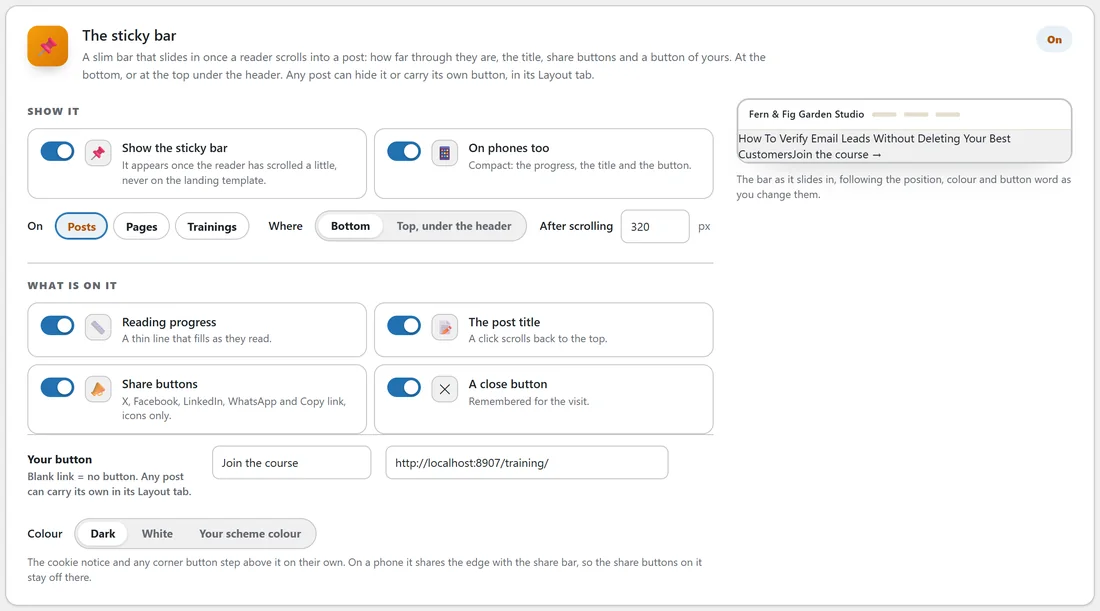
ResultsAiX Theme, Your Site tab, The sticky bar card. The label at the top right says On or Off.
Setting it up, step by step:
- Open the Your Site tab and scroll to The sticky bar.
- Leave Show the sticky bar on.
- Tick where it shows: Posts, Pages and Trainings.
- Type a button word and a link under Your button.
- Choose the colour.
- Press Save Your Site.
Show it:
- Show the sticky bar: the main switch. It appears once the reader has scrolled a little, and never on a page using the Landing (No Chrome) template.
- On phones too: a compact version with the progress, the title and the button. On by default.
- On: Posts, Pages and Trainings, ticked as you like. Posts only is the default.
- Where: Bottom, or Top, under the header.
- After scrolling: how many pixels the reader scrolls before it appears, from 0 to 3000. The default is 320.
What is on it:
- Reading progress: a thin line that fills as they read.
- The post title: a click scrolls back to the top.
- Share buttons: X, Facebook, LinkedIn, WhatsApp and Copy link, as icons.
- A close button: once closed, it stays away for the rest of the visit.
- Your button: a button word and a link. Leave the link blank and there is no button.
- Colour: Dark, White or Your scheme colour.
The card shows the bar as it slides in, following the position, colour and button word as you change them. The title on that preview is a sample.
On a phone:
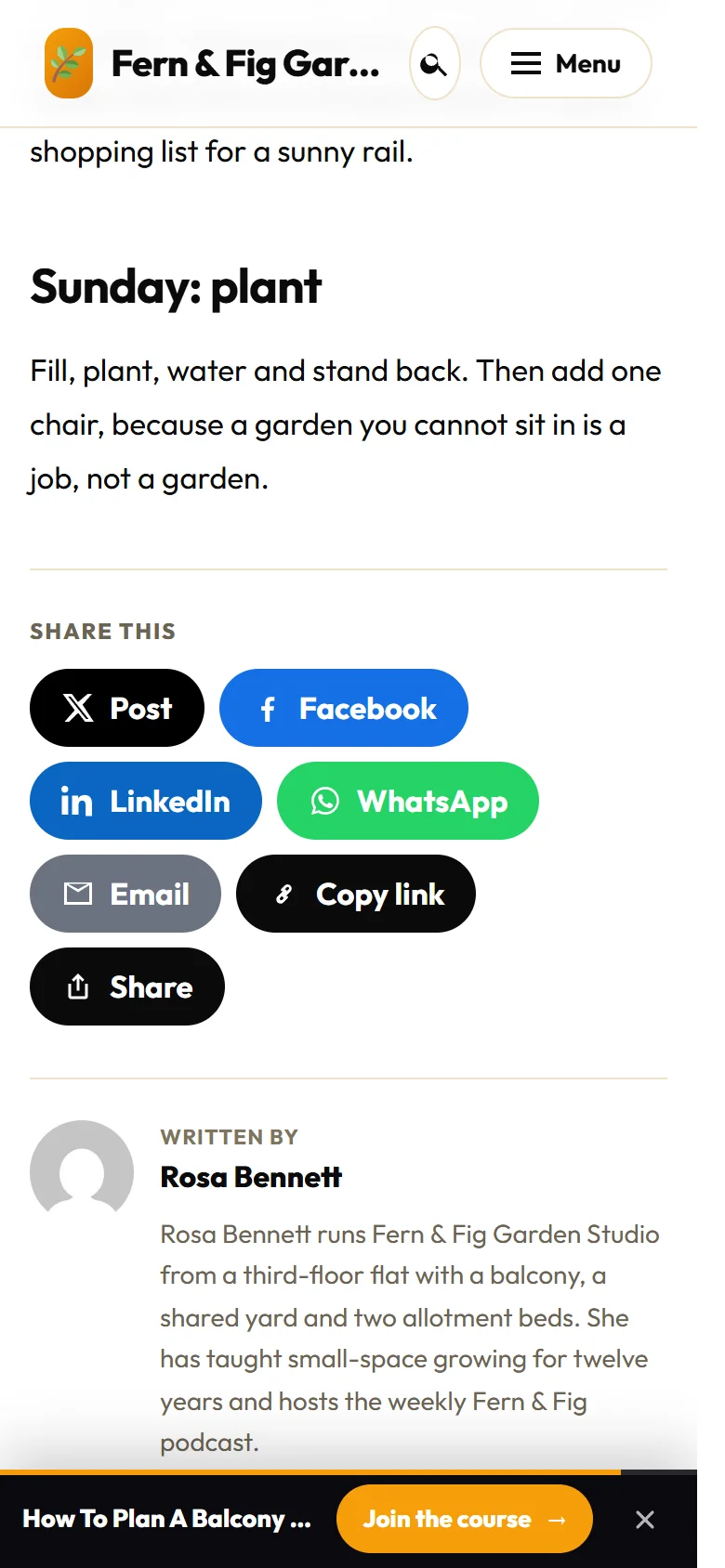
On a phone the bar is compact: the title, your button and the close button, with the progress line along its top edge. It shares the bottom edge with the share bar, when you use that, so its share buttons stay off there.
Per post:
On a post's Layout tab, The sticky bar can stay on Site default or be set to Hide on this one. The same place takes Its own button word and Its own button link, so one post can point readers somewhere different. Leave the link blank to use the site button.
Good to know:
The cookie notice and any corner button step above the bar on their own, so nothing is covered.
A real example:
Rosa's bar shows on posts with the button Join the course, linking to her training library. On her compost article she sets Its own button word to Get the compost guide and links it to her free planting guide, so readers of that post get the offer that suits them.
Tips:
- Keep the button word short and say what happens: Join the course, Get the guide, Book a call.
- If the bar does not show on a page, check that type is ticked, that the post is not set to Hide on this one, and that you have scrolled past the After scrolling distance.
- The share buttons under the article are set separately. See Blog Layouts, Sharing And Site Search.