Most of the theme's settings are site-wide. The ResultsAiX panel is where one post, page or training makes its own choices: its featured picture and share card, its layout, its sidebar, whether it slides in the banner, and which family plugins run on it.
Where to find it:
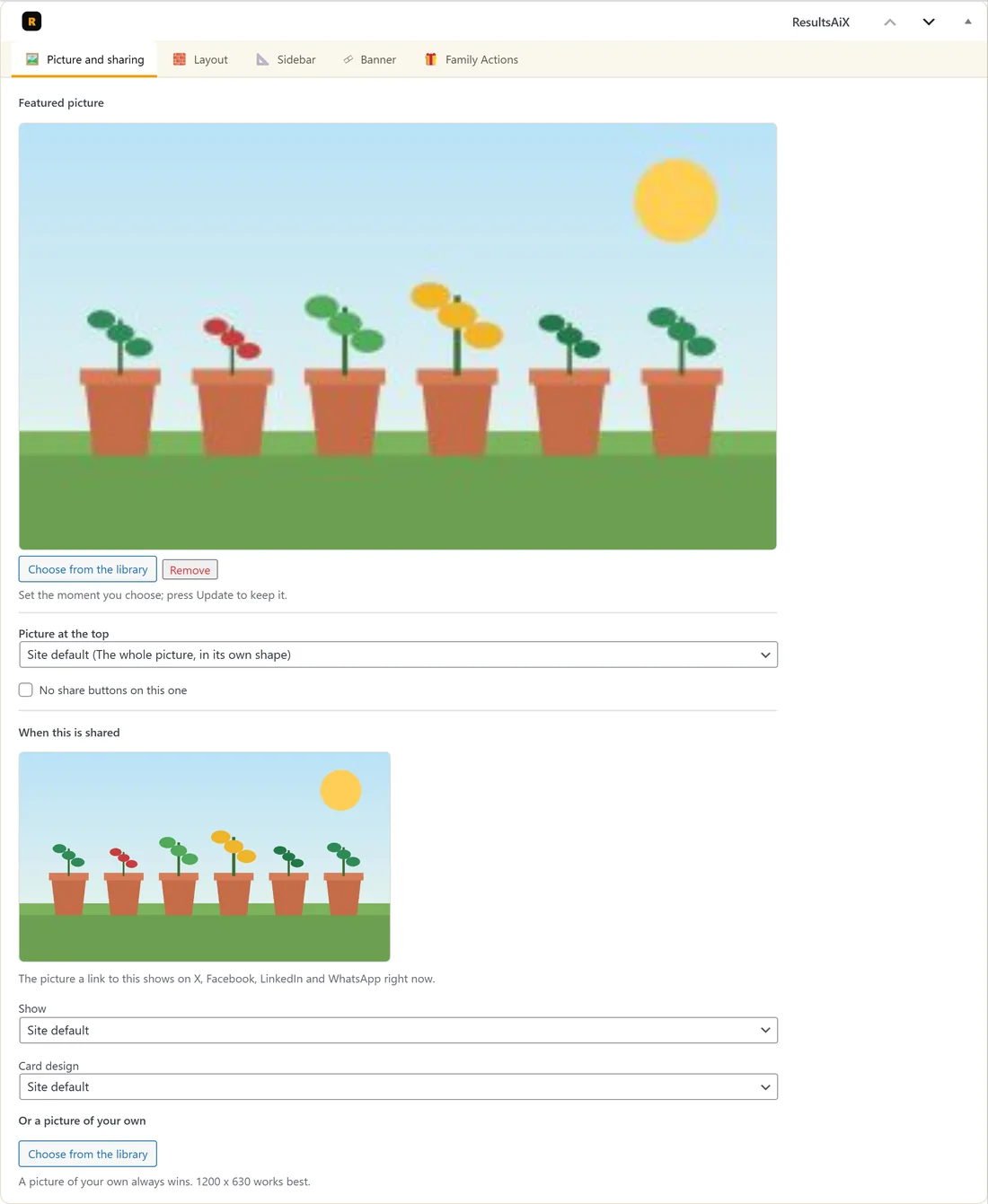
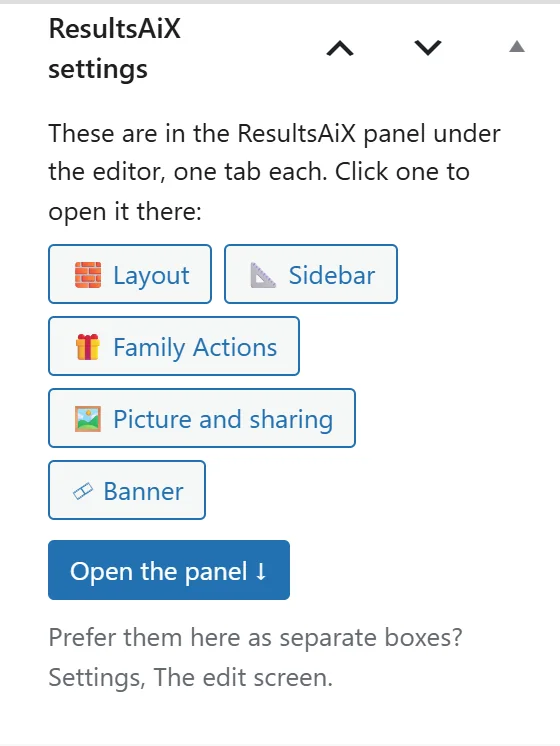
Open any post, page or training in the editor and scroll below the writing. The panel is headed ResultsAiX, with one tab for each of its boxes. The tab you used last stays open next time.
A small box called ResultsAiX settings sits in the side column of the editor. It has one button per tab, so a click opens that tab in the panel, and Open the panel jumps down to it.
The tabs:
- Picture and sharing: on posts, pages and trainings.
- Layout: on posts, pages and trainings.
- Sidebar: on posts, pages and trainings.
- Banner: on posts only.
- Family Actions: on posts, pages and trainings.
Picture and sharing:
- Featured picture: Choose from the library or Remove. It leads the post, the blog cards and the sliding banner.
- Picture at the top: Site default, The whole picture, in its own shape, A wide banner (cropped to 16:9), or No picture at the top.
- No share buttons on this one.
- When this is shared: a preview of the picture a shared link shows right now.
- Show, Card design and Or a picture of your own: what a share of this post carries. See Blog Layouts, Sharing And Site Search.
Layout:
- The layout for this page only: Use site default, or one of the four layouts.
- Writing width: Site default, Full width of the column, or A comfortable reading measure (about 860px).
- The sticky bar: Site default or Hide on this one, with Its own button word and Its own button link.
- On pages: Hide the page title, for the Landing (No Chrome) template, and the Landing page header, Landing page footer, Landing footer links and Small print for this page.
- On trainings: Who can open this training.
See Layouts And The App-Style Member Portal and The Sticky Reading Bar.
Sidebar:

Use site default, Show the sidebar on this page, or Hide the sidebar on this page. The sidebar only appears when the Sidebar (Optional) widget area has a widget in it.
Banner:

Show this post in the sliding banner: Site default, Yes, always, or No, never. See The Sliding Banner.
Family Actions:
Switch an installed ResultsAiX plugin on for this page. Plugins that would fit but are not installed are listed under Also available. See Widgets, Shortcodes And The Plugin Family.
Using the panel, step by step:
- Open the post in the editor.
- Click a button in the ResultsAiX settings box, or scroll down to the panel.
- Pick a tab and make your choice.
- Press Update (or Publish). Choices in the panel are saved with the post.
Separate boxes instead:
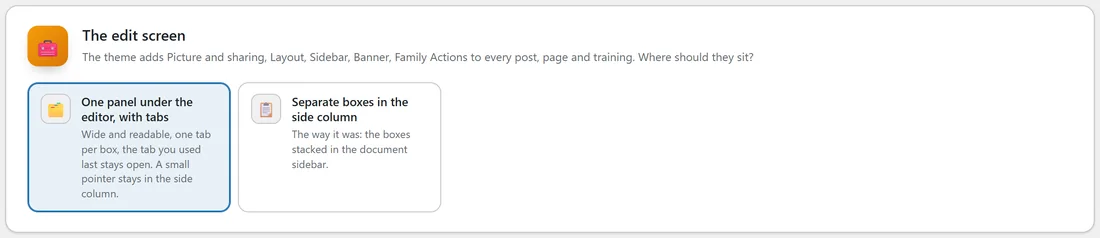
If you prefer the boxes in the side column of the editor, as in older versions, go to ResultsAiX Theme, Settings, The edit screen and choose Separate boxes in the side column. They are then called ResultsAiX Layout, ResultsAiX Sidebar, ResultsAiX Banner, ResultsAiX Family Actions and Picture and sharing. Choose One panel under the editor, with tabs to go back.
If you do not see the panel:
The ResultsAiX settings box in the side column tells you why, with a button to fix it:
- In the code editor, the part of the screen under the editor is not drawn. Press Exit the code editor.
- Distraction free hides everything under the editor. Press Turn distraction free off.
- The panel can be switched off under Options, Preferences, Panels. Press Switch it back on.
A real example:
Rosa writes a post about compost bins. On Picture and sharing she chooses her compost picture. On Layout she sets Its own button word to Get the compost guide, so the sticky bar on this post offers that guide. On Banner she picks Yes, always, so this post stays in the banner above the Journal even after newer posts arrive.
Tips:
- Leave everything on Site default unless the post really needs to be different. Then a change on the theme's tabs reaches every post at once.
- The panel's choices travel with the post, so a post keeps them if you change the site-wide settings later.