Installing the free theme takes a couple of minutes, and switching to it from another theme changes how your site looks, not what is in it.
This article covers the upload, the first steps after activation, and what to check after a switch so nothing is left out of place.
Installing:
- In WordPress go to Appearance, Themes and press Add New Theme, then Upload Theme.
- Choose the ResultsAiX Theme Free zip you downloaded and press Install Now.
- Press Activate. The theme is listed as ResultsAiX Theme (Free Version).
- Click ResultsAiX Theme in the admin sidebar and press Get my free key and activate. See Getting The Free Theme And Your Free Key.
- A notice says Welcome! Set up your site in about two minutes. Press Run the Setup Wizard, or Dismiss if you would rather set things up yourself.
What a theme switch changes:
Switching themes changes how your site looks. It does not delete or change your posts, pages, media, users or plugins.
Still, on a site that matters, take a backup first. On a big site, try the switch on a copy of the site before the live one.
The theme refreshes your site's address rules when it is activated, so the training library at /training/ and the topic pages at /topic/ work straight away.
Check your menus:
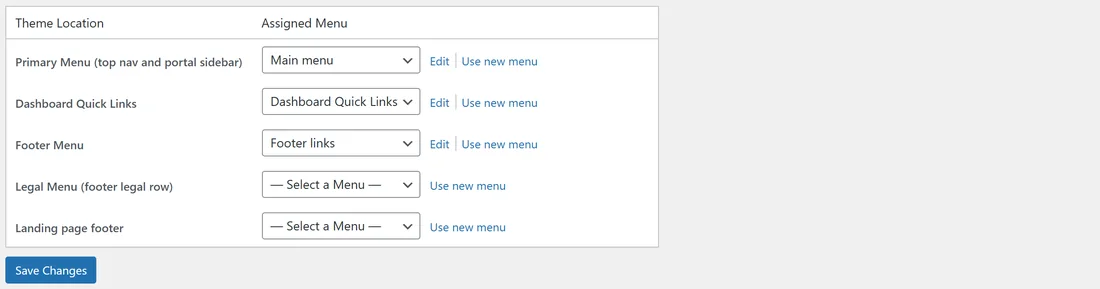
WordPress attaches menus to a theme's menu positions. Your menus survive a switch, but they need pointing at this theme's positions once.
- Go to Appearance, Menus and open the Manage Locations tab.
- Choose a menu for each position you want to use.
- Press Save Changes.
The positions are:
- Primary Menu (top nav and portal sidebar): the main menu along the top, or down the left in the Member portal layout.
- Dashboard Quick Links: the cards on a Member Dashboard page.
- Footer Menu: a column of links in the footer.
- Legal Menu (footer legal row): the legal links in the footer. Leave it empty and your legal pages appear there by themselves.
- Landing page footer: the links in the quiet footer of Landing pages. Leave it empty and your legal pages are used. See Layouts And The App-Style Member Portal.
Until you assign a Primary Menu, the header shows a simple stand-in menu: Home, your top-level pages, your blog page, and Trainings once a training is published. The Setup Wizard can also build and assign menus for you.
Check your widgets:
This theme has two widget areas under Appearance, Widgets:
- Footer Extra: at the top of the footer, above the link columns.
- Sidebar (Optional): beside your posts and pages, once you switch the sidebar on.
Widgets that lived in your old theme's areas need placing in these. See Widgets, Shortcodes And The Plugin Family for the ready-made footer blocks.
Check your key pages:
Open your home page, a post, a page and anything built with your old theme's own shortcodes. A shortcode that belonged to the old theme does not work in this one, so look for leftover text in square brackets and replace it, often with one from the Shortcode Studio.
If a training or post shows a Not Found page, go to Settings, Permalinks and press Save Changes once.
Moving pages off a page builder:
If the theme finds pages built with a page builder it knows how to read, a Move In tab appears in the ResultsAiX Theme screens. Sites without such pages never see this tab.
The Move In tab lists each page, what is on it and whether it would come across whole. It changes nothing until you choose.
- Tick the pages you want to move.
- Press Move the ticked pages onto the theme.
- Open each page and check it.
- To undo a page, tick it and press Put them back.
Each page keeps the same address, and nothing the page builder saved is changed, so any move can be undone. The Settings tab has a card called The banner on a moved page: Leave the banner behind drops the logo picture a page builder often puts at the very top, and Keep it leaves the page exactly as it was.
Your visitors while you work:
The public website keeps working throughout. Layouts, menus, legal pages and everything you have published do not depend on the key.
A real example:
Rosa moves yoursite.com from her old theme. She uploads the zip, activates it and gets her free key. On Manage Locations she picks Main menu for the Primary Menu, Footer links for the Footer Menu and Dashboard Quick Links for the dashboard cards, and leaves the Legal Menu empty so her legal pages fill it. Then she drags her About widget into Footer Extra.
Tips:
- Run the Setup Wizard right after installing. It skips anything you already have, so it is safe on an existing site. See The Setup Wizard And Your First Steps.
- After the switch, look at your site on a phone as well as a computer.
- If something still looks out of place, Updates, Your Licence And Troubleshooting has calm fixes for the common cases.