Every site needs a privacy policy, terms and, for most visitors, a cookie notice. The theme writes the pages from your business details, links them in the footer, and runs a cookie notice that really holds your tracking codes until a visitor says yes.
Where to find it:
All of this lives on the Legal Pages tab, except the tracking codes, which are on the Settings tab.
Your business details:
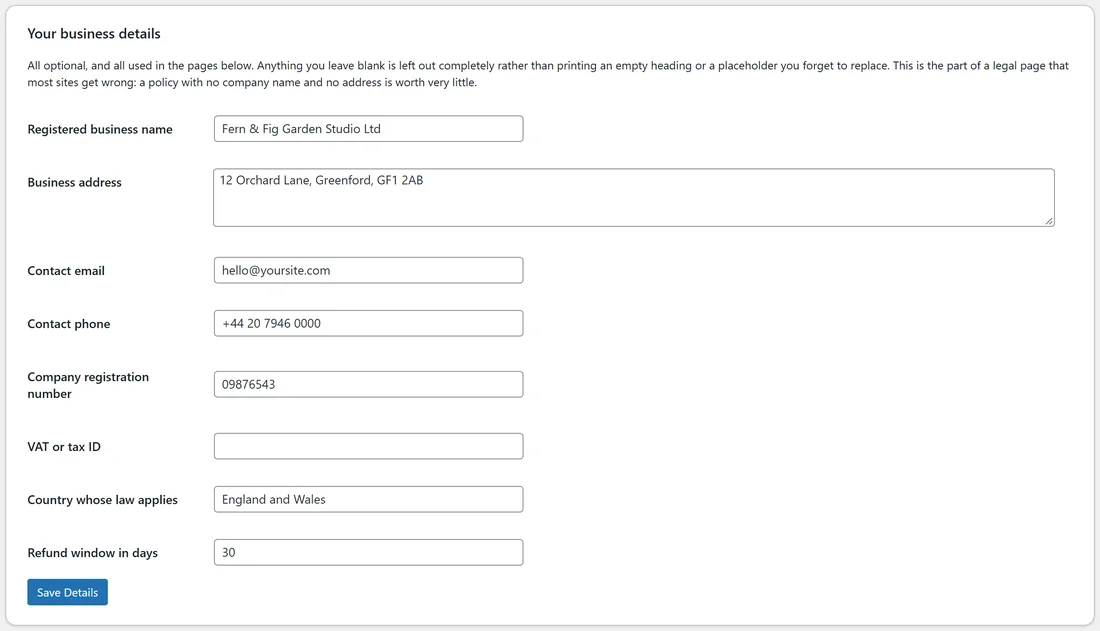
Fill in what applies, then press Save Details:
- Registered business name
- Business address
- Contact email
- Contact phone
- Company registration number
- VAT or tax ID
- Country whose law applies
- Refund window in days
Everything is optional. Anything left blank is left out of the pages completely, rather than printing an empty heading or a placeholder you forget to replace.
One-click legal pages:


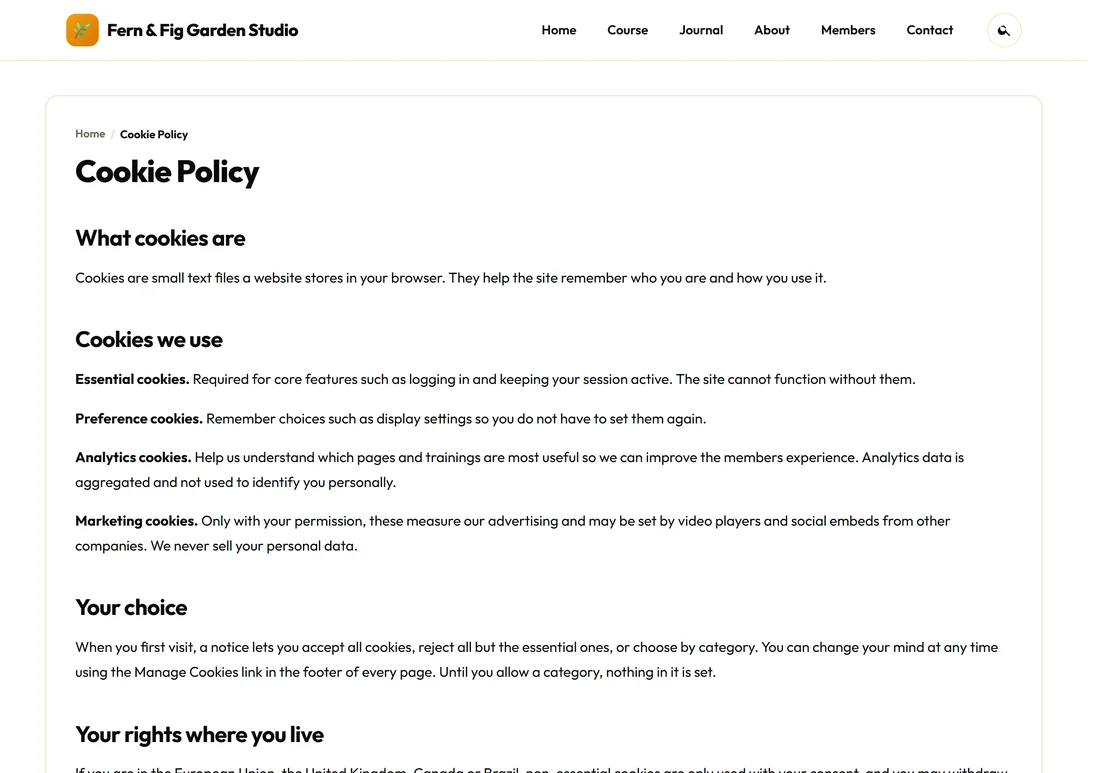
- Fill in your business details and press Save Details.
- Press Create Legal Pages.
- The theme creates Privacy Policy, Terms of Service, Earnings Disclaimer, Cookie Policy and Accessibility Statement pages, written with your details, published and linked in the footer legal row.
- Open each page and read it before you launch.
Pages you already have are never overwritten. An existing page at the same address is used as it is, and an empty one is filled in rather than duplicated. The Setup Wizard can create them for you too.
The card Your legal pages at the bottom of the tab lists each page with a View link. If you change your details after creating the pages, edit the pages by hand to fold the new details in.
The pages are a starting template, not legal advice. Have a professional check anything you rely on.
The cookie notice:
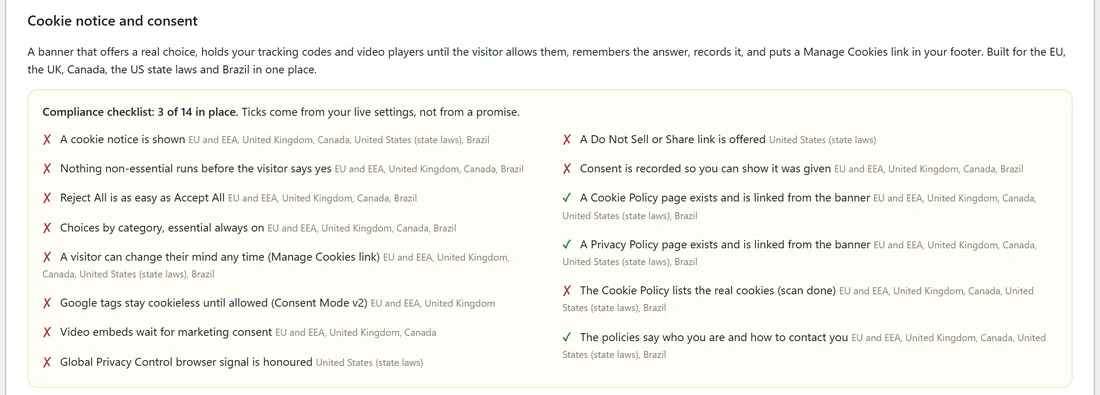
Cookie notice and consent, on the same tab. It is a banner that offers a real choice, holds your tracking codes and video players until the visitor allows them, remembers the answer, records it, and puts a Manage Cookies link in your footer.
At the top, the compliance checklist ticks itself from your live settings, for example 3 of 14 in place, and names the regions each line matters for: EU and EEA, United Kingdom, Canada, United States (state laws) and Brazil.
Setting it up, step by step:
- Tick Show the cookie notice on the website. It is off until you switch it on, or tick Cookie notice in the Setup Wizard.
- Choose how it behaves and who sees it.
- Check the wording and the categories.
- Press Save Cookie Settings.
- Press Preview the banner to see it on your site.
Every setting:
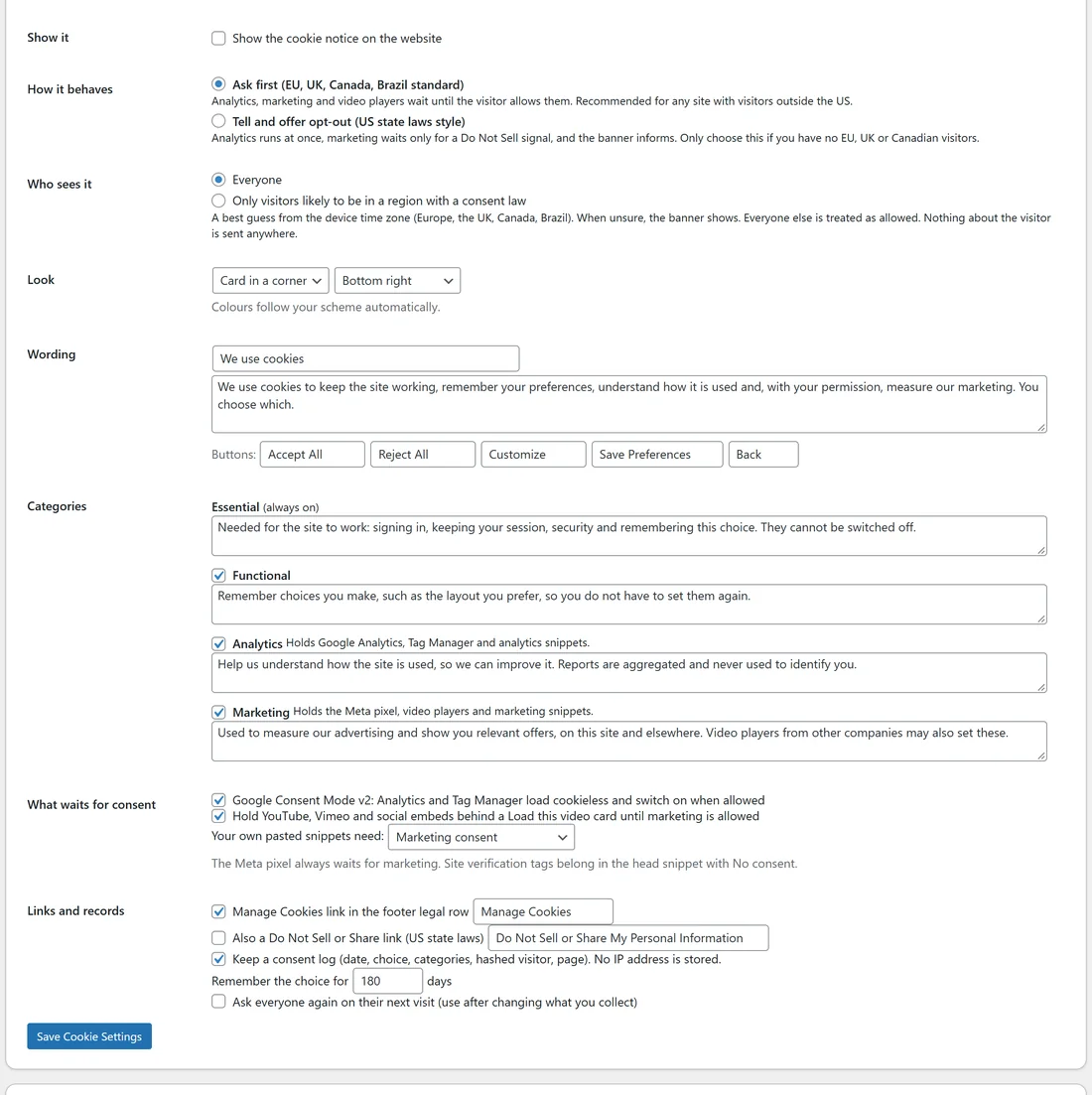
- How it behaves: Ask first (EU, UK, Canada, Brazil standard), where analytics, marketing and video players wait until the visitor allows them. It is the recommended choice for any site with visitors outside the US. Or Tell and offer opt-out (US state laws style), where analytics runs at once and the banner informs.
- Who sees it: Everyone, or Only visitors likely to be in a region with a consent law, a best guess from the device time zone. When unsure, the banner shows.
- Look: Card in a corner or Full-width bar, and where it sits: Bottom right, Bottom left, Bar at the bottom or Bar at the top. Colours follow your scheme.
- Wording: the heading (We use cookies), the message and the button words (Accept All, Reject All, Customize, Save Preferences, Back) are yours to change.
- Categories: Essential (always on), Functional, Analytics and Marketing, each with a sentence you can edit. Analytics holds Google Analytics, Tag Manager and analytics snippets. Marketing holds the Meta pixel, video players and marketing snippets.
- What waits for consent: Google Consent Mode v2 (Analytics and Tag Manager load cookieless and switch on when allowed), Hold YouTube, Vimeo and social embeds behind a Load this video card until marketing is allowed, and which consent your own pasted snippets need: Marketing consent, Analytics consent or No consent.
- Links and records: a Manage Cookies link in the footer legal row, an optional Do Not Sell or Share link for US state laws, a consent log (date, choice, categories, hashed visitor and page, with no IP address stored), Remember the choice for 180 days by default (1 to 365), and Ask everyone again on their next visit for after you change what you collect.
A browser sending the Global Privacy Control signal is treated as a no.
What visitors see:


A card in the corner with your heading and message, links to your Privacy Policy and Cookie Policy, and three buttons: Accept All, Reject All and Customize. Customize opens the categories with a switch for each, and Save Preferences keeps the choice.
Scan and log:
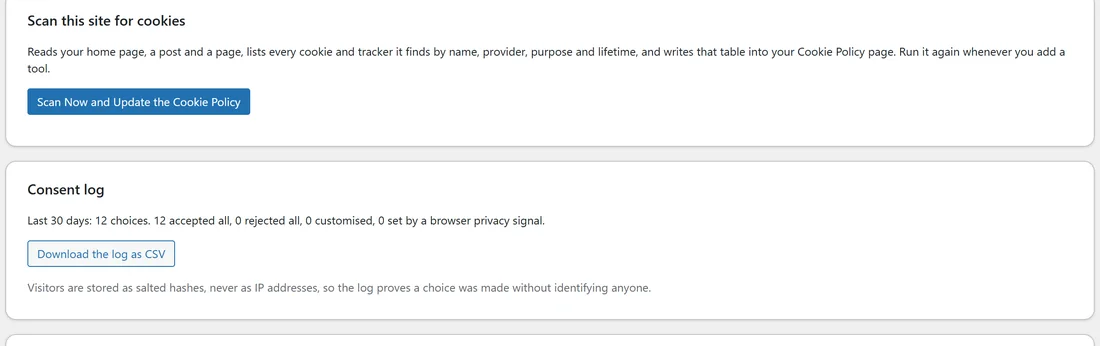
- Scan Now and Update the Cookie Policy reads your home page, a post and a page, lists every cookie and tracker it finds by name, provider, purpose and lifetime, and writes that table into your Cookie Policy page. Run it again whenever you add a tool.
- Consent log shows the last 30 days of choices: how many accepted all, rejected all, customised or were set by a browser privacy signal. Download the log as CSV exports it. Visitors are stored as salted hashes, never as IP addresses.
- [raix_cookie_settings] adds a Manage Cookies link anywhere, and [raix_cookie_table] shows the table from your last scan.
What the law asks for, region by region explains each region in plain English, so you know what the checklist is checking.
Tracking codes:
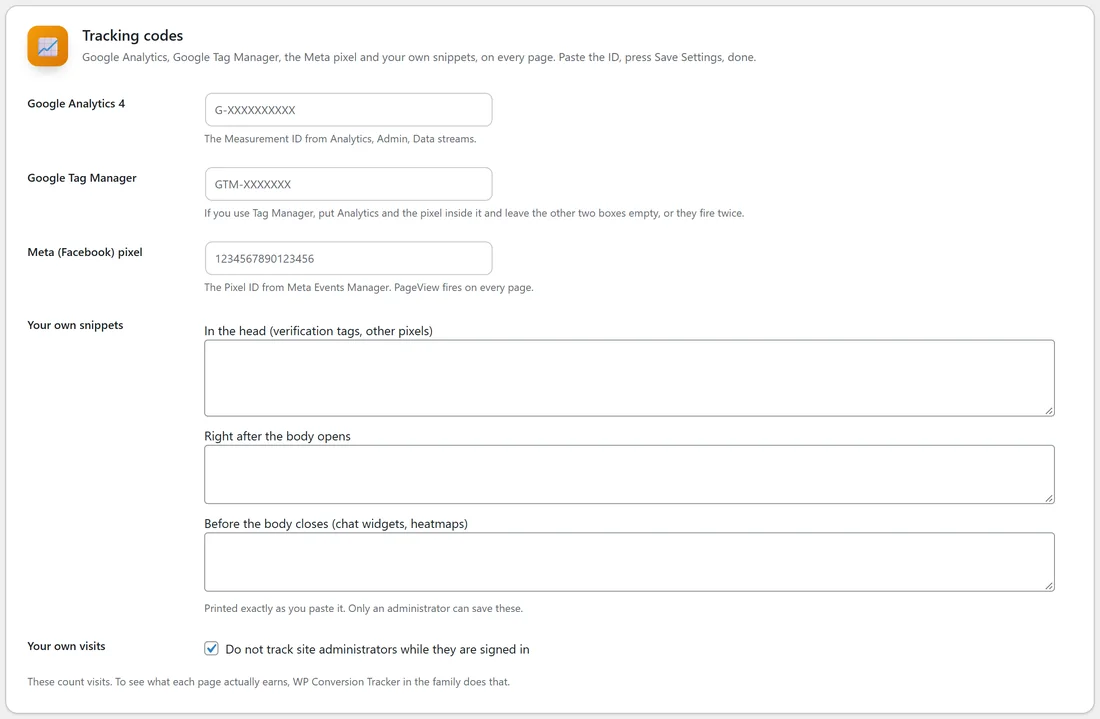
Settings tab, Tracking codes. Google Analytics, Google Tag Manager, the Meta pixel and your own snippets, on every page.
- Paste your Google Analytics 4 Measurement ID (it looks like G-ABC123XYZ), your Google Tag Manager ID (like GTM-ABC123) or your Meta (Facebook) pixel ID (a number).
- Press Save Settings.
Each ID is checked before it is saved. If one does not look right, the message names it and shows the format it should have, and the rest are saved.
If you use Tag Manager, put Analytics and the pixel inside it and leave the other two boxes empty, so nothing fires twice.
Your own snippets go In the head (verification tags, other pixels), Right after the body opens, or Before the body closes (chat widgets, heatmaps). They are printed exactly as you paste them, and only an administrator can save them.
Your own visits: Do not track site administrators while they are signed in is on by default.
With the cookie notice on in Ask first mode, the Meta pixel and your own snippets wait until the visitor allows the matching category. With Google Consent Mode v2 ticked, Analytics and Tag Manager load cookieless and switch on fully when the visitor allows them.
A real example:
Rosa fills in Fern & Fig Garden Studio Ltd, 12 Orchard Lane, Greenford, hello@yoursite.com and the company number, and presses Create Legal Pages. Five pages appear in her footer under Legal. She switches on the cookie notice in Ask first mode, pastes her Analytics ID on the Settings tab, and from then on Analytics only sets its cookies for visitors who press Accept All or allow Analytics.
Tips:
- Fill in your business details before you run the Setup Wizard, so the pages are written with them.
- Run the cookie scan after every new tool you add, so the Cookie Policy stays true.
- A ready-made Accessibility Statement is one of the five pages. It describes what visitors can adjust with their own device.