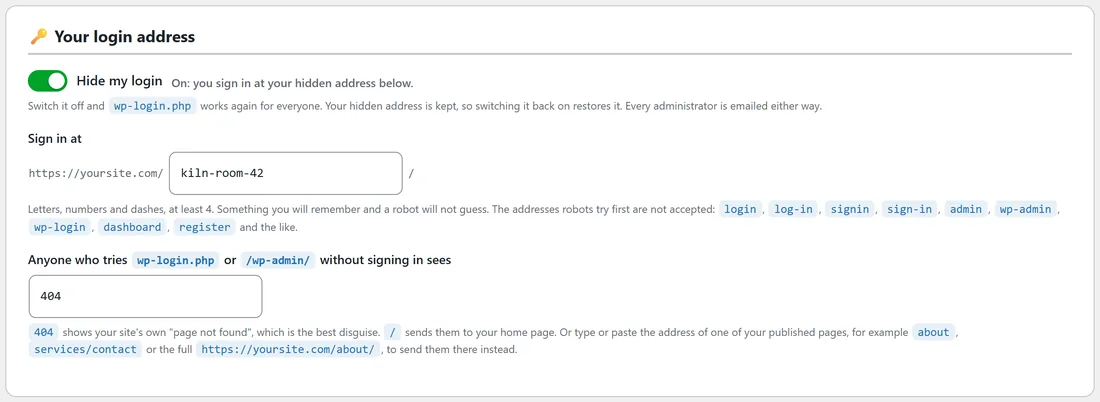
Your secret address is the only place anyone can sign in to your site once Login Guard is on. Choose it once, bookmark it, and you are done.
This article shows where to type it, the rules Login Guard checks before it saves, and how to change it later.
Where to set it:
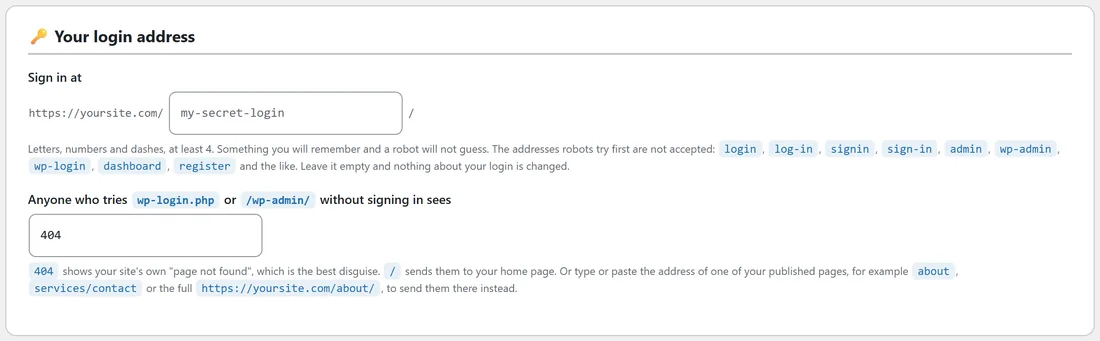
- Open AiX Login Guard, then the Settings tab.
- Find the Your login address section.
- Type your address in the Sign in at box. Your site's own address is printed in front of the box, so you can see the full address as you type.
- Press Save settings at the bottom of the form.
Until you save an address, the box shows the example my-secret-login in grey and the hint under it says Leave it empty and nothing about your login is changed.
Pretty and Plain permalinks:
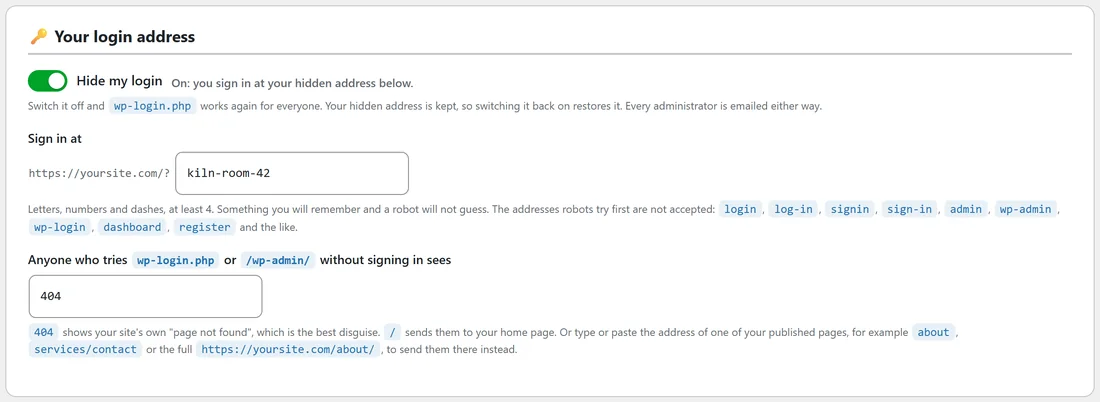
- With normal "pretty" permalinks, your login is yoursite.com/your-address/
- If your permalinks are set to Plain (in Settings, then Permalinks), your login is yoursite.com/?your-address, and the Settings screen shows the ? in front of the box for you
Both ways of writing the address always work, whatever your permalink setting is today. So yoursite.com/kiln-room-42/ and yoursite.com/?kiln-room-42 both open the login page, and a bookmark made before someone changed the permalinks keeps working.
How your address is tidied:
Use letters, numbers and dashes. Login Guard tidies what you type the same way WordPress tidies a page address: capital letters become small letters, spaces become dashes and most other symbols are dropped. So Kiln Room 42 is saved as kiln-room-42.
The rules Login Guard checks:

Before an address is saved, Login Guard checks it. If something needs changing, a message says Not saved: followed by the reason, and nothing on the form is saved.
- At least 4 characters. Otherwise: Use at least 4 characters, so it cannot be guessed in a few tries.
- Not an address WordPress already uses: wp-admin, wp-login, wp-login-php, login-php, wp-content, wp-includes, wp-json, wp-signup, wp-signup-php, wp-register, wp-register-php, wp-activate, wp-cron, feed, rss, rss2, atom, rdf, comments, page, embed, search, author, category, tag, type, xmlrpc, xmlrpc-php, sitemap, robots-txt, index-php and trackback, plus anything containing wp-login or wp-admin. The message is: WordPress already uses that address. Pick another.
- Not one of the addresses a robot tries first, because those would hide nothing: login, log-in, logon, log-on, signin, sign-in, signon, sign-on, signup, sign-up, register, admin, administrator, admin-login, login-admin, adminlogin, wpadmin, wplogin, wp-admin-login, dashboard, backend, cpanel, user, users, user-login, userlogin, account, my-account, myaccount, secure, secure-login, my-login, mylogin, members, member-login, site-login, hidden-login, secret-login, my-secret-login, wordpress and wp. The message is: That is one of the first addresses a robot tries, so it would hide nothing. Pick something only you would think of.
- Not the address of a page or post on your site. Otherwise: A page or post on your site already has that address. Pick another.
- Not the address of your "forgot where to sign in?" page (login-help unless you changed it). Otherwise: That is the address of the "email me my login address" page. Pick another.
The Settings screen lists the main robot addresses under the box, so you can see them as you type.
Picking a good one:
Choose something you will remember and a robot will not guess. Leave out obvious words like login and your site name.
- Two words and a number that mean something to you, such as kiln-room-42 or glaze-shelf-19
- A short phrase from your business, with a number added
- Avoid the example my-secret-login in the empty box: it is on the robot list, so it is refused too
After you save:

A message says Saved. You now sign in at, followed by your new address, and that it has been emailed to every administrator. From that moment, wp-login.php stops answering and your new address shows the login form.
Bookmark it straight away. If you save without changing the address in use, the message just says Settings saved and nobody is emailed.
Changing it later:
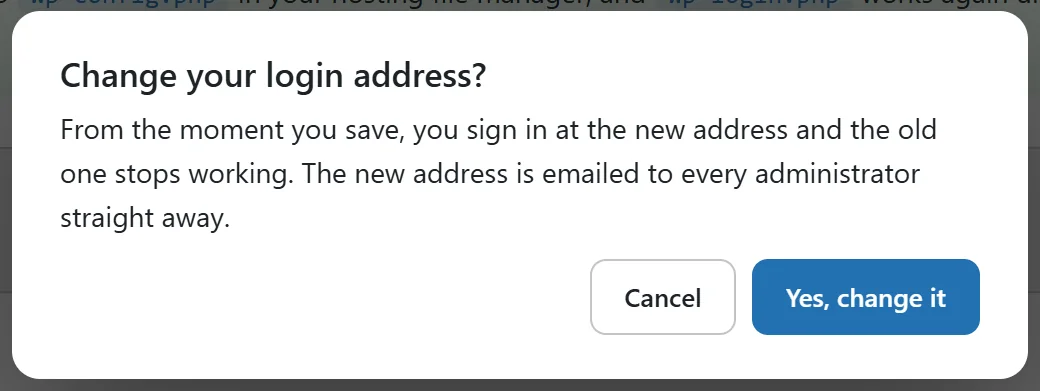

- On the Settings tab, type the new address in Sign in at.
- Press Save settings.
- Login Guard asks first: Change your login address? From the moment you save, you sign in at the new address and the old one stops working. The new address is emailed to every administrator straight away.
- Press Yes, change it. Press Cancel to leave everything as it was.
The old address becomes an ordinary missing page. Every administrator gets an email with the subject Your login address for (your site name) has changed. Administrators are emailed only when the address really changes.
A real example:
Willow Creek Pottery signs in at yoursite.com/kiln-room-42/. Sam decides to change it after a studio helper leaves, and types glaze-shelf-19. Login Guard asks Change your login address? and Sam presses Yes, change it.
The screen now says Saved. You now sign in at https://yoursite.com/glaze-shelf-19/. Sam and Priya both get the has changed email. Sam updates the bookmark and tells the editor and the author.
Can I empty the box to stop hiding my login?
Leaving the box empty the very first time changes nothing: your login stays at wp-login.php. Once you have an address and Hide my login is on, the box cannot be saved empty, because emptying a box should never switch your protection off by accident.
To use the normal WordPress login again, switch Hide my login off instead. Your address is kept for later. See The Hide My Login Switch. To remove Login Guard completely, see Deactivating Or Deleting Login Guard Safely.
Tips:
- Keep the address in your password manager next to your username, so it is filled in for you.
- Change the address whenever someone who knew it leaves your team.
- Every login link WordPress writes updates by itself, so there is nothing else to change. See Signing In And Out, Bookmarks And The Admin Bar.