Login Guard keeps itself up to date through your normal Plugins screen, and your free key is managed in one panel on the Settings tab. This article covers both.
Updates:

Login Guard updates like any other WordPress plugin. When a new version is out, it appears on your Plugins screen and under Dashboard, then Updates. Click Update now and you are done. Updates arrive with or without a key.
Your login address and every setting are kept in your WordPress database, and an update only replaces the plugin's files, so your address stays exactly the same through every update. WordPress switches a plugin off and on during some updates; when that happens with the same address, nobody is emailed again.
Your free key:
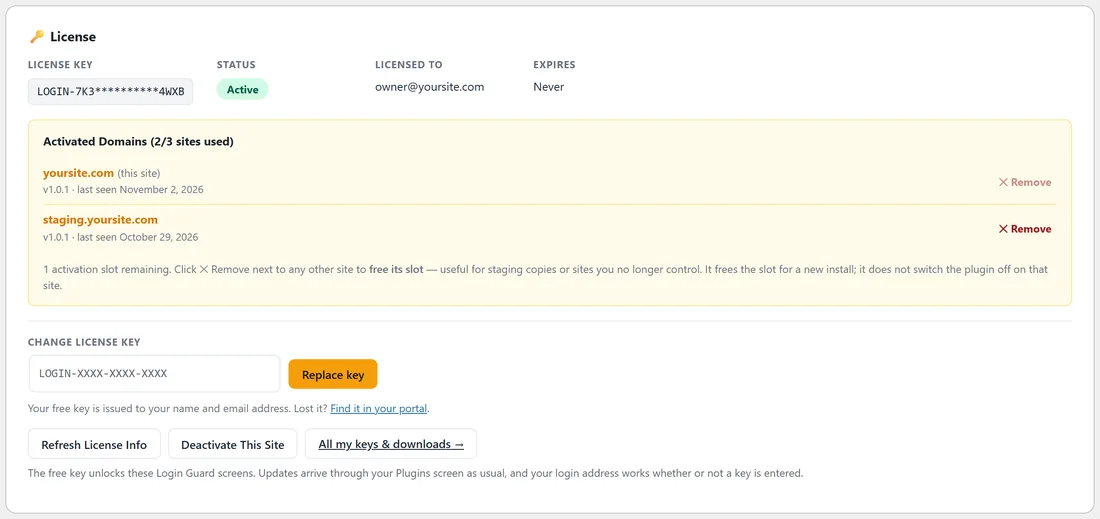
Your free key opens the Login Guard screens. It covers 3 of your own sites and never expires. You manage it on the Settings tab, in the License panel at the top.
The panel shows:
- License Key, with the middle part hidden so it can be shown safely
- Status: Active
- Licensed To: the email your key belongs to
- Expires: Never
- Activated Domains, with how many of your 3 sites are used, and how many slots are left
What each button does:
- Refresh License Info checks your key with the licence server and updates the list of sites it is used on. It says License refreshed.
- Remove, next to another of your sites, frees that site's slot so you can use the key somewhere new. It asks first: Free the slot used by (that site)? Press Yes, free the slot. It does not switch Login Guard off on that other site. The Remove next to this site is greyed out: use Deactivate This Site for this one.
- Deactivate This Site releases this site's slot on your key. It asks first, and explains that your login address and its protection keep working exactly as they are. Only the Login Guard screens ask for a key again until you activate one. Press Yes, deactivate this site.
- Change license key with Replace key lets you paste a different key.
- All my keys and downloads opens your portal at https://resultswithkevin.com/portal/
Your site checks the key with the licence server once a day. If the server cannot be reached, nothing changes on your site.
A real example:
Sam uses one free key for Willow Creek Pottery at yoursite.com and a staging copy at staging.yoursite.com, so the panel shows 2/3 sites used. When the staging copy is no longer needed, Sam presses Remove next to staging.yoursite.com and confirms. The panel now has 2 slots free, ready for Sam's next site.
Moving to a new host or domain:
- On the old site, open the Settings tab and press Deactivate This Site, so the slot is free.
- On the new site, open AiX Login Guard and paste the same key in Already have a key?, or press Get my free key and activate with the same email.
- Your login address moves with the site's database, so it works on the new host straight away.
Tips:
- Keep staging and test copies tidy by freeing their slots when you are done with them.
- If the activation screen shows a message instead of activating, see Troubleshooting for the fix for each one.