Login Guard is a disguise. To anyone who does not know your secret address, your site looks as if it has no login page at all.
This article shows what each address shows a visitor today, and how to choose a different answer for blocked visitors.
At wp-login.php:
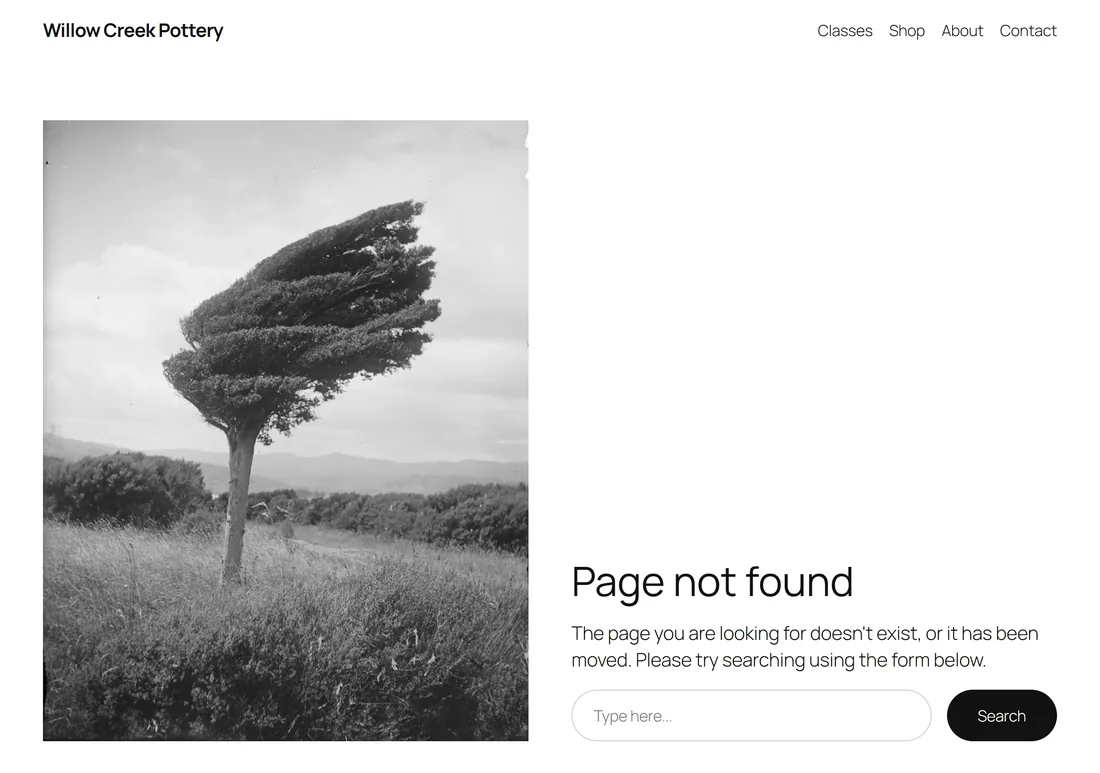
Anyone who goes to yoursite.com/wp-login.php sees your site's own "page not found" page, drawn by your theme, with a genuine not found status. It is the same answer as any other page that does not exist.
There is no login form, no redirect that gives the address away and no mention of your secret address. The old wp-register.php address gets the same treatment.
At /wp-admin/ when not signed in:

WordPress normally sends a signed-out visitor from /wp-admin/ to the login page, which would give your address away. Login Guard answers first.
The visitor sees a page that says Page not found, with a genuine not found status, right where they are. There is no redirect to another address. In version 1.0.1 this page is a plain one, without your theme's design. If you chose a page for blocked visitors, they are sent to that page instead.
At your secret address:
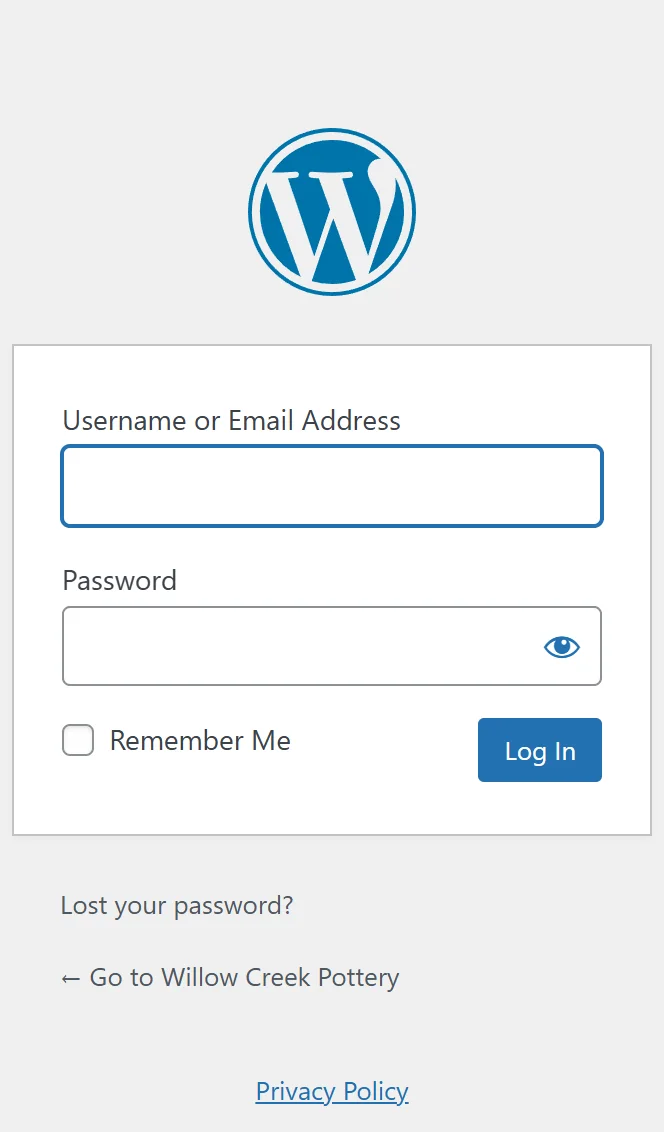
The normal WordPress login form, with Lost your password? and the link back to your site underneath. If you are already signed in and just visit your address, you go straight to your Dashboard.
At the help page:
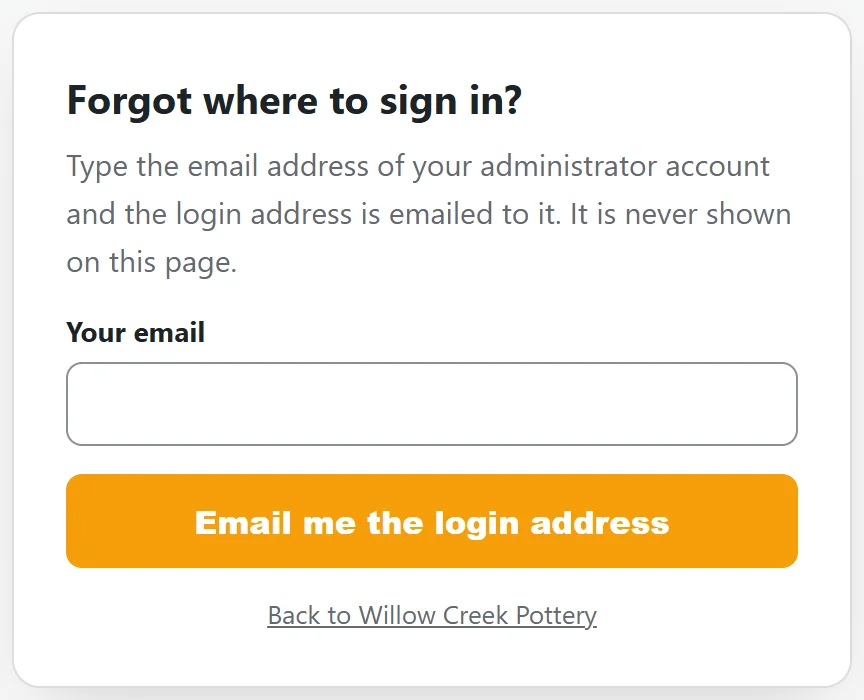
yoursite.com/?login-help shows a small Forgot where to sign in? form. It never shows your login address. It tells search engines not to list it, and it gives exactly the same answer whatever email is typed, so nobody can learn anything from it.
While Hide my login is switched off, it says the site signs in at the normal login page and sends nothing. See Forgot Your Login Address? Every Way Back In.
Choosing where blocked visitors go:

On the Settings tab, in the Your login address section, the box labelled Anyone who tries wp-login.php or /wp-admin/ without signing in sees decides this.
- 404 (the default) shows a "page not found". This is the best disguise, because it looks like any other missing page.
- / sends them to your home page.
- Or type or paste the address of any published page or post on your site to send them there instead.
You can type the address in several ways, and Login Guard works out the page:
- A short address such as contact
- A child page such as about/hours
- The full web address copied from your browser, such as https://yoursite.com/contact/
- A plain page address such as https://yoursite.com/?page_id=12
Login Guard checks the page exists and is published before it saves. If it is your front page, it is saved as / (your home page). Leave the box empty and it goes back to 404.
What the box will not accept:
Login Guard explains in plain words when an address cannot be used, and nothing is saved:
- An address on another website. Blocked visitors can only go to a page on your own site, or see its "page not found".
- Your own login address, because that would give it away.
- An address where no published page or post is found. Type the address of one of your pages, or 404.
If a page you chose is later deleted or unpublished, visitors see a "page not found" instead, so nobody is ever sent to a page that is not there.
What is left alone:
The parts of WordPress that run through the wp-admin folder for your visitors are not touched: the behind-the-scenes requests your site's forms and features make (admin-ajax.php and admin-post.php), scheduled tasks and WP-CLI. Password-protected posts keep working too, because their password form is let through.
Checking it for yourself:

The Dashboard tab has a What is protected section. It shows Hidden or Not hidden for wp-login.php and for /wp-admin/ when signed out, whether the "Forgot where to sign in?" page is On or Off, and how many administrators get the address by email.
To see it the way a robot does, open a private browser window and try yoursite.com/wp-login.php and yoursite.com/wp-admin/.
A real example:
Willow Creek Pottery keeps the default 404 for most of the year. During a busy sale, Sam would rather anyone poking at the login lands somewhere useful, so Sam types contact in the box and presses Save settings. Now yoursite.com/wp-login.php sends visitors to the Contact Us page, and the secret address still opens the login form.
One exception you control:
If your site shows a login link on purpose, such as a Member Login link in your theme's footer, that link points to your secret address, so anyone who sees the link can see the address. See Working With Your Theme, Other Plugins And Page Caches.
Tips:
- 404 is the best choice for most sites: it gives nothing away.
- Test with a private window after any change, so you see what a stranger sees.