
Take a breath: you cannot be locked out for good. Login Guard was built around this exact worry, and there are four ways back, from easiest to last resort. Start at way 1 and stop as soon as you are in.
Way 1. Search your inbox:
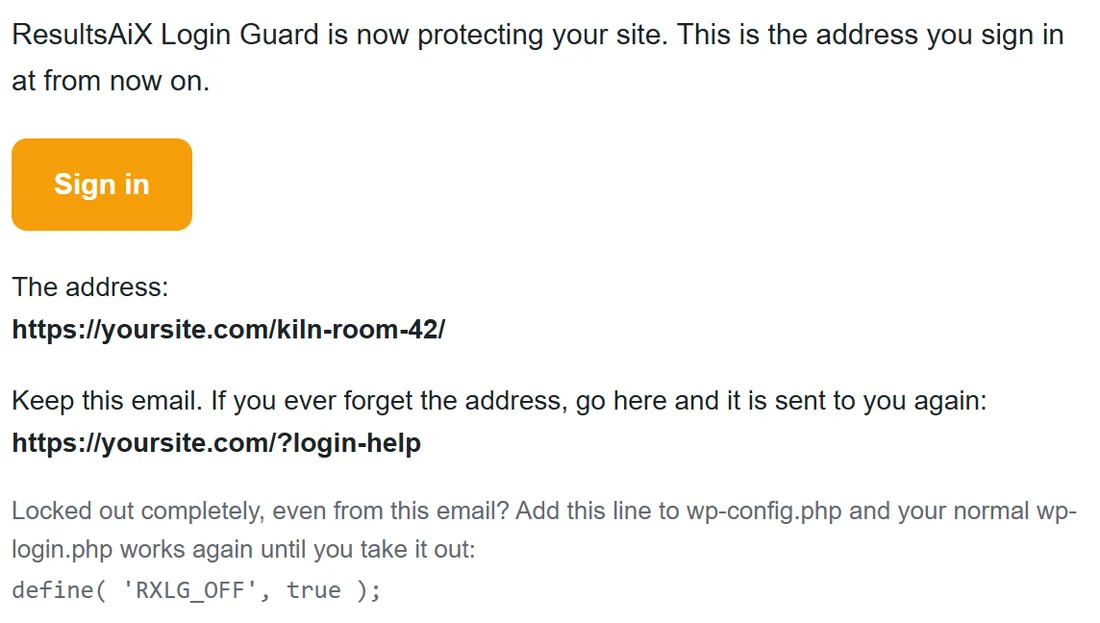
Every administrator was emailed the address when it went live, and again every time it changed. Search your email for login address. The subject is one of these:
- Your login address for (your site name)
- Your login address for (your site name) has changed
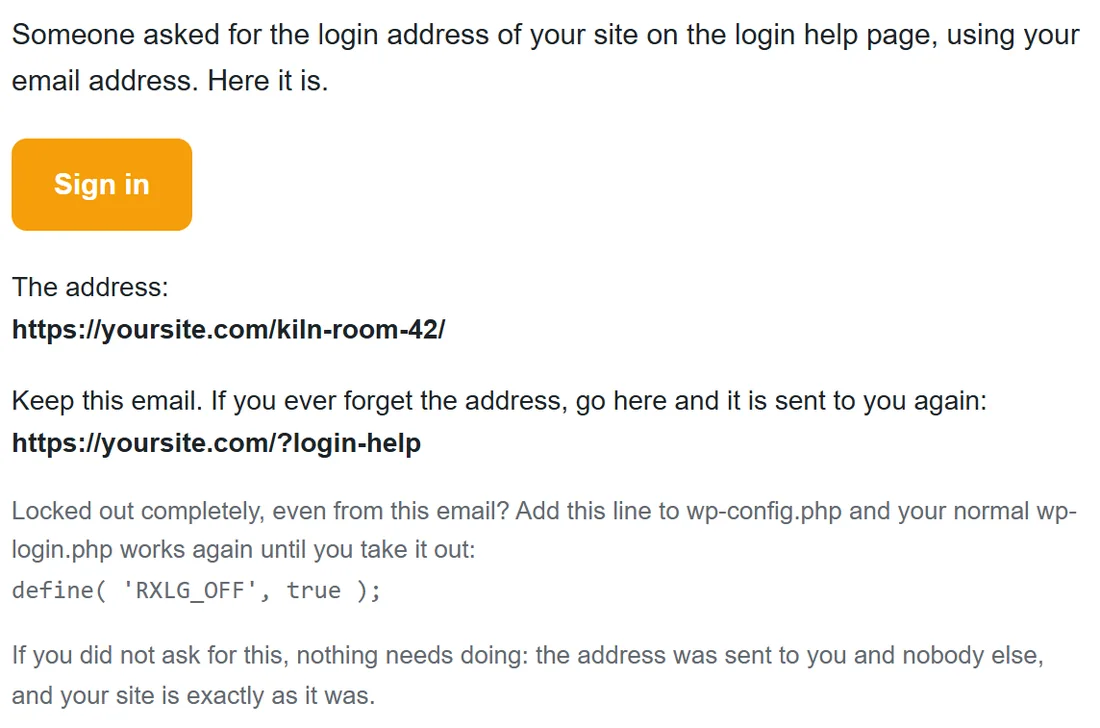
- The login address you asked for: (your site name)
Open the newest one and press the Sign in button, or copy the address shown under The address. Check your spam folder too.
Way 2. The "forgot where to sign in?" page:
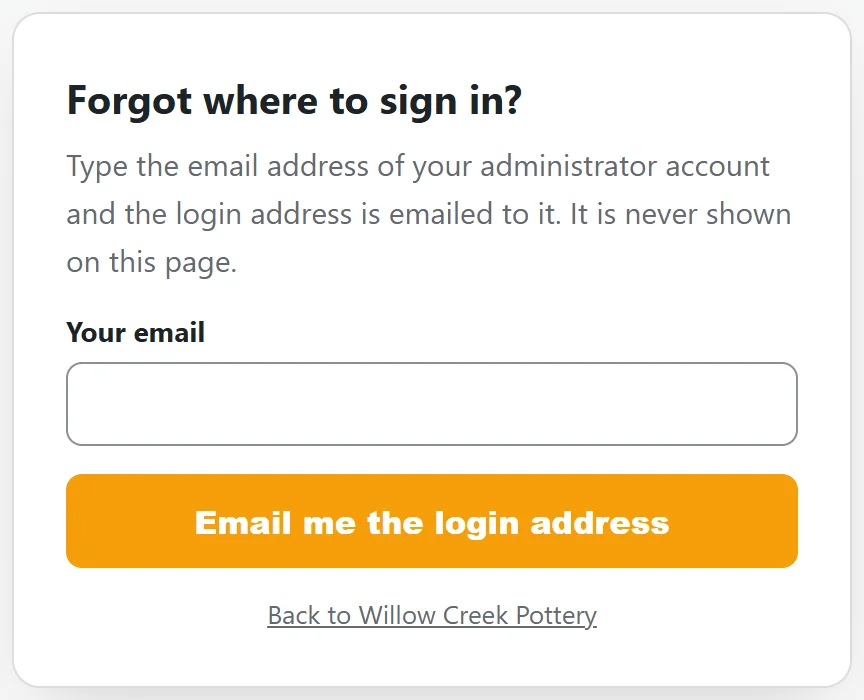
- Go to yoursite.com/?login-help (put your own domain in place of yoursite.com). If you changed the help page address in Settings, use that instead.
- The page says Forgot where to sign in? In the Your email box, type the email address of your administrator account.
- Press Email me the login address.
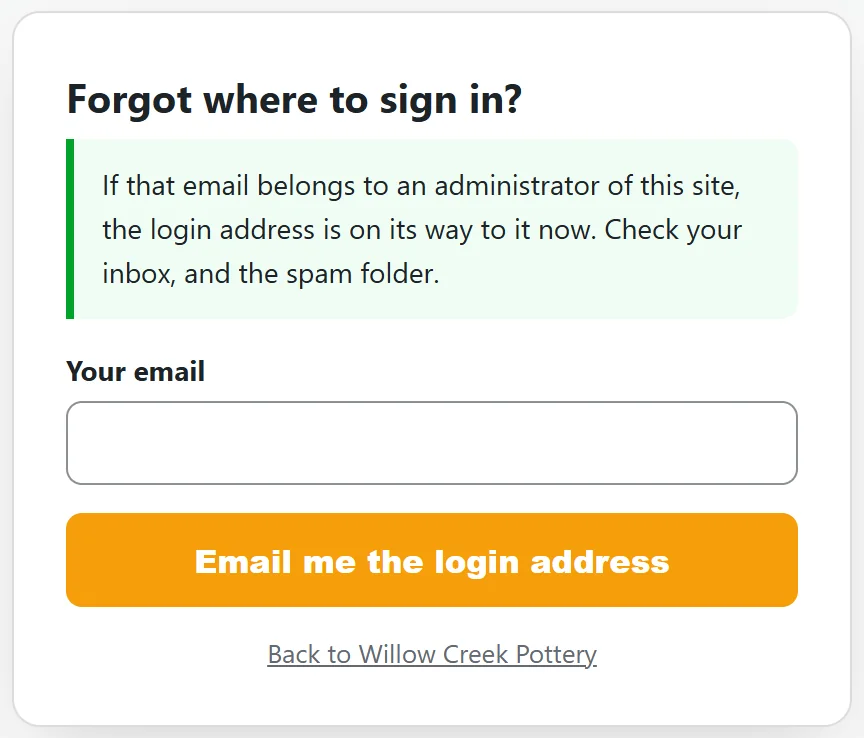
- The page says: If that email belongs to an administrator of this site, the login address is on its way to it now. Check your inbox, and the spam folder.
- Open the email, with the subject The login address you asked for: (your site name), and press Sign in.
Good to know about the help page:
- It never shows the address on the page itself. It is only ever emailed.
- It says exactly the same thing whatever is typed, so a stranger learns nothing from it.
- It only sends the address when the email belongs to an administrator account, and only to that one email.
- Each visitor has three tries an hour.
- It is switched on unless you turned it off on the Settings tab.
- While Hide my login is off, or the emergency switch is on, it says the site signs in at the normal login page, with a Go to the login page button, and sends nothing.
Way 3. Anywhere you are still signed in:
If you are still signed in on another computer, phone or browser, your address is right there:
- On your main WordPress Dashboard, in the Your login address box
- On the Dashboard tab of AiX Login Guard, with a Copy button
- At the top of the free key screen, if no key is active
Another administrator who is signed in can look it up for you, or press Email it to every administrator again on the Login Guard Dashboard tab.
Way 4. The emergency switch, the last resort:

One line in wp-config.php switches the disguise off, so wp-login.php works again. Nothing is changed or lost. You need access to your hosting control panel's File Manager or to FTP.
- Log in to your hosting control panel and open the File Manager, or connect with FTP.
- Find wp-config.php in the main folder of your WordPress site, the same folder that holds wp-admin and wp-content.
- Make a copy of the file as a backup, then open it to edit.
- Add this line on a line of its own, above the line that says That's all, stop editing:
define( 'RXLG_OFF', true );
- Save the file.
- Go to yoursite.com/wp-login.php and sign in as normal.
- Open AiX Login Guard. Your address is on the Dashboard tab, in the red notice at the top of the screen, or at the top of the free key screen. Copy it and bookmark it.
- Go back to wp-config.php, delete the line you added and save. The disguise is back straight away, with the same address.
While the line is in, wp-login.php answers and your secret address does not. Login Guard shows a red notice on every admin screen until you take the line out: The emergency switch is on: your login is NOT hidden right now. It shows your hidden address so you can copy it. The Dashboard and Diagnostics tabs say the same.
The line is also printed in every login address email and on the Settings tab, with a Copy button, so you have it ready.
Another last resort. Rename the plugin folder:
If you cannot edit wp-config.php but can rename folders:
- In File Manager or FTP, open wp-content, then plugins.
- Rename the folder resultsaix-login-guard to something else, for example resultsaix-login-guard-off.
- WordPress can no longer find the plugin, so it stops running and wp-login.php works again. Sign in there.
- Rename the folder back to resultsaix-login-guard, then go to Plugins and activate ResultsAiX Login Guard. Your saved address comes back straight away.
The emergency switch is the better choice when you can use it, because nothing is switched off and it is one line to take out again.
A real example:
Priya, the second administrator at Willow Creek Pottery, comes back from holiday on a new laptop and cannot remember the address. She goes to yoursite.com/?login-help, types priya.shah@example.com and presses Email me the login address. A minute later the email arrives, she presses Sign in, and bookmarks yoursite.com/kiln-room-42/.
Still stuck?
Contact support at https://kevinfahey.org/contact-support/ with your site address, and we will help you back in.