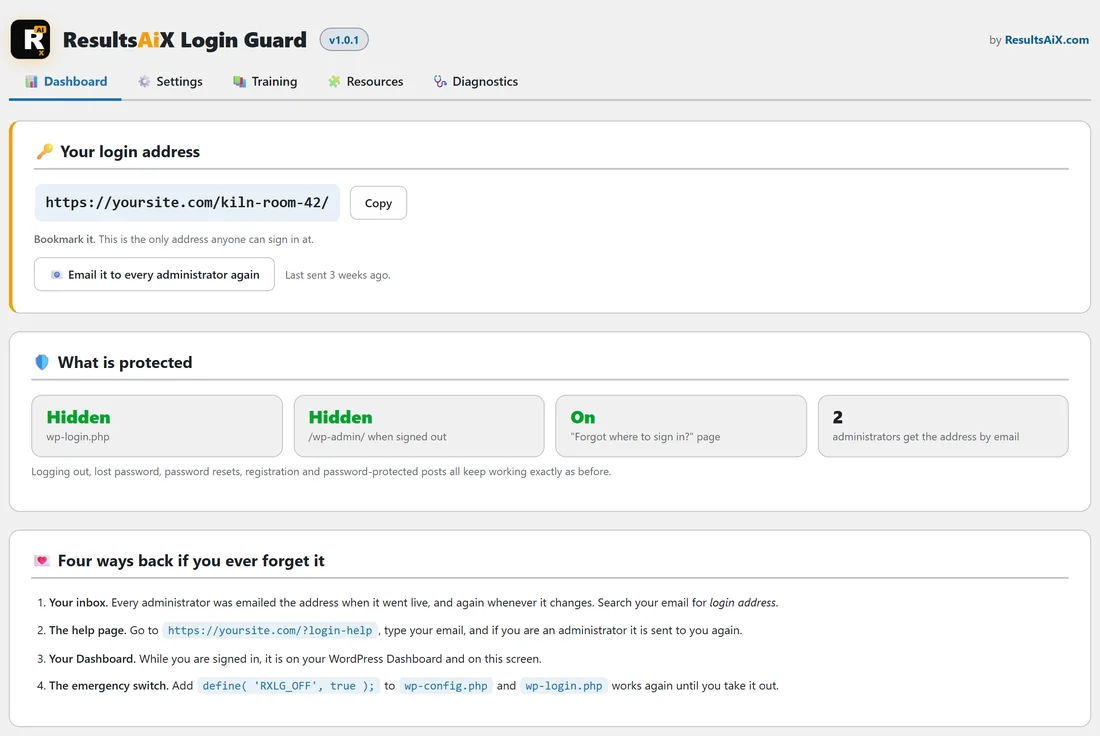
ResultsAiX Login Guard is a free WordPress plugin from the ResultsAiX family. It moves your WordPress sign-in page to a secret address that only you know, so the robots that hammer wp-login.php all day long find nothing there.
You set it up once, in a couple of minutes, and then forget about it. Your login works exactly as before, just at a different address.
Why hide your login?
Every WordPress site in the world signs in at the same two places: yoursite.com/wp-login.php and yoursite.com/wp-admin/. Robots know this, so they visit those addresses around the clock and try password after password.
Even when they never get in, every attempt makes your server do work and fills your logs with failed logins. Move the door and the robots knock on a wall instead.
What Login Guard does:
- Your login form answers at an address you choose, for example yoursite.com/kiln-room-42/
- wp-login.php shows your site's own "page not found", never a login form and never a hint that one exists
- /wp-admin/ for anyone who is not signed in also shows a "page not found", right where they are, instead of sending them to the login
- If you prefer, both can send visitors to your home page or to a page of your choice instead
- A Hide my login switch lets you use the normal WordPress login for a while and turn your hidden address back on whenever you like
- Every link WordPress writes to the login page uses your new address automatically: log out, lost password, password reset emails and registration
- Logging out, lost password, password resets, registration and password-protected posts all keep working exactly as before
What a robot sees at wp-login.php:
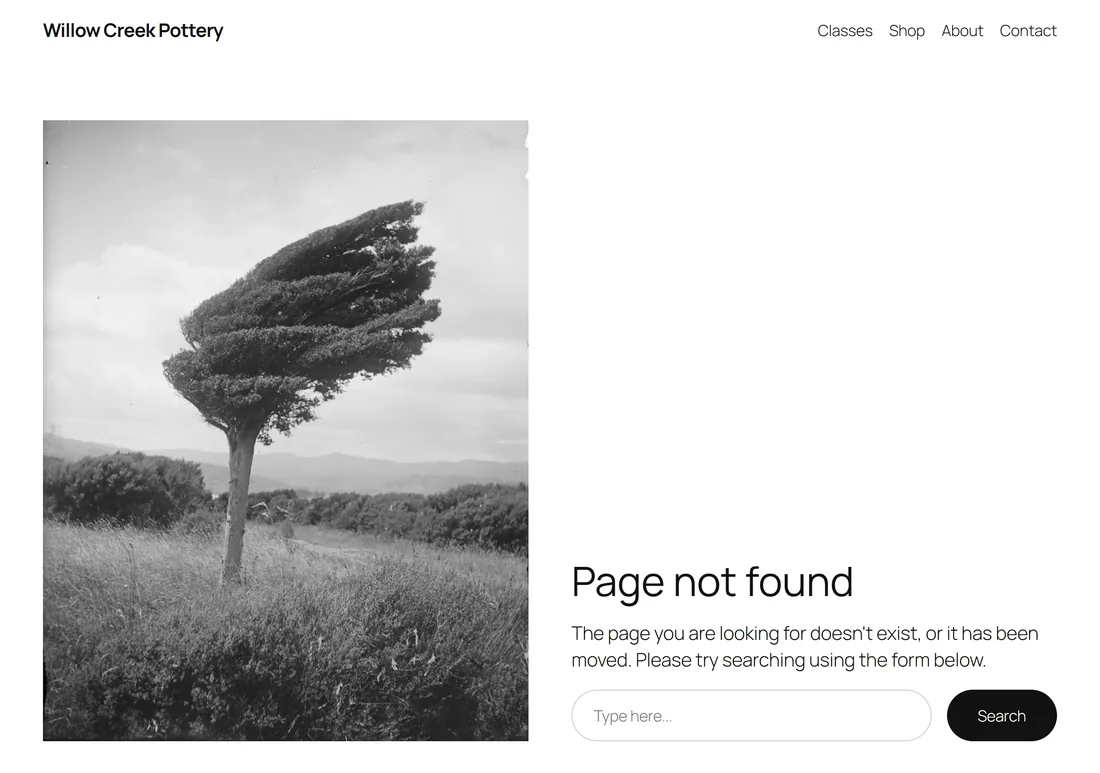
A robot, or anyone else who does not know your address, gets the same answer as for any page that does not exist. There is no login form, no redirect that gives the address away and no mention of your secret address.
What you see at your secret address:
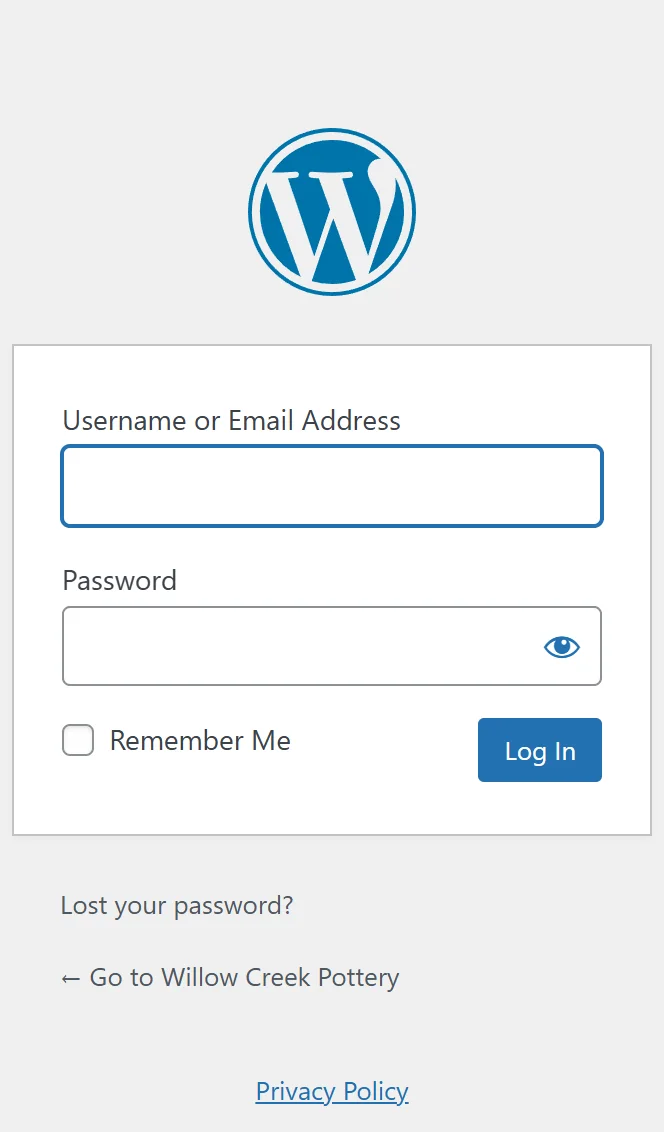
The normal WordPress login form, with your usual username and password. If you are already signed in, the address takes you straight to your Dashboard.
You can never lock yourself out:
This was the number one design goal. There are four ways back if you ever forget your address, from easiest to last resort:
- The address is emailed to every administrator when it goes live and whenever it changes.
- A "forgot where to sign in?" page at yoursite.com/?login-help emails it to you again.
- It sits on your WordPress Dashboard and on the Login Guard Dashboard tab whenever you are signed in.
- One line in wp-config.php switches the disguise off in an emergency.
The article Forgot Your Login Address? Every Way Back In walks through each one, step by step.
Nothing on your server is changed:
Login Guard does not rename any files, write rewrite rules or put anything in .htaccess. Deactivate it and your site signs in at wp-login.php again, exactly as it did before.
A real example:
Sam runs Willow Creek Pottery at yoursite.com, with one other administrator, Priya, an editor and an author. Sam installs Login Guard, gets the free key in one press, types kiln-room-42 as the address and presses Save settings.
From that second, yoursite.com/kiln-room-42/ is the login page. Sam and Priya both get an email with the address and a Sign in button. A robot trying yoursite.com/wp-login.php now sees the pottery site's "Page not found". Sam bookmarks the new address and tells the editor and the author.
Already using another hide-login plugin?
Login Guard can take over the address you already use, so nothing changes for you or for anyone else who signs in. See Switching Over From Another Hide-Login Plugin.
Hide the door, then lock it well:
Login Guard hides the door. It is not a firewall, and it does not count or block password attempts at your new address. Pair it with a strong, unique password on every administrator account and you have both layers covered.
Where to go next:
- Getting Login Guard Free, for the plugin and its free key
- Installing And Activating Login Guard, to switch it on
- Choosing Your Secret Login Address, to pick a good address