Everything lives under AiX Login Guard in your WordPress sidebar. Every screen is for administrators only. Use this article as a map: each part names the setting and points to the article that explains it in full.
Dashboard tab:
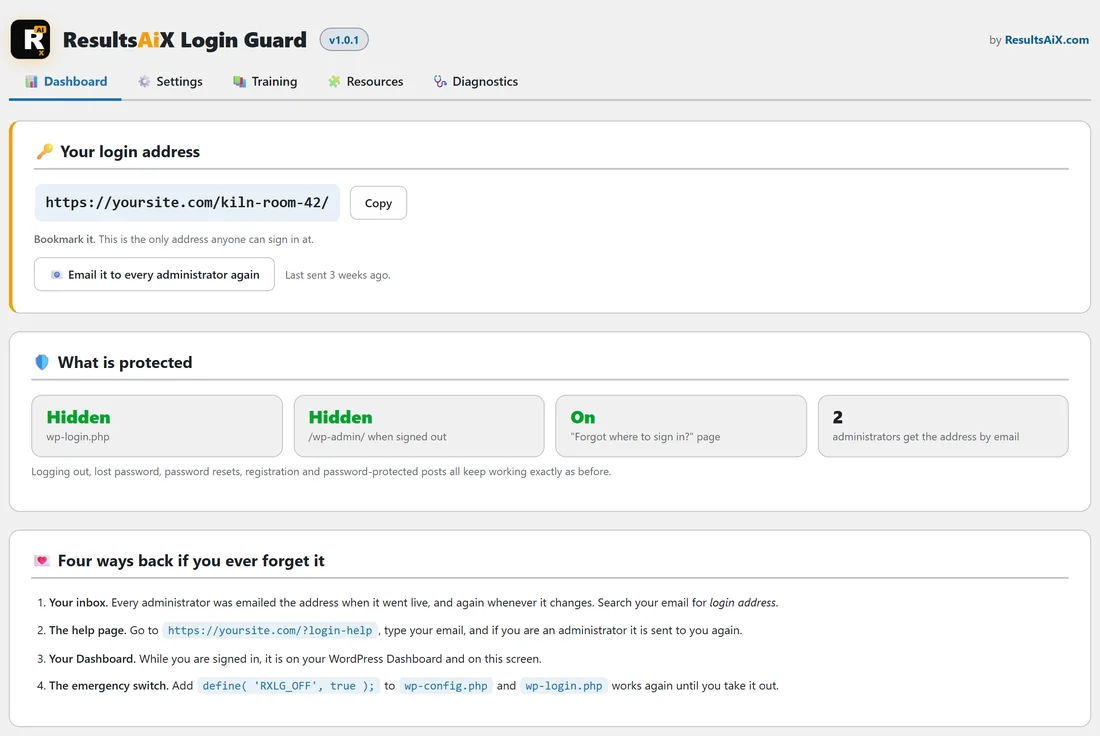
- Your login address: your address in full, a Copy button, a reminder to bookmark it, and Email it to every administrator again with how long ago it was last sent. If the address came from another hide-login plugin, it says so.
- If no address is set yet: Choose your login address to switch the protection on, with a Choose my login address button
- If Hide my login is switched off: a section saying so, with an Open Settings button
- What is protected: Hidden or Not hidden for wp-login.php and for /wp-admin/ when signed out, On or Off for the "Forgot where to sign in?" page, and how many administrators get the address by email
- Four ways back if you ever forget it: your inbox, the help page (with its address), your Dashboard and the emergency switch
- Notes when they apply: when the emergency switch is on, or when another hide-login plugin is active again
Settings tab:
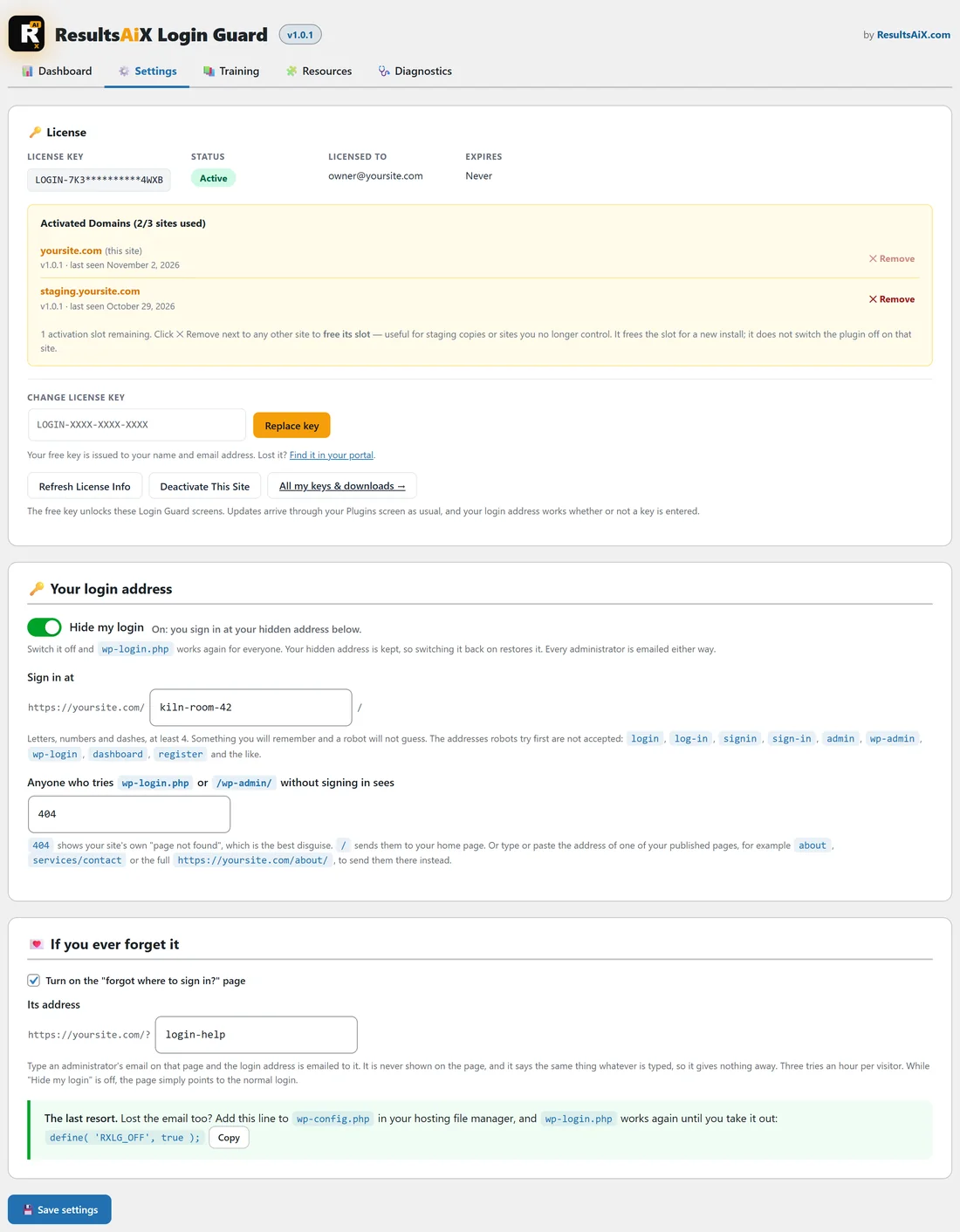
The Settings tab holds the License panel, your login address, the help page, help cards and Appearance. The two forms on it save separately: Save settings keeps the login address and help page sections, and Save appearance keeps the colour scheme.
Settings tab, the License panel:
- License Key, shown partly hidden, and Status (Active or Not active)
- Licensed To, the email your key belongs to, and Expires: Never
- Activated Domains, with how many of your sites are used, and a Remove button next to your other sites to free that site's slot
- Change license key with a Replace key button
- Refresh License Info, Deactivate This Site, and All my keys and downloads, which opens your portal
See Updates And Your Free Key for each button.
Settings tab, Your login address:
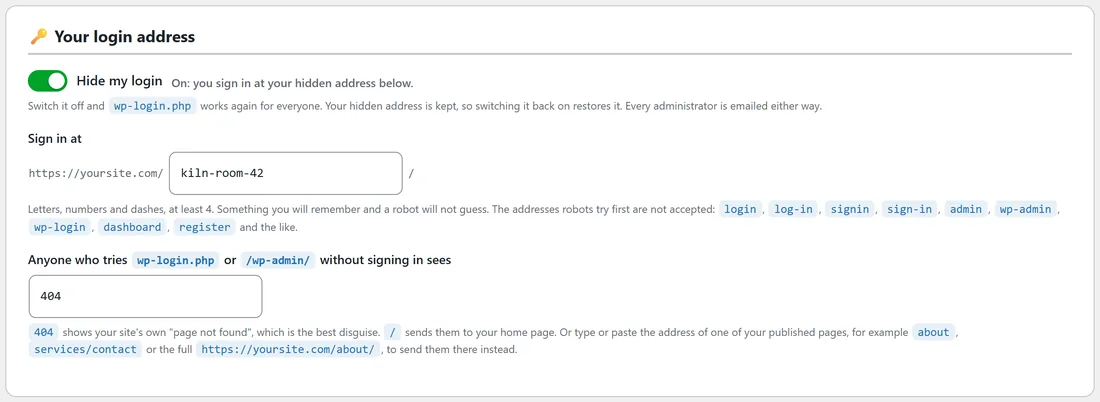
- Hide my login: a switch that appears once an address is saved, on by default. Switch it off to use the normal WordPress login for a while. Your address is kept. See The Hide My Login Switch.
- Sign in at: your secret address. See Choosing Your Secret Login Address for the rules.
- Anyone who tries wp-login.php or /wp-admin/ without signing in sees: 404 (the default) for "page not found", / for your home page, or the address of any published page or post on your site. See What Visitors And Robots See.
Settings tab, If you ever forget it:
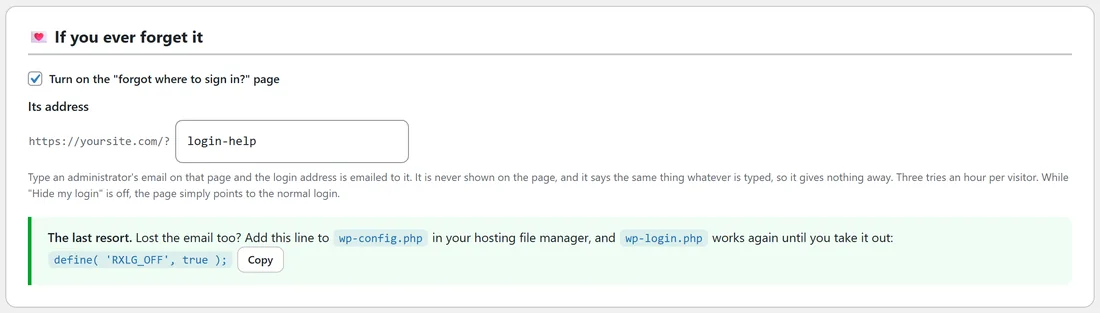
- Turn on the "forgot where to sign in?" page: on by default. Untick it to switch the help page off.
- Its address: the word after the ? in the help page address, login-help by default, so the page is yoursite.com/?login-help. Use at least 4 letters, numbers or dashes. It cannot be a word WordPress already uses in its addresses, or the same as your login address. Leave it empty and it goes back to login-help.
- The last resort: the emergency line for wp-config.php, with a Copy button.
Press Save settings to keep any change in these sections. Changing or switching your address asks first, in a small box with Cancel and a Yes button.
Settings tab, Help and your account:
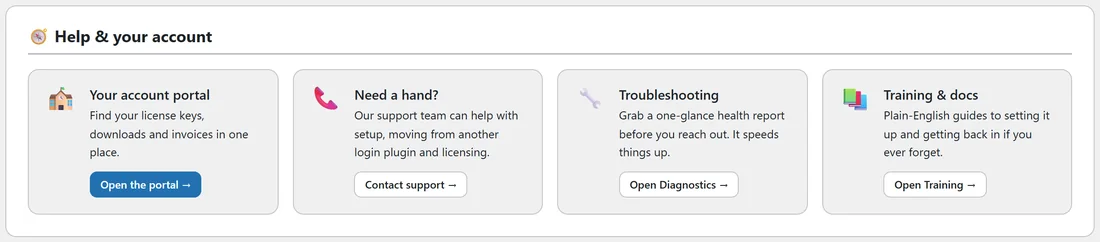
Four cards: Your account portal (Open the portal), Need a hand? (Contact support), Troubleshooting (Open Diagnostics) and Training and docs (Open Training).
Settings tab, Appearance:
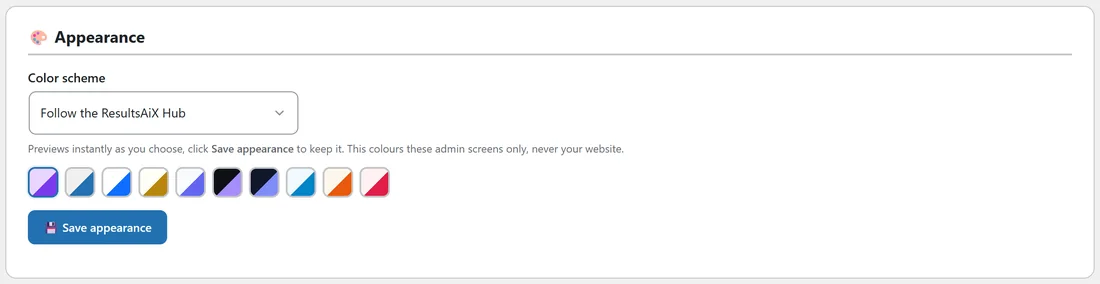
Color scheme changes the colours of the Login Guard admin screens only, never your website. The choices are Follow the ResultsAiX Hub (the default), WordPress Native, Clean White, Ivory Cream, Snow Light, Developer Dark, Midnight Blue, Ocean Blue, Sunset Warm and Rose Pink. The screen previews each one as you pick it from the list or click its swatch. Press Save appearance to keep it.
Training tab:
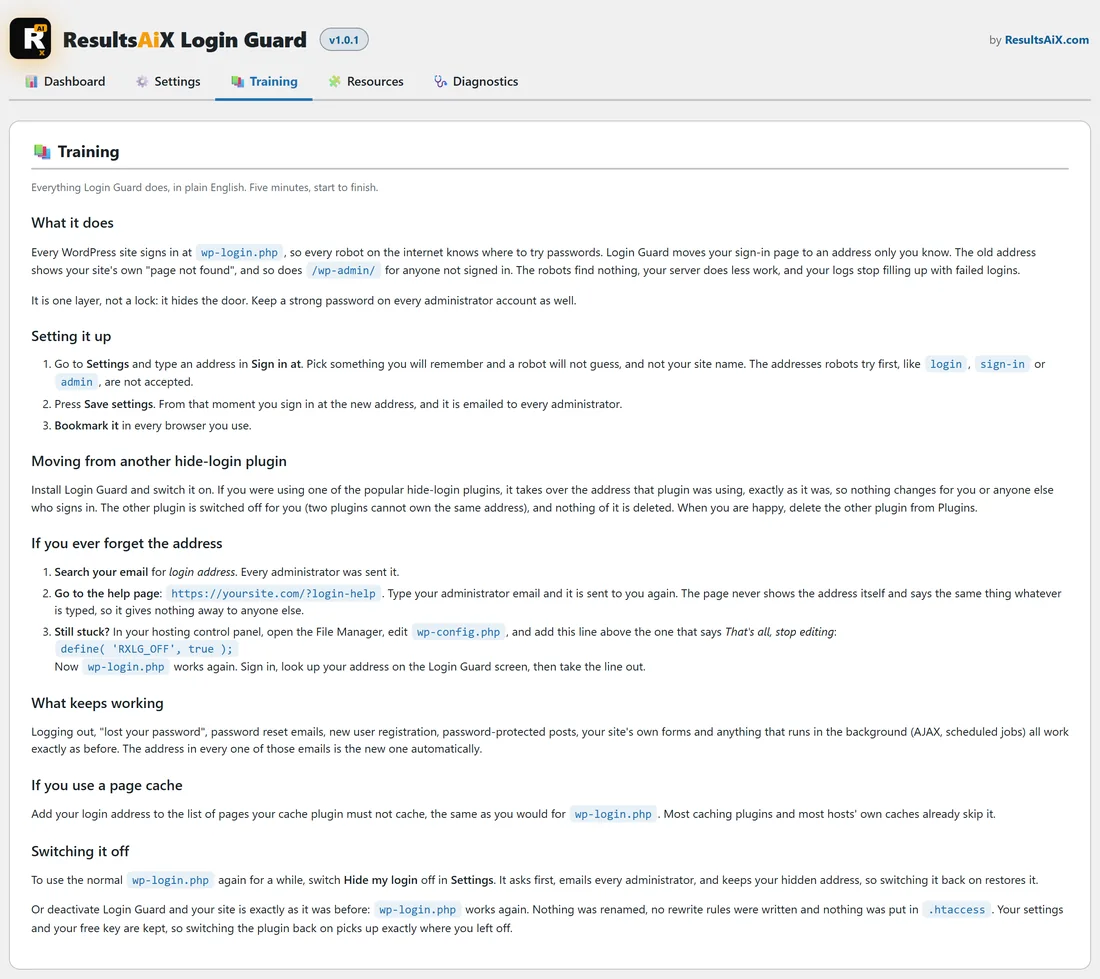
A plain-English guide inside the plugin: what it does, setting it up, moving from another hide-login plugin, what to do if you forget the address, what keeps working, page caches and switching it off. It shows your own help page address.
Resources tab:
Other tools from the ResultsAiX family, in cards. Anything already running on your site is marked Installed.
Diagnostics tab:

- Copy Report for Support copies a health report you can paste into a support ticket. It never includes your login address, a password or a key.
- Open Support opens https://kevinfahey.org/contact-support/
- Plugin: the version, licence status, whether a login address is set, the emergency switch, the help page, email from this site, your permalink type and whether a page cache is on
- Other login plugins: Active or Not found for another hide-login plugin, a security plugin that can also move the login, a security plugin with its own login protection, and a performance plugin that can move the login
- Environment: WordPress and PHP versions, your theme, your site address and whether HTTPS is active
Outside the Login Guard screens:
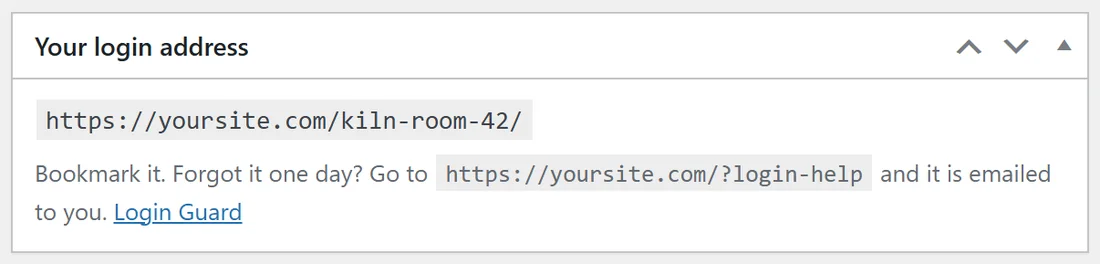
- The Your login address box on your main WordPress Dashboard, for administrators, once an address is set
- A one-time green notice after activation explaining what happened
- A red notice on every admin screen while the emergency switch is on
- A Settings link under Login Guard on the Plugins screen
A real example:
Sam's settings at Willow Creek Pottery: Hide my login on, Sign in at kiln-room-42, blocked visitors see 404, the help page on at login-help, and the colour scheme left on Follow the ResultsAiX Hub. That is the setup most sites need.
Tips:
- Most sites only ever touch Sign in at. The defaults are chosen to be the safest choice for everything else.
- Before contacting support, press Copy Report for Support on the Diagnostics tab and paste the report into your message.