Once Login Guard is on, you sign in exactly as before. Only the address is different. This article covers signing in, logging out, lost passwords, and keeping the address handy for you and your team.
Signing in:
Go to your secret address, for example yoursite.com/kiln-room-42/. You see the normal WordPress login form. Sign in and WordPress takes you on as it always does. The form sends your details back to your secret address, never to wp-login.php.
If you are already signed in and visit your address, you go straight to your Dashboard.
Logging out and the admin bar:
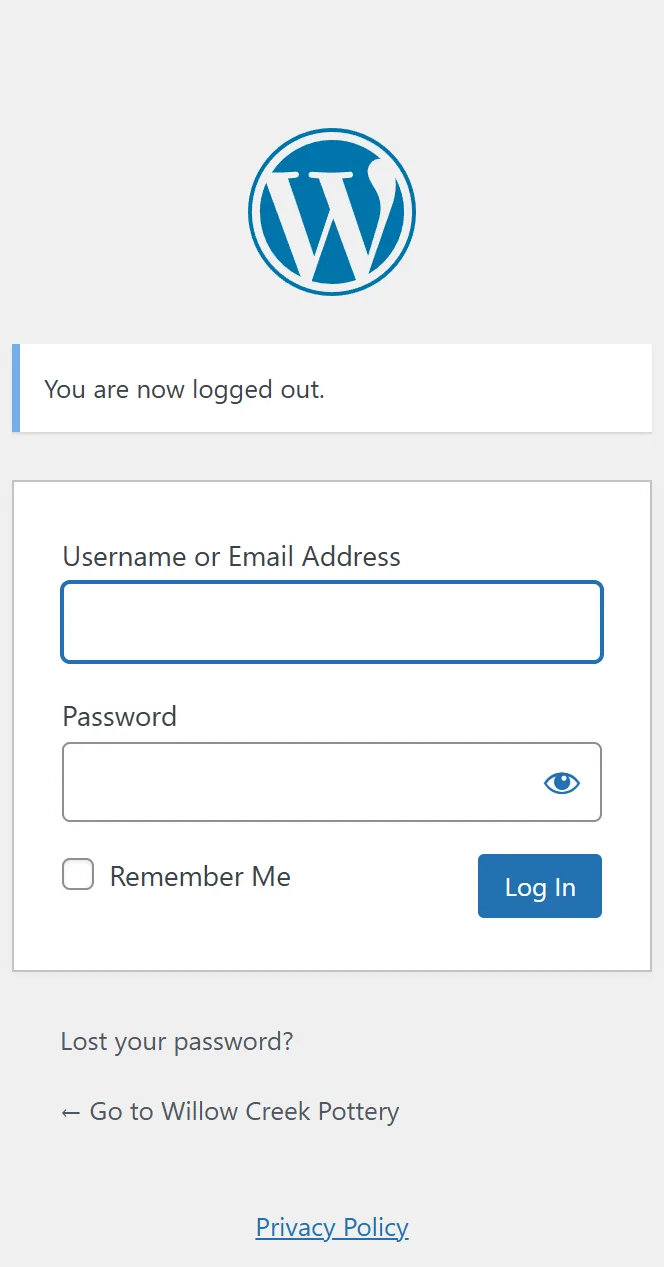
Login Guard adds nothing to the admin bar. What it does is make sure the Log Out link in it (under your name, top right) uses your secret address, so logging out works exactly as it always did.
You land back on your login page, at your secret address, with WordPress's usual message You are now logged out. Afterwards /wp-admin/ is hidden again.
Lost your password?
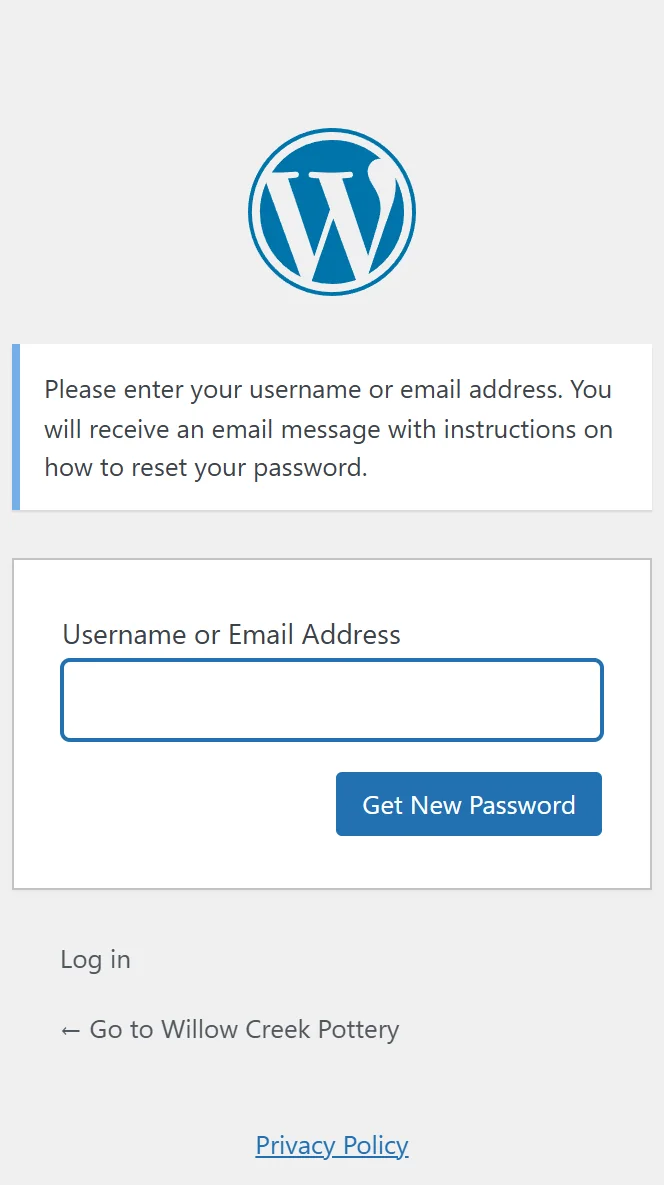
The Lost your password? link on the login form opens at your secret address, and the password reset email WordPress sends carries your secret address with the reset key in it. Registration, if your site allows it, works the same way.
Bookmark it:

- Open AiX Login Guard, Dashboard tab.
- Press Copy next to your address. The button says Copied.
- Paste it into a new bookmark, in every browser and on every device you use.
- If you use a password manager, update the saved sign-in address there too
- Old bookmarks to wp-login.php now show a "page not found"
- The Dashboard tab also shows Last sent, so you know when the address was last emailed
Your address on the WordPress Dashboard:
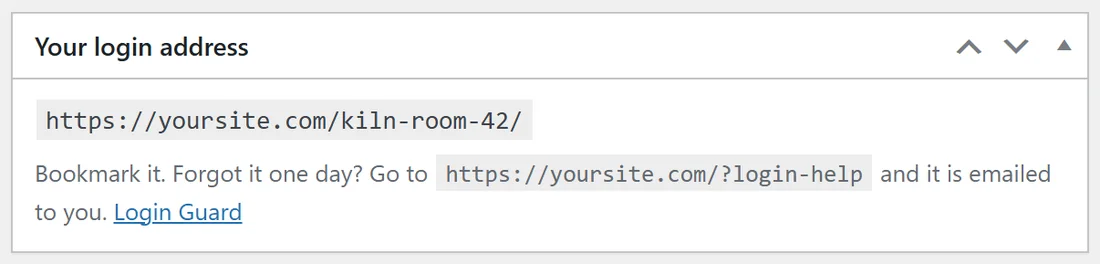
While you are signed in as an administrator, a box called Your login address sits on your main WordPress Dashboard. It shows your address and the address of the help page, with a Login Guard link. You can move or collapse it like any other Dashboard box.
Other people who sign in:
Your secret address is the only address anyone can sign in at: editors, authors, members and customers included. Only administrators are emailed the address, and the help page only answers for administrator accounts, so tell your other users the new address yourself.
Any login link your site already shows, such as a Member Login link in your theme, updates to the new address automatically.
A real example:
At Willow Creek Pottery, Sam copies yoursite.com/kiln-room-42/ from the Dashboard tab and sends it to Leo, the editor, and Nora, the author, in a short message: "Our login has moved, please bookmark this." Leo uses a password manager, so he updates the saved address there too. Next morning both sign in at the new address without a hitch.
Plain permalinks:
If your site uses Plain permalinks, your address is written yoursite.com/?your-address, and everything above works the same way.
Tips:
- Save the address in your password manager next to your username, so it fills in by itself.
- If you forget it one day, see Forgot Your Login Address? Every Way Back In.