Already hiding your login with another plugin? You do not have to start again. Login Guard takes over from one of the most widely used free hide-login plugins for WordPress, and it keeps the address you already sign in at, so nothing changes for you or for anyone else who signs in.
How to switch over:
- Leave your current hide-login plugin as it is. There is no need to switch it off first.
- Upload and activate Login Guard (see Installing And Activating Login Guard).
- That is it. Login Guard does the rest the moment it is activated.
What Login Guard does on activation:


- It reads the address your current plugin uses and makes it its own, exactly as it is
- It also brings across where that plugin sent blocked visitors: a "page not found", or a page you chose
- It switches your old plugin off for you, because two plugins cannot both own the same address
- It deletes nothing: the old plugin's files and settings stay exactly where they are
- It emails the address to every administrator
A green notice then says ResultsAiX Login Guard is on. Your login address has not changed, shows the address, and says it came across from your previous hide-login plugin with its settings. When the old plugin was switched off, the notice also says so, and that nothing of it was deleted. It ends with It has been emailed to every administrator and an Open Login Guard link.
The Dashboard tab also says It came across unchanged from your previous hide-login plugin, under your address.
Your login is protected from the very first second, even before you enter your free key. Get the key when you are ready, to open the Login Guard screens.
A real example:
Willow Creek Pottery used to sign in at yoursite.com/studio-door/ with another hide-login plugin. Sam uploads Login Guard and activates it. The green notice says Your login address has not changed: https://yoursite.com/studio-door/. Sam and Priya get the email, and the editor and author carry on signing in at the same address as before.
When you are happy:
Once you have signed in at your address and everything works, you can delete the old plugin from the Plugins screen. Its settings are left alone by Login Guard, so it is your choice.
If the old plugin gets switched back on:
If the old plugin is active again, the Dashboard tab shows a note: Another hide-login plugin is also switched on, with a link to deactivate it. Your address has already come across, so switching it off loses nothing.
When the takeover happens:
Only when Login Guard does not already have an address of its own. If you had set up Login Guard before, for example and then deactivated and reactivated it, your own choice is kept and nothing is taken over.
Going back:
Deactivate Login Guard and activate your old plugin again. Its settings were never touched, so it picks up the same address.
If your current plugin is not recognised:
Some login-moving features live inside bigger security plugins, and Login Guard does not take those over. Nothing changes in that case, and you can move across by hand:
- Write down the login address you use now.
- Activate Login Guard and get your free key.
- Switch off the login-moving feature in your other plugin (or deactivate that plugin). Your login is back at wp-login.php for a moment, which is fine.
- On Login Guard's Settings tab, type the same address in Sign in at and press Save settings. It must follow the rules in Choosing Your Secret Login Address.
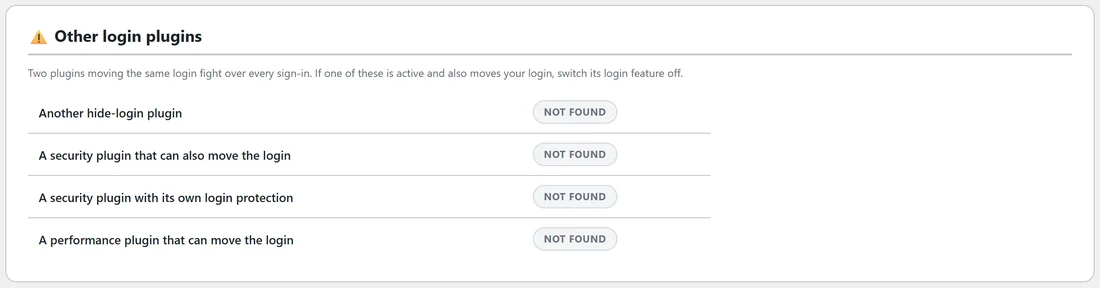
The Diagnostics tab has an Other login plugins section. It shows Active or Not found for four kinds of plugin: another hide-login plugin, a security plugin that can also move the login, a security plugin with its own login protection, and a performance plugin that can move the login. Only one plugin should move your login.
Tips:
- Sign in once at your address after the switch-over, in a private window, before you delete the old plugin.
- Your free key is not needed for the protection, so you can get it any time. See Getting Login Guard Free.