The AI writes a complete page, and you have the final say on every word. Once the page is written, an editor for its words appears on step 4.
Where to find it:
On step 4, after the page is written, click Edit the words on the page.
The boxes:
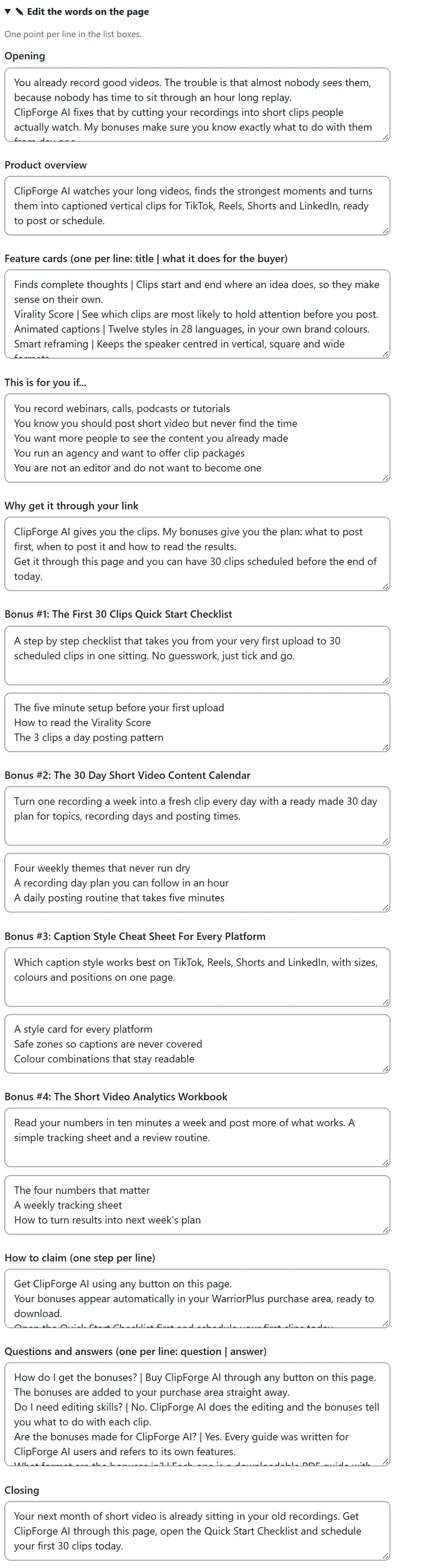
- Opening. The first paragraphs under the top of the page, one paragraph per line.
- Product overview. The paragraph in the What you get section.
- Feature cards (one per line: title | what it does for the buyer). The cards under the product overview.
- This is for you if... One point per line.
- Why get it through your link. One paragraph per line.
- One pair of boxes per bonus: the description, and What is inside, one point per line.
- How to claim (one step per line).
- Questions and answers (one per line: question | answer).
- Closing. The last words before the final button.
Feature cards and questions:
These two boxes take one card or one question per line, with a | between the two parts:
- Feature cards: the title, then |, then what it does for the buyer. For example: Virality Score | See which clips are most likely to hold attention before you post.
- Questions and answers: the question, then |, then the answer. For example: Do I need editing skills? | No. ClipForge AI does the editing.
Add a line for a new card or question, delete a line to take one away, and change the order by moving lines. Empty lines are skipped.
Saving:
Click Save changes. The preview updates.
The headline and the buttons:
These are in their own cards on the same step: Headline and Sub-headline at the top, Button words under Buttons and links.
A fresh page:
For a completely new set of words, click Write the page again. The plugin asks first, because it rewrites every section, including your hand edits; your look, links and headline stay.
A real example:
Sam changed the How to claim steps to mention that the bonuses appear in the WarriorPlus purchase area, added a question about the bonus format to Questions and answers, and added a line to the closing about the Quick Start Checklist.