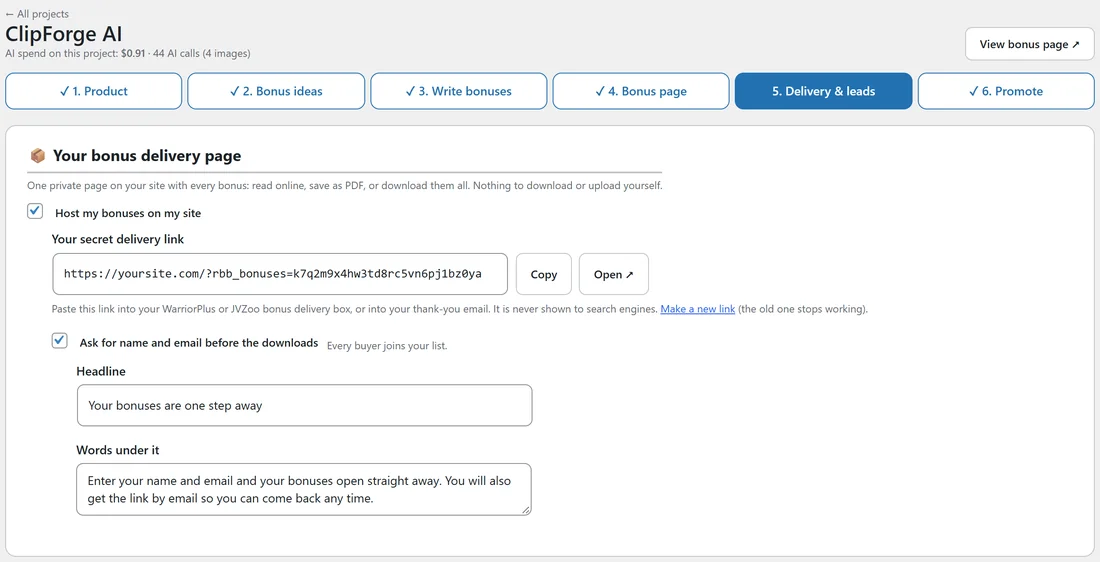
Buyers need a way to get their bonuses. Step 5 gives every project its own private delivery page on your site, so there are no PDFs to make, no zip to upload and no files to look after. You paste one link where your platform delivers bonuses, and you are done.
Where to find it:
Open a project and click 5. Delivery & leads in the step bar. The first card is Your bonus delivery page.
Switching it on:

- Tick Host my bonuses on my site.
- Click Save at the bottom of the Where new leads go card. One Save button saves everything on step 5.
- Your secret delivery link appears, made just for this project.
The delivery page shows every bonus that is written, so write your bonuses on step 3 first.
Your secret delivery link:
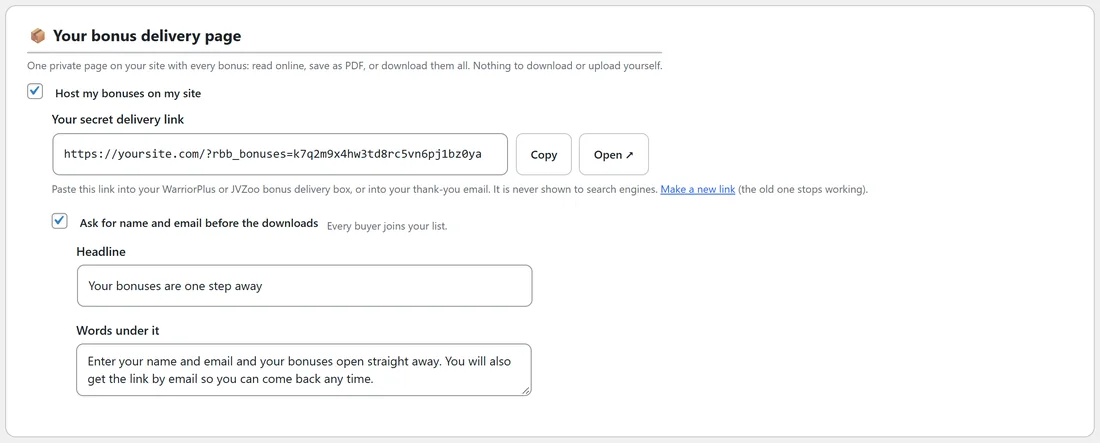
The link looks like yoursite.com/?rbb_bonuses= followed by a long private code. Beside it:
- Copy. Copies the link, and the button says Copied.
- Open. Opens the delivery page in a new tab, so you can see what buyers see.
The page is never shown to search engines, so only people with the link find it.
Where to paste the link:
- WarriorPlus or JVZoo: paste it into the bonus delivery box for your affiliate link, so buyers see it in their purchase area.
- Any other platform: put it in your thank-you email or wherever your platform lets you send buyers after they buy.
Making a new link:
Click Make a new link under the link. A box asks Make a new delivery link? Click Make a new link. The new link works straight away and the old one stops working, so paste the new one wherever you shared the old one. Anyone who opens the old link sees a short note asking them to contact the person who sent it.
What buyers see:
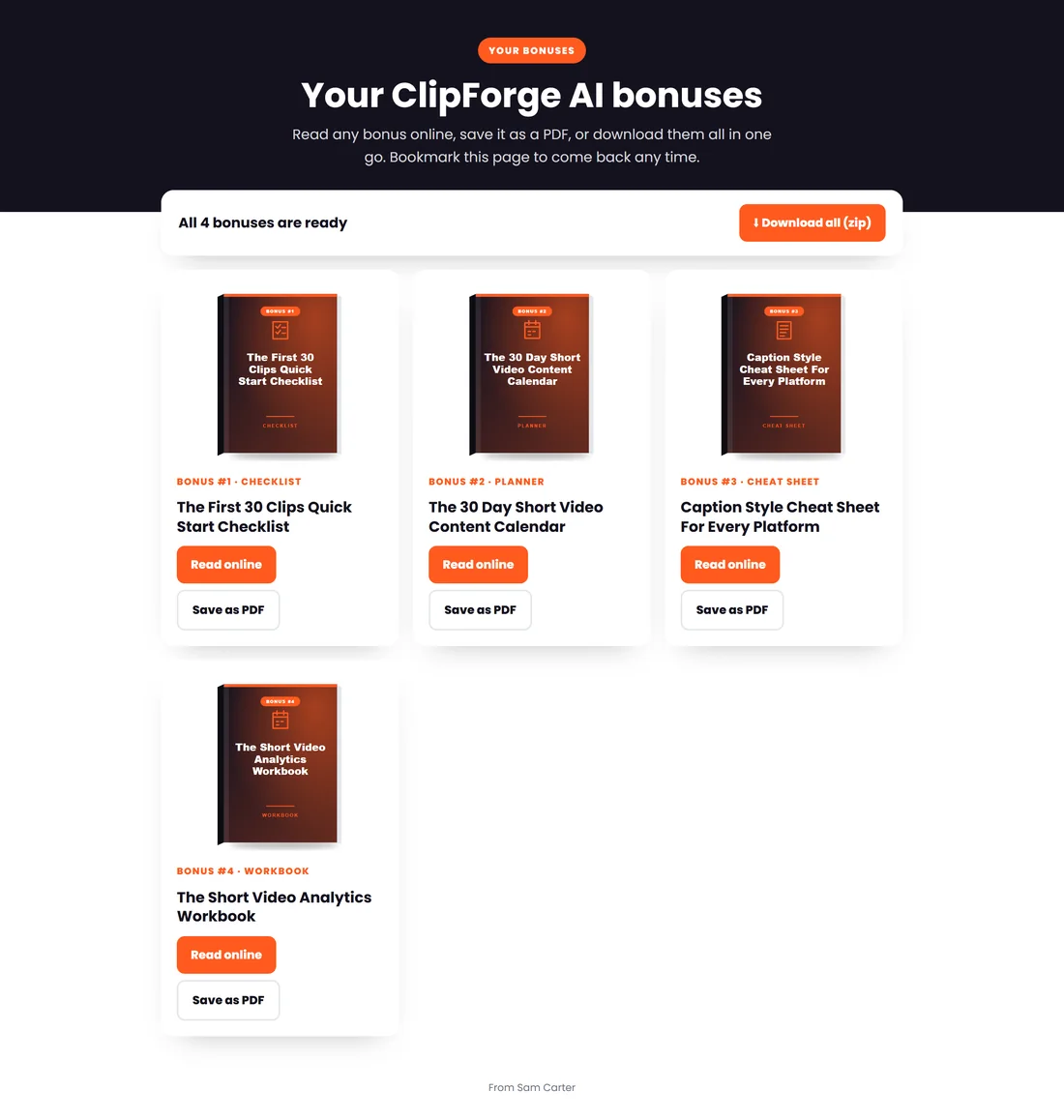
A page in your bonus page colours and font, with:
- A Your bonuses badge and the heading Your ClipForge AI bonuses (with your product's name).
- A line telling them to read online, save as PDF or download, and to bookmark the page.
- All 4 bonuses are ready (with your count) and a Download all (zip) button.
- A card for every bonus: its cover, the bonus number and format, the title, Read online and Save as PDF.
- From and your name at the bottom, from the Your name setting.
The buttons on each bonus:
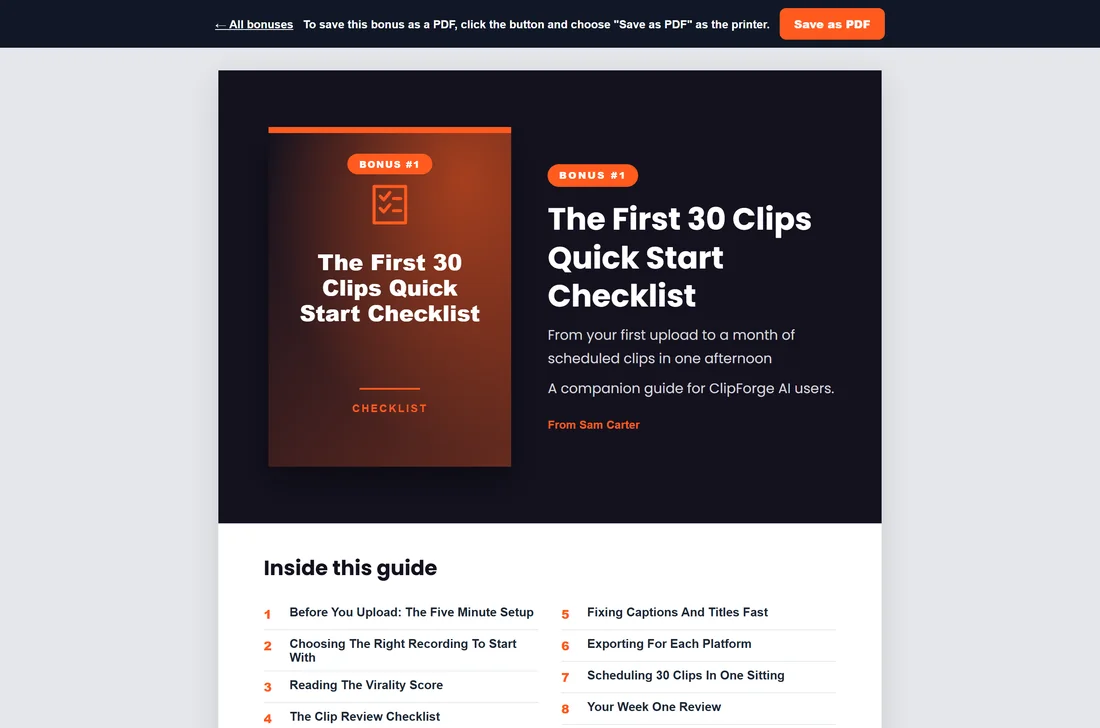
- Read online. Opens the full guide in the browser, with its cover page and contents, and an All bonuses link at the top to go back.
- Save as PDF. Opens the same guide and brings up the print window, so the buyer chooses Save as PDF and keeps a copy.
- Download all (zip). One zip with every bonus as a guide file and its covers, plus a short read-me that explains how to open each guide and save it as a PDF.
When you open the link yourself:
While you are signed in to your WordPress as the site owner, the delivery page opens straight to the bonuses, even with the email step switched on, and your own visits are not counted in Results. To see the email step the way buyers see it, add &gate=1 to the end of the link, or open it in a private browser window.
A real example:
Sam ticked Host my bonuses on my site for ClipForge AI, clicked Save, copied the link and pasted it into the WarriorPlus bonus delivery box. Every buyer now reaches one page with all four guides.
Next steps:
- Grow your list from it: see The Email Step Before The Downloads.
- See how many buyers read and download: see Your Results: Visits, Clicks And Downloads.