Before a bonus is written, the AI plans it. The outline is your chance to shape it: rename it, reword a section, add one or take one out.
Where to find it:
Open a project and click 3. Write bonuses. Each bonus has its own card.
Writing the outline:
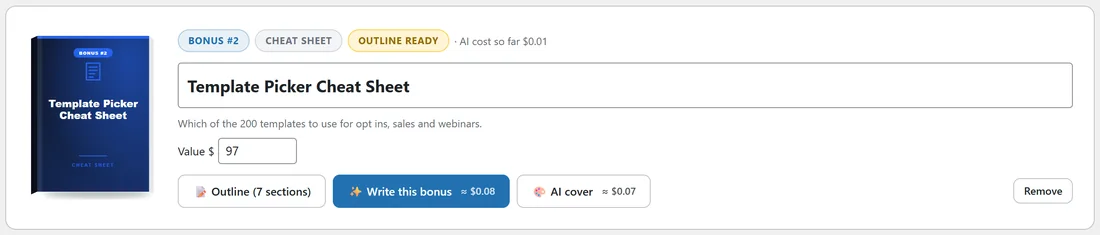
- On a bonus marked Not started, click Write the outline.
- The AI plans the bonus in a few seconds. The badge changes to Outline ready.
- Click Outline (8 sections), or however many sections it has, to open it.
The outline fields:
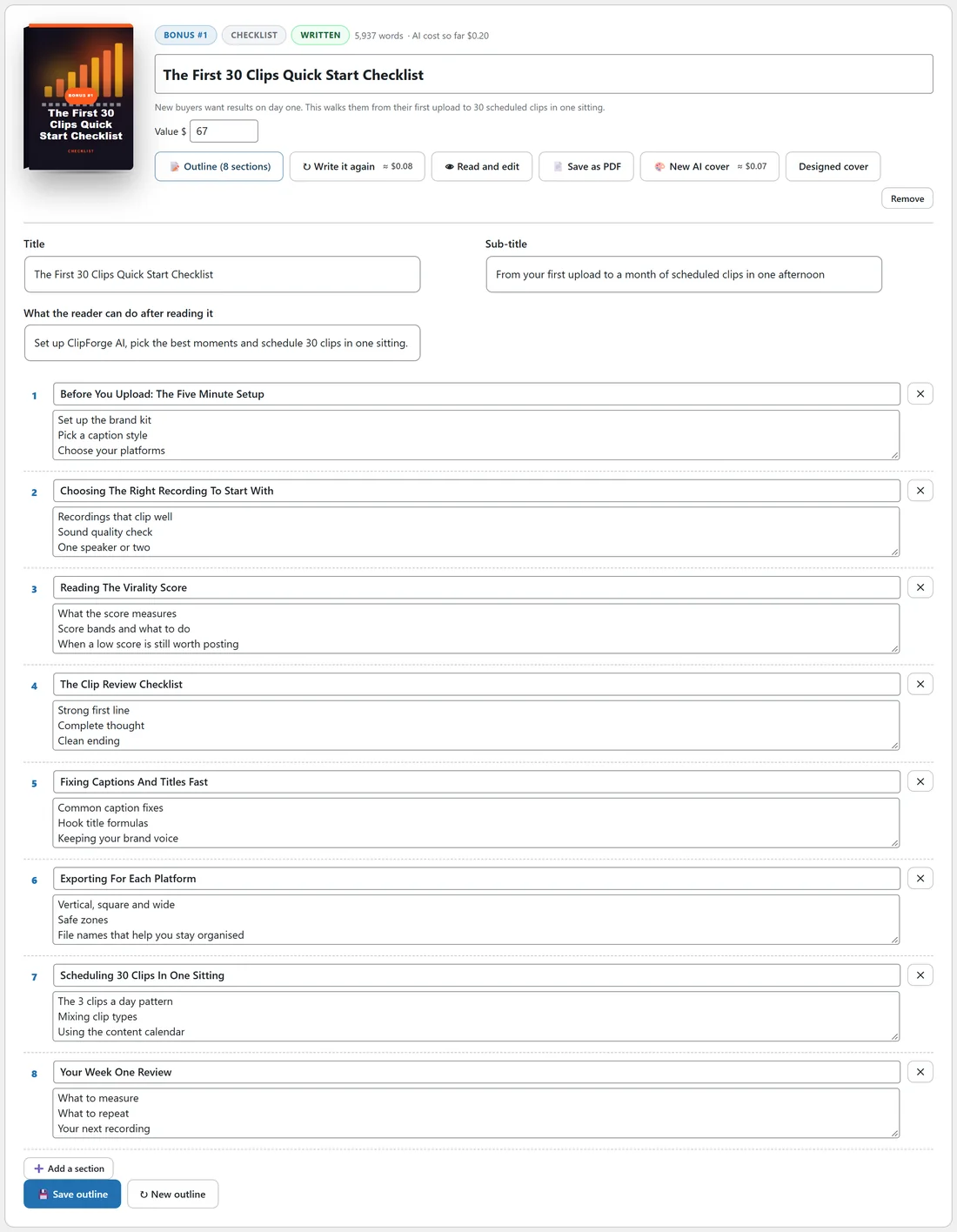
- Title. The bonus title used on the cover, the page and the PDF.
- Sub-title. A one line promise.
- What the reader can do after reading it. The goal the AI writes towards.
- Sections. A numbered list, each with a heading and the points it covers, one point per line.
Changing the outline:
- Type straight into any box.
- Click the ✕ next to a section to remove it.
- Click Add a section to add one at the end.
- Click Save outline.
Keep at least two sections. The number of sections the AI plans grows with the length you set in Words per bonus, between 5 and 12.
A fresh outline:
Click New outline to have the AI plan the bonus again. Anything already written stays until you write the bonus again.
A real example:
The First 30 Clips Quick Start Checklist came back with eight sections, from Before You Upload: The Five Minute Setup to Your Week One Review. Sam kept them all and only reworded the sub-title.
Next, see Step 3: Writing Your Bonuses.