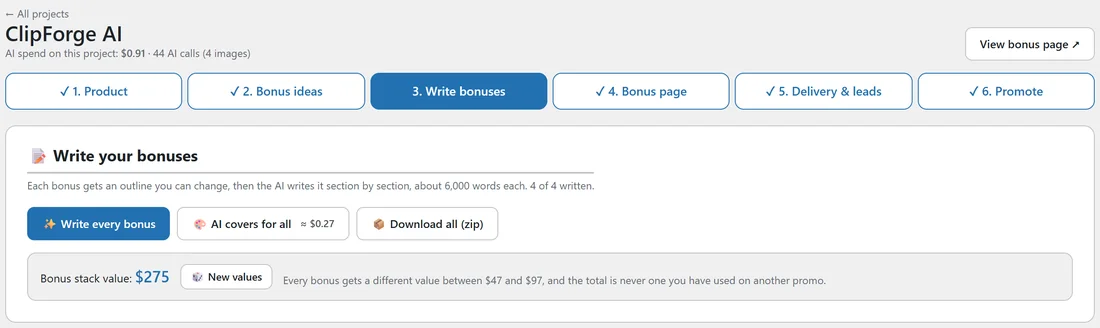
Once a bonus has an outline, the AI writes it in full. Each section is written on its own call, so a long bonus never runs into a time limit, and a popup shows the progress.
Where to find it:
Open a project and click 3. Write bonuses. The top card, Write your bonuses, says how many are written so far.
Writing every bonus at once:
- Click Write every bonus. The estimate for all the unwritten bonuses is on the button.
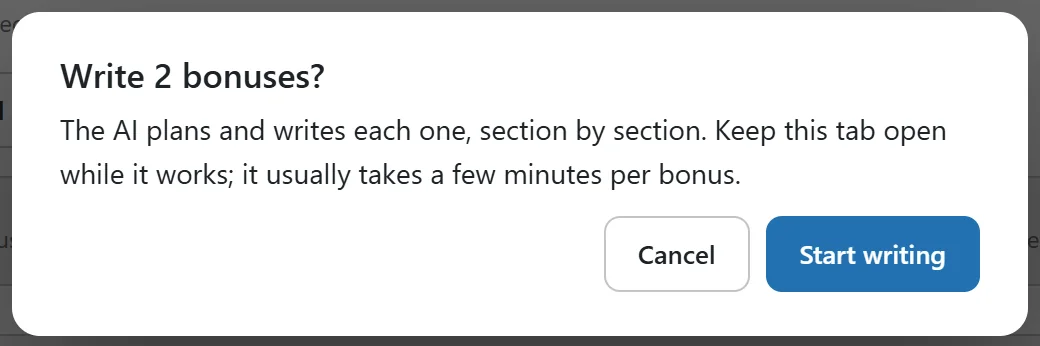
- A box says how many bonuses will be written. Click Start writing.
- The popup plans each bonus that has no outline, then writes it section by section, with a count and a progress bar.
- Keep the tab open while it works. It usually takes a few minutes per bonus.
- Click Done when it finishes.
Writing one bonus:
On a bonus card, click Write this bonus. If it has no outline yet, click Write the outline first.
The bonus card:
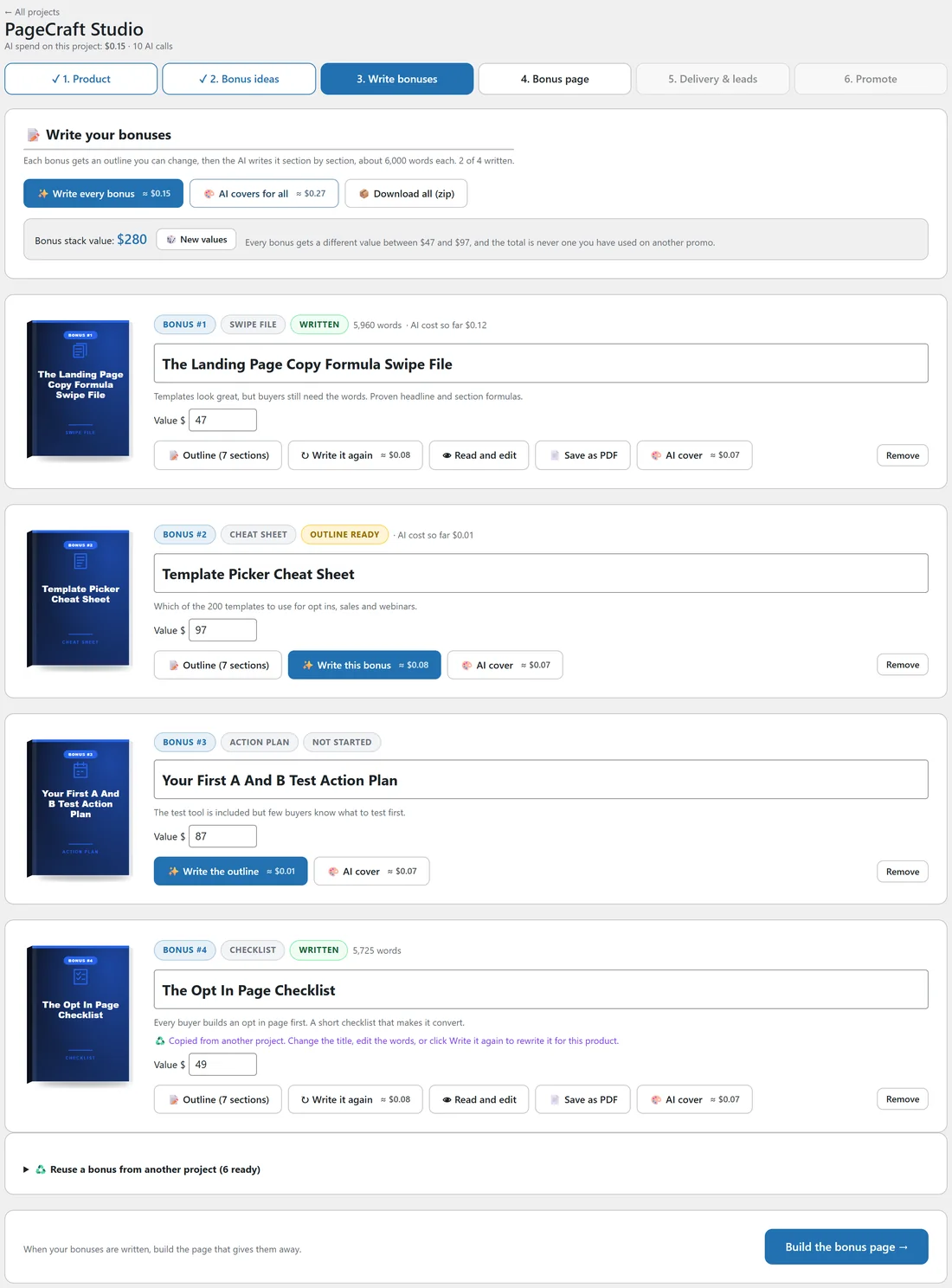
- The cover on the left.
- Badges: Bonus #1, the format, and the status. The statuses are Not started, Outline ready, Half written and Written.
- The word count and the AI cost so far for that bonus.
- The title, which you can change right in the box. It saves as soon as you click away.
- A line on why the bonus fits, and its value.
- The buttons for this bonus: Outline, Write this bonus, Read and edit, Save as PDF, the cover buttons and Remove.
Taking a bonus off:
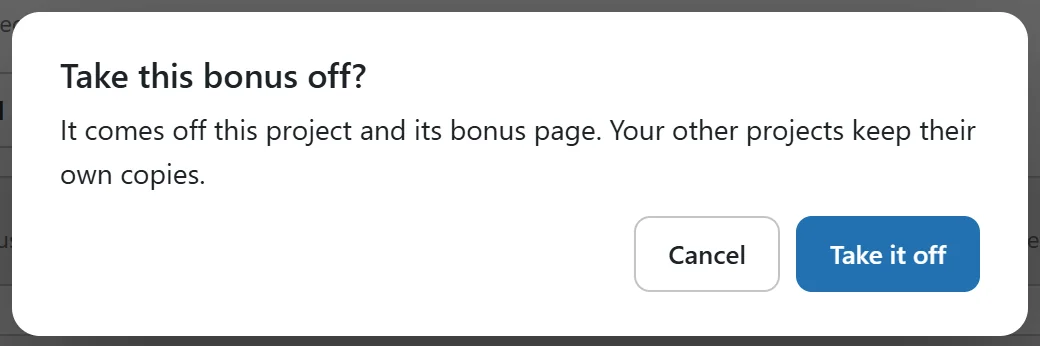
Click Remove on a bonus card. A box asks Take this bonus off? Click Take it off. The bonus comes off this project and its bonus page, the other bonuses stay as they are, and your other projects keep their own copies.
Stopping and carrying on:
Click Stop in the popup to pause after the part being written. Everything written so far is saved. The bonus shows Half written and a Finish writing button that carries on from where it stopped.
Writing a bonus again:
Click Write it again on a written bonus to replace it with a fresh version from its outline. Changes you made by hand are replaced too, so the plugin asks first.
How long each bonus is:
About 6,000 words by default. Change Words per bonus on the Settings tab, from 1,500 to 12,000.
A real example:
Sam's PageCraft Studio project has one bonus Written, one with its Outline ready, one Not started, and The Opt In Page Checklist, copied in from an earlier promo. One click on Write every bonus finishes the two that are not written yet.