Leads from the email step and the leave popup are yours to keep. Bonus Builder saves every one, and can tell you about each new lead and pass it on to your autoresponder the moment it arrives.
Where to find it:
Open a project and click 5. Delivery & leads. The Where new leads go card holds the settings, and the Leads card at the bottom lists them.
Where new leads go:
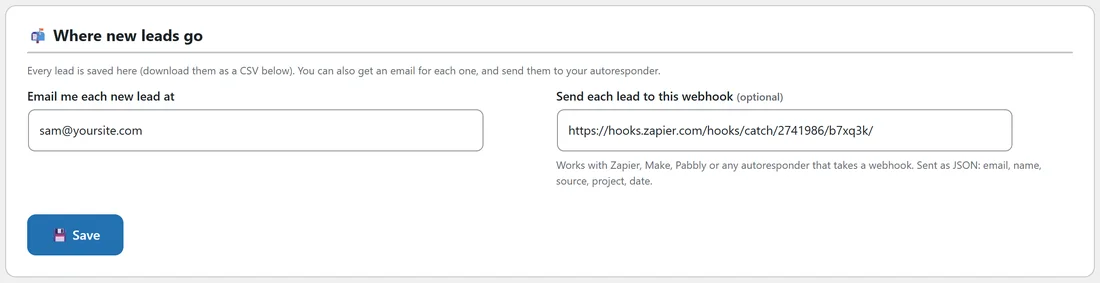
- Email me each new lead at. Type the address that gets an email for every new lead. Leave it empty for no emails. The email has the subject New lead for your ClipForge AI bonuses (with your product's name), and shows the name, email, project and whether the lead came from the popup or the delivery page.
- Webhook (optional). Each of the two cards, Opt-in leads and Buyers, has its own box. Paste a webhook address from Zapier, Make, Pabbly or any autoresponder that takes a webhook.
Click Save to keep them.
What the webhook sends:
Every new lead is sent as JSON with these fields:
- email. The lead's email address.
- name. The first name, if they gave one.
- type. buyer or opt-in.
- source. Where they joined, such as delivery or popup.
- project. The product name.
- project_id. The project's number in Bonus Builder.
- date. When they joined.
In Zapier or Make, start with a Catch Hook or Webhook trigger, copy its address into this box, send a test lead, and map the email and name fields to your autoresponder.
The Leads list:
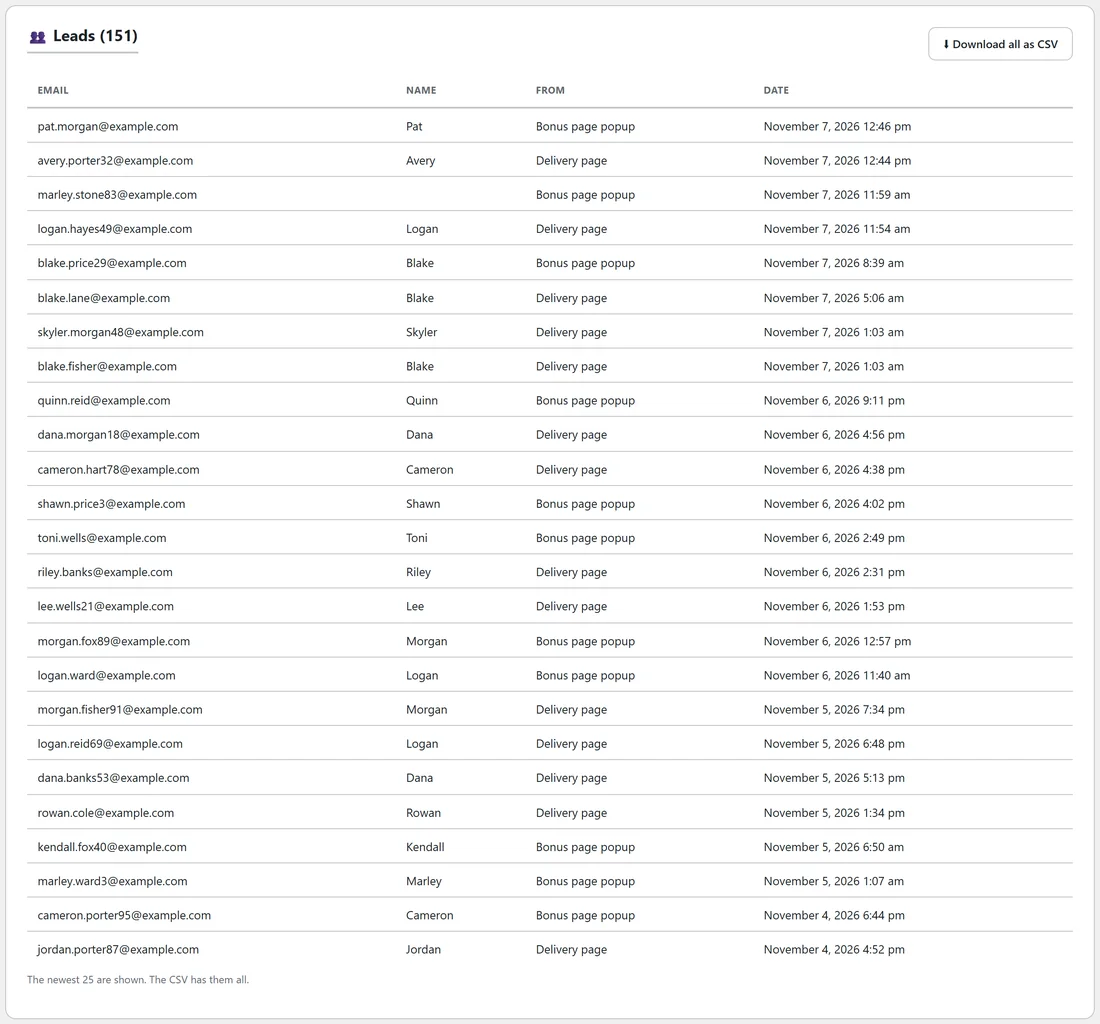
The Leads card shows the total in its heading, such as Leads (150), and the newest 25 leads with:
- Email.
- Name.
- From. Delivery page or Bonus page popup.
- Date.
When you have more than 25, a line under the table says the CSV has them all.
Downloading your leads:
Click Download all as CSV. The file is named after your product, such as clipforge-ai-leads.csv, with the columns Email, Name, From and Date. It opens in Excel, Google Sheets or Numbers, and imports into any autoresponder.
Every lead counts once:
Each email address is saved once per project, so a buyer who opens the email step twice is still one lead.
Mailer and WP Sync:
The Where new leads go card shows ResultsAiX Mailer and WP Sync first. With the Mailer on your site, every lead joins your list with your Bonus Builder tag and the project's tag. With WP Sync, add a bridge with ResultsAiX Bonus Builder as the source and send leads to AWeber, GetResponse, Mailchimp and 35+ more. See Working With Your Other ResultsAiX Plugins. The webhook is still there for Zapier, Make and Pabbly.
A real example:
Sam's leads for ClipForge AI go to sam@yoursite.com and to a Zapier webhook that adds each one to Sam's ClipForge buyers list. Once a month Sam clicks Download all as CSV to keep a copy.
Tips:
- Use the source field in your autoresponder to tag buyers from the delivery page and visitors from the popup differently. Buyers get a thank-you series, popup leads get the offer.
- No leads yet? Switch on the email step or the Collect emails popup, and new leads appear here.