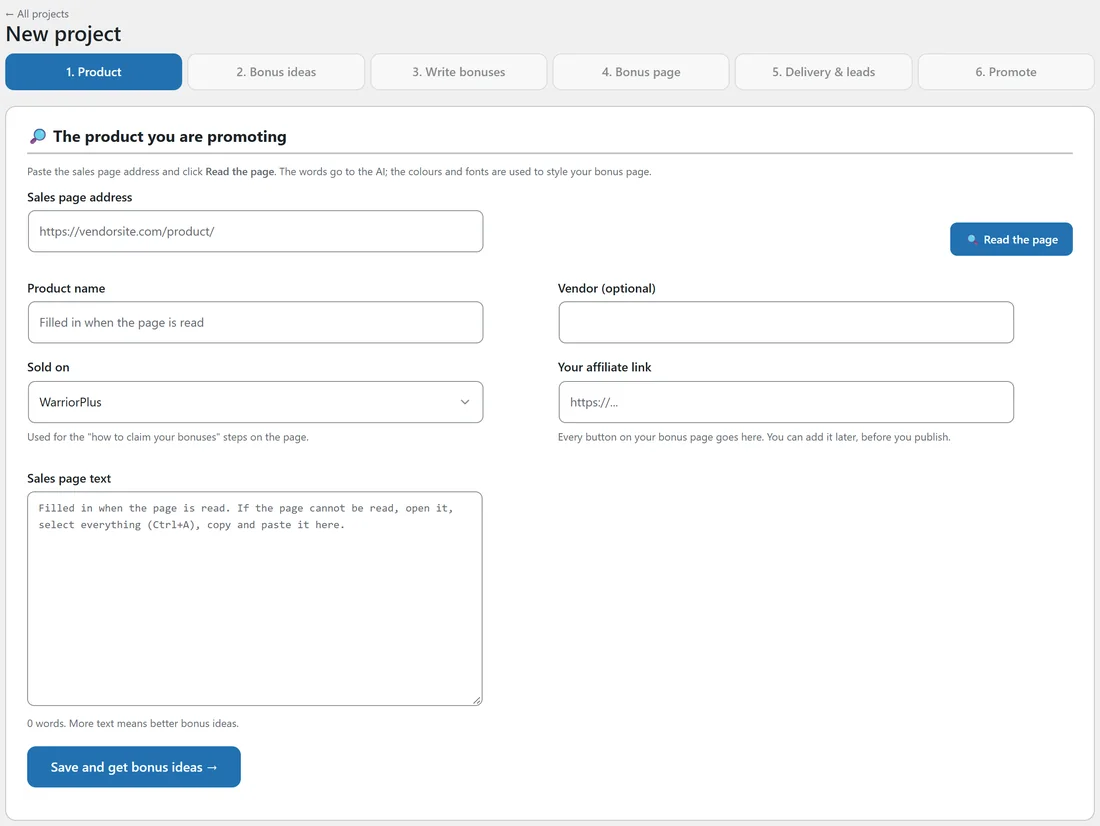
Every project starts with the product. Bonus Builder reads its sales page so the AI knows who buys it and what they want, and so your bonus page can match the vendor's colours and font.
Where to find it:
Click New Project on any Bonus Builder screen. For a project you already made, open it and click 1. Product in the step bar.
Reading the sales page:

- Paste the address into Sales page address.
- Click Read the page.
- A line under the box says how many words were read, and the product name is filled in.
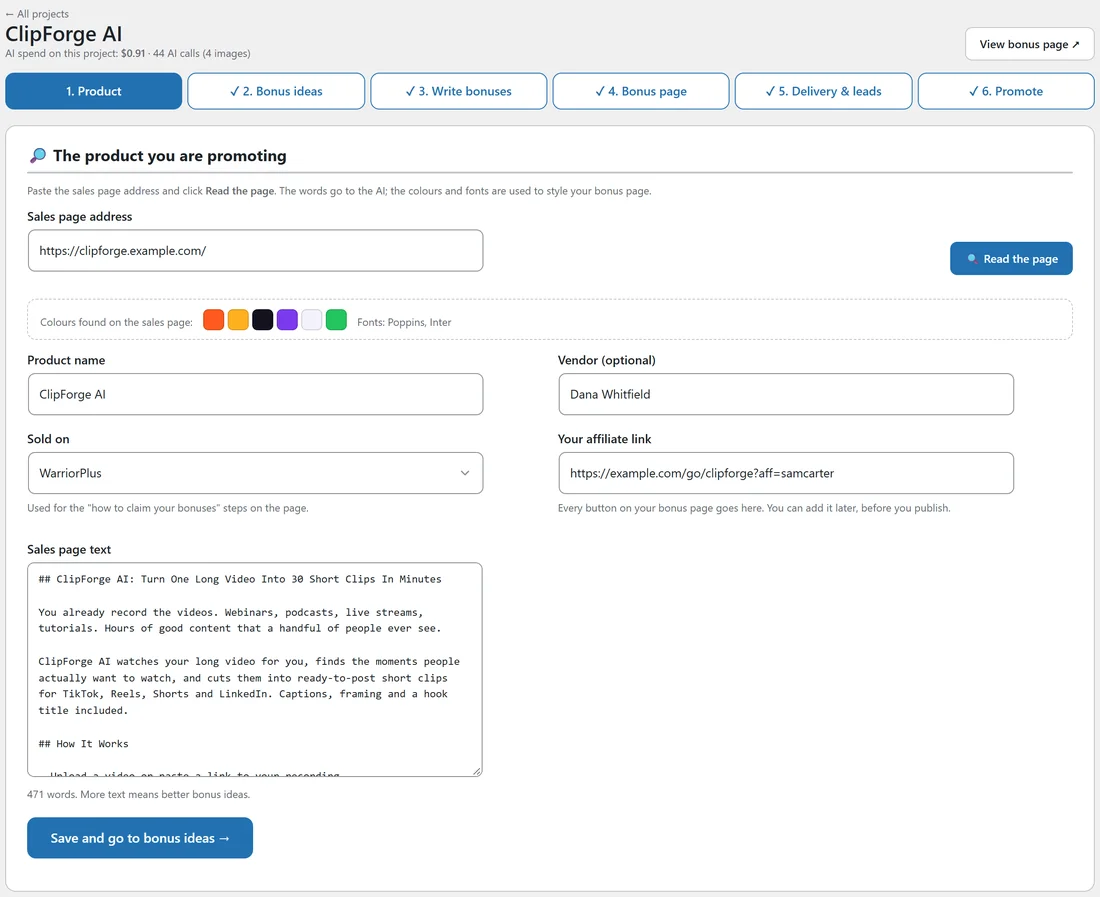
- Colours found on the sales page shows the colour swatches and fonts that were found. These style your bonus page and covers when you choose Match the sales page.
When a sales page blocks other websites:
Many sales pages sit behind a firewall that turns away other websites, which is what your site is when it reads the page. Bonus Builder tries again the way a browser would. If the page is still blocked, it reads the page through a free page-reading service that opens it in a real browser, and the line under the box says so. Only the public sales page address is sent. You can switch this off on Your Profile, under Reading sales pages.
If the words do not come across:
Some pages keep their words behind a login, build them as they load, or block every reader. The line under the box tells you which. In that case:
- Open the sales page in your browser.
- Press Ctrl+A to select everything, then copy it.
- Paste it into the Sales page text box.
Every field:
- Product name. Filled in when the page is read. Change it if you like.
- Vendor (optional). The product's creator.
- Sold on. WarriorPlus, JVZoo, ClickBank or Other / direct. This shapes the how to claim your bonuses steps on your page.
- Your affiliate link. Every button on your bonus page goes here. You can add it now or later, before you publish.
- Sales page text. The words the AI reads. The count under the box shows how many words there are. More text means better bonus ideas.
Saving:
Click Save and get bonus ideas. For a saved project, the button says Save and go to bonus ideas. The sales page text needs a few paragraphs at least, so the AI has enough to work with.
The project header:

Once saved, the top of every step shows the product name, AI spend on this project, the number of AI calls, and a View bonus page button once the page exists. The step bar below shows each step, with a tick on the steps you have done.
A real example:
Sam pasted https://clipforge.example.com/ and clicked Read the page. The orange, amber and dark colours and the Poppins font came across, and Sam added the affiliate link and chose WarriorPlus.