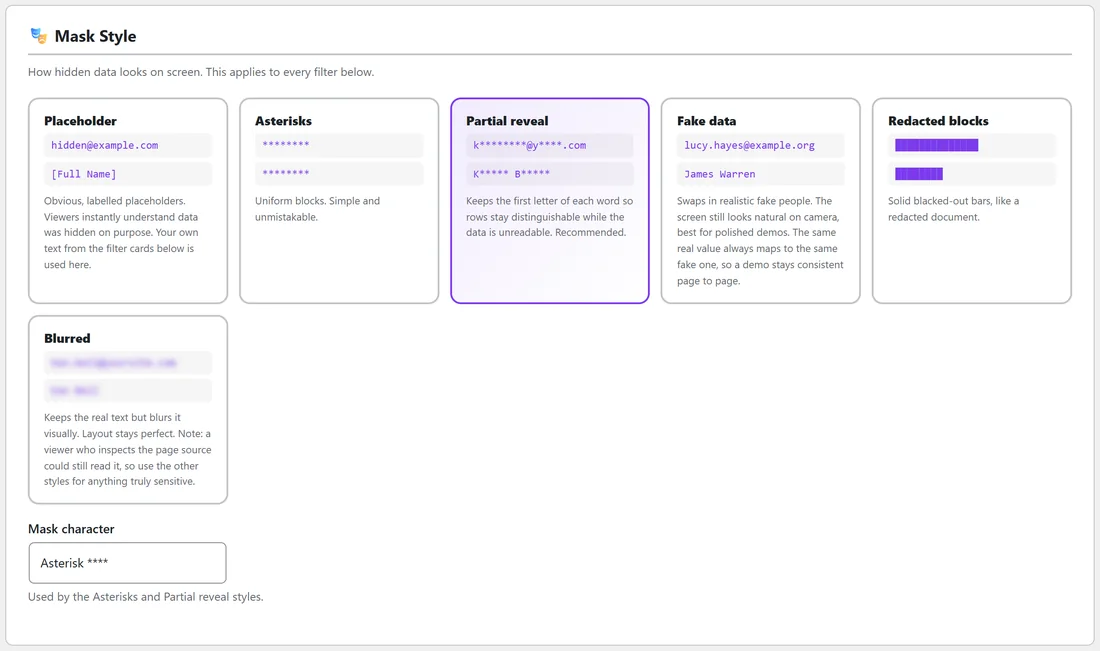
The 🎭 Mask Style section at the top of ⚙️ Settings decides how hidden data looks on screen. It applies to every filter. Click a card to choose it, then click Save Settings.
Each card shows two live examples, a sample email and the sample name Ken Bell, made by the same code that masks your screens. Below, every style is shown on the same customer table from Harbor Lane Coffee, with ten filters switched on, so you can compare them side by side.
Placeholder:
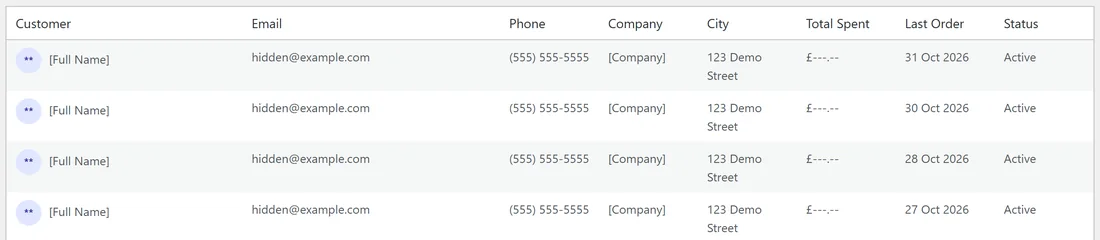
Obvious, labelled placeholders, so viewers instantly understand data was hidden on purpose: a placeholder email address, [Full Name], [First Name], [Last Name], [username], 0.0.0.0, (555) 555-5555, 123 Demo Street, ---.-- after the currency sign of the original price, [Company], and [hidden] for anything else. If you typed your own text into a filter's Custom mask box, that text is used instead.
Placeholder with your own text:
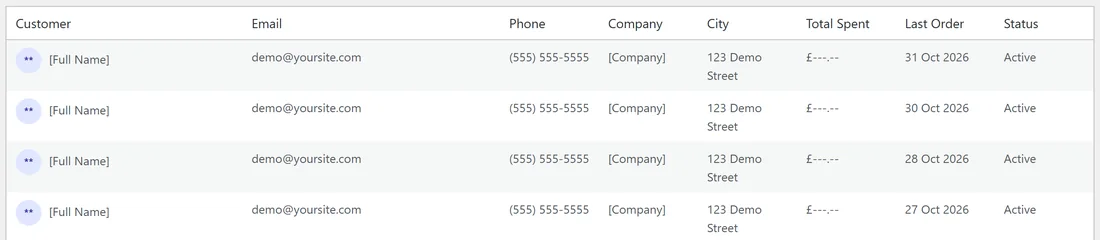
Type demo@yoursite.com into the Email Addresses card's Custom mask box and every email on screen reads demo@yoursite.com. It is a nice touch for branded tutorials.
Asterisks:
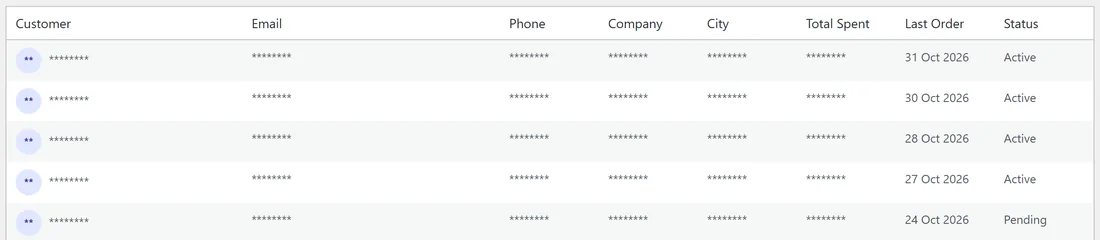
Every value becomes the same uniform block of eight mask characters: ********. Simple and unmistakable, but every row looks the same, so viewers can't follow which customer you are pointing at.
Partial reveal (the default, and recommended):
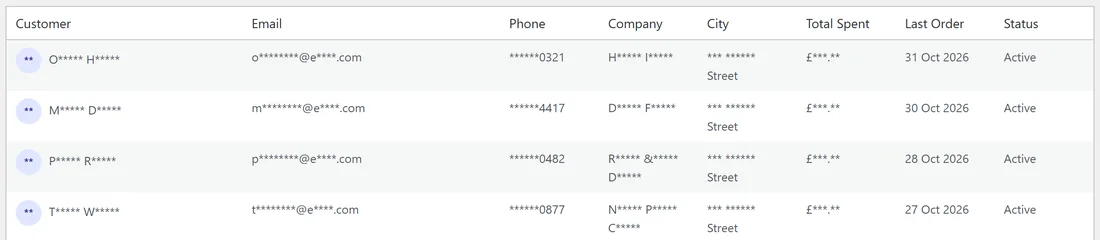
Keeps the first letter of each word, then a fixed run of mask characters, so rows stay easy to tell apart while the data is unreadable. For emails, names, phones, prices and addresses the run is always the same length, so it never gives away how long the real value was.
- olivia.hartmann@example.com becomes o********@e****.com
- Olivia Hartmann becomes O***** H*****
- 198.51.100.47 becomes 198.***.***.***
- A phone number keeps only its last four digits, like ******0321
- Prices keep their currency symbol, like £***.**, and addresses, cities and postcodes become *** ****** Street
Fake data:
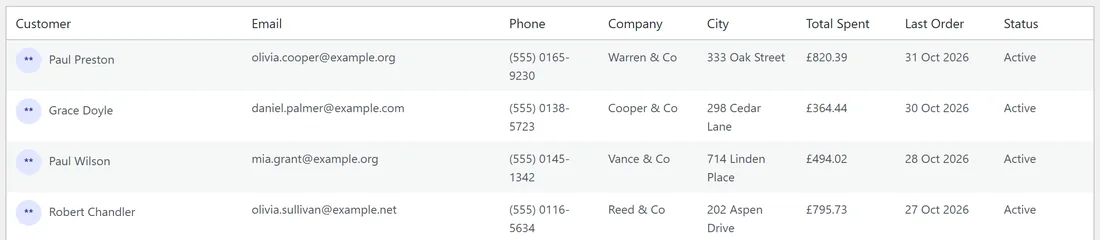
Swaps in realistic made-up people, so the screen still looks natural on camera. It's the best choice for polished demos.
- Emails such as lucy.hayes@example.org, names such as James Warren, usernames such as lucy76
- Phone numbers in the reserved fictional 555 01 range, IP addresses in the 203.0.113 range set aside for documentation, addresses such as 333 Oak Street, companies such as Warren & Co, and made-up amounts that keep the currency sign
The same real value always becomes the same fake one, so a demo stays consistent from page to page. Each type is chosen separately, so a fake email does not have to match the fake name in the same row.
Redacted blocks:
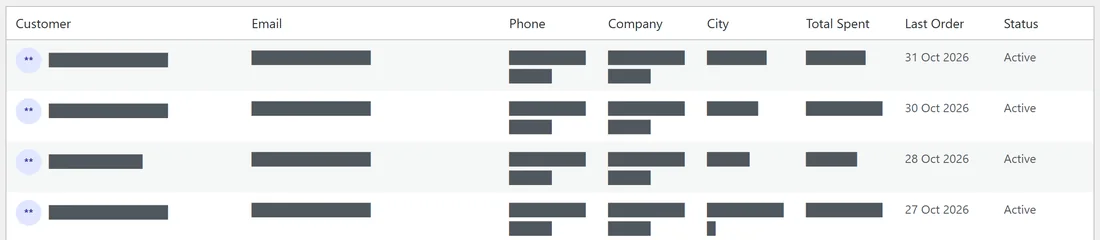
Solid blacked-out bars, like a redacted document: ████████. The bar is between 4 and 14 blocks long and follows the length of the real value.
Blurred:
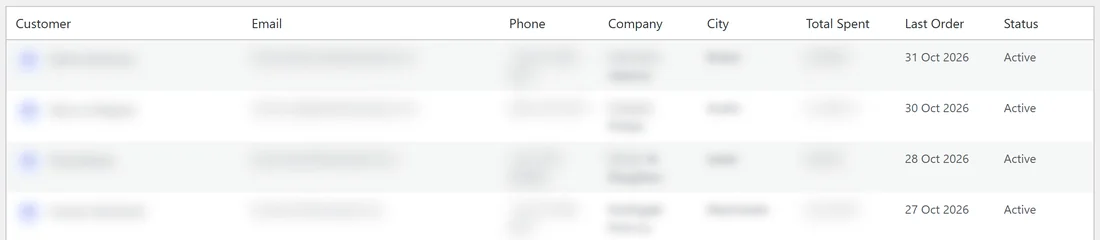
Keeps the real text but blurs it on screen, so your layout stays exactly as it was. Form fields and content that loads later are blurred too. In the browser tab title, where blurring is not possible, Partial reveal is used instead. As the Settings screen points out, anyone who inspects the page source could still read it. Use one of the other styles for anything truly sensitive, and keep Blurred for quick, low-stakes recordings.
The Mask character:
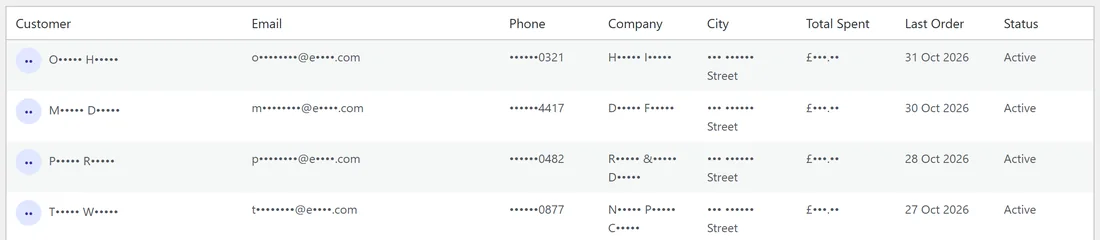
Under the style cards, the Mask character list sets the character used by the Asterisks and Partial reveal styles: Asterisk (****), Bullet (••••), Capital X (XXXX), Lower x (xxxx), Hash (####) or Block (████). It's also used for the initials inside avatar circles. Bullets look softer on camera than asterisks; Block gives a redacted look while still keeping first letters.
Why some masks look the same:
The plugin works in two layers, and both follow the style you chose. Email addresses, IP addresses, phone numbers, prices, visible URLs, and the names and usernames of registered users are swapped before the page even leaves your server, so the real value never reaches your browser. The browser layer then applies the same style to content that loads later, to form fields and to anything Smart Detection finds.
Some styles give the same result on purpose. With Placeholder or Asterisks, every value of one type gets the same text. With Partial reveal, values that start with the same letters look alike. With Fake data, the same real value always becomes the same made-up one. If you want rows to stay easy to tell apart, choose Partial reveal or Fake data.
Which style to pick:
- Everyday tutorials and support screenshots: Partial reveal.
- Sales demos and polished course videos: Fake data.
- Training where viewers must see that data was hidden on purpose: Placeholder, ideally with your own text.
- Quick internal screen-shares: Blurred or Redacted blocks.