The 🔒 Privacy Filters section of ⚙️ Settings has one card per type of data. Each card has an on/off switch, a short description, a before and after preview, and a Custom mask box. Nothing is masked until Privacy Recording Mode is on, and then only the types you switched on. Click Save Settings after any change.
Where to find it:
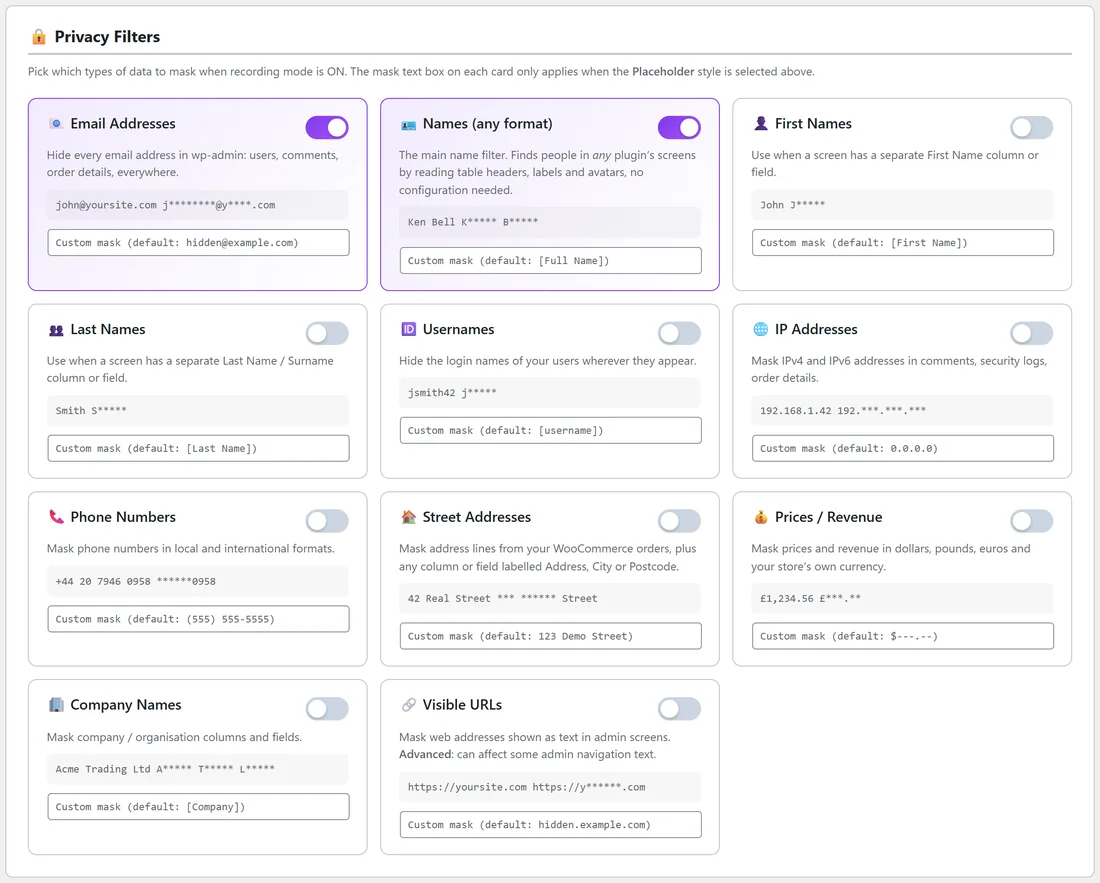
Open 🔒 Record Privacy, click ⚙️ Settings and scroll past 🎭 Mask Style. A card with a purple border is switched on.
How to read a card:
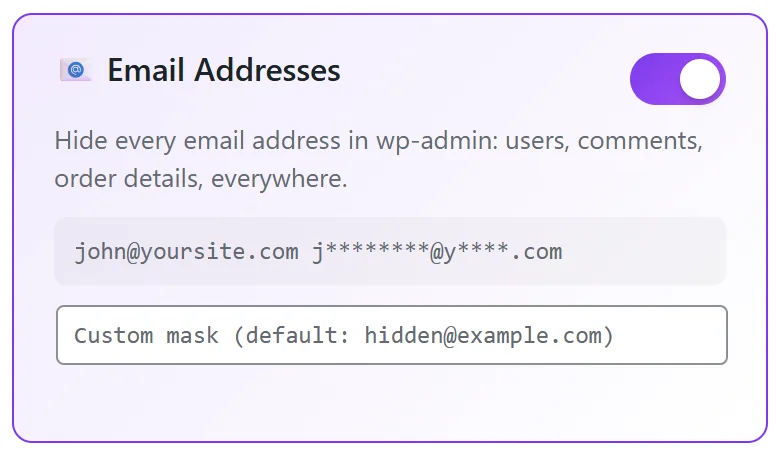
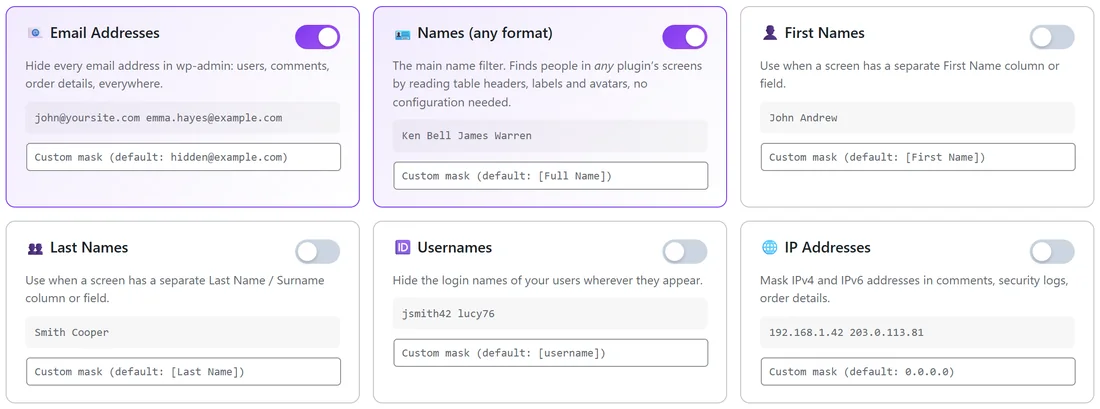
- The switch in the top right turns the filter on or off.
- The grey line shows a sample value, then what that sample becomes in the mask style you picked. The preview is made by the same code that masks your screens, so it is exactly what you will see. Click a different style card above and every preview changes at once.
- The Custom mask box lets you type your own replacement text. It is only used by the Placeholder style.
The filters steer Smart Detection:
A column headed Phone is only masked while Phone Numbers is on, a column headed Company only while Company Names is on, and so on. If a column you expected to be masked shows real data, the matching filter is the first thing to check.
Email Addresses (on by default):
Hides every email address on an admin screen, including inside form fields, page titles and content that loads later. Addresses ending in @wordpress.org are left alone. The Placeholder style shows a built-in placeholder address, which you can see in the card's Custom mask box.
Names (any format) (on by default):
The main name filter. It finds people in any plugin's screens by reading table headings, labels, avatars and the text next to email addresses, with no set-up. Before the page leaves your server it also swaps the display names of your registered users (when they are two or more words, such as Olivia Hartmann) and blanks out whole cells that a plugin marks as a person's name in its page code, such as a customer name or full name cell. With WooCommerce, customers' full names from your 200 most recent orders are included too. Placeholder text: [Full Name].
First Names:
Swaps the first names of registered users wherever they appear as a whole word in the page, including the top admin bar. With this on, a user's display name made of two or more words is swapped as a whole too. With WooCommerce, billing and shipping first names from your 200 most recent orders are included. It also covers columns and fields labelled First Name, Given Name or Forename. Placeholder text: [First Name].
Last Names:
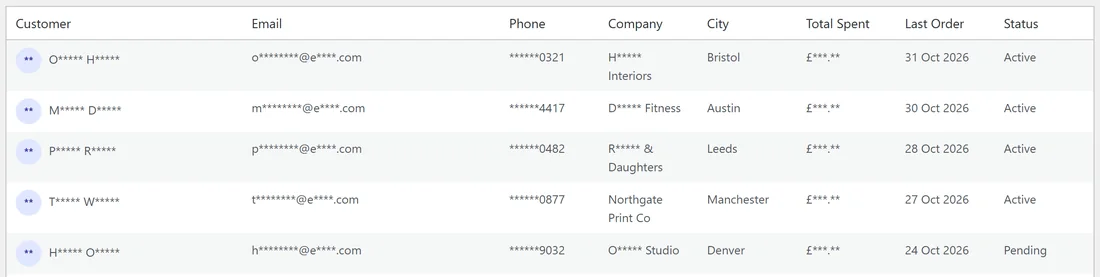
The same for surnames: registered users' last names, billing and shipping last names from your 200 most recent WooCommerce orders, and columns or fields labelled Last Name, Surname or Family Name. Placeholder text: [Last Name].
Because it swaps a surname wherever it appears as a whole word, a company named after a customer is partly masked too. On Maya's site, Hartmann Interiors shows as H***** Interiors with only Last Names on, because Hartmann is a customer's surname.
Only your 2,000 newest user accounts are looked up for names and usernames. Names shorter than 3 characters are skipped.
Usernames:
Swaps registered users' login names wherever they appear in the text of a page, and masks columns labelled Username, Login, Handle, Nickname or Screen Name. In running text, common words that appear all over WordPress, such as admin, are never swapped, because swapping them would break the admin. Under a Username column heading, though, every cell is masked, including admin. Placeholder text: [username].
IP Addresses:
Hides IPv4 addresses like 192.168.1.42, and IPv6 addresses, in comments, security logs and order details, plus columns labelled IP, IP Address, Last IP, Signup IP, Remote IP and similar. Placeholder text: 0.0.0.0.
Phone Numbers:
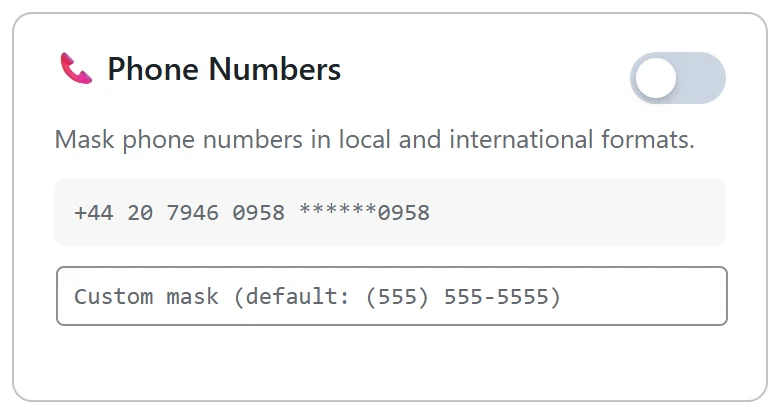
Hides phone numbers in local and international layouts: numbers that start with a plus sign and country code, such as +44 20 7946 0958, numbers with the area code in brackets, such as (555) 123-4567, and numbers grouped with spaces, dots or hyphens, such as 555-123-4567 or 555.123.4567. A run of digits with no grouping, sitting in the middle of a sentence, is not recognised on its own, so check your screens during your test run. Any cell under a label such as Phone, Mobile, Telephone, Cell, WhatsApp or Fax is hidden whatever its layout. Placeholder text: (555) 555-5555.
Street Addresses:
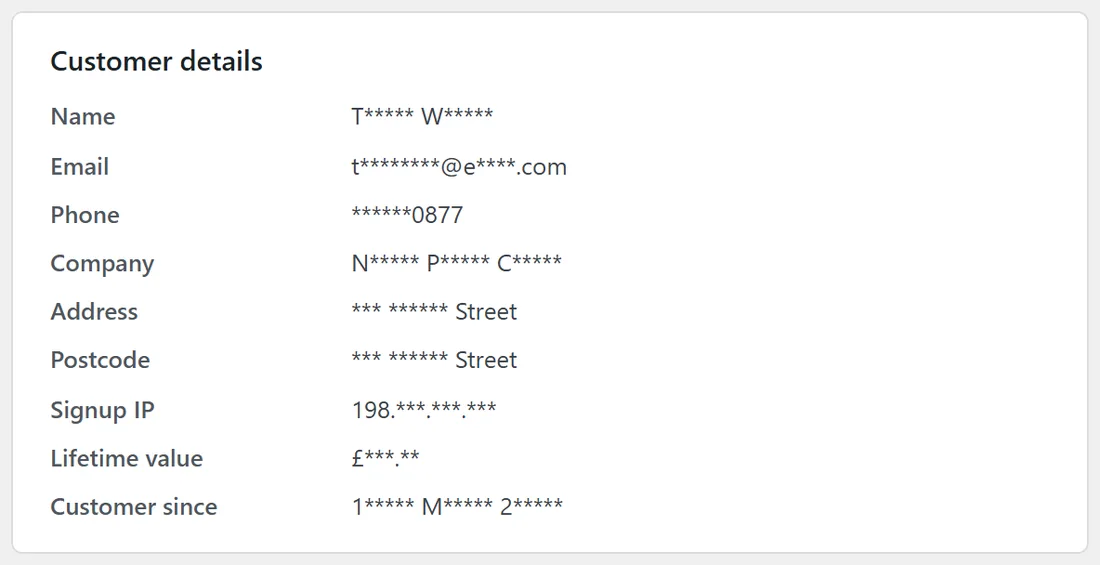
With WooCommerce, hides billing and shipping address lines 1 and 2 from your 200 most recent orders wherever they appear. On any screen, it masks columns and fields labelled Address, Street, City, Town, Postcode, Zip, State, County, Location or Region. In the Partial reveal style every one of those values, a city or a postcode included, reads *** ****** Street, so a viewer can't even tell how long it was. Placeholder text: 123 Demo Street.
Prices / Revenue:
Hides amounts written with a currency symbol before or after the number, such as $1,234.56, £49.00 or 49 €. About 20 currency symbols are recognised, including dollar variants such as US$ and CA$, the pound, euro, yen, rupee and won signs, plus your store's own currency when WooCommerce is active. Codes such as USD, EUR and GBP work too. Any cell under a money label such as Total, Total Spent, Amount, Revenue, Price, Paid, Balance, Subtotal, Cost, Earnings, Commission, Lifetime Value or Sales is hidden whatever the currency or layout. The mask keeps the currency symbol. Placeholder text: the currency sign followed by ---.--, for example £---.--.
Company Names:
Masks columns and fields labelled Company, Organisation, Organization, Business, Employer, Firm, Agency or Brand. A company name has no fixed shape, so this filter relies on labels, Point & Mask and your own selectors. Placeholder text: [Company].
Visible URLs:
An advanced filter, off by default. It hides web addresses starting with http:// or https:// when the address is the whole text of a link or cell, for example a Website column. Links still work, because only the visible text changes. The card notes that it can affect some admin navigation text, so switch it on only when your screens show web addresses you want hidden. Placeholder text: hidden.example.com.
The Custom mask box:
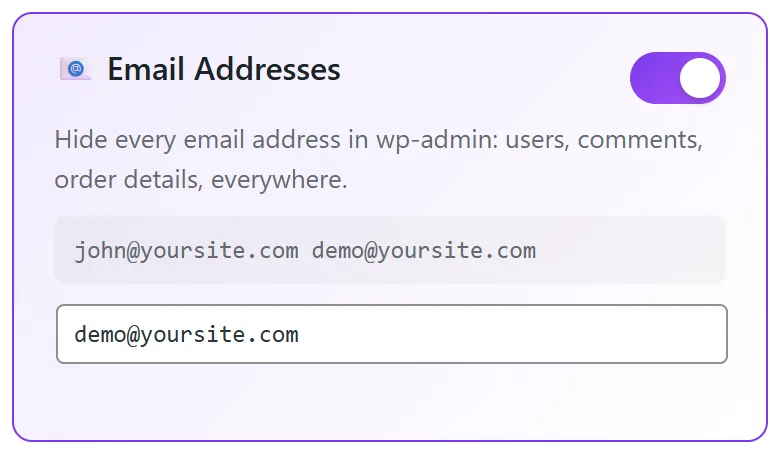
Type your own replacement text into any card's box, for example demo@yoursite.com instead of the built-in placeholder address. Leave it empty to use the default shown in the box. As the Settings screen notes, this text is only what the Placeholder style shows. The other styles build their masks in their own way. Mask Styles And The Mask Character explains each one.
A good set-up for a shop:
For a customer or order walkthrough, Maya switches on every filter except Visible URLs. The banner then reads 10 filter(s) masking sensitive data. For a quick video about blog comments, she only needs Email Addresses, Names (any format) and IP Addresses.