WP Record With Privacy checks whether WooCommerce is active, and when it is, adds extra coverage for your store. It works just as well on sites without WooCommerce: every filter, Smart Detection and Point & Mask work on any screen.
How you know it is covered:
- The 📊 Dashboard shows a WooCommerce card next to Active Filters and Users Protected. Click it to go straight to your orders, on the classic orders screen or the newer order tables, whichever your store uses.
- The 🩺 Diagnostics tab shows WooCommerce as active, with the note that order names, addresses and your store currency are covered too.
What it covers in your store:
- Customer names: with First Names and Last Names on, the billing and shipping first and last names from your 200 most recent orders are swapped wherever they appear, including next to the order number in the orders list. With Names (any format) on, their full names are swapped as a whole.
- Addresses: with Street Addresses on, billing and shipping address lines 1 and 2 from your 200 most recent orders are swapped. Smart Detection also masks fields labelled City, Postcode, State and similar.
- Prices and revenue: with Prices / Revenue on, every amount is hidden, including order totals and product prices. Dollars, pounds, euros, about 20 currency symbols in all, and your store's own currency are recognised, and any cell under a money heading such as Total or Price is hidden too. WooCommerce's own price elements are recognised by their class name as well.
- Emails and phones: customer emails and phone numbers, in local and international layouts, are hidden by the Email Addresses and Phone Numbers filters.
The names and address lines are read once and kept for 10 minutes, and the list refreshes the moment an order is added, changed or deleted, so a new order is covered on your next page load.
Recommended settings for a store walkthrough:
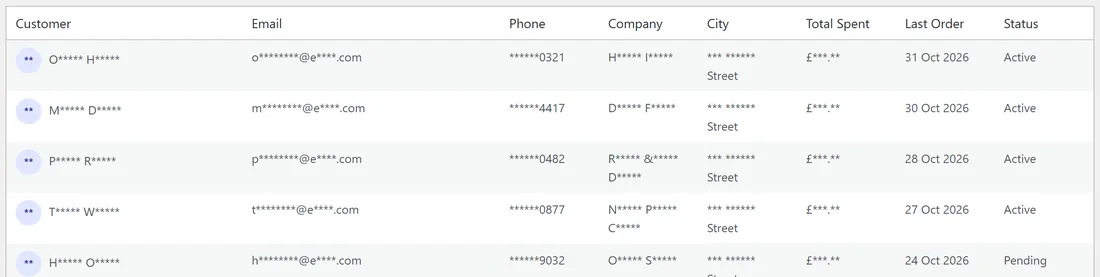
Switch on Email Addresses, Names (any format), First Names, Last Names, Phone Numbers, Street Addresses and Prices / Revenue. Add IP Addresses if you open order details, where WooCommerce shows the customer's IP. Partial reveal keeps orders easy to tell apart; Fake data makes the store look natural on camera.
The Customers screen used throughout these docs shows the same set of filters at work: every name, email, phone, city and total masked, with dates and statuses still readable.
A worked example:
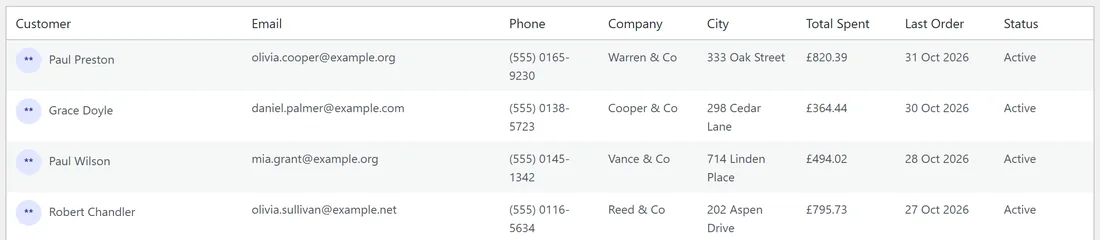
Harbor Lane Coffee sells beans and subscriptions. Maya wants to record how to refund a damaged bag:
- She switches on the seven filters above plus IP Addresses, picks Fake data and clicks Save Settings.
- She turns the switch on and opens Orders. Customer names show as made-up names, totals as made-up amounts with the pound sign.
- She opens one order and checks the billing and shipping boxes, the customer's email and phone, and the order notes.
- She records up to the point of clicking the refund button, then turns the switch off and does the real refund with real data on screen.
Things to check in your test run:
- Older orders: names and address lines are collected from your 200 most recent orders. On older orders, the labelled fields are still caught by Smart Detection, but look at any older order you plan to show.
- Make real changes to orders with masking off. Order fields only look masked and still save your real values, but you can see what you are editing.
- Your shop, cart, checkout and account pages are part of your public website, so they are never masked.
- Order exports and downloaded invoices are files, so they hold real data.