Most questions have a quick answer. Work through the matching section below, and if you still need a hand, the Diagnostics report gives the support team everything they need.
Something still shows real data:
- Check for the purple 🔒 Privacy Recording ON badge in the admin bar. No badge means masking is off.
- Check the matching filter is on in ⚙️ Settings. Smart Detection only masks a type while its filter is on.
- Check where the data is. Code blocks, the left admin menu and the plugin's own screens are never masked, and text areas are blurred rather than masked. See Exactly What Gets Hidden, And What Does Not.
- Point & Mask it, or add a rule in Advanced: CSS selectors.
- Is it a number in an unusual layout, sitting outside a labelled column, such as a phone number with no spaces in the middle of a sentence? Point & Mask it, or leave that screen out.
- Is it a web address without http:// in front, such as a commenter's website? Point & Mask it.
- On a very long list, show fewer items per page. Pages over 2MB skip the server layer.
- Just added a user? The list of registered names refreshes as soon as a user changes, so reload the page.
Something is masked that shouldn't be:
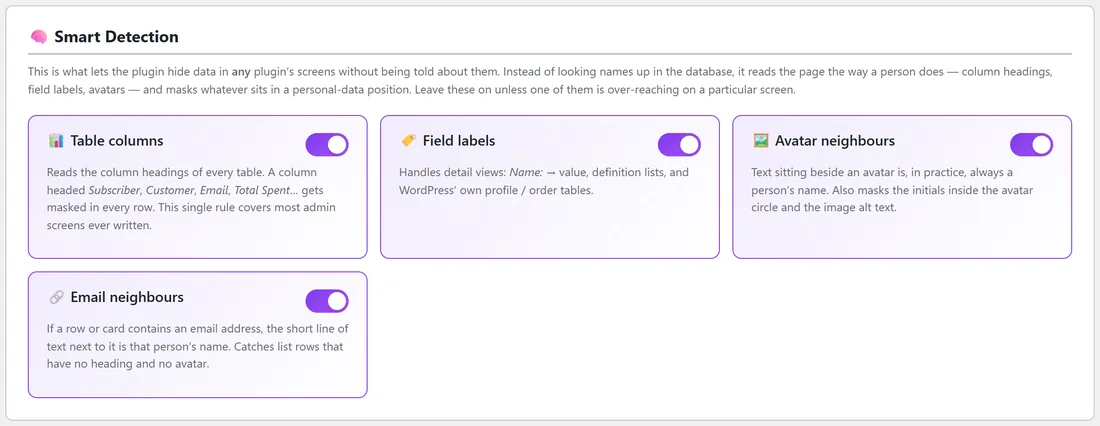
- Turn off the Smart Detection switch that is responsible (Table columns, Field labels, Avatar neighbours or Email neighbours), click Save Settings and check again.
- A date under a label such as Customer since is masked: that is Field labels. A masked date gives nothing away, so you can leave it, or turn Field labels off for that recording.
- On the WordPress Dashboard, the Activity box headings or post titles look masked: that is Avatar neighbours. Turn it off while you show that box.
- If admin link text looks odd, switch off Visible URLs.
- To undo Point & Mask picks, click the x next to one pick, or Clear all saved selections for all of them. To undo a typed rule, delete its line from Advanced: CSS selectors and save.
Point & Mask doesn't start:
- Privacy Recording Mode must be ON.
- The screen's address must end with wrp_pick=1, or use the 🎯 Start Point & Mask button with the full address starting with http.
- It doesn't run on the plugin's own screens.
The master switch shows a message:
The button saves in the background. If you see Connection error., reload the page and click again. If your login has expired, log in again and try once more.
A note says the licence is not yet synced:
That means your copy activated while our licence server was out of reach. The plugin works normally, and sync retries by itself once a day. Nothing to do.
The activation screen keeps coming back:
Either Deactivate License was clicked, or the plugin's core files were edited. The plugin checks its own core files and asks to be activated again if they change. Download a fresh copy from your free members area, install it and activate again.
The emergency off switch:
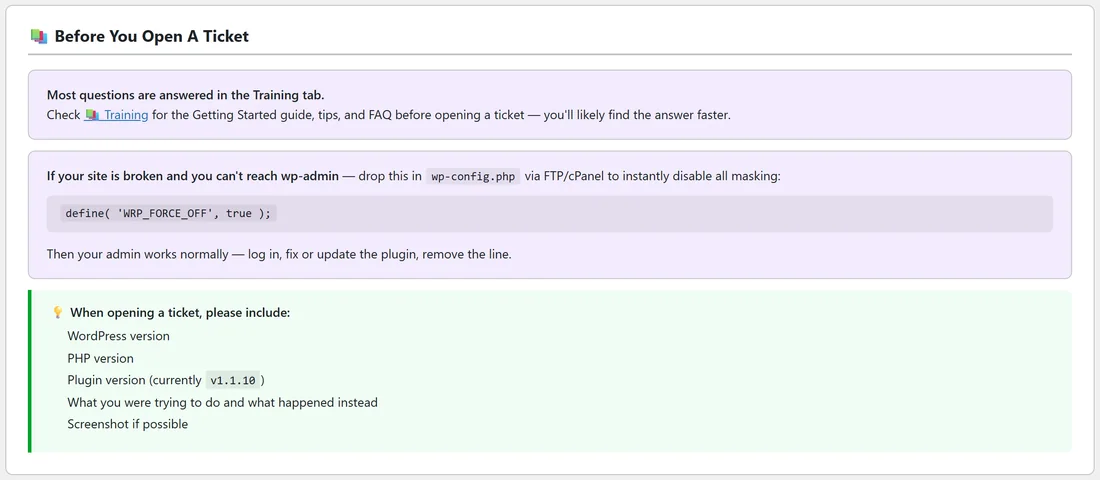
If your admin ever stops working and you can't reach the Dashboard, open wp-config.php with your hosting file manager or FTP and add this line above the line that says to stop editing:
define( 'WRP_FORCE_OFF', true );
All masking stops at once and your admin works normally, whatever the Dashboard says. Log in, update or adjust the plugin, then remove the line. The 💬 Support tab shows the same line, ready to copy.
Diagnostics:

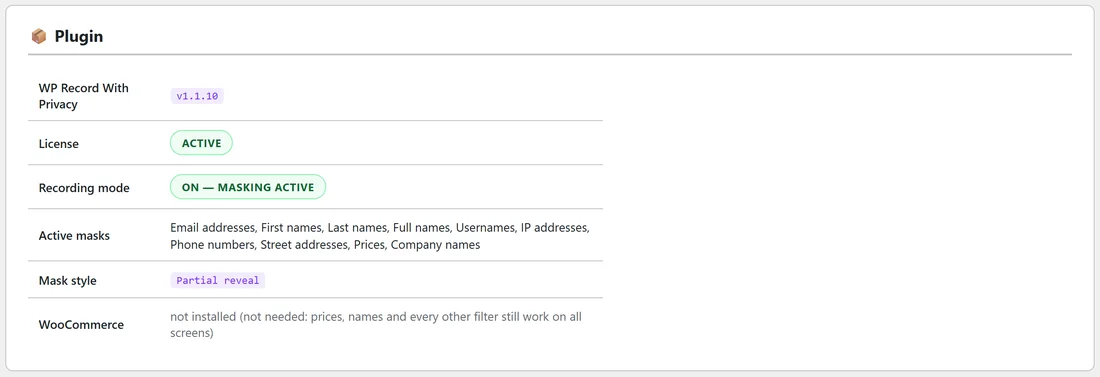
The 🩺 Diagnostics tab is a one-glance health report:
- 📦 Plugin: the version, License status, Recording mode (ON, masking active, or Off, real data showing), Active masks, Mask style and whether WooCommerce is active.
- 🌐 Environment: WordPress, PHP (flagged Needs 7.4+ if older than 7.4), MySQL / MariaDB, Site URL, HTTPS / SSL and Memory limit.
Send a report to support:
- Open 🩺 Diagnostics.
- Click 📋 Copy Report for Support. The button reads Copied! Paste into your support ticket for a few seconds.
- Click ✉️ Open Support, or go to https://kevinfahey.org/contact-support/, and paste the report into your ticket.
- Add what you were trying to do, what happened instead, and a screenshot if you can.
The report is plain text: the plugin version, licence status, recording mode, the filters that are on, mask style, WordPress, PHP and MySQL versions, site address, HTTPS and WooCommerce. No passwords or API keys are ever included.
Updates:
New versions arrive through normal WordPress updates, and your settings are kept.
- When an update is ready, it shows on your Plugins screen and on Dashboard, Updates. Click update as usual.
- The plugin checks for updates when you open those screens and during WordPress's own regular check. If you expect an update and don't see it, go to Dashboard, Updates and click Check again.
- The free ResultsAiX Hub can update it together with your other ResultsAiX plugins.
- Update downloads are checked against your free licence. If a download is refused, you'll see a message in WordPress. Contact support and we'll sort it out.