Conditional logic shows or hides a field depending on the answers a visitor has already given. It keeps forms short: people only see the questions that apply to them. Your site checks the same rules again when the form arrives, so a hidden field never blocks a submission and never keeps an answer.
Where to find it:
Open a form in the builder, open a field card, and scroll to the bottom of the card. Tick Conditional logic. A lightning bolt then shows on the card's header so you can spot logic at a glance.
Every field can have logic except hidden fields. Section breaks and HTML blocks can have it too, which is a neat way to show a whole heading only when it matters.
Setting it up:
- Save the form once after adding your fields. Saving gives each field its permanent id, which is what the rules point at.
- Open the card of the field you want to show or hide.
- Tick Conditional logic. The first rule is added for you.
- In the first dropdown, choose Show this field or Hide this field.
- In the second, choose when ALL rules match or when ANY rule matches.
- Build the rule: pick a field, a condition and a value.
- Click + Add rule for more rules, or the red cross to remove one.
- Click Save form.
The conditions:
- is: the answer is exactly the value.
- is not: the answer is anything but the value.
- contains: the answer includes the value, handy for checkboxes and free text.
- greater than and less than: compare numbers, including star ratings.
- is filled: the field has any answer. The value box is not used.
- is empty: the field has no answer. The value box is not used.
Comparisons ignore capital letters, so "kitchen" matches "Kitchen".
What the rules read:
- Radio buttons and dropdowns: the chosen option.
- Checkboxes: the ticked options in the order you wrote them, separated by commas. Use contains to react to one of them.
- Star rating: the number of stars, 1 to 5.
- GDPR consent: 1 when ticked.
- Name: the first name. Address: the street.
- Every other field: what was typed.
Example 1, a follow up question:
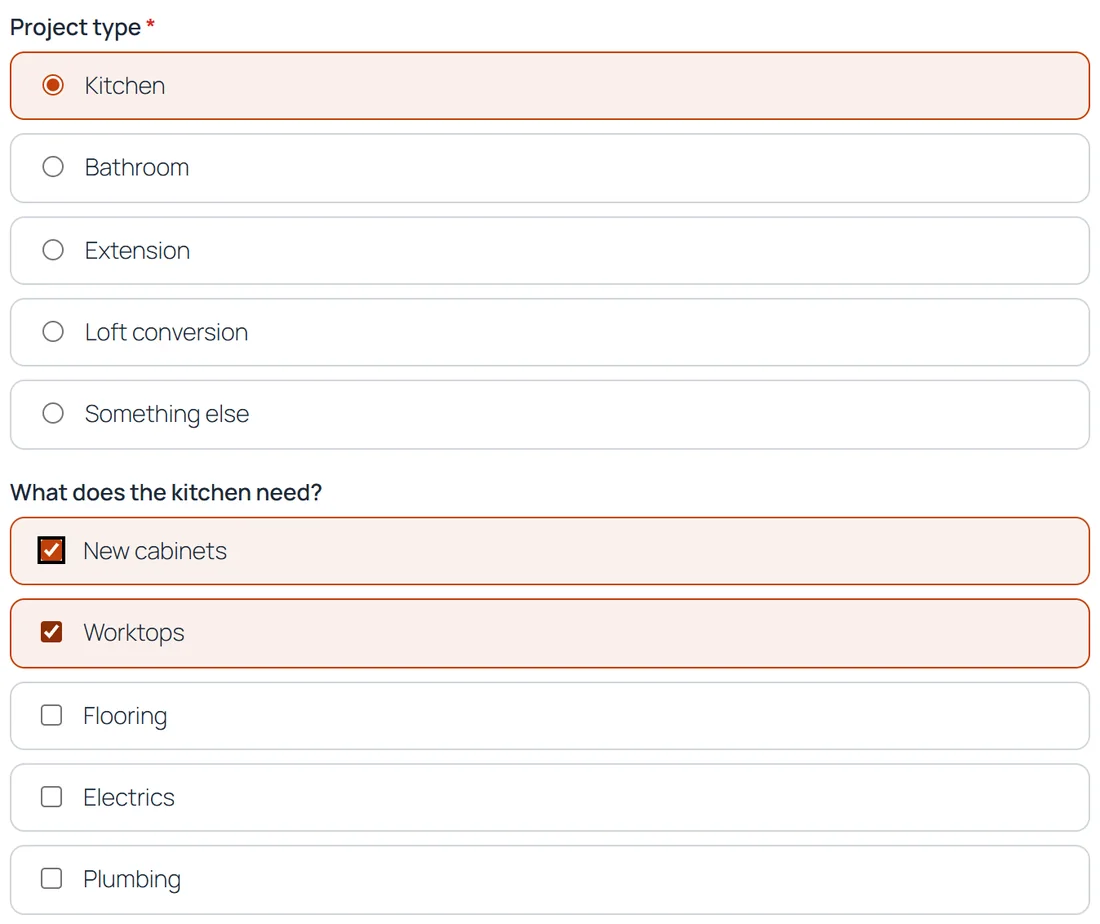
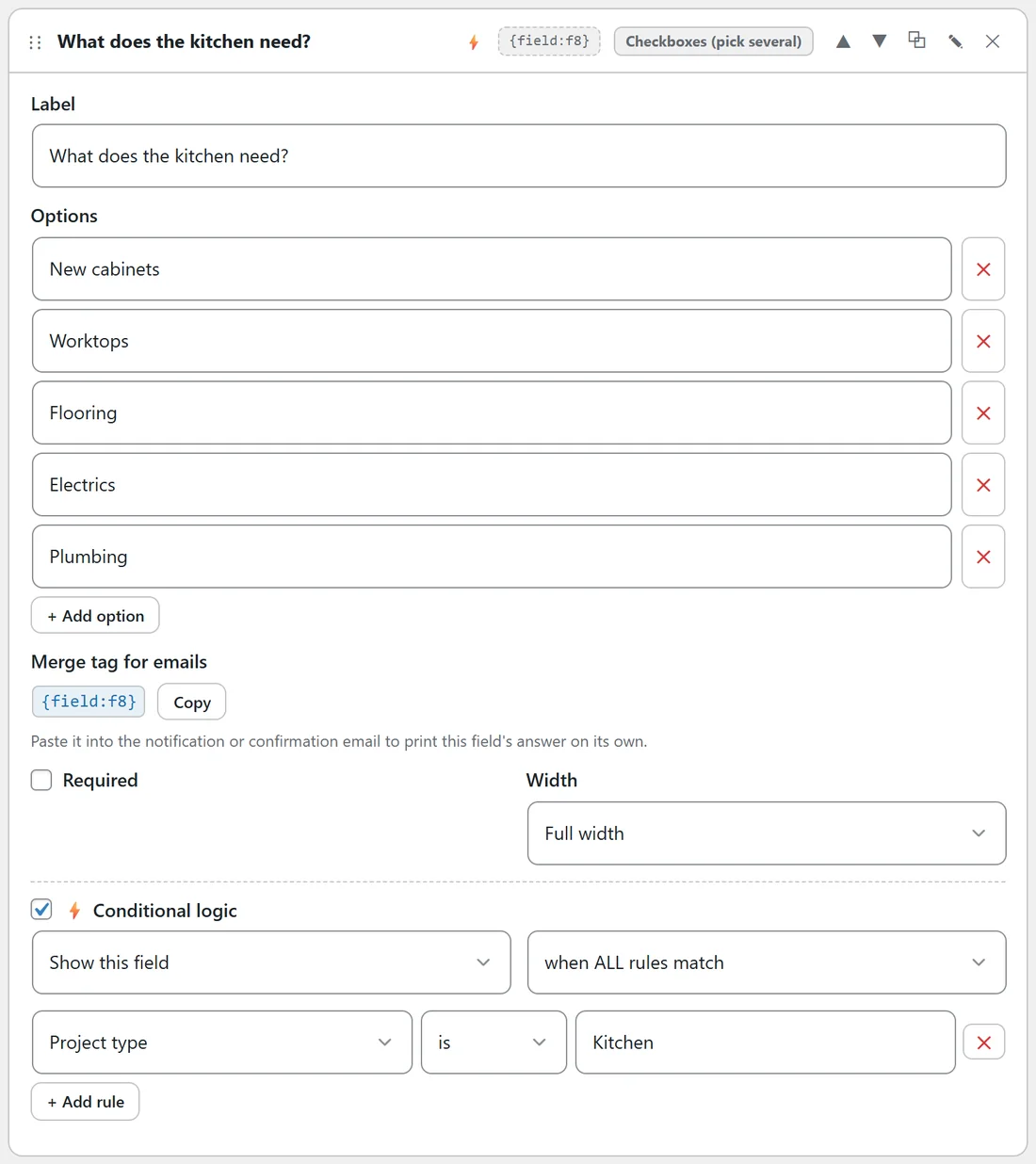
On the Northfield Renovations quote form, "What does the kitchen need?" only appears for kitchens:
- Field: What does the kitchen need?
- Show this field, when ALL rules match
- Project type, is, Kitchen
Example 2, a required field that only sometimes applies:
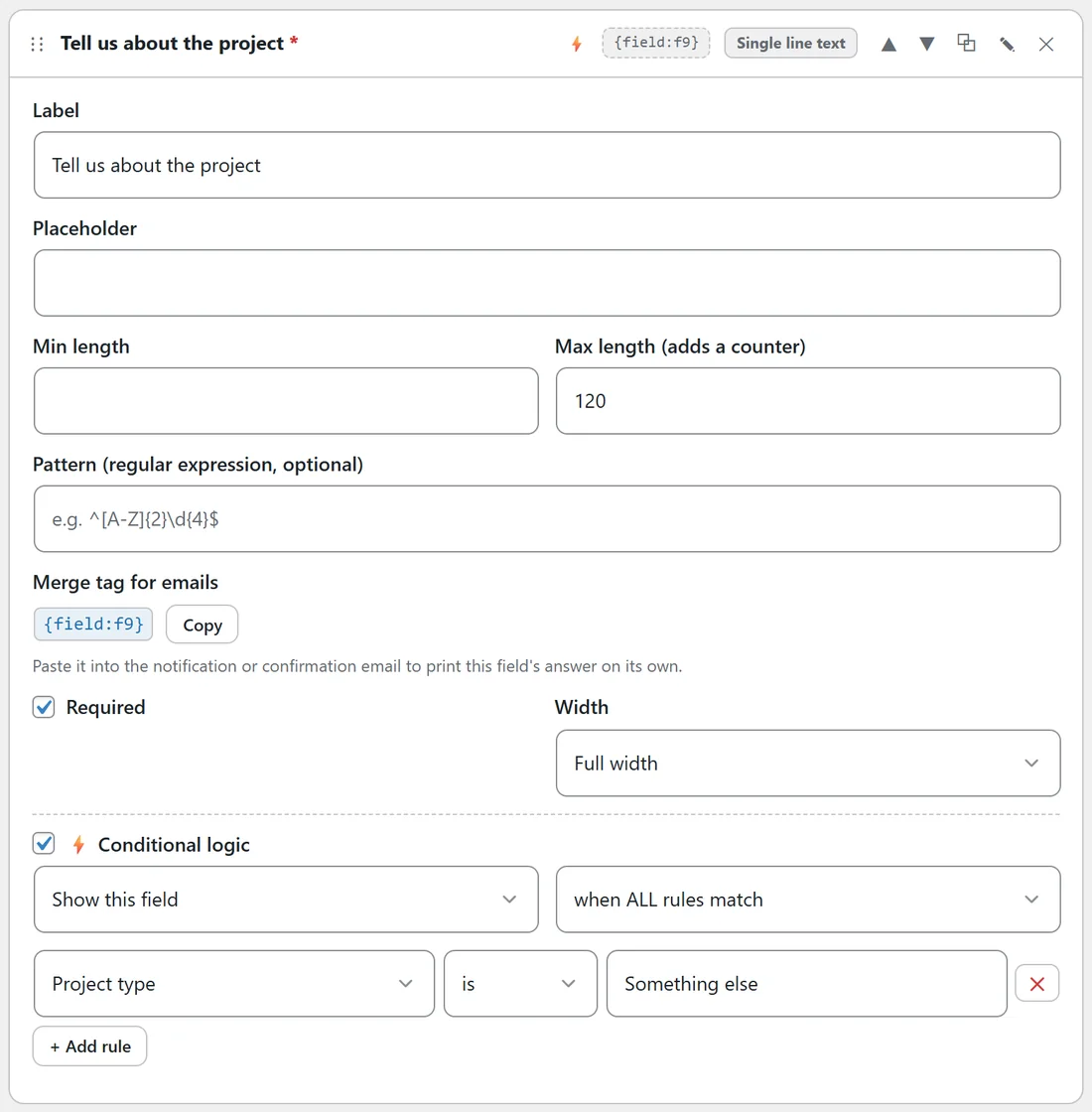
"Tell us about the project" is required, but only shows when Project type is Something else. Visitors who pick Kitchen never see it and are never asked for it.
Example 3, catching unhappy customers:
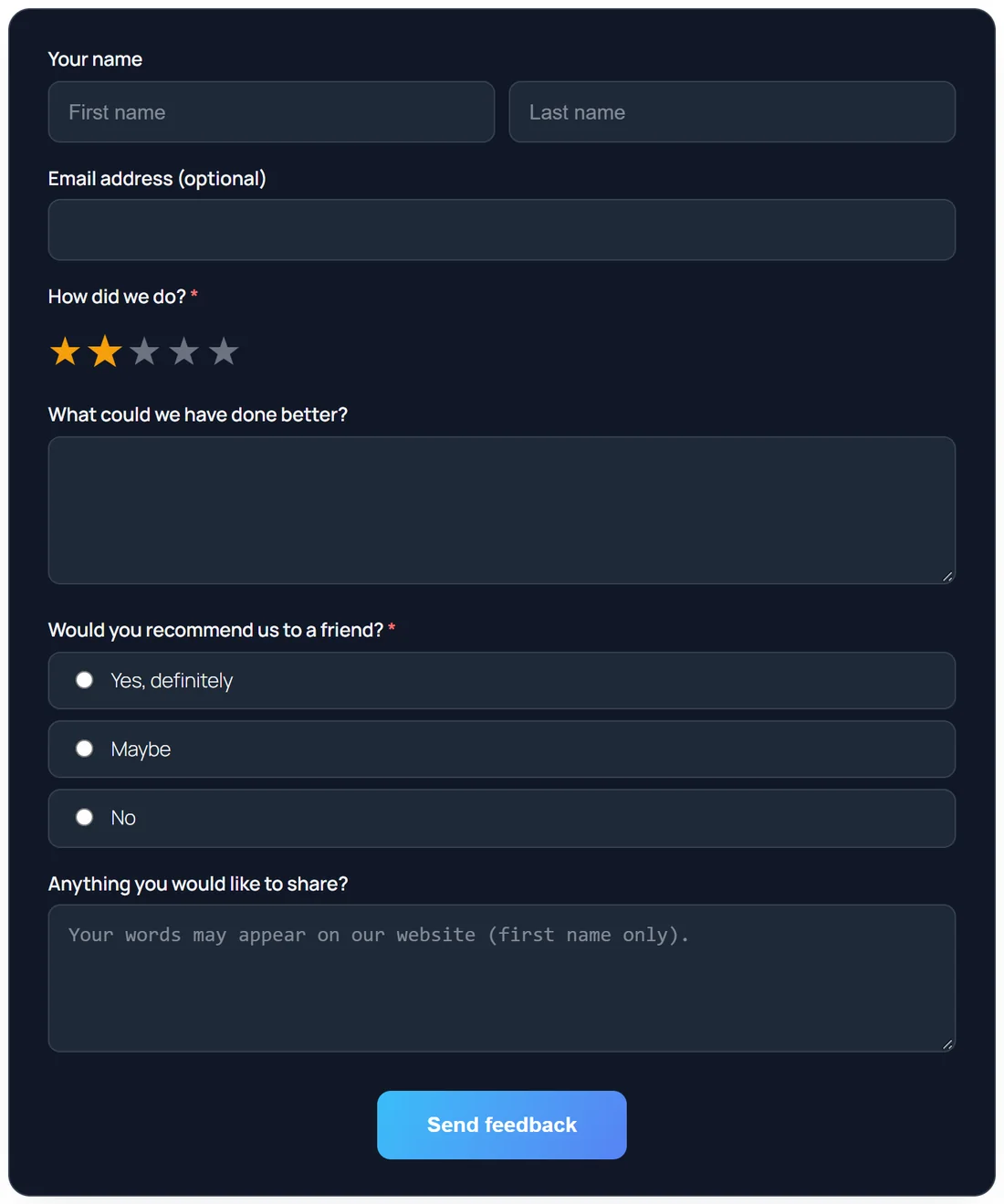
On the feedback form, "What could we have done better?" uses Show this field when How did we do? is less than 4. A visitor who gives 2 stars sees the extra box straight away.
What happens on your site:
When the form arrives, your site works out again which fields the visitor could see, with exactly the same rules. Answers in fields that were hidden are thrown away, and a required field only counts while it was showing. Nobody can skip a question by changing the page in their browser.
In the entry, a field that was hidden shows "no answer". In the live preview inside the builder every field is shown; the rules run on the live page.
Testing your logic, step by step:
- Save the form and open the live page in a private browser window.
- Try each path: pick each option that a rule watches, and check the right fields appear and disappear.
- Send one entry down each path.
- Open each entry in full and check the hidden fields say "no answer".
Showing a whole part of a form:
Logic works on section breaks and HTML blocks too. To show a "Kitchen details" heading only for kitchens, give the section break the same rule as the kitchen questions: Project type is Kitchen. Each field in that part needs its own rule; a rule on the section break hides the heading only.
Using hide instead of show:
- Show this field when ALL rules match: hidden until every rule is true. Best for follow up questions.
- Hide this field when ANY rule matches: visible until one rule is true. Best for questions that do not apply to a few people, for example hiding "Company name" when "Are you a business?" is No.
More ideas:
- Show "Which day suits you?" only when "Would you like a site visit?" is Yes.
- Show a file upload only when "Do you have plans or drawings?" is Yes.
- Show "What is your budget?" only when Project type is not Something else.
- On a feedback form, show "May we quote you on our website?" only when the rating is greater than 4.
- Hide the phone field when "Best way to reach you" is Email.
How logic and required fields work together:
A required field is only required while it shows. In the browser, hidden fields are never checked and never block the button. On your site, a required field that the rules hid is skipped, and any answer typed into it before it was hidden is dropped. The visitor can change their mind as often as they like.
Tips:
- When you remove a field, every rule that watched it is removed too, and the builder tells you how many.
- In the rule's field list, fields added since the last save appear but cannot be picked until you save.
- Combine rules with ALL for narrow cases (Kitchen AND budget over 50,000) and ANY for broad ones.
- Keep chains short. One or two levels of logic are easy to test; open the live page in a private window and try each path.