Once a form is built and set to Active, you can place it anywhere on your site. There are three ways, and they all draw exactly the same form: the ResultsAiX Form block, the shortcode, and the Elementor widget.
Where to find the shortcode:

Each form's shortcode is shown in three places.
- On the Forms tab, in the Embed line of each form.
- In the builder, under the Form name, once the form has been saved.
- On the Dashboard, in the Your forms list.
It looks like [resultsaix_form id="3"]. The number is the form's id.
The block editor:
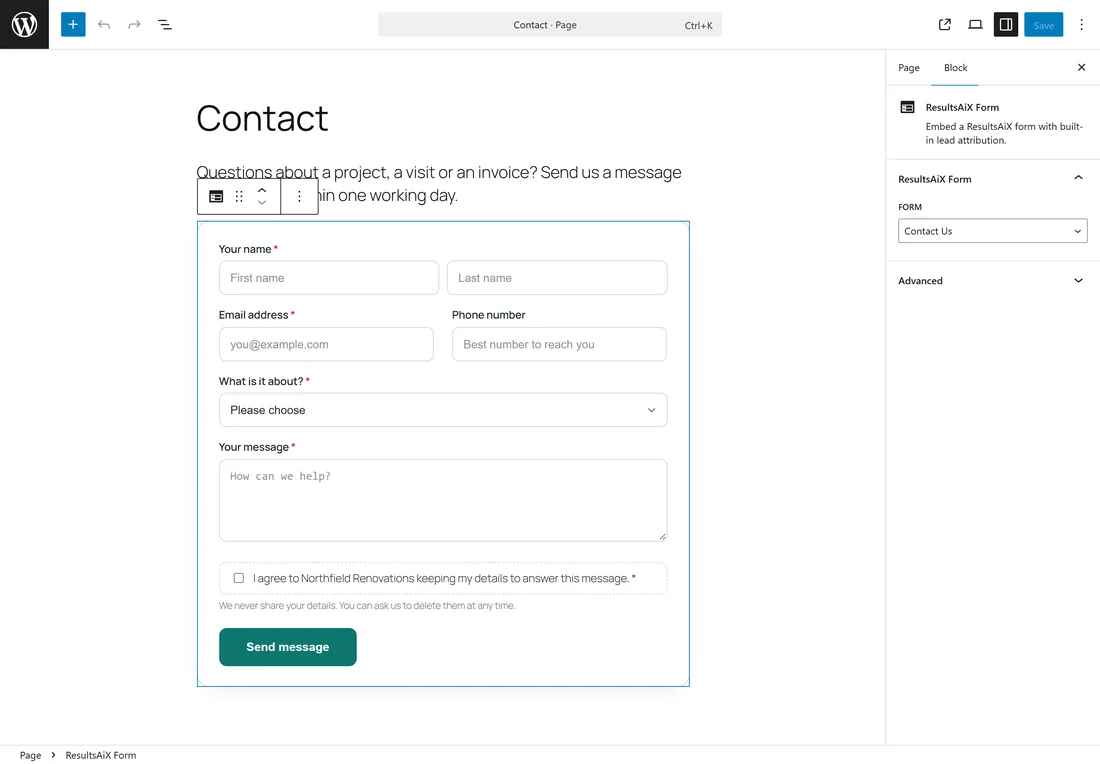
- Open the page or post in the WordPress editor.
- Click the plus button and search for ResultsAiX Form (or for form, contact or lead).
- Add the block.
- In the sidebar, under ResultsAiX Form, pick the form from the Form dropdown. Forms that are not active show their status next to the name, for example (draft).
- Click Save or Update.
The editor shows the real, styled form, drawn by the same code your visitors get, so you see exactly how it sits in the page.
The shortcode:
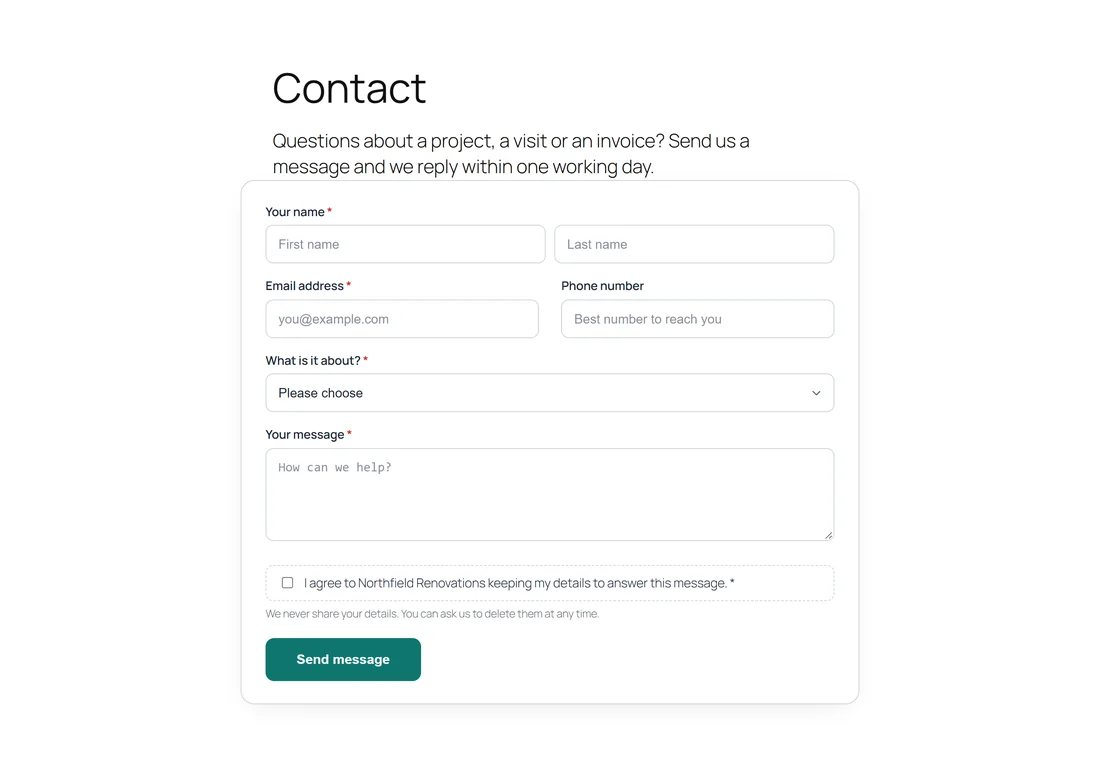
Paste the shortcode anywhere WordPress runs shortcodes: a Shortcode block, the classic editor, a text widget, or a page builder module. The Northfield Renovations quote page uses a Shortcode block with [resultsaix_form id="3"].
Elementor:
When Elementor is active, a ResultsAiX Form widget appears in the widget panel (search for form). Drag it onto the page and pick your form in its Form setting. The form shows fully styled in the Elementor editor.
Beaver Builder, Divi and other builders:
Add a text, code or HTML module and paste the shortcode. The output is identical to the block.
What decides whether visitors see the form:

- Active (live): the form shows and collects entries.
- Draft (not shown): visitors see nothing where the form would be.
- Closed (stops collecting): visitors see nothing, and no new entries are accepted. Use it for a form that has done its job, like a job advert that has closed. Its entries stay.
When a form is not showing, a logged in administrator sees a short note in its place: "ResultsAiX Forms: form #1 is missing, empty or not active (only admins see this note)." Visitors never see that note, so a forgotten shortcode never shows them anything odd.
Changing the status:
- In the builder, change Status and click Save form.
- On the Forms tab, click Activate on a draft or closed form, or Close on an active one. A form needs at least one field before it can be activated.
A real example:
Northfield Renovations has five pages: Contact (the block, Contact Us form), Get a Free Quote, Your Feedback and Home Tips (shortcodes), and Careers, whose Join Our Team form is Closed while they are not hiring. Visitors to Careers see only the "We are not hiring right now" text.
Placing a form in a sidebar or footer:
Use a Shortcode block in a widget area or in your theme's footer template part, and paste the shortcode. The stylesheet loads the moment the form appears.
Placing a form in a theme template:
If you or your developer edit theme files, print the shortcode with WordPress's do_shortcode function. The output is the same as the block.
The same form on several pages:
One form can sit on as many pages as you like. Every entry records the page it was sent from, in Submitted on, so you can tell a sign up from the footer of the blog from one on the newsletter page.
Testing the published form:
- Open the page in a private browser window, so you see what visitors see.
- Check the form looks right on a phone too.
- Send a test entry, waiting a few seconds before clicking the button.
- Check the entry on the Entries tab and the email in your inbox.
Replacing a form on a live page:
- Build the new form and set it to Active.
- Edit the page and pick the new form in the block's Form dropdown, or change the id in the shortcode.
- Set the old form to Closed on the Forms tab. Its entries stay.
Embedding on another site:
Forms are built for the site they live on: entries, emails and files are stored there. To collect on several of your sites, install ResultsAiX Forms on each; one licence covers 3 websites.
Classic widgets and older themes:
In a classic widget area, add a Text or Custom HTML widget and paste the shortcode. Shortcodes in text widgets are run by WordPress on its own.
Moving a site to a new address:
Forms, entries and uploaded files move with the site's database and uploads folder. Shortcodes keep working because they refer to the form's id, not to an address. Re-activate your licence on the new address from the License panel. See Installing ResultsAiX Forms And Activating Your Licence Key.
Good to know:
- Forms work behind full page caching. They do not rely on a WordPress nonce, so a cached page never goes stale for your visitors; spam is handled by the built in layers instead.
- The form's stylesheet loads in the page head when the page content holds a form, so it never flashes unstyled. It only loads on pages with a form.
- You can place the same form twice on one page, or several forms on one page. Each keeps its own ids.
- Forms keep the look you set in the builder whatever your theme. See Styling A Form: Colours, Buttons, Floating Labels And The Thank You Message.