The Entries tab is your inbox of form submissions. Every entry carries its answers and where the lead came from, and you can filter, search, star, export and act on them one at a time or in batches.
Where to find it:
Open AiX Forms and click the Entries tab, or the Entries shortcut in the sidebar. From the Forms tab, a form's Entries button opens the list for that form only. The Dashboard's Unread entries card opens the unread ones.
The toolbar:
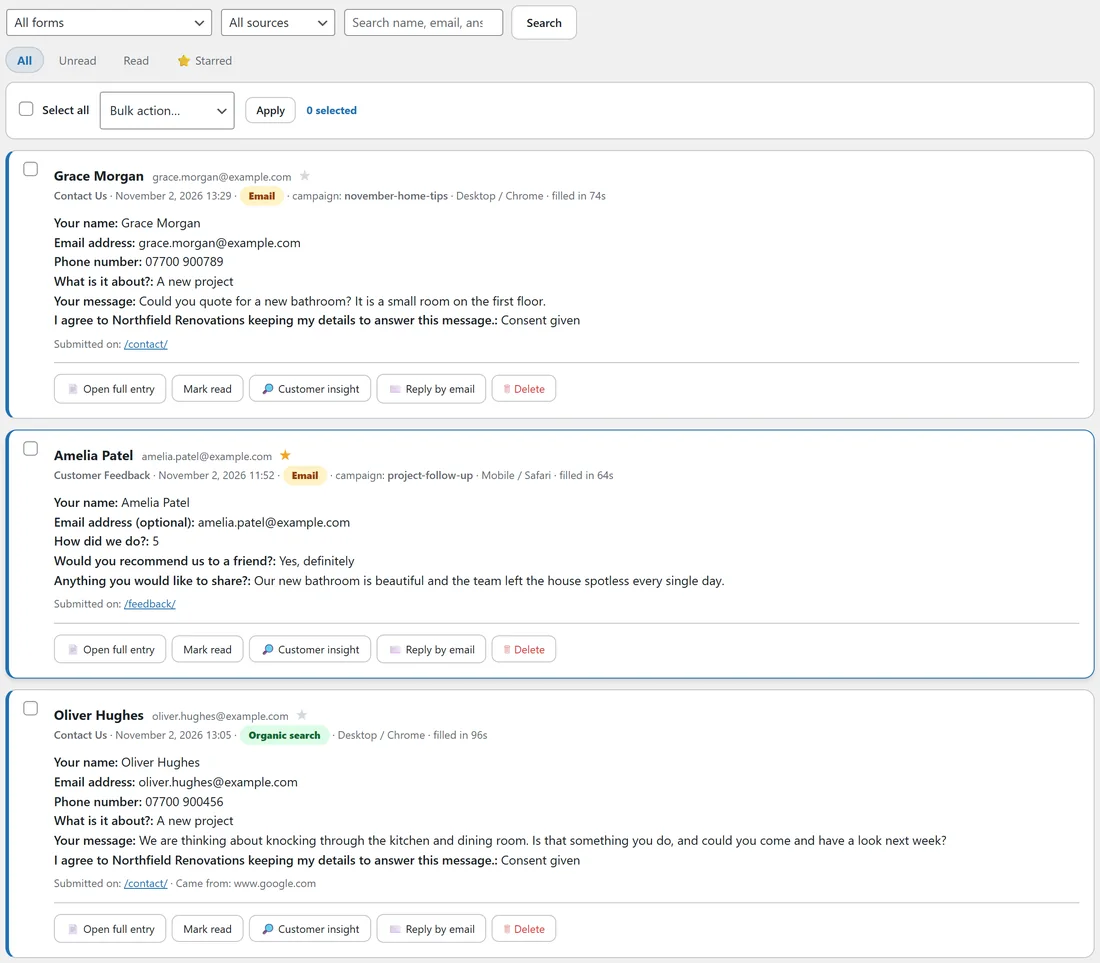
- The form dropdown: All forms, or one form. Each form shows its number of entries.
- The source dropdown: All sources, or one of Organic search, Paid traffic, Social media, Email, Referral and Direct.
- The search box: type part of a name, an email or any answer, then click Search.
- Export CSV (with attribution): appears when one form is chosen.
Under the toolbar, the tabs All, Unread, Read and Starred narrow the list further. Everything combines, so "Free Quote Request, Paid traffic, Starred" is one click each.
Reading an entry in the list:
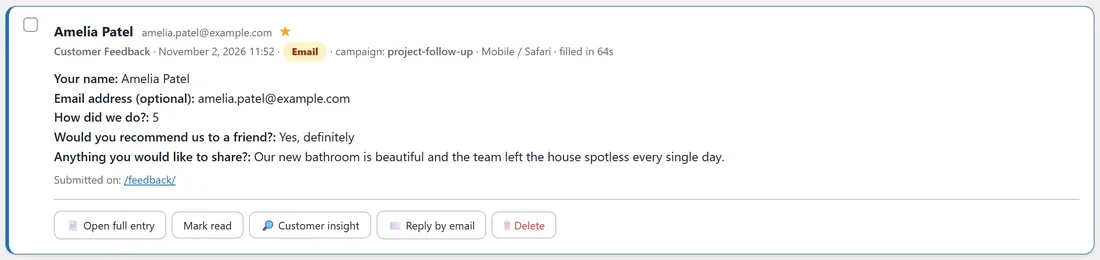
Each entry in the list shows these details.
- The person's name, or their email, or Anonymous when the form asked for neither, then their email and a star.
- The form, the date and time, the traffic source pill, the campaign, the device and browser, and how many seconds they took.
- Up to six answers. Long answers are shortened, and a line such as "+ 8 more answered fields: open the full entry" links to the rest.
- Submitted on, with the page path, and Came from, with the referring site.
- The buttons Open full entry, Mark read or Mark unread, Customer insight, Reply by email and Delete.
New entries arrive unread and are highlighted. Opening an entry does not change that, so use Mark read when you have dealt with it. Click the star to keep an entry on the Starred tab.
The full entry:
Open full entry shows everything on one screen.
- The name with its star, then the email, the form, the date and time and the entry number.
- Answers: every field on the form, in order. A field the visitor did not answer, or could not see because of conditional logic, says "no answer". Star ratings show as stars with "(4 of 5)". Uploaded files are a link with the visitor's file name. A field that has since been removed from the form still shows, marked "(no longer on the form)".
- Where this lead came from: Traffic source, the five UTM tags, Submitted on, Came from, Device, Time to fill and, when there is one, Click id.
- The same buttons as in the list, and Back to entries at the top.
Uploaded files are private. The link only opens for a logged in administrator, and images and PDFs open in the browser tab.
Reply by email and Customer insight:
Reply by email opens your email program with a new message to the submitter. Customer insight appears on entries with an email or a tracked click; it shows what your other ResultsAiX plugins know about the person. See Working With Your Other ResultsAiX Plugins, And Without Them.
Bulk actions, step by step:

- Tick the box on each entry, or tick Select all for the whole page.
- Choose Mark read, Mark unread, Star, Unstar or Delete from the Bulk action dropdown.
- Click Apply. The counter shows how many are selected.
Deleting asks you to confirm first, and removes the entries together with their uploaded files. Large batches show a progress window and go in small steps; you can stop after the current step.
Pages:
The list shows 25 entries per page, newest first. Under the list you see the total and the page number, with Newer and Older buttons.
Exporting to CSV:

- Pick one form in the form dropdown, or open the Forms tab.
- Click Export CSV (with attribution) on the Entries tab, or Export CSV on the form's row.
- Your browser downloads a file named after the form, for example Contact-Us-entries.csv.
The file has one row per entry, with these columns: Date, Name, Email, one column per field (named by its label), then Source, UTM Source, UTM Medium, UTM Campaign, UTM Term, UTM Content, Device, Browser, OS, Page, Referrer and Seconds To Submit. Checkbox answers are joined with commas, and file answers are the private download link.
It opens cleanly in Excel, LibreOffice and Google Sheets, with accents and other alphabets intact. Any answer that starts like a spreadsheet formula is saved as plain text, so a stranger's typing can never run inside your spreadsheet.
A real example:
Every Monday Dana picks Free Quote Request, sets the source to Paid traffic and clicks Unread. She opens each full entry, calls the lead, clicks Mark read, and stars the ones worth a site visit. At the end of the month she exports the form to CSV for her accountant's lead report.
Finding one entry fast:
- Someone calls and gives their name: type it in the search box and click Search.
- You remember the street but not the name: search for the street, it is inside the Address answer.
- You want all entries from one campaign: filter by the campaign's traffic source, then search for the campaign name.
A daily routine, step by step:
- Open Entries and click Unread.
- Open each entry in full, answer the person with Reply by email or by phone.
- Click Mark read.
- Star anything that needs a second look.
- At the end of the week, work through the Starred tab.
What the CSV looks like:
For the Contact Us form the columns are: Date, Name, Email, Your name, Email address, Phone number, What is it about?, Your message, the consent sentence, Source, UTM Source, UTM Medium, UTM Campaign, UTM Term, UTM Content, Device, Browser, OS, Page, Referrer and Seconds To Submit. Section breaks and HTML blocks have no column because they hold no answers.
Opening the CSV in a spreadsheet:
- Open Excel, Numbers, LibreOffice or Google Sheets.
- Open or import the downloaded file.
- Sort or filter by Source or UTM Campaign to count leads per channel.
The Date column uses your site's time. The Source column holds the short source name, for example organic or paid.
Deleting entries:
- One entry: Delete on the entry, then confirm.
- Many: tick them, choose Delete in the bulk bar, click Apply and confirm.
- All entries of a form, with the form: Delete on the Forms tab. If the form has entries, you type DELETE to confirm, and a progress window removes the entries and their files 200 at a time, then the form.
- Old entries automatically: set Auto-delete entries older than (days) in Settings, Privacy.
Deleted entries are gone for good, together with their uploaded files, and the counts on the Dashboard and Forms tab update straight away.
Tips:
- Search looks inside every answer, so a postcode or a street name finds the right entry.
- Star the leads you want to follow up, then work from the Starred tab.
- Entries older than your data retention setting are removed automatically. See Privacy And GDPR: Consent, Data Retention And The Danger Zone.