ResultsAiX Forms can hand every lead to your email marketing the moment the form is sent. ResultsAiX Mailer takes leads straight into a list, with no API key. WP Sync takes them to your autoresponder and other services. You can use either, or both on the same form.
Where to find it:
- Open AiX Forms, then Integrations and AI. The first two cards show whether ResultsAiX Mailer and WP Sync are active on your site.
- The Mailer settings for each form are in the builder, in Send leads to ResultsAiX Mailer.
- WP Sync bridges are set up in WP Sync itself.
Both need an Email address field on the form. Entries without an email are stored as usual and not handed on.
ResultsAiX Mailer:
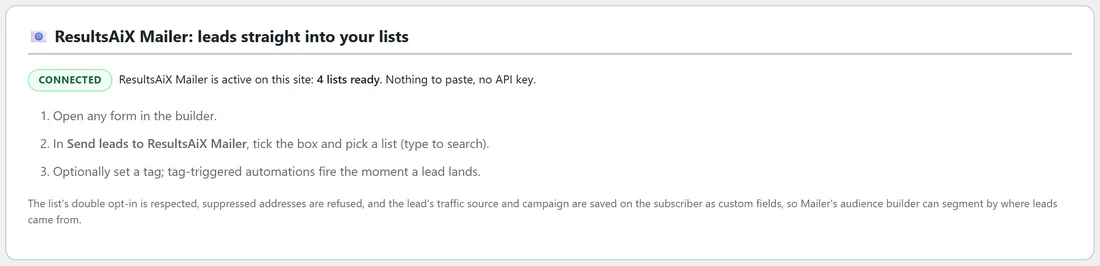
When ResultsAiX Mailer is active on the same site, the Integrations card says Connected and how many lists are ready. Nothing to paste, no API key: the two plugins talk directly.
Sending a form's leads to a Mailer list, step by step:
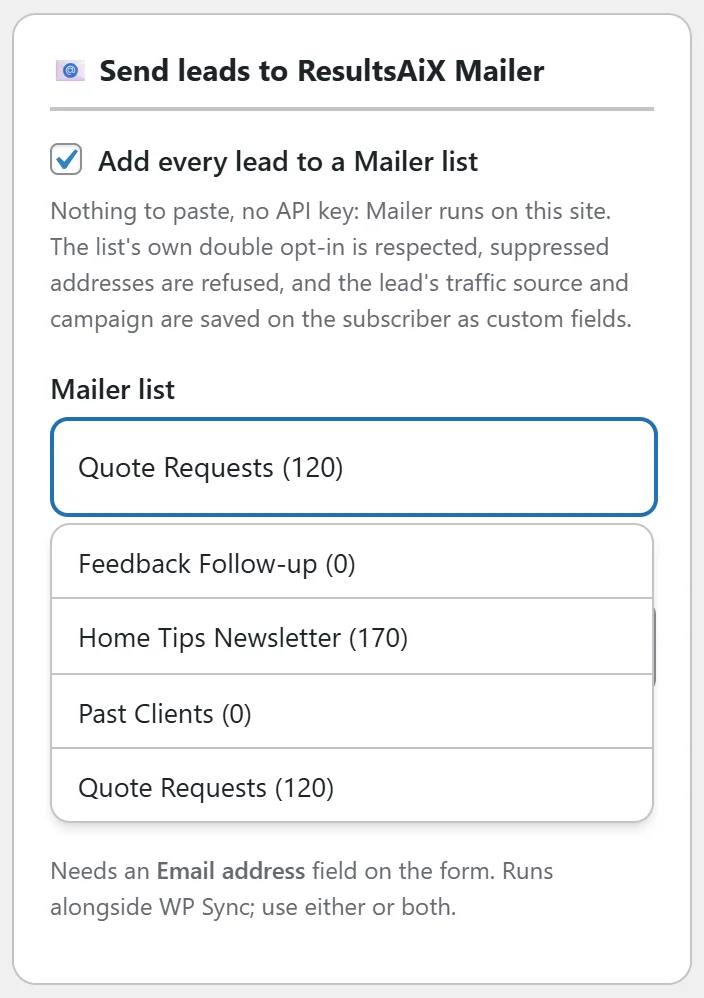
- Open the form in the builder.
- In Send leads to ResultsAiX Mailer, tick Add every lead to a Mailer list.
- Click the Mailer list box and type part of the list name. Pick the list from the suggestions. The number after each name is its subscriber count, which tells similar lists apart.
- Optionally, type a Tag to add, for example quote-request.
- Click Save form.
If the tick box is on and no list is picked, Save form stops and asks "Which Mailer list?", so leads never go nowhere.
What Mailer receives:
- The email, and the name split into first and last name.
- The subscriber's source, set to forms.
- Custom fields traffic_source, utm_campaign and utm_source, so Mailer's audience builder can segment by where leads came from.
- The tag, added with Mailer's own tag merge, so tags the person already has are kept. Automations that start on that tag start straight away.
Mailer's own rules always apply: the list's double opt-in setting is honoured, and an address that asked not to be emailed is refused. The entry is always stored with the form first, and if Mailer turns a lead away the reason is written to the error log on Diagnostics.
WP Sync:
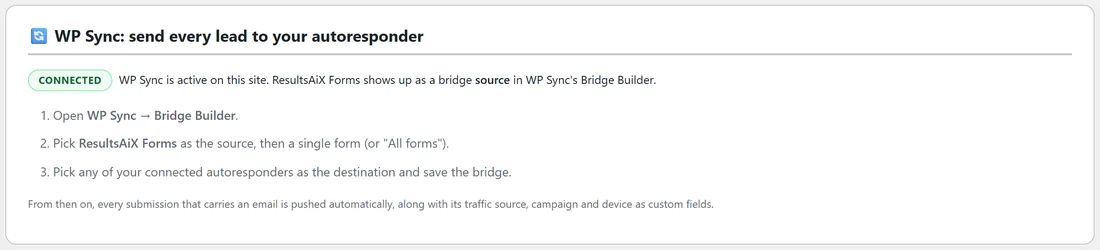
WP Sync connects your site to 35+ autoresponders and services. When WP Sync is active and licensed on the same site, the Integrations card says Connected and ResultsAiX Forms becomes a source in WP Sync's bridges. If WP Sync is installed without an active licence, the card says Almost, and activating WP Sync finishes the job.
Building a bridge, step by step:
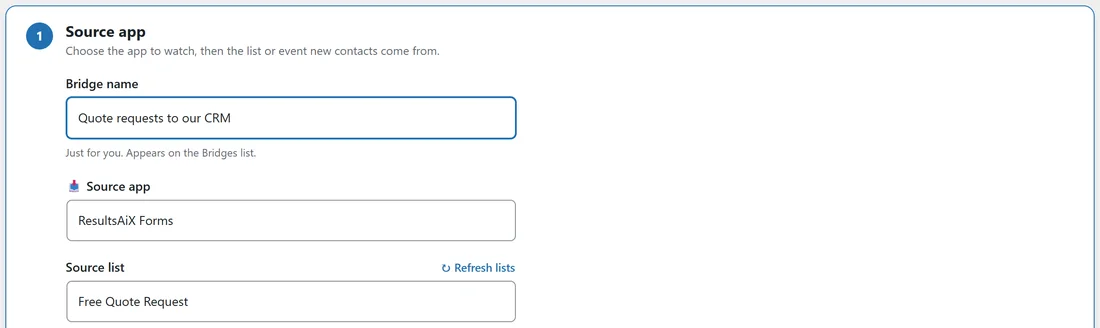
- Open WP Sync, then Create Bridge.
- Give the bridge a name, for example Quote requests to our CRM.
- For Source app, choose ResultsAiX Forms.
- For Source list, choose one form, or All forms.
- Click Continue, pick your destination app and its list or action, and save the bridge.
From then on, every submission with an email goes out the moment it arrives.
What WP Sync receives:
- The email, first name and last name.
- The form's name, and every answer, each named by its field id and label, for example f7_project-type.
- traffic_source, utm_campaign, utm_source and device.
- Uploaded files as their private, sign in only link.
A real example:
Northfield Renovations sends the quote form to the Quote Requests list with the tag quote-request, a tag that can start a follow up automation in Mailer. The newsletter form goes to the Home Tips Newsletter list with the tag newsletter. A WP Sync bridge with Free Quote Request as its source list can copy every quote request to their CRM as well.
Choosing between Mailer and WP Sync:
- Your email list lives in ResultsAiX Mailer on the same site: use the Mailer box in the builder. It takes ten seconds and needs no keys.
- Your list lives with another autoresponder or a CRM: use WP Sync.
- You want both, for example the list in Mailer and a copy in your CRM: use both on the same form.
Segmenting by where leads came from:
Because traffic_source and utm_campaign are saved on each Mailer subscriber, you can build an audience in Mailer such as "quote requests from paid traffic" or "newsletter sign ups from the november-home-tips campaign" and send each group a message that fits.
Checking a lead arrived in Mailer:
- Send a test entry with a test address.
- Open the matching list in ResultsAiX Mailer and look for the address.
- Check the subscriber's custom fields for traffic_source and utm_campaign, and their tags for your form's tag.
- If the address is not there, check the error log on the Forms Diagnostics tab for a mailer line, and check whether the list uses double opt-in.
How names are split:
The plugin sends the person's name as first and last name. With a Name (first / last) field, "Emma Carter" becomes first name Emma and last name Carter. With a single line First name field, the whole answer is the first name.
What happens when Mailer or WP Sync is switched off later:
The entry is always stored with the form first. If Mailer or WP Sync is not active when a lead arrives, the lead is simply kept in Entries, and you can export it to CSV and import it later.
Tips:
- A tag per form makes it easy to start a different follow up for each form.
- Diagnostics shows a status line for the WP Sync connector and the ResultsAiX Mailer connector.
- Without Mailer or WP Sync, the cards explain what each adds. Everything else in ResultsAiX Forms works without them.