ResultsAiX Forms keeps your visitors' data on your own site and gives you the tools to look after it: a consent field, private uploads, automatic clean up of old entries, the WordPress export and erase tools, and one place to remove everything when you need to.
Where to find it:
- The privacy settings: open AiX Forms, then Settings, then Privacy.
- The Danger Zone: at the bottom of the Settings tab.
- The consent field: GDPR consent, in the builder's Add a field palette.
What is stored, and what is not:
- Every answer the visitor gives, with where the lead came from, in your own WordPress database.
- No IP addresses. A one way fingerprint of the address is used for the spam rate limit and the duplicate guard, and it expires within a day.
- Form starts are a count only. Partial answers from people who leave a form are never stored.
- Uploaded files are private. Only a logged in administrator can open them, through the link on the entry or in your notification email.
What leaves your site:
No submission goes to an outside service unless you switch on reCAPTCHA or Akismet, connect your own AI key, or connect WP Sync. AI Insights never sends names, emails, phone numbers, addresses, files or hidden fields. Separately, the plugin talks to ResultsAiX only to check your licence and look for updates.
The Privacy settings:
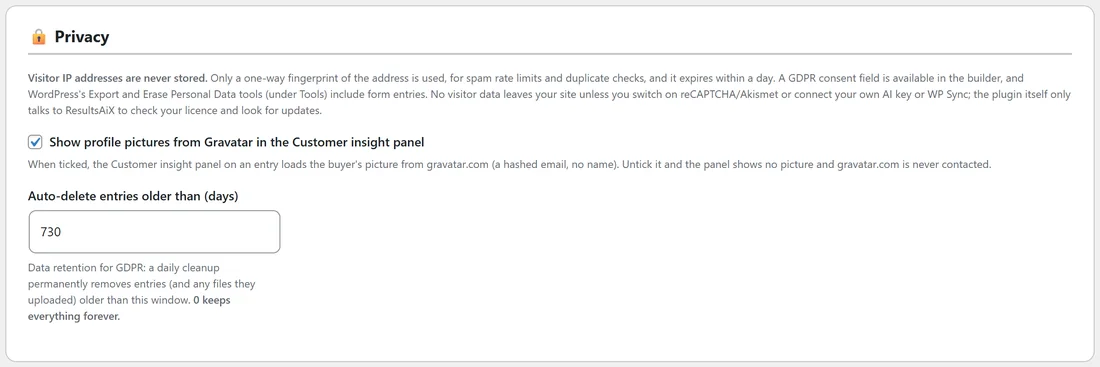
- Show profile pictures from Gravatar in the Customer insight panel: when ticked, an existing buyer's picture can load from Gravatar (using a hashed email, no name). Untick it and Gravatar is never contacted.
- Auto-delete entries older than (days): 0 keeps everything forever. Set a number, for example 730 for two years, and a daily clean up permanently removes older entries together with the files they uploaded.
Click Save settings.
How the clean up runs:
Once a day the plugin removes entries older than your window, up to 2,000 in one run, 200 at a time. If there are more, it carries on five minutes later. The Diagnostics tab shows the retention setting and when the daily clean up is next scheduled.
Collecting consent, step by step:
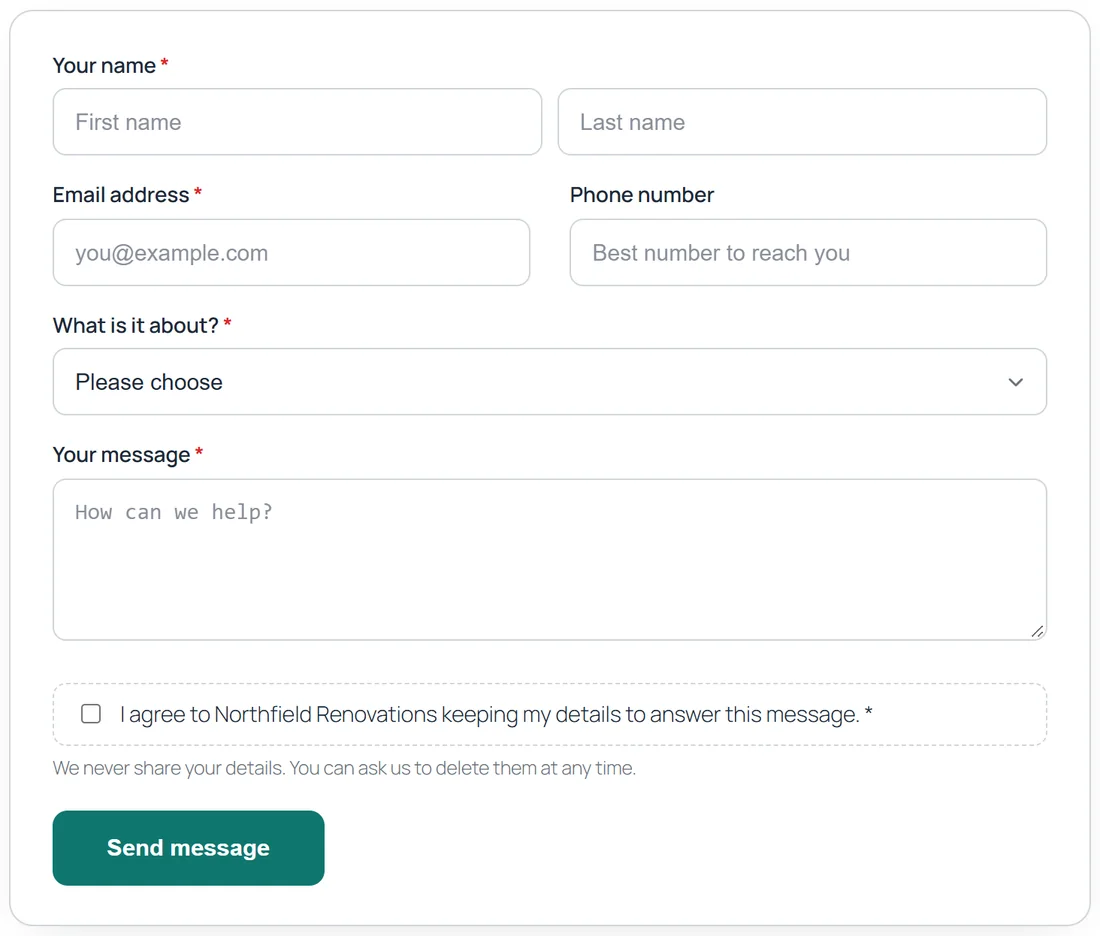
- Open the form in the builder and click GDPR consent in the palette.
- Write your consent sentence as the Label, for example "I agree to be contacted about my quote."
- In Small print under the checkbox, add a line such as "We use your details only for this quote. See our privacy policy."
- Tick Required.
- Click Save form.
The entry records "Consent given" with the date and time of the submission.
Export and erase on request:
When someone asks for their data, use WordPress's own tools.
- Go to Tools, then Export Personal Data, and enter their email address. The export includes a Form entries group with every ResultsAiX entry made with that address: the form, the date, each answer and where the lead came from.
- To delete it, go to Tools, then Erase Personal Data. Their entries are removed, together with any files they uploaded.
The Danger Zone:
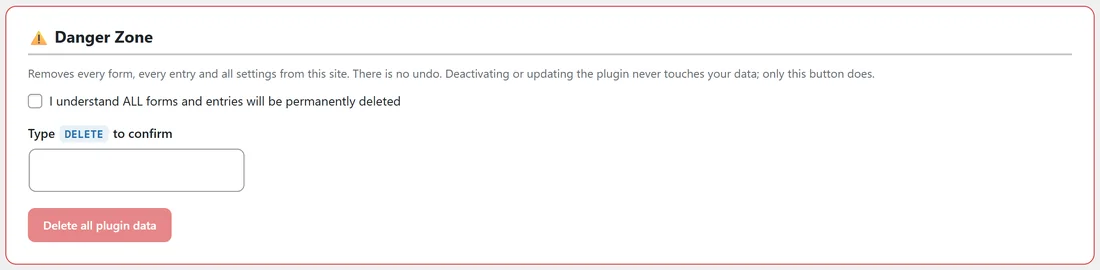
The Danger Zone removes every form, every entry, every uploaded file, the AI job history, the error log and all settings, and returns the plugin to a fresh install. Deactivating, updating or deleting the plugin never touches your forms and entries; only this button removes them.
- Tick "I understand ALL forms and entries will be permanently deleted".
- Type DELETE, in capitals, in the box.
- Click Delete all plugin data.
- Click Delete everything in the confirmation window.
You see "All plugin data removed." Your licence stays active on the site.
Who can see entries:
Only administrators can open the AiX Forms screens and the uploaded files. Editors, authors and other roles do not see the menu.
Writing your privacy policy:
A short paragraph covers most forms. Mention these points.
- What the form collects and why, for example to answer a quote request.
- That answers are stored on your website, with where the visitor came from, such as the search engine or campaign.
- How long you keep entries, matching your Auto-delete setting.
- Any service you send leads to, such as your email list through ResultsAiX Mailer or an autoresponder through WP Sync.
- That reCAPTCHA or Akismet checks submissions, if you switch them on.
Choosing a retention window:
- 365 days suits most contact and quote forms.
- 730 days, as Northfield Renovations uses, suits businesses with long sales cycles or guarantees.
- 0 keeps everything, which is the setting until you change it.
Before the window starts deleting, export any form you want to keep a copy of with Export CSV.
When someone asks to be forgotten, step by step:
- Go to Tools, then Erase Personal Data.
- Type their email address and send the request.
- Confirm the request as WordPress asks.
- Click Erase personal data next to the request. Their form entries and uploaded files are removed with the rest of their WordPress data.
What the export contains for each entry:
- The form's name and the date and time it was sent.
- The name and email on the entry.
- Every answer, under the field's label.
- The traffic source, the UTM tags, the page, the referrer and the device.
Visitor data in the error log:
The error log on Diagnostics can mention an email address, for example when a thank you email was held back. Log lines are kept for 7 days and the Clear log button empties it at any time. The Danger Zone removes the log too.
Data that never leaves your site:
- Abandonment: only a count, kept on your site.
- The IP fingerprint for spam checks: kept on your site for under a day, never stored with an entry.
- Uploaded files: stored in a private folder of your own uploads, served only to administrators.
A real example:
Northfield Renovations keeps entries for 730 days, uses a required GDPR consent box on the contact, quote and newsletter forms, and has the Gravatar option on. When a past customer asked for their data, Dana used Tools, Export Personal Data and sent them the file the same day.
Tips:
- Add the consent field to every form that collects contact details from visitors in the UK or EU.
- Mention your retention window in your privacy policy.
- To remove one person's data, use Erase Personal Data rather than deleting entries by hand: it finds every form.