Every entry in ResultsAiX Forms records where the lead came from. There is nothing to switch on and no code to add. This guide explains what is recorded, how the traffic source is worked out, and how to get the most from it with campaign tags.
What is recorded on every entry:
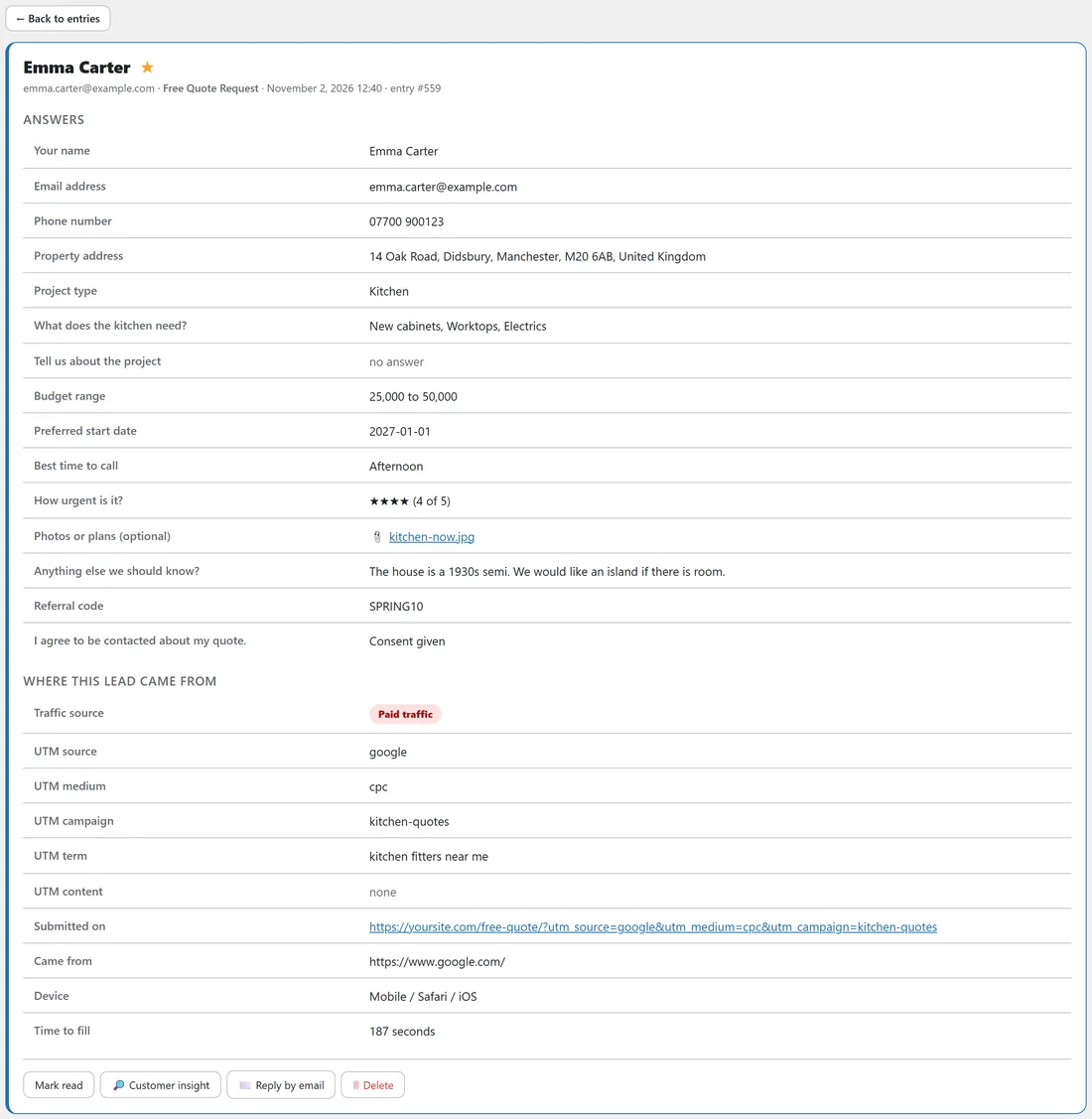
- Traffic source: one of Organic search, Paid traffic, Social media, Email, Referral or Direct.
- UTM tags: utm_source, utm_medium, utm_campaign, utm_term and utm_content, plus the Google, Microsoft and Facebook ad click ids (gclid, msclkid and fbclid).
- Submitted on: the full address of the page the form was sent from.
- Came from: the referring page, when the browser shares one.
- Device: desktop, mobile or tablet, with the browser and the operating system.
- Time to fill: the seconds between the form appearing and the visitor sending it, measured by the visitor's own browser.
- Click id: the WP Conversion Tracker click that brought the visitor, when there is one.
How the traffic source is worked out:
The plugin looks at campaign tags first, because they say what you meant, then at the page the visitor came from:
- Paid traffic: utm_medium is cpc, ppc, paid, paidsearch, paid_social, display, banner or retargeting, or the address carries a gclid or msclkid.
- Email: utm_medium is email, or utm_source is email or newsletter.
- Social media: utm_medium is social, or utm_source names a social network such as facebook, instagram, linkedin, youtube, tiktok, pinterest or twitter.
- With no tags, the referring site decides: a search engine such as Google or Bing means Organic search, a social network means Social media, a webmail page means Email, and any other site means Referral.
- No referrer at all means Direct, for example a bookmark, a typed address or an app that hides where the visitor came from. A referrer from your own site also counts as Direct.
Campaign tags, step by step:
Add tags to every link you control, so each lead is credited to the right campaign. For the November newsletter, Northfield Renovations links to: yoursite.com/contact/?utm_source=newsletter&utm_medium=email&utm_campaign=november-home-tips
Every entry from that link is classed as Email and shows "campaign: november-home-tips". For a Google Ads campaign, add utm_medium=cpc and a utm_campaign name such as kitchen-quotes; the gclid that Google adds marks it as paid too.
Tags are remembered:
When a visitor arrives with campaign tags on a page that shows one of your forms, the tags are remembered in their browser. If they come back days later and fill in a form, the first campaign still gets the credit. A visitor without tags is classed from the page they came from at the moment they send the form.
Where you see it:
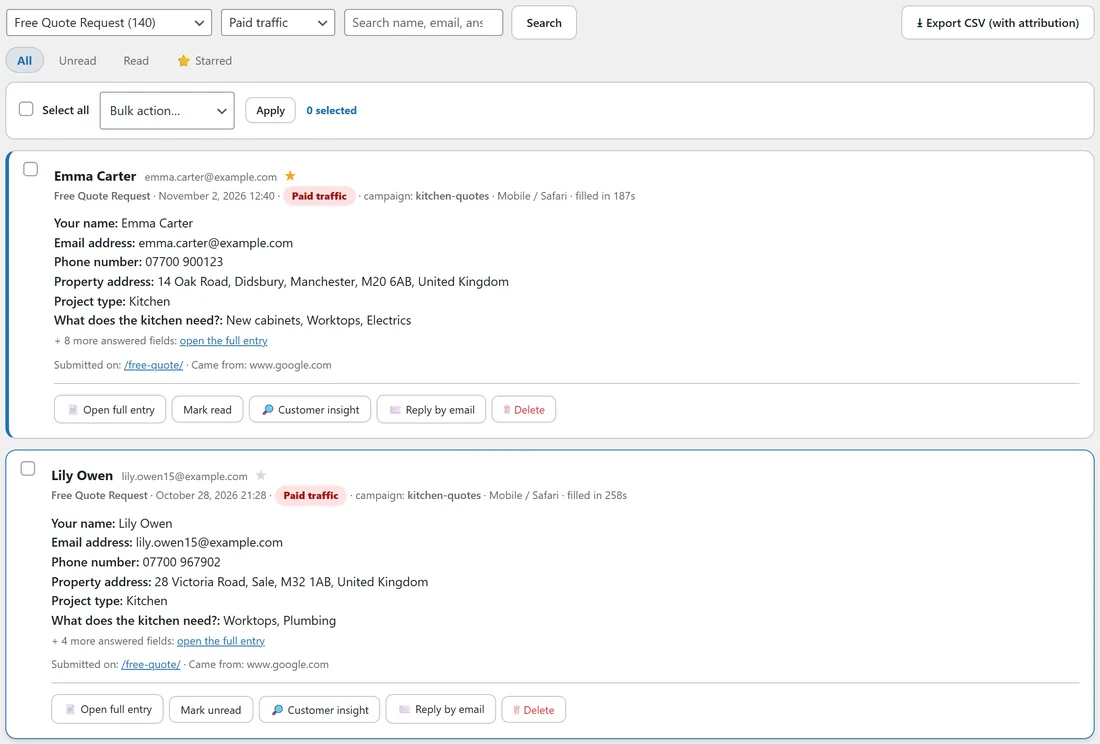
- On each entry in the Entries list: a coloured source pill, the campaign, the device and browser, the fill time, the page path and the referring site.
- On the full entry: the whole Where this lead came from table. See Entries And CSV Export: Search, Filter, Star And Bulk Actions.
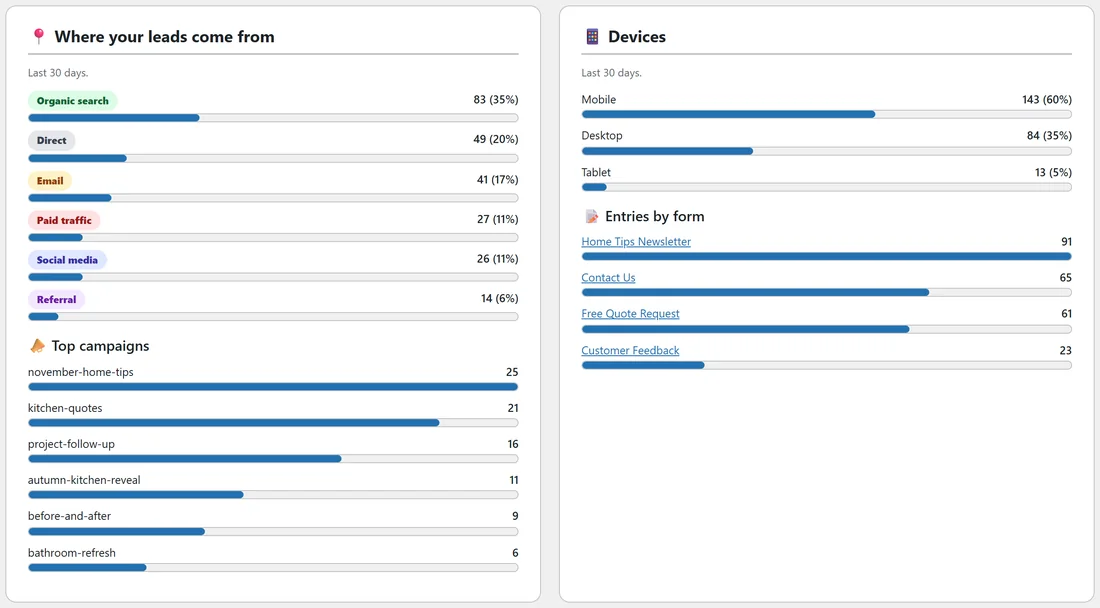
- On the Dashboard: Where your leads come from, Top campaigns, Devices, and the average time to fill.
- In every notification email, in a Where this lead came from block.
- In the CSV export, as twelve columns after the answers.
- In AI Insights, which reads the sources, campaigns and devices.
- In ResultsAiX Mailer and WP Sync, as custom fields on the subscriber.
Form abandonment:
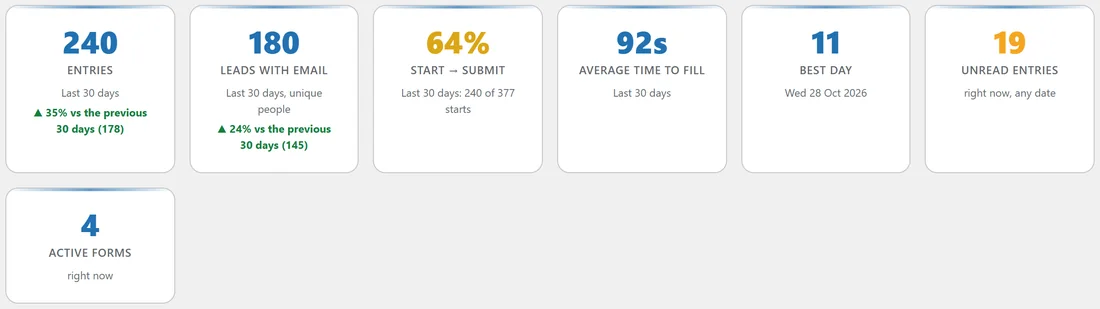
The moment a visitor starts typing in a form, the form counts a start. It is counted once per visitor, per form, per day, and it is only a number: no partial answers are ever stored. Starts against entries give you the completion rate:
- On the Dashboard, as the Start to submit card for the range you picked.
- On the Forms tab and the Dashboard's Your forms list, as a completion percentage for each form, all time.
For Northfield Renovations the newsletter form is completed by 84% of the people who start it, the contact form by 64% and the 17 field quote form by 45%.
A real example:
Emma Carter's quote request shows Paid traffic, UTM source google, UTM medium cpc, UTM campaign kitchen-quotes and UTM term "kitchen fitters near me". She was on an iPhone using Safari and took 187 seconds. Dana now knows that this ad, on this search, brought a 25,000 to 50,000 kitchen lead.
Tagging links for each channel:
A simple naming plan keeps Top campaigns tidy.
- Newsletter: utm_source=newsletter&utm_medium=email&utm_campaign=november-home-tips
- Google Ads: utm_source=google&utm_medium=cpc&utm_campaign=kitchen-quotes
- Facebook post: utm_source=facebook&utm_medium=social&utm_campaign=autumn-kitchen-reveal
- Instagram bio link: utm_source=instagram&utm_medium=social&utm_campaign=before-and-after
- A partner's website: utm_source=partner-name&utm_medium=referral&utm_campaign=spring-offer
Use utm_term for the keyword of an ad and utm_content to tell two links in the same email apart, for example header and footer.
Reading the device line:
Device is desktop, mobile or tablet. Browser is Chrome, Safari, Edge, Firefox, Opera, Samsung Internet or Other. The operating system is Windows, macOS, iOS, Android, Linux, ChromeOS or Other. It is worked out on your own site from what the browser says about itself; no outside service is asked.
How time to fill is measured:
The visitor's browser starts a timer when the form appears and stops it when they click the button, so a wrong clock on their computer never affects it. The Dashboard shows the average for the range, and each entry shows its own time. Long fill times often point to a confusing question; very short ones to a returning visitor whose browser filled the boxes.
Tracked clicks from WP Conversion Tracker:
When a visitor arrives through a WP Conversion Tracker link, the click id is kept with the entry and shown on the full entry as Click id. With WP Conversion Tracker and its Audience Vault add-on on the same site, the Customer insight panel uses it to find the person's purchase history. See Working With Your Other ResultsAiX Plugins, And Without Them.
Using attribution to make decisions:
- Compare channels by Leads with email, not just Entries, so repeat visitors do not inflate a channel.
- Filter Entries to one source and read the answers: paid leads may ask for bigger jobs than social ones, or the other way round.
- Check the Answer breakdown on AI Insights for the budgets that each campaign brings, and let AI Insights summarise it.
- Use a Custom range on the Dashboard to compare the weeks before and after a campaign starts.
Tips:
- Use the Entries source filter to read only the leads from one channel, for example Paid traffic.
- Keep campaign names short and in lower case with hyphens, so they group neatly in Top campaigns.
- Direct is often higher than people expect: many apps and privacy browsers share no referrer. Tag your links and those leads move into the right channel.
- If a form's completion rate is low, try fewer fields, Half width pairs, or conditional logic to hide questions that do not apply.