The Diagnostics tab is a one glance health report for ResultsAiX Forms, with a built in error log. Most questions are answered there in a minute, and when you need help, one button copies everything support needs.
Where to find it:
Open AiX Forms and click the Diagnostics tab. The Troubleshooting help card on the Settings tab opens it too.
Copy Report for Support:

Click Copy Report for Support at the top. A plain text report is copied: plugin version, licence status, WordPress, PHP and database versions, your site address, HTTPS, uploads, AI, WP Sync, Mailer, who your emails come from, reCAPTCHA, Akismet, retention, the daily cleanup, server reachability, the error log counts, your tables and the latest log lines. No passwords or API keys are ever included. Paste it into your ticket; Open Support takes you to the support desk.
The Plugin table:
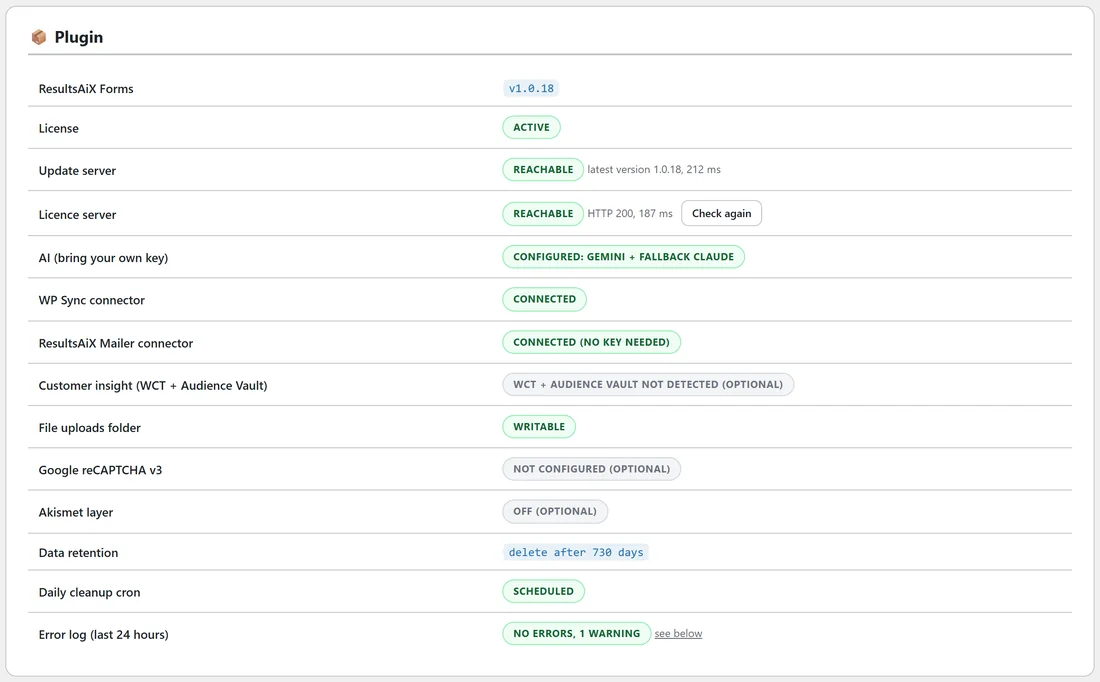
- ResultsAiX Forms: the version.
- License: Active when your key is good.
- Update server and Licence server: Reachable, with the time it took. Check again asks once more. The answer is remembered for six hours, so the page never waits.
- AI (bring your own key): Configured, with the primary and fallback provider, or Not configured (optional).
- WP Sync connector, ResultsAiX Mailer connector and Customer insight (WCT + Audience Vault).
- File uploads folder: Writable when uploads can be stored.
- Google reCAPTCHA v3 and Akismet layer.
- Data retention and Daily cleanup cron.
- Error log (last 24 hours): the count of errors and warnings, with a link down to the log.
The Emails table:
Who your emails come from (and whether that was set in Settings, chosen automatically or chosen by an SMTP plugin), where new entry notifications go, and the limit of 3 thank you emails an hour to any one address.
Environment and Database Tables:

Environment shows WordPress, PHP (7.4 or newer is needed), MySQL or MariaDB, the site address, HTTPS, the memory limit and the largest upload your server allows. Database Tables lists the Forms, Entries and AI jobs tables with their row counts. If a table is ever missing, opening this tab creates it again on the spot, without touching your other data.
The error log:
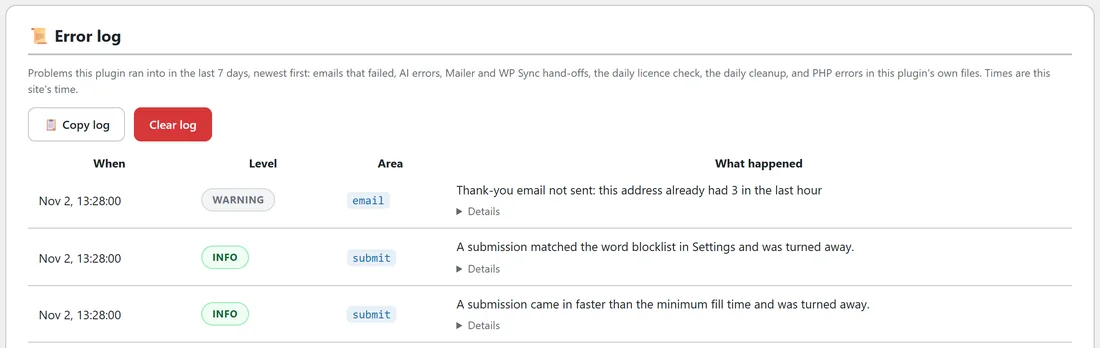
The log lists what the plugin ran into in the last 7 days, newest first, in your site's time: emails that could not be sent, AI errors in the provider's own words, Mailer and WP Sync hand-offs, the daily licence check, the daily cleanup, PHP errors in the plugin's own files, and Info lines for submissions turned away by the spam layers. Each line has a level (Info, Warning or Error), an area and a Details link. Copy log copies it for a ticket; Clear log empties it after you confirm. Keys and passwords are never written to it.
If a form does not show on the page:

- Open the page while logged in as an administrator. If you see "ResultsAiX Forms: form #3 is missing, empty or not active (only admins see this note)", open the Forms tab.
- Check the form is Active. Click Activate if it is a draft or closed.
- Check the number in the shortcode matches the form's id on the Forms tab.
- Check the form has at least one field.
If a visitor sees "That was a little too fast. Please try again.":
Lower Minimum seconds to fill a form in Settings, Spam protection, for example to 2 for a very short form. The Info lines in the error log show how often it happens.
If you see "Too many submissions. Please wait a few minutes.":
That is the rate limit of 10 submissions in 5 minutes from one visitor, usually reached while testing. Wait five minutes. On a site behind a proxy that does not pass on visitor addresses, many visitors can share one limit; ask your host to pass the real visitor address.
If notification emails do not arrive:
- In the form's builder, check Email me each submission is ticked and Send to is right.
- Check the Emails table on Diagnostics for the sender, and use an address on your own domain in Settings, Notifications.
- Look for email lines in the error log.
- If mail from your site lands in spam, set up an SMTP service, for example with ResultsAiX Mailer or an SMTP plugin; these emails then use it too.
If an uploaded file asks you to log in:
Uploaded files only open for a logged in administrator. Log in to the site, then click the link again.
If the AI buttons say AI is not set up:
Open Integrations and AI, add a key, click Save AI settings, then Test connection. Check Enable AI features is ticked. One key from any provider is enough.
If more leads show as Direct than you expect:
Direct means the browser shared no referrer. Add utm tags to the links in your emails, ads and social posts and those leads move into the right channel. See Lead Attribution: Traffic Source, UTM Campaigns, Device And Abandonment.
If a lead is not in your Mailer list:
Open the error log and look for a mailer line: the address may have asked not to be emailed, or the list may use double opt-in and be waiting for the person to confirm. The entry itself is always stored in Entries.
If the File uploads folder is not writable:
Ask your host to make wp-content/uploads writable by WordPress. Until then the other fields still work.
If the licence server is not reachable:
Click Check again. If it stays Not reachable, ask your host to allow outgoing HTTPS connections. Your forms keep working meanwhile.
Reading a log line:
Each line has four parts.
- When: the date and time in your site's time.
- Level: Info for things that went as designed, such as a blocked spam submission; Warning for something worth a look, such as a thank you email held back by the hourly limit; Error for something that did not work, such as an email the server could not send.
- Area: where it happened, for example submit, email, ai, mailer, wpsync, upload, licence or retention.
- What happened: one plain sentence. Click Details for the extra facts, such as the form id or the provider's own words.
In the Northfield Renovations log, the newest line is a Warning: a thank you email was not sent because that address had already had 3 in the last hour. Below it, two Info lines show spam turned away by the word blocklist and by the time trap.
If the error log shows a line about a pattern:
A line saying the format pattern on a field could not be checked on the server means the Pattern on that field is written in a way only the browser understands. Visitors are never blocked by it, and the browser still checks the format. Open the field in the builder and simplify the pattern.
If a form looks different from the preview:
The form's stylesheet carries its own colours and spacing, so most themes do not change it. If a page builder's own styles still reach the form, try the form on a plain page to compare, and check the Card theme and Accent color in the builder.
If the Dashboard shows a dash for Start to submit:
No starts have been counted in that range yet. Starts are counted from the moment someone types in a form, so a new form shows a dash until its first visitors arrive.
Before you open a ticket, step by step:
- Open Diagnostics and check every row in the Plugin table.
- Read the newest lines of the error log.
- Try the form yourself in a private browser window.
- Click Copy Report for Support and paste it into your ticket, with what you expected and what happened.
Server reachability, explained:
Update server checks your site can reach the place new versions come from; it shows the latest version it found. Licence server checks your site can reach the licence check. Both answers are kept for six hours and asked again after the page has loaded, so Diagnostics never waits. Check again asks straight away.
If a missing table was recreated:
Database Tables says "A missing table was just recreated. Your existing data was not touched." This happens after a database restore or a move that left a table behind. If a table cannot be created, the row says so; ask your host to check that the database user may create tables.
If the Daily cleanup cron says it is not scheduled yet:
It schedules itself on the next page load. Open any page of your site, then reload Diagnostics. If your site switches WordPress's own scheduler off, make sure your host runs a real scheduled task for WordPress instead.
Anything else:
Copy Report for Support, then Open Support and paste the report into a ticket.