Everything lives under AiX Accessibility in your WordPress dashboard menu, with the universal access symbol. This article is a tour of every tab, so you know where each setting and report is.
Where to find it:


Open AiX Accessibility in your dashboard menu. The menu also has shortcuts to Dashboard, Reading tools and Checker. The tabs run across the top of the screen, under the ResultsAiX Accessibility name and version.
On the free plugin a Get PRO link sits at the end of the tabs. If the ResultsAiX Hub is installed, a Hub tab takes you there. With PRO, an AI tab sits right after Checker.
Dashboard:
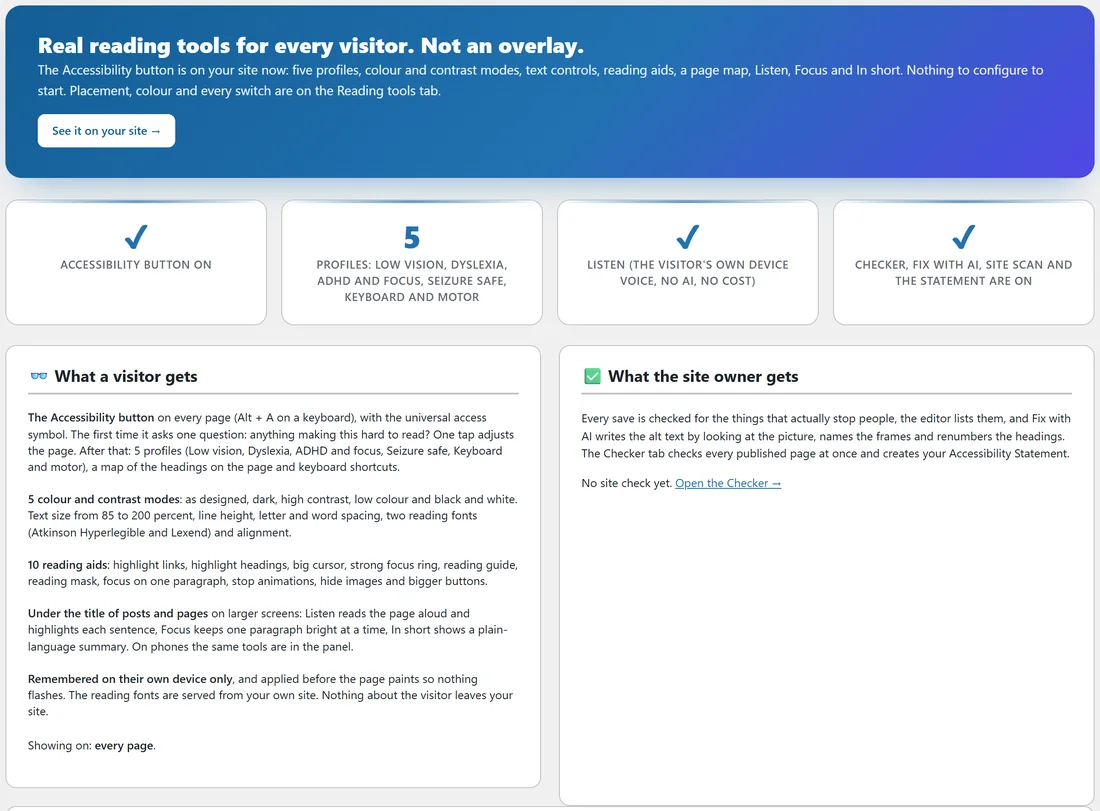

A quick picture of what is running.
- The banner, with See it on your site, which opens your home page in a new tab.
- Four cards: whether the Accessibility button is on, the five profiles by name, whether Listen is on, and the PRO features. On the free plugin the PRO card is marked PRO; with PRO it says the checker, Fix with AI, site scan and the statement are on.
- What a visitor gets: the button, the colour modes and text controls, the ten reading aids, the reading bar on the post types you ticked, and where choices are kept. Showing on: says every page, or which post types.
- What the site owner gets: on the free plugin, what PRO adds and a See Accessibility PRO button. With PRO, the date and result of your last site check and an Open the Checker link.
With PRO the Dashboard also has Your site check: pages checked, need attention, must-fix and worth fixing totals, a chart of What needs fixing by type, and from your second check on, Pages needing attention, check by check. Before your first check it shows Check my site. See PRO: The Checker On Every Save And The Whole-Site Scan.
Nothing about your visitors is counted on the Dashboard. Their choices never leave their own device.
Reading tools:
Every visitor switch, the button designer and where it all shows. See The Reading Tools Tab: Switches, Where It Shows, And The Article Selector and The Button: Placement, Style, Size, Colour And Word.
Checker:
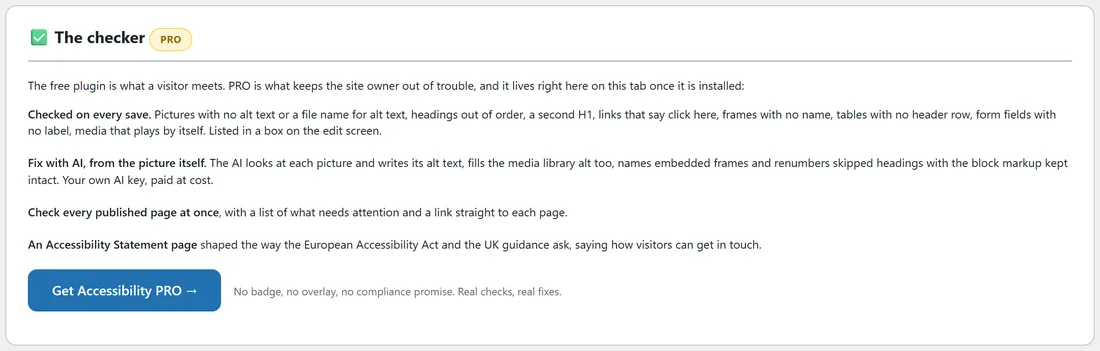
On the free plugin this tab explains what PRO adds for the site owner, with a Get Accessibility PRO button. With PRO it holds Your content, checked with the Check every published page button, The Accessibility Statement details, and Your statement page.
AI:
PRO only. Your own AI key for Fix with AI and In short. See PRO: Fix With AI, From The Picture Itself.
On any page:

On the free plugin this shows a locked card marked PRO with a Get ResultsAiX Accessibility PRO button. With PRO it gives you the one-line embed. See PRO: On Any Page, Any Domain, With One Line.
Training:
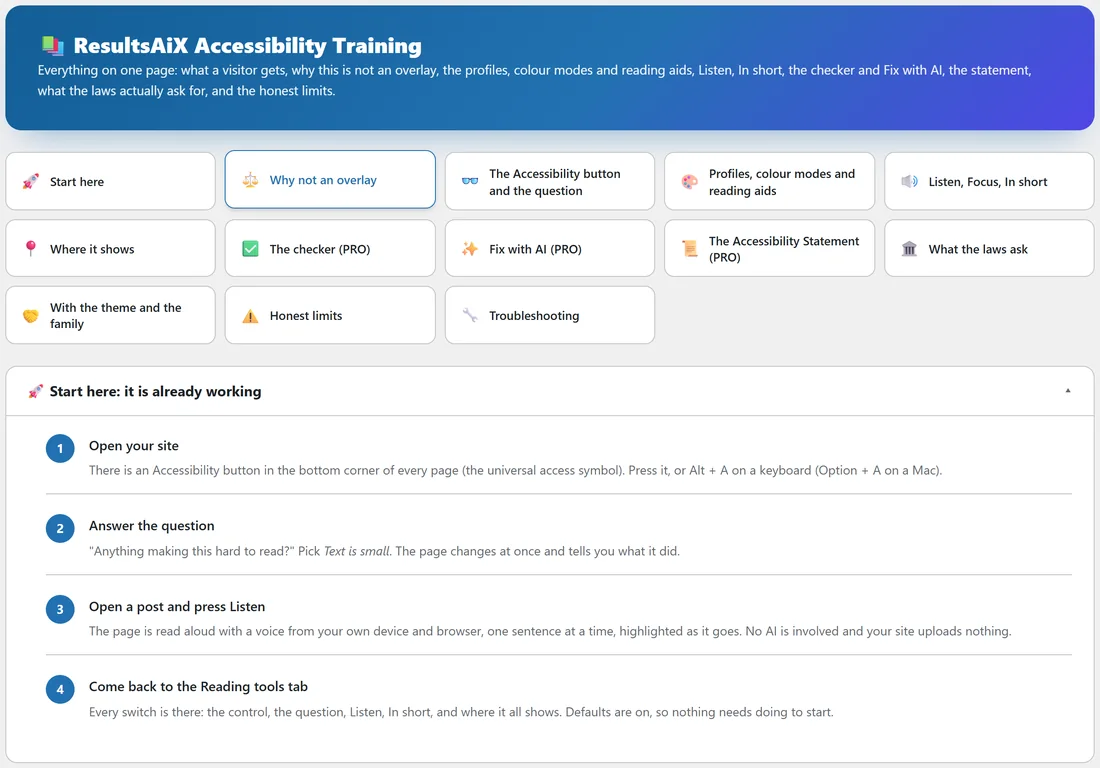
A guide inside the plugin with a table of contents: Start here, the button and the question, the profiles, colour modes and reading aids, Listen, Focus and In short, where it shows, the checker, Fix with AI, the statement, what the laws ask, working with the theme and the family, and troubleshooting. Each part opens and closes with one press.
Resources:
Other ResultsAiX tools that work alongside this one, grouped as Plugins and Add-ons, Platforms and Services, and Free Tools. Anything already on your site is marked Installed.
Settings:
- License: your key (partly hidden), its status, the email it is licensed to, and the sites using it, with Remove, Refresh License Info and Deactivate This Site. See Free Key, PRO Licence And Updates.
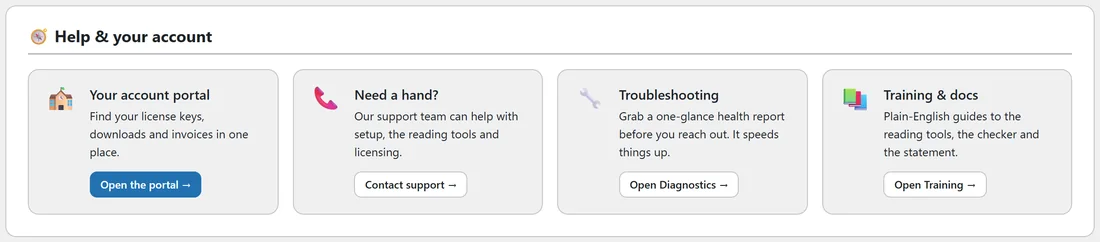
- Help & your account: four cards, Your account portal, Need a hand?, Troubleshooting (which opens Diagnostics) and Training & docs.
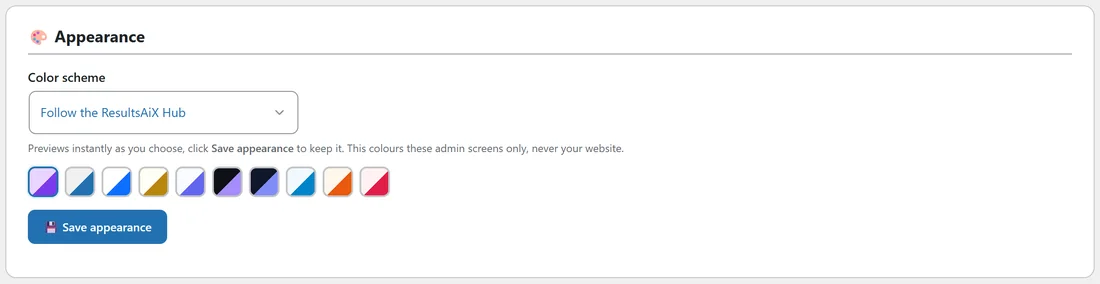
- Appearance: a Color scheme for these admin screens only. Choose one of nine schemes or Follow the ResultsAiX Hub, see it previewed straight away, and press Save appearance to keep it. It never changes your website.
Diagnostics:
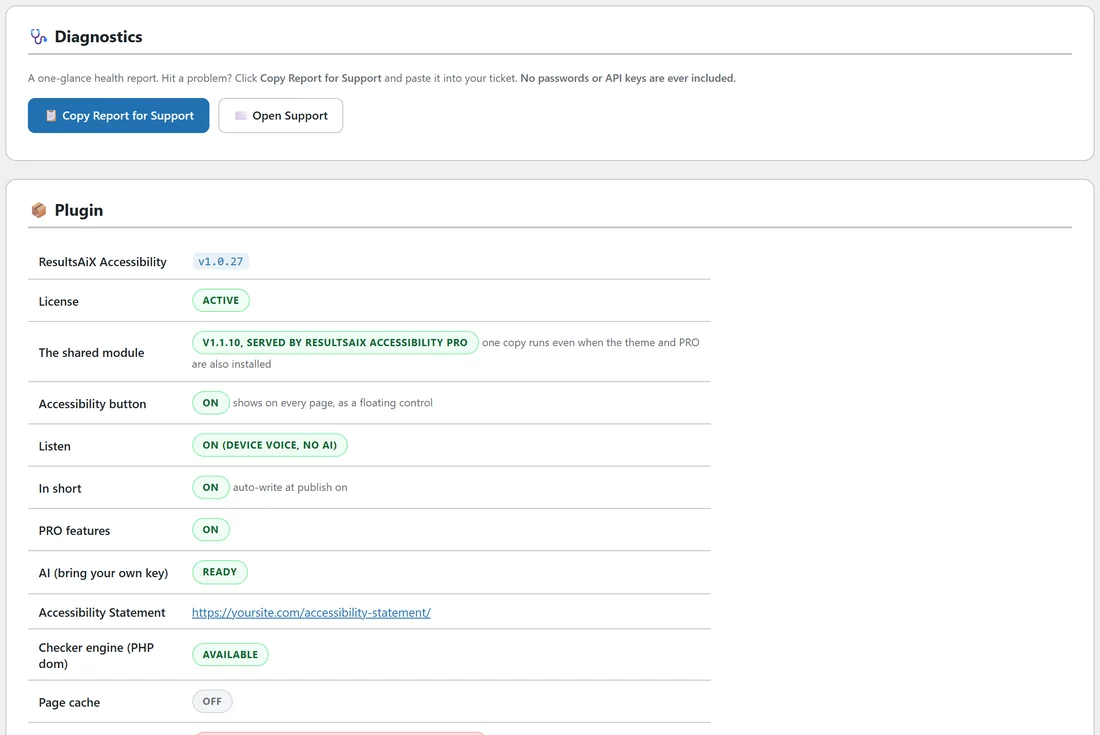
A one-glance health report.
- Copy Report for Support copies a plain text report to paste into a support request. No passwords or API keys are ever included. Open Support opens the support page.
- Plugin: the plugin version, the licence, the shared module and which product is serving it, the Accessibility button and where it shows, Listen, In short, the PRO features, the AI, your Accessibility Statement, the checker engine (PHP dom), page cache, and the error log for the last 24 hours.
- Error log: 7 days of anything the plugin had trouble with, every AI refusal in the provider's own words, any long job that started and never finished with the last step it reached, any PHP crash on the site and any slow request. Problems, Never finished and Everything filter it, Download the log gives you a text file for support, and Clear the log starts it fresh. Nothing about your visitors is written to it.
- Family connections: which other ResultsAiX products are detected.
- Environment: WordPress, PHP, theme, site address and HTTPS.
On your edit screens:
Two boxes can appear in the side column when you edit a post or page of a ticked type.
- In short (plain-language summary), when In short is switched on. See Listen, Focus And In Short.
- Accessibility check. On the free plugin it describes what PRO checks, with a Get ResultsAiX Accessibility PRO button. With PRO it shows the real findings, Check now and Fix with AI.
A real example:
When Maya first installs PRO on yoursite.com she starts on the Dashboard, presses Check my site, and lands on the Checker tab. A week later she opens Diagnostics, presses Copy Report for Support, and pastes the report into a question for the support team, which answers on the same day.
Tips:
- Bookmark the Dashboard. With PRO it is the fastest way to see how your site check is moving.
- Use Diagnostics first whenever something looks different from these docs.