Most questions have a quick answer. Each section below starts with what you see and gives the steps that sort it out.
Start with Diagnostics:
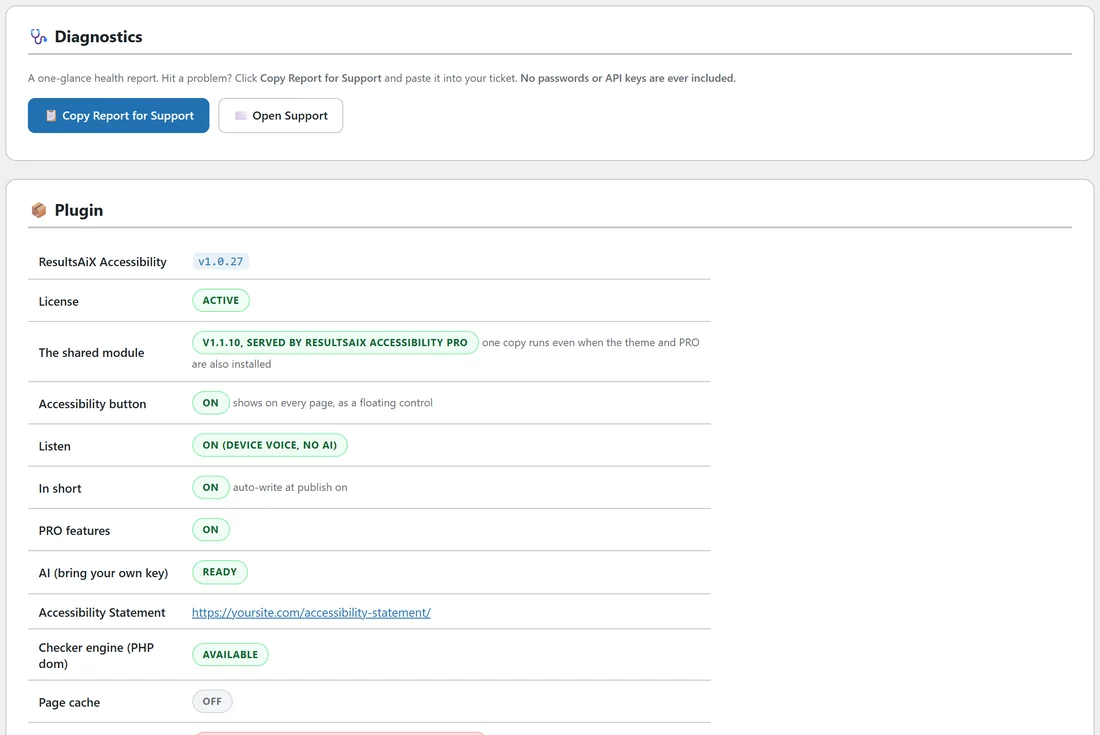
Open AiX Accessibility, Diagnostics. The Plugin table shows at a glance what is on, which copy of the reading tools is running, and whether the checker engine is available. The Error log under it shows anything the plugin had trouble with in the last 7 days, including every AI refusal in the provider's own words and any long job that never finished, with the last step it reached. Download the log and attach it to your support request.
If you see no Accessibility button on the site:
- On the Reading tools tab, check that The Accessibility button and panel is switched on.
- If On every front-end page is switched off, the button shows only on single posts of the ticked types.
- On a phone, check that Show the button on phones is switched on.
- If you pressed Hide the button for today while testing, it stays hidden in that browser for 24 hours. Press Alt + A, or open a private window.
- Clear the cache of any caching or optimisation plugin.
- Look a little higher up the screen: a corner button moves clear of cookie notices and sticky bars in its corner.
If your changes do not show:
Press Save at the bottom of the Reading tools tab, then clear any page cache. Your own earlier choices as a visitor are kept in your browser too, so press Reset in the panel to see the page fresh.
If Listen reads the menu or Focus dims nothing:
The plugin has picked another box for the article on your theme. The same thing stops the text size slider changing the article. Put your theme's article selector in the Advanced field on the Reading tools tab, for example .entry-content, and press Save.
If the Listen button is not there:
Check the Listen switch on the Reading tools tab. Listen is also hidden on any page where no article text is found. On phones and other narrow screens the reading bar is hidden, and Listen is in the panel.
If Listen stays quiet:
Listen uses the voices on the visitor's own device, so check the device volume first. If a browser has no working voice, Listen says so after about two seconds. The built-in browsers inside the Facebook, Instagram and Messenger apps are the usual reason, and opening the page in the device's main browser fixes it. If the Voice list is empty at first, give it a moment: some browsers load their voices after the page.
If Listen speaks in another language:
Listen reads in the language your page declares. Check Settings, General, Site Language in WordPress, then pick a matching voice in the panel.
If Dark looks partly changed on your theme:
On themes other than the ResultsAiX Theme, Dark works by flipping the page's colours while keeping pictures natural. Designs with colours built into images or fixed backgrounds may only partly change. High contrast gives the strongest result on any theme.
If the reading fonts do not change the text:
Both fonts come with the plugin and load from your own site the first time they are picked. Clear your page cache and any optimisation plugin's cache, and check that nothing on your site blocks font files from the plugin's own folder.
If you see two accessibility buttons:
Another accessibility plugin or overlay widget is running. Deactivate the other one. ResultsAiX products never print these tools twice: when the theme, the free plugin or PRO are installed together, only one copy runs, and Diagnostics names it.
If the menu shows only the key screen:
The site does not have an active key yet. Press Get my free key and activate, or paste your key and press Activate license. Visitors keep the reading tools meanwhile.
If you see Could not reach the license server:
Your server could not connect for a moment. Wait a minute and try again. If it keeps happening, ask your host whether outgoing connections from your site are allowed.
If you see This license has no available sites left:
Your key is in use on three sites. On one of them open AiX Accessibility, Settings, and press Remove next to a site you no longer use.
If the In short box is not on the edit screen:
Check that In short is switched on and the post type is ticked on the Reading tools tab. Then check the editor's own options (Screen Options in the Classic Editor, or Preferences, Panels in the block editor) in case the box is hidden there.
If Write In short with AI is greyed out:
It needs an AI key: Accessibility PRO with a key on its AI tab, or the ResultsAiX Theme's AI. The switch says where to add it.
If the Accessibility check box says Nothing checked yet:
The post has not been saved since PRO was activated. Press Check now in the box, or save the post.
If Fix with AI shows a message from your AI provider:
The box shows the provider's own words, for example about a key or a balance. Open the AI tab, press Test the connection, and follow what the provider says. The same message is in the Error log on Diagnostics.
If the button sits on top of your chat bubble:
The button steps clear of the other ResultsAiX corner buttons by itself. For another company's chat bubble, pick a different corner on the Reading tools tab, for example Bottom left corner, or raise Distance from the edge.
If the Accessibility check box is not on the edit screen:
The box appears with PRO active and licensed, on post types ticked on the Reading tools tab. Check both, then look in the editor's own options in case the box is hidden there.
If Check every published page stops part way:
Press it again. Each run starts from the first page. If it stops at the same place, the Error log shows the site check as never finished with the last step it reached; send that to support.
Still stuck:
Open AiX Accessibility, Diagnostics, press Copy Report for Support, and paste it into a request at https://kevinfahey.org/contact-support/.