The Reading tools tab is where you decide what your visitors get and where they get it. It has three cards, What every visitor gets, The button and Where it shows, and one Save button at the bottom.
Where to find it:
Open AiX Accessibility, Reading tools. There is also a Reading tools shortcut in the AiX Accessibility menu. Change what you like and press Save at the bottom. A green note says Saved. The change is live on your site now. If you use a caching plugin, clear its cache so visitors get the new page.
What every visitor gets:
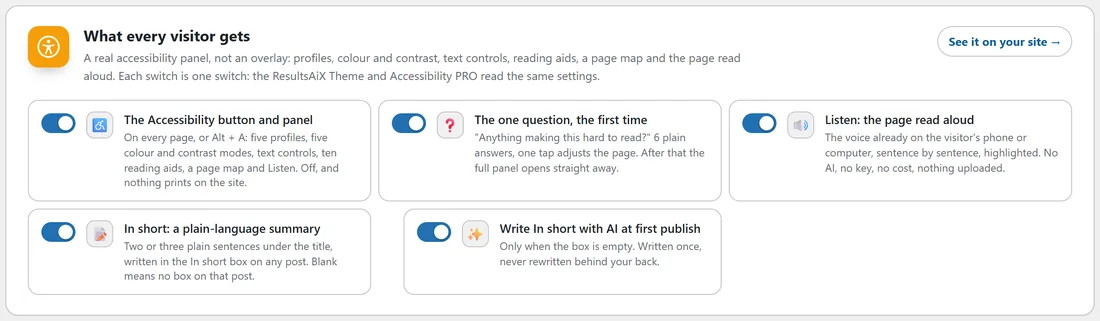
Each switch is one switch everywhere: the ResultsAiX Theme and Accessibility PRO read the same settings. See it on your site, in the top corner of the card, opens your home page in a new tab.
- The Accessibility button and panel: the whole visitor side. Switch it off and nothing prints on your site at all: no button, no panel, no bar.
- The one question, the first time: asks Anything making this hard to read? the first time a visitor opens the panel, with six plain answers. Off, and the panel opens straight to every option.
- Listen: the page read aloud: the visitor's own device voice, sentence by sentence. Off removes Listen from the panel, the bar and the first-visit answers.
- In short: a plain-language summary: shows the In short box on your edit screens and the summary on the page. Off hides both.
- Write In short with AI at first publish: writes In short once, when a post is first published with the box empty. It needs an AI key, from Accessibility PRO with a key or from the ResultsAiX Theme's AI. Until then the switch is greyed out and says where to add the key, and saving the tab leaves it set as it was.
- The Listen bar on Landing pages too: shown only when the ResultsAiX Theme's Landing (No Chrome) template is available, and off unless you switch it on. Off, offer and checkout pages on that template carry no reading bar above the content. The Accessibility button is there either way.
Good values for most sites: everything on, and the Landing pages switch off.
The button:
Where the button sits, its distance from the edge, style, size, colour and word, and three extra switches, with a live preview. All of it is covered in The Button: Placement, Style, Size, Colour And Word.
Where it shows:
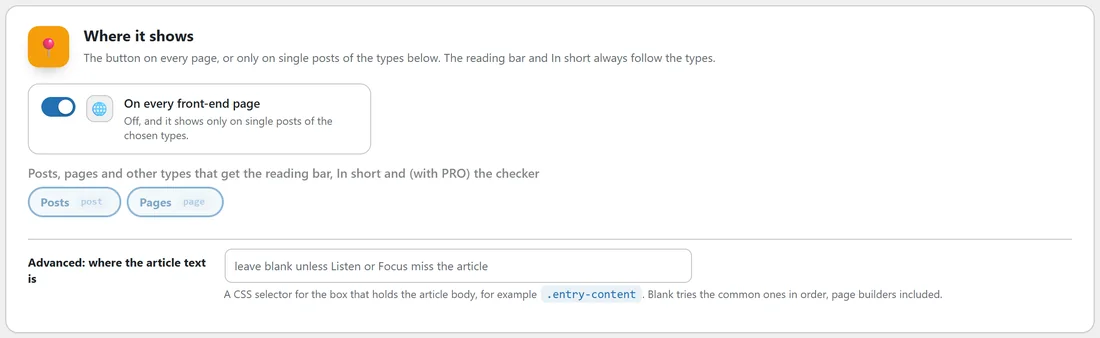
- On every front-end page: on by default. The button appears on every page of your site, apart from feeds and embeds.
- Switch it off and the button appears only on single posts of the types you tick below. Everywhere else nothing is added.
- The post type boxes, under Posts, pages and other types that get the reading bar, In short and (with PRO) the checker, list every public post type on your site: posts, pages and any custom types, such as trainings or products. Posts and pages are ticked to begin with.
The ticked types get the reading bar and the In short box, and with PRO the Accessibility check box and the whole-site check. Untick every box and no post type gets the reading bar, In short or the checker; with On every front-end page switched on, the button still shows everywhere.
The reading bar and In short only ever appear on single views of the ticked types, never on archive or blog list pages.
Advanced, where the article text is:

Listen, Focus and the text controls need to know where the article body is on the page. Leave the field blank and the plugin tries a list of common article containers in order, page-builder layouts included, and uses the first one with real text in it. On most themes that simply works.
If Listen reads the menu, Focus dims nothing, or the text size slider does not change the article, put your theme's own selector for the article body here, for example .entry-content. You can list several, separated by commas; they are tried in order. Only the characters CSS selectors use are accepted, and anything else is cleared when you save.
To find your theme's selector:
- Open a post on your site in Chrome, Edge or Firefox.
- Right-click the first paragraph and choose Inspect.
- Look up the tree for the box that wraps the whole article, and copy its class, for example entry-content.
- Type it into the field with a dot in front, .entry-content, and press Save.
If the ResultsAiX Theme is active:
The theme decides the post types for itself and offers its header as a place for the button, so the two Where it shows settings here are kept for the day you change theme. A note on the tab says so.
Try it as a visitor:
The last card on the tab, Try it as a visitor, has an Open your site button. Open any post, press the Accessibility button or Alt + A, and answer the question. Every choice is stored in that browser only, so open a private window to see the first visit again.
A real example:
Maya adds a custom post type, Plant guides, to Green Lane Garden Studio. On the Reading tools tab she ticks Plant guides next to Posts and Pages and presses Save. Every plant guide now has the reading bar and the In short box, and PRO checks each one on save. Her theme already uses .entry-content, so she leaves the Advanced field blank.
Tips:
- Switching off The Accessibility button and panel is the quick way to pause the visitor side without deactivating anything. Every setting is kept.
- After changing where it shows, clear your page cache and check a page in a private window.