Fix with AI does the slow parts of accessibility for you. It looks at a picture and writes what it shows, names embedded frames and puts headings back in order, right in the editor, for you to read and save.
Where to find it:
In the Accessibility check box on the edit screen, next to Check now. It appears once you have added an AI key on the AI tab. Without a key the box says where to add one.
What it does:
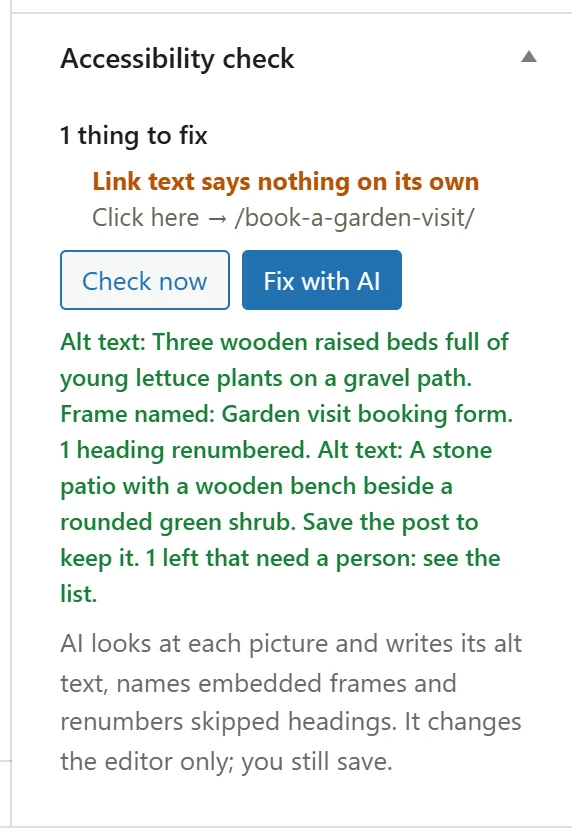
Press Fix with AI and it works through the post in the editor. The line under the buttons says Looking at the pictures and fixing what it can, one at a time, and then lists what it did.
Alt text:
For a picture with no alt text, or a file name for alt text, the AI looks at the picture itself and writes one plain sentence of up to 16 words saying what it shows, including any text in it. Pure decoration, such as a divider or a texture, is marked as decorative instead, with an empty alt text.
When the picture is in your media library and its alt text there is empty, that is filled in too, so the next time you use the picture it is already right.
It works one picture at a time, each in its own short request, so a slow AI never runs into your host's time limit. It handles up to twelve pictures per press. Pictures must be JPEG, PNG, GIF or WebP and no bigger than 4 MB.
Frame names:
Embedded frames with no name get one. Common video, map, music, social, booking, form and document embeds are named from their address without asking the AI, for example YouTube video, Google Map, Booking calendar or Form. For anything else the AI suggests a short name from the address.
Heading order:
A second H1 becomes an H2, and a skipped level moves up to the next one, so an H4 straight after an H2 becomes an H3. The block editor's own markup is kept in step, including a heading's own size and colour settings.
You stay in charge:
Fix with AI changes the post in the editor, not the saved post, in the block editor and in either tab of the Classic Editor.
- Read the result in the line under the buttons, for example Alt text: Three wooden raised beds full of young lettuce plants on a gravel path.
- Look over the pictures and headings in the post.
- Save the post to keep it.
Leave without saving and the post is unchanged, apart from any media library alt text it filled in. After each fix it checks again and tells you what is left, for example 1 left that need a person: see the list. Empty links, unlabelled fields, tables and captions need a person, and the list says so.
Posts with several pictures:
In the block editor, check each picture's Alternative text in its block settings after Fix with AI, especially in a post with several pictures that had no alt text at all. The block editor saves a picture with no description as decorative, so a picture the AI did not describe can show an empty Alternative text and no longer appear in the list. Type a short description there for any picture that shows something your readers need. Pictures whose alt text was a file name are always described by the AI.
Your AI key:
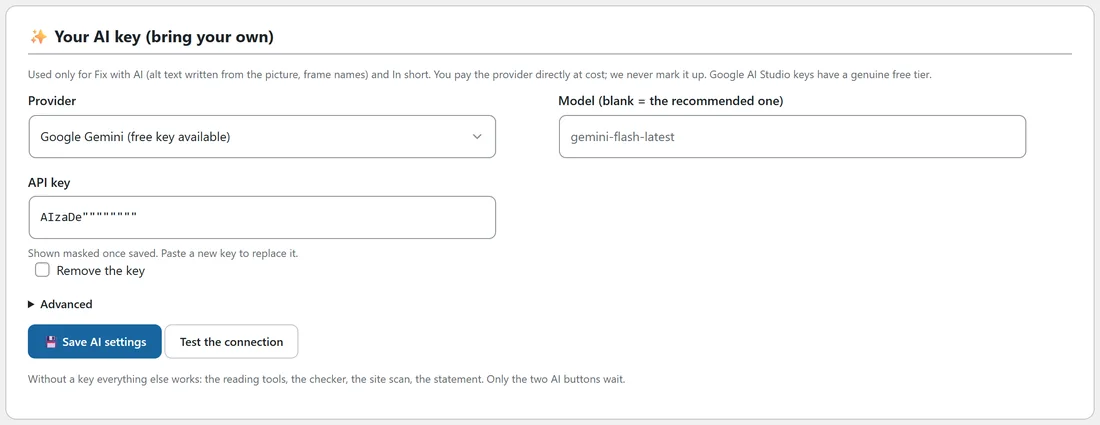

Open AiX Accessibility, AI.
- Choose a Provider: Google Gemini (free key available), Anthropic Claude or OpenAI.
- Leave Model blank to use the recommended model, shown greyed in the box, or type the name of a model your provider offers.
- Paste your API key and press Save AI settings.
- Press Test the connection. A working key answers Connected. The AI answered: OK.
You pay your provider directly, at their own rates. Once saved, the key is shown only partly. To replace it, paste a new one over it and save; to remove it, tick Remove the key and save.
Advanced:
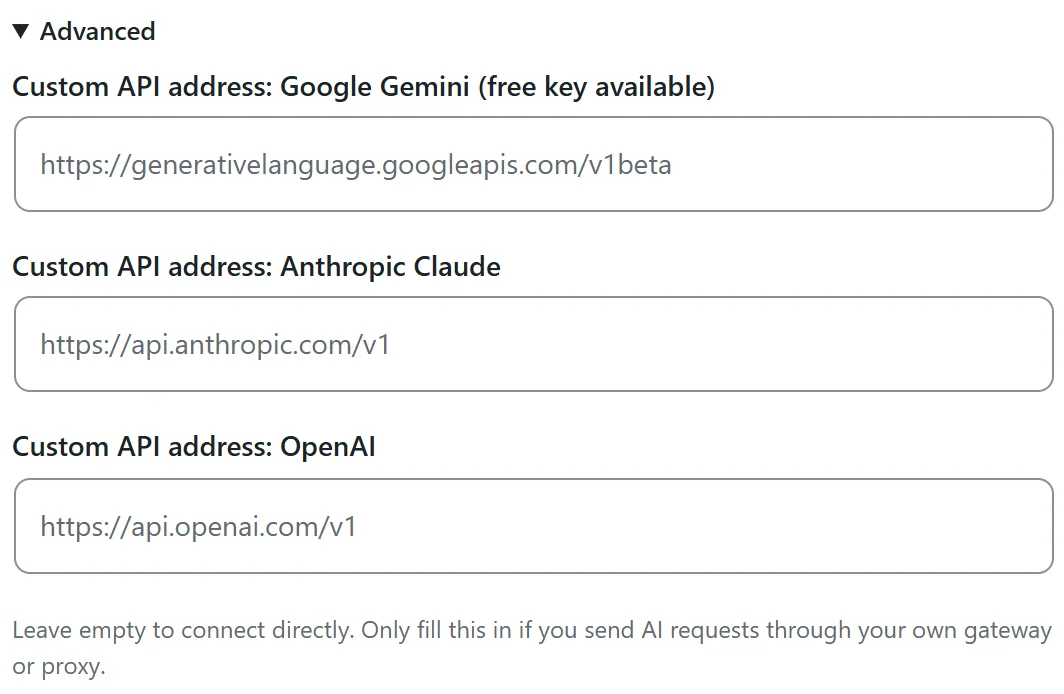
Under Advanced on the AI tab is a Custom API address for each provider. Leave them empty to connect directly. Fill one in only if you send AI requests through your own gateway or proxy.
Without a key:
Everything else in PRO works: the reading tools, the checker, the whole-site check and the statement. Only Fix with AI and the AI side of In short wait.
If the ResultsAiX Theme is active and has its own AI key, Fix with AI and In short use the theme's AI, and the AI tab says there is nothing to set.
In short by AI:
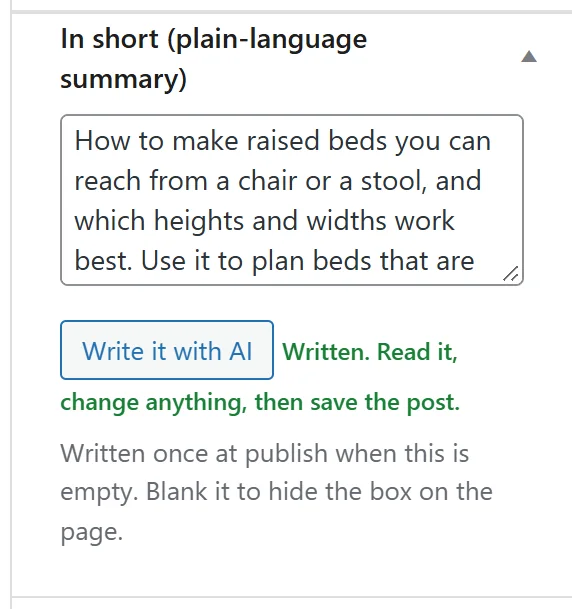
With a key, the In short box on the edit screen gets a Write it with AI button. Press it and a two or three sentence summary of under 60 words is written into the box, with the note Written. Read it, change anything, then save the post. It needs at least 200 characters of text on the page to summarise.
With Write In short with AI at first publish switched on (on the Reading tools tab), a post published for the first time with an empty In short box gets one written for it, once. It is never rewritten.
If the AI provider says no:
If a request is turned down, for example for a key or a balance, the box shows the provider's own words, and so does the Error log on the Diagnostics tab.
A real example:
Maya opens Raised Beds You Can Reach From A Chair. The Accessibility check box lists 6 things to fix. She presses Fix with AI. A few seconds later the box reads: Alt text: Three wooden raised beds full of young lettuce plants on a gravel path. Frame named: Garden visit booking form. 1 heading renumbered. Alt text: A stone patio with a wooden bench beside a rounded green shrub. Only the Click here link is left, which she rewrites herself. She checks the leaf divider picture is marked decorative, and saves the post.
Tips:
- Read every alt text the AI writes. You know what matters in your own pictures.
- Gemini's free key is a good way to start.