Under Tools in the panel are ten reading aids. Each one is a switch: press to turn it on, press again to turn it off. This article explains what each aid does on the page and who it helps.
Where to find them:
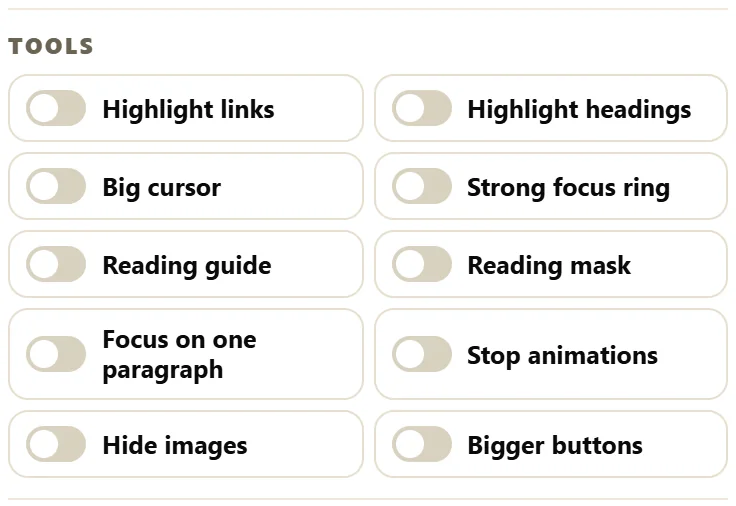
Open the Accessibility button, or press Alt + A, and scroll to Tools. A switch that is on shows filled in. The aids combine freely, except the Reading guide and the Reading mask, which replace each other.
The ten aids:
- Highlight links: every link gets a gold outline, a pale background, dark text and an underline, so no link can be missed.
- Highlight headings: every heading gets a gold outline and a thick gold underline, so the shape of the page stands out.
- Big cursor: a large, high-contrast arrow, and a large pointing hand over links and buttons.
- Strong focus ring: whatever has the keyboard focus gets a thick gold outline with a dark halo, so keyboard users always know where they are.
- Reading guide: a gold band across the screen that follows the mouse or finger, like a ruler under the line being read.
- Reading mask: dims the screen above and below a clear strip that follows the mouse or finger, so only a few lines are in view.
- Focus on one paragraph: the paragraph, heading or list in view stays bright and the rest of the article dims. Pictures and embedded frames in the article are hidden while it is on; tables, pull quotes and code blocks stay. On the ResultsAiX Theme the article also narrows to a comfortable column and side panels are hidden.
- Stop animations: stops animations, transitions and smooth scrolling, and pauses any video that is playing.
- Hide images: hides pictures, videos, figures, graphics and background images, leaving the text. The space they took up is kept, so the layout does not jump.
- Bigger buttons: buttons grow to at least 48 by 48 pixels with larger text, and links get a little more room and an underline, so they are easier to hit.
Highlight links and headings on the page:
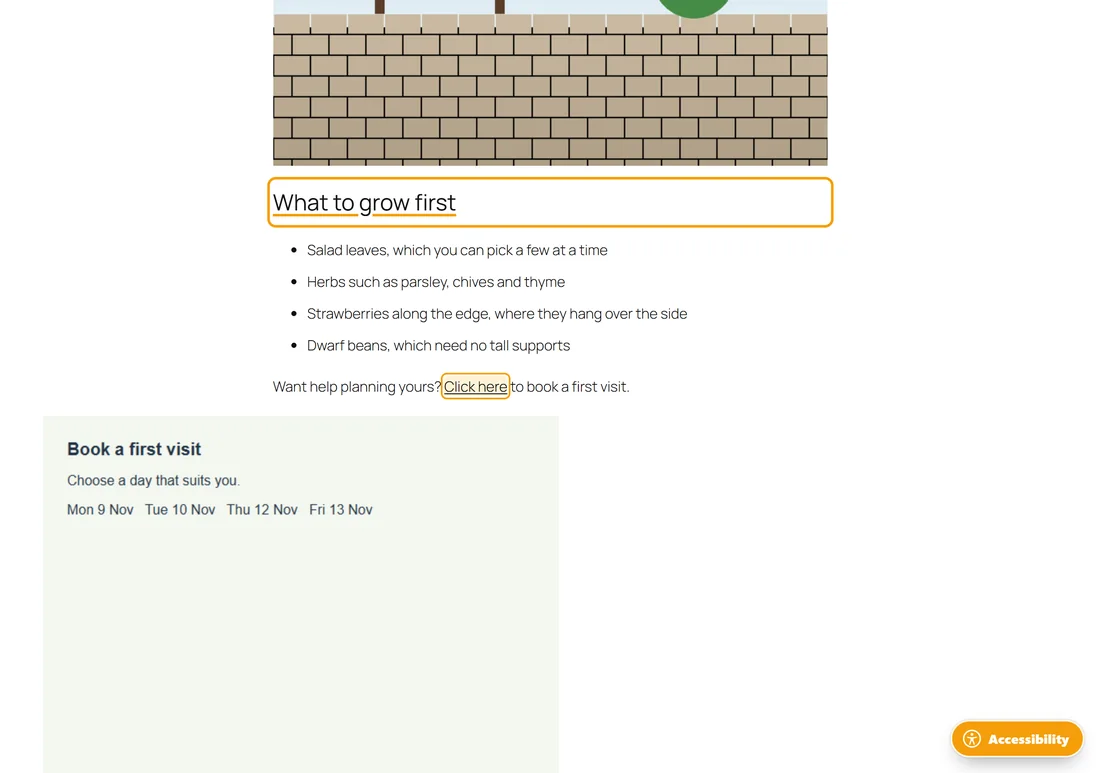
With both switched on, a reader scanning a long post sees every heading and every link at a glance. This is part of the Low vision profile.
Bigger buttons and the focus ring:
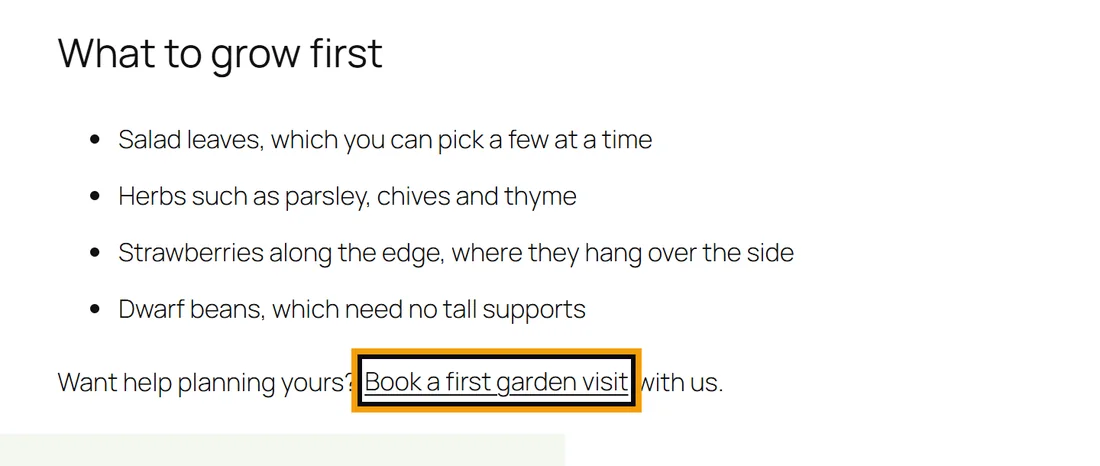
Together these make a page much easier with a keyboard or with unsteady hands. Both are part of the Keyboard and motor profile.
Moving the guide and the mask with the keyboard:
When the Reading guide or the Reading mask is on, the Up and Down arrow keys move it, as long as the keyboard is not in a form field or in the panel.
Focus from the reading bar:
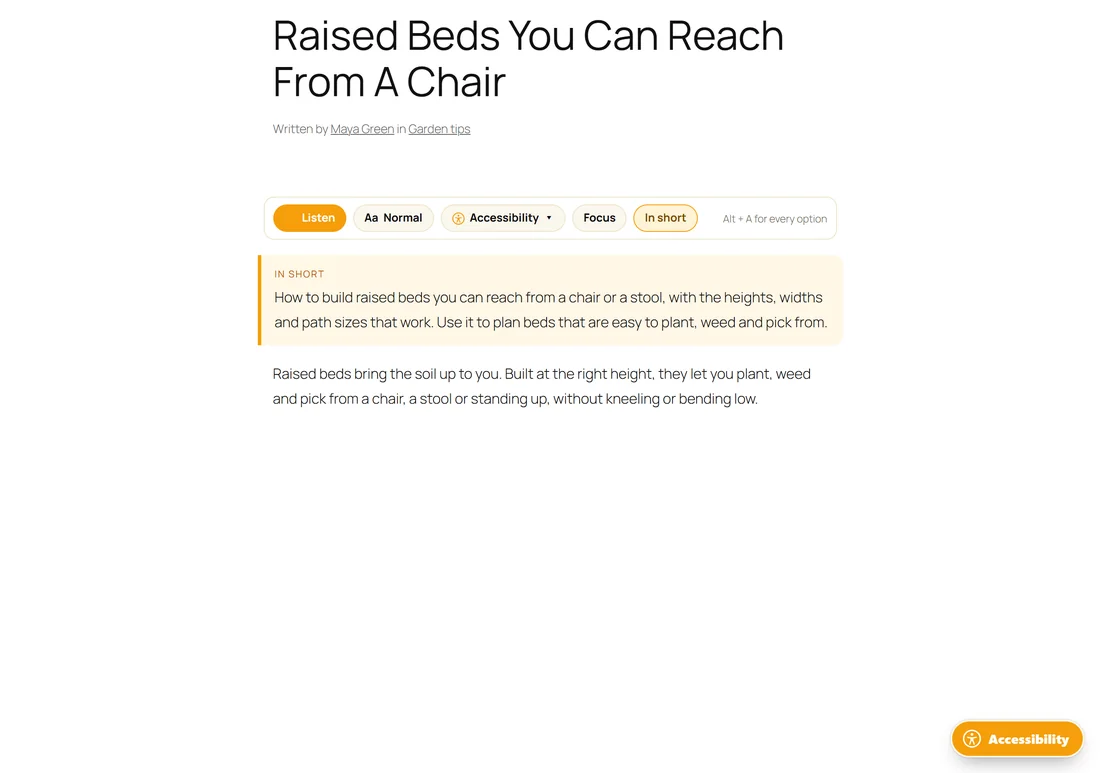
The Focus button on the reading bar is the same switch as Focus on one paragraph, one press away while reading.
Focus needs the article:
Focus on one paragraph works inside the article text the plugin finds on the page. If it dims nothing on your theme, set the article selector described in The Reading Tools Tab: Switches, Where It Shows, And The Article Selector.
Which aids help whom:
- Reading and attention: Reading guide, Reading mask and Focus on one paragraph keep the eye on one place.
- Sight: Highlight links, Highlight headings and Big cursor make the important parts easy to find.
- Keyboard and movement: Strong focus ring and Bigger buttons make every control easy to see and hit.
- Comfort: Stop animations and Hide images calm a busy page.
How aids work with the colour modes:
Every aid works in every colour mode. A reader can use Dark with the Reading guide, or High contrast with Highlight links. The gold of the guide, the outlines and the focus ring stays visible in each mode.
Turning aids off:
Press the switch again, or press Reset at the top of the panel to turn every aid off at once along with every other choice.
A real example:
A visitor with a tremor finds small links hard to tap on the Green Lane Garden Studio blog. She switches on Bigger buttons and Strong focus ring. The link Book a first garden visit gets more room and an underline, and when she tabs to it, a thick gold ring shows exactly where she is.
Tips:
- Hide images is handy for readers on slow connections or anyone who finds pictures distracting.
- Profiles switch on groups of these aids for you. See The Five Reading Profiles, One By One.