This article covers your key: what it does, how to manage the sites that use it, how to move from the free plugin to PRO, and how updates arrive.
Your free key:
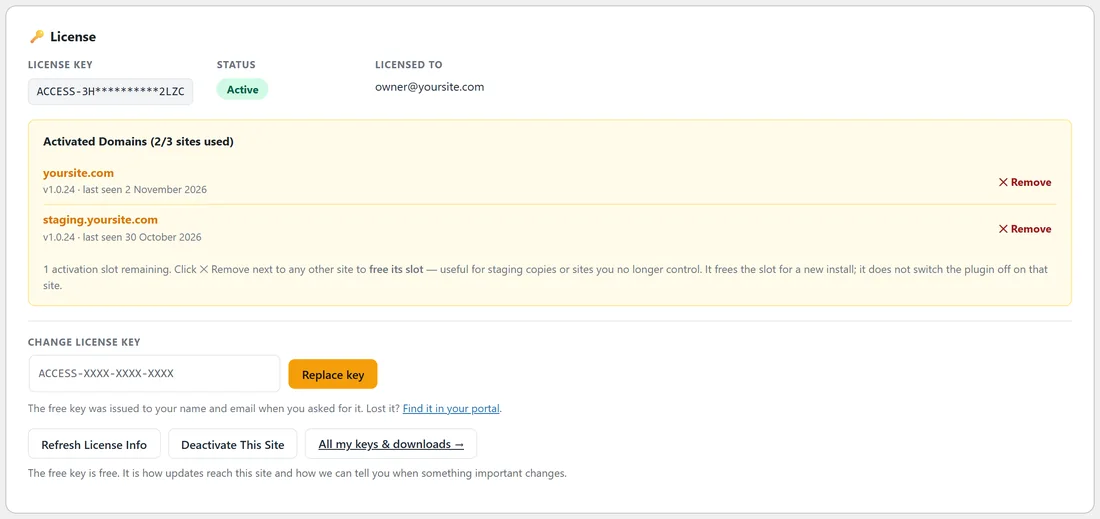
The free key is how updates reach your site and what opens the plugin's settings screens. It is tied to your email, covers three of your own sites and never expires. How to get it is in Installing, Activating And Your Free Key.
The reading tools for your visitors work on every site where the plugin is active, with or without a key.
The licence panel:
Open AiX Accessibility, Settings. The License panel at the top shows:
- License Key, partly hidden.
- Status, Active when all is well.
- Licensed To, the email the key belongs to.
- Activated Domains, every site using the key, with how many of your sites are used, for example 2/3 sites used.
- Change license key, a box to paste a different key, with Replace key.
- Refresh License Info, Deactivate This Site, and All my keys & downloads, which opens your account portal.
Managing your sites:
- Remove, next to another site, frees that site's slot so you can use the key somewhere new. Handy for staging copies or sites you no longer run. It frees the slot; it does not switch the plugin off on that site.
- Refresh License Info fetches the latest status and site list.
- Deactivate This Site releases this site from the key. The settings screens then ask for a key again, while visitors keep the reading tools.
Deactivating the plugin in Plugins also releases this site's slot on the key. When you activate it again, press Get my free key and activate, or paste your key. Lost your key? Find it in your account portal at https://resultswithkevin.com/portal/.
Accessibility PRO:
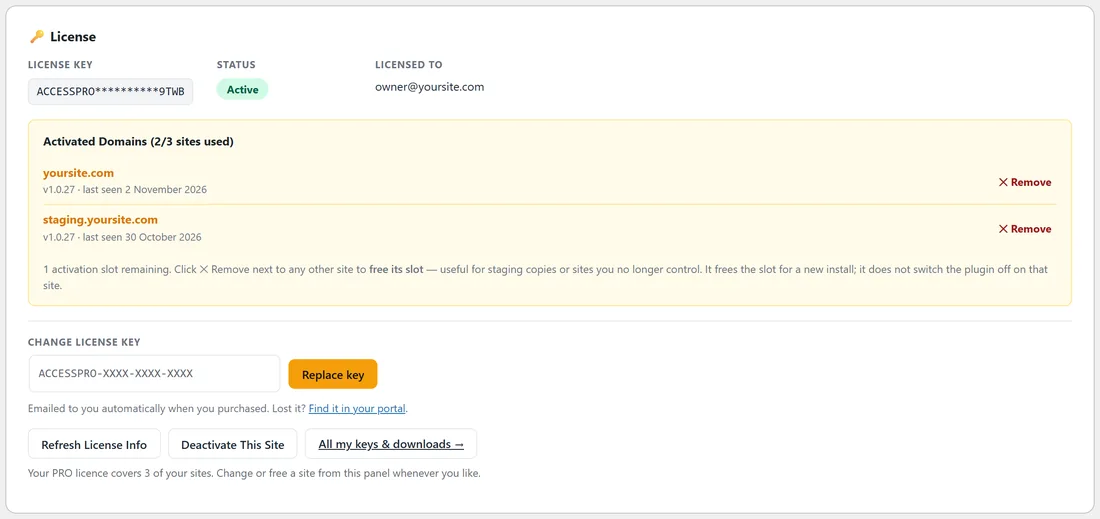
Accessibility PRO is one install with everything in it: all the reading tools your visitors get, plus the checker, Fix with AI, the whole-site check, the Accessibility Statement, the one-line embed and the AI tab. It has its own licence key, which starts with ACCESSPRO and comes in your purchase email. It covers three of your sites.
Moving from the free plugin to PRO:
- In Plugins, Add New Plugin, Upload Plugin, install the Accessibility PRO zip and press Activate Plugin.
- The free plugin is switched off for you, and a notice says ResultsAiX Accessibility PRO is in charge now. Your settings carry over, because both plugins read the same settings.
- Open AiX Accessibility. You see Activate your license. Paste your PRO key and press Activate license.
- The Checker and AI tabs come to life and the Accessibility check box appears on the edit screens of your ticked post types.
Until the PRO licence is active, AiX Accessibility shows only the licence screen, and your visitors keep every reading tool.
The free plugin stays deactivated and does nothing while PRO is installed. You can delete it from Plugins; your settings stay, because PRO uses them.
Updates:
Updates arrive like any other plugin's: in Dashboard, Updates and on the Plugins screen, where you can update with one click or switch on auto-updates. Opening the Plugins screen always checks for the newest version.
A real example:
Maya uses her free key on yoursite.com and on staging.yoursite.com, her test copy. When she moves to PRO she installs it on both, and the PRO licence panel lists yoursite.com and staging.yoursite.com, 2/3 sites used. When she retires the staging copy she presses Remove next to it, and the slot is free for her next site.
Moving a site to a new domain:
- On the old site, open AiX Accessibility, Settings, and press Deactivate This Site.
- Move the site to the new domain.
- On the new site, open AiX Accessibility and press Get my free key and activate, or paste your key and press Activate license.
If the old site is already gone, press Remove next to its domain in the licence panel on any of your other sites.
Staging and test copies:
A staging copy uses one of your three sites while it holds the key. When you finish with it, press Remove next to it, or Deactivate This Site on the copy itself.
Getting help:
For fixes to the common problems see Troubleshooting: Fixes For The Common Problems. For anything else, open Diagnostics, press Copy Report for Support and send it with your request at https://kevinfahey.org/contact-support/.